 Free Practice Workbook
Conditional Formatting is used to highlight important information in Excel so that you don’t miss it. However, it may be difficult to understand which rule to apply and how. This is where Copilot becomes helpful – you can explain the condition in simple words, and it will be executed. In this article, you will learn how to use Copilot to conditionally format cells in Excel.
Key Takeaways:
- Copilot can apply Conditional Formatting using simple prompts.
- You can highlight values, duplicates, and dates easily.
- Clear prompts help Copilot understand your formatting needs.
- Copilot saves time when creating formatting rules.
- Always review the formatting applied by Copilot.
Table of Contents
Introduction to Copilot
What is Copilot?
Copilot is an AI-powered assistant available in Excel that can execute tasks for you. Instead of following complex steps or writing large formulas, you can simply explain the task in simple language. For example, you can ask Copilot to:
- Highlight sales above a specific amount.
- Find and format duplicate values.
- Identify low-performing products.
- Highlight overdue dates.
- Apply color scales to numerical data.
You can change your prompt based on your data and the information you want to highlight.
Why Use Copilot for Conditional Formatting?
If you need to highlight sales above $5,000 in a dataset, you need to follow a complicated process. But Copilot allows you to explain the result in simple language, and the steps will be done by it. Copilot understands the condition and helps apply the appropriate formatting.
This helps you save time and also reduces the chance of creating an incorrect rule.
It is especially useful when you are unsure which Conditional Formatting option to select. You can focus on the result you want instead of searching through different rules and settings.
How to Use Copilot to Conditionally Format Cells in Excel
Highlight High Sales Amount
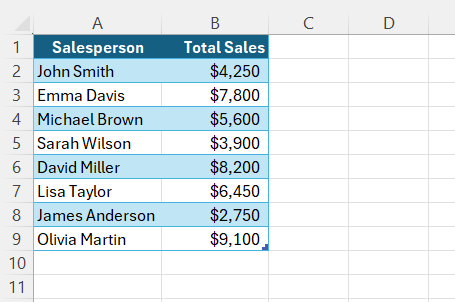
STEP 1: Organize the data in a table format with column headers.
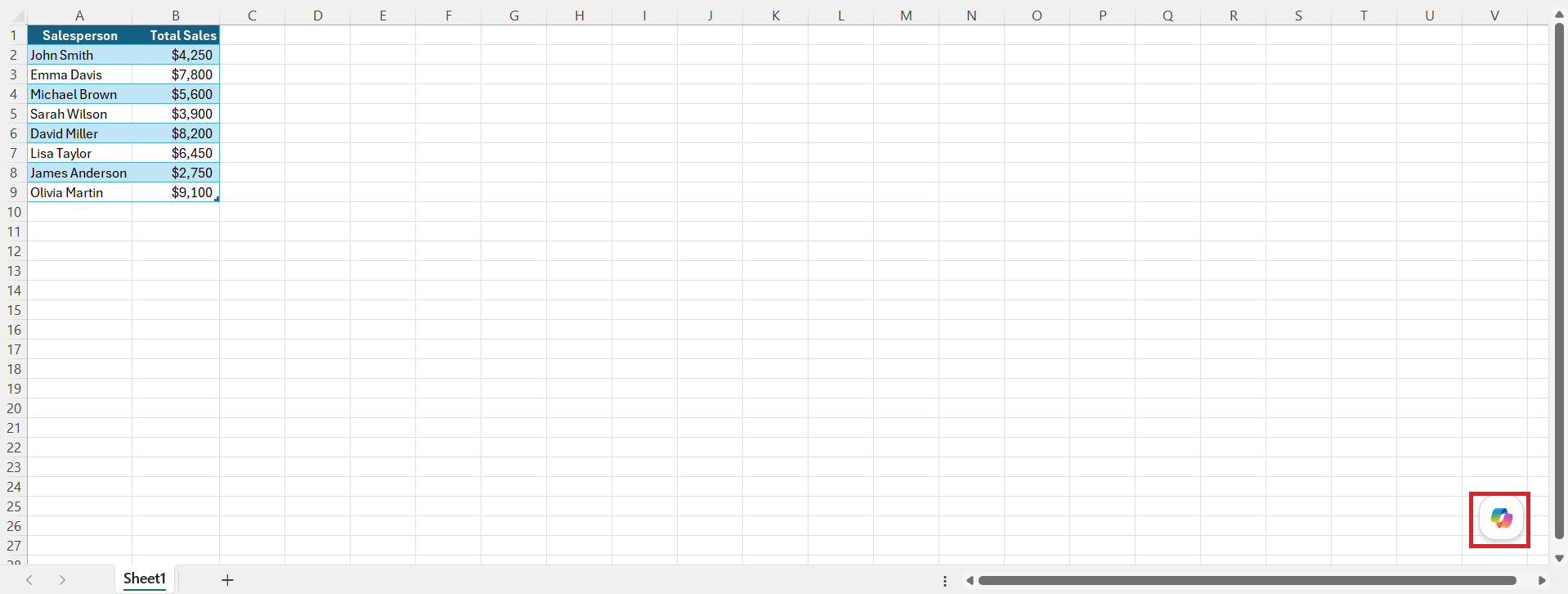
STEP 2: Click on the Copilot button.
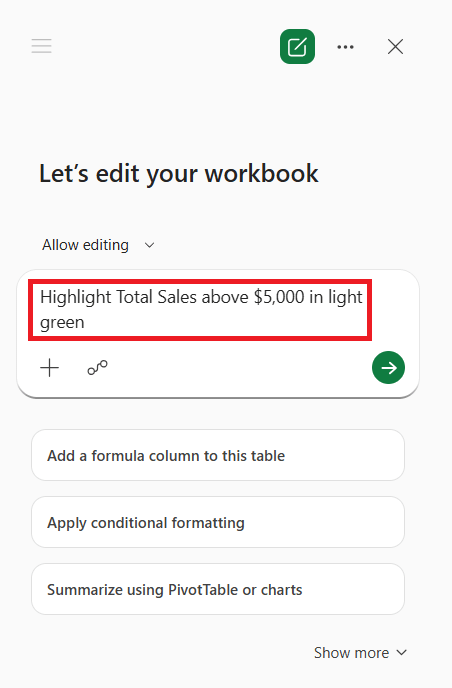
STEP 3: In the Copilot prompt box, type:
“Highlight Total Sales above $5,000 in light green.”
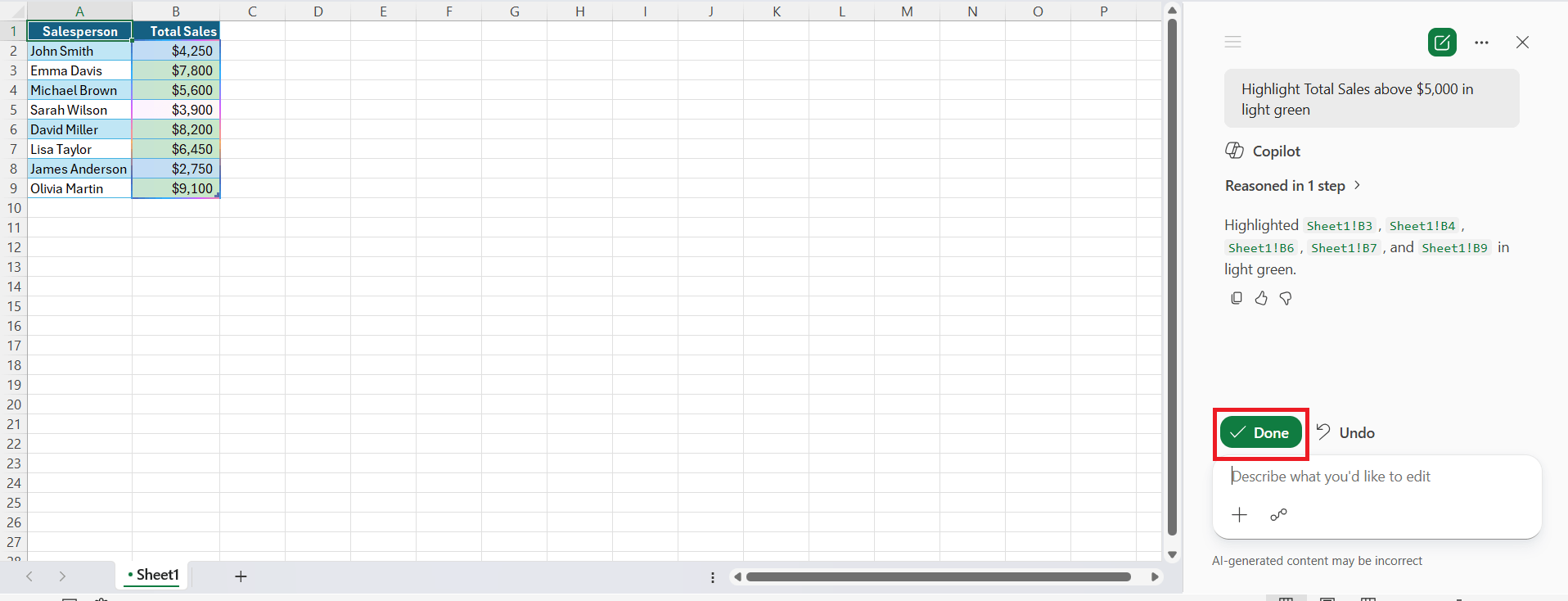
STEP 4: Copilot will analyze the data and apply the formatting. Review the suggestion and press Done.
Find duplicates
You can use this prompt to highlight duplicates in the dataset.
“Highlight duplicate invoice numbers”
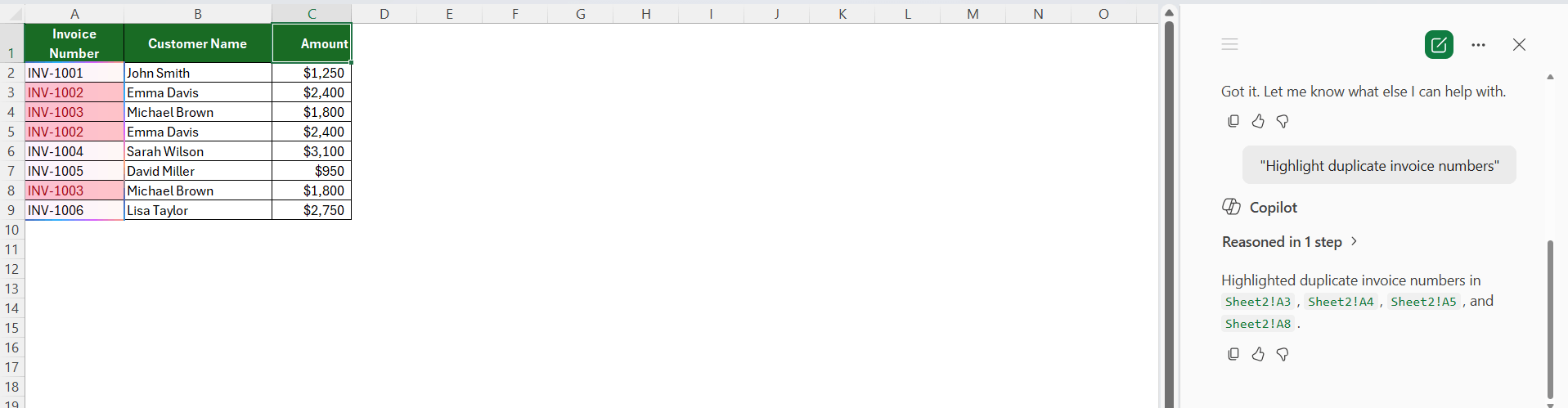
This is useful when checking invoices, customer IDs, order numbers, or other unique records. Highlighting duplicates makes repeated values easier to find and review.
Highlight upcoming dates
You can use this prompt to highlight dates in the next 7 days. This will help you spot upcoming dates easily.
“Highlight dates in the next 7 days”
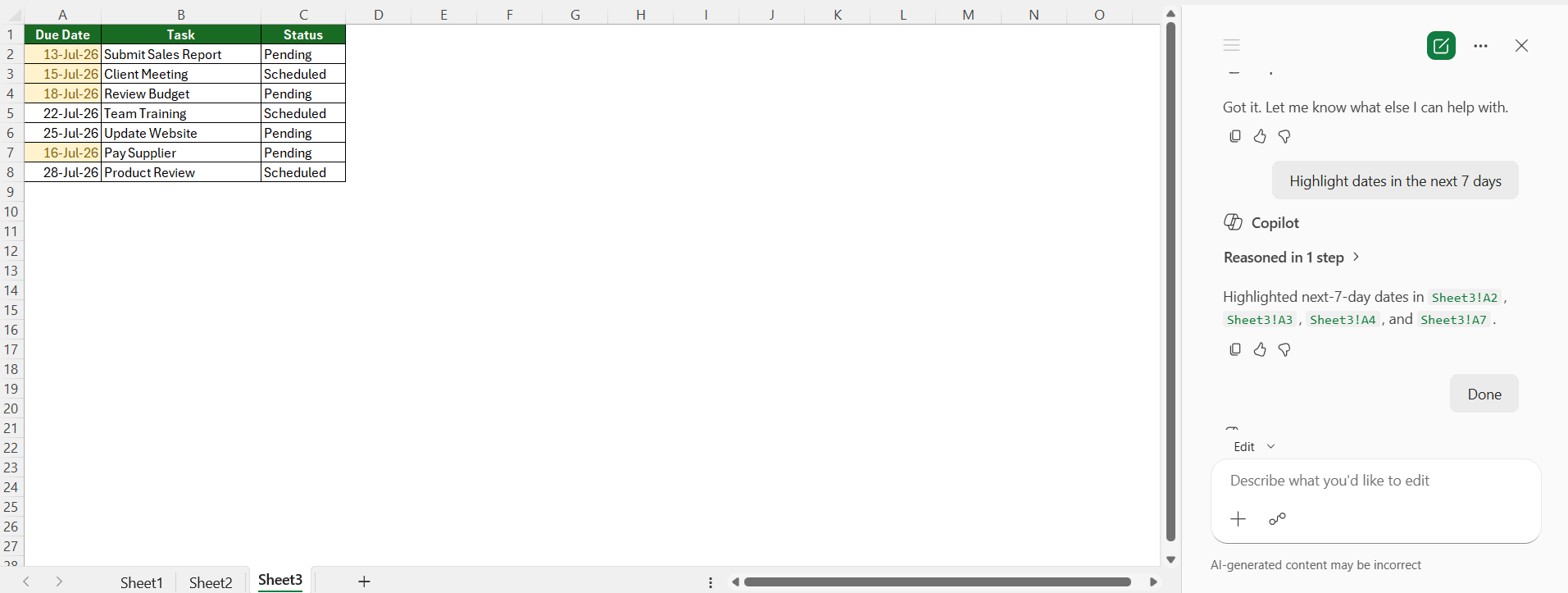
You can use this prompt for deadlines, payment dates, meetings, or project tasks. You can also change the number of days based on your requirement.
Show data patterns
You can use this prompt to show data patterns in sales.
“Apply a color scale to the Sales column”

A color scale uses different shades to show low and high values. This makes it easier to compare sales figures and identify patterns in a large dataset.
Copilot vs Manual Conditional formatting
- Copilot uses simple prompts, while manual formatting uses Excel menus.
- Copilot creates rules quickly, while manual formatting can take more time.
- Copilot suggests formatting, while manual formatting gives you more control.
- Copilot helps with complex conditions, while manual formatting may require formulas.
- Copilot is easier for beginners, while manual formatting requires more Excel knowledge.
Both methods are useful depending on the task. I use Copilot for quick formatting tasks and manual Conditional Formatting when I need more control over a rule.
FAQs
Can Microsoft Copilot apply Conditional Formatting in Excel?
Yes, Copilot can apply formatting based on simple prompts.
Can Copilot highlight duplicate values?
Yes, you can ask Copilot to highlight duplicate values in your data.
Do I need to know Conditional Formatting formulas to use Copilot?
No, you can describe the condition in simple words.
What should I do if Copilot applies the wrong formatting?
Review the result and use a clearer prompt with more details.
Is Copilot easier than manual Conditional Formatting?
Yes, Copilot uses simple prompts and requires fewer steps.

John Michaloudis is a former accountant and finance analyst at General Electric, a Microsoft MVP since 2020, an Amazon #1 bestselling author of 4 Microsoft Excel books and teacher of Microsoft Excel & Office over at his flagship MyExcelOnline Academy Online Course.

 30 Days - Full Access









