 Free Practice Workbook
PivotTable is a great tool used to summarize data with just a few clicks. You can use Microsoft Copilot to easily create a Pivot Table by writing the prompt in simple language instead of manually creating it. In this article, you will learn how to use Copilot to create Pivot Tables in Excel.
Key Takeaways:
- Copilot creates PivotTables using natural language prompts.
- Well-structured data improves Copilot’s accuracy.
- You can modify PivotTables through follow-up prompts.
- Copilot can answer questions about your summarized data.
- Using Copilot saves time and simplifies data analysis.
Table of Contents
Introduction to Copilot
What is Copilot?
Microsoft Copilot is an AI-powered assistant that allows users to complete tasks faster. It works across applications like Excel, Word, PowerPoint, and Outlook. Users can input simple text commands, and Copilot performs tasks automatically based on the command. You can ask to create formulas, summarize documents, generate PivotTables, and much more.
Instead of learning complicated Excel features, you can describe what you want in everyday language. Copilot interprets your request and performs the task. It helps you save time and improve productivity. As Microsoft continues to improve Copilot, it is becoming a valuable assistant for both beginners and advanced Excel users.
Requirements for Copilot
- You have a Microsoft 365 subscription.
- Data is organized in a table with headers.
- The workbook is saved on OneDrive or SharePoint.
- Your data does not contain completely blank rows or columns.
- The column names clearly describe the data they contain, so Copilot can understand your request more accurately.
Why use Copilot to create a Pivot Table?
- It saves time and allows you to create a Pivot with just a click.
- You don’t have to know how to create a PivotTable.
- You can generate a PivotTable by writing a simple command.
- You don’t have to remember where to place fields in the Rows, Columns, Values, or Filters areas.
How to Use Copilot to Create Pivot Tables
STEP 1: Format the data as a table by pressing Ctrl + T.
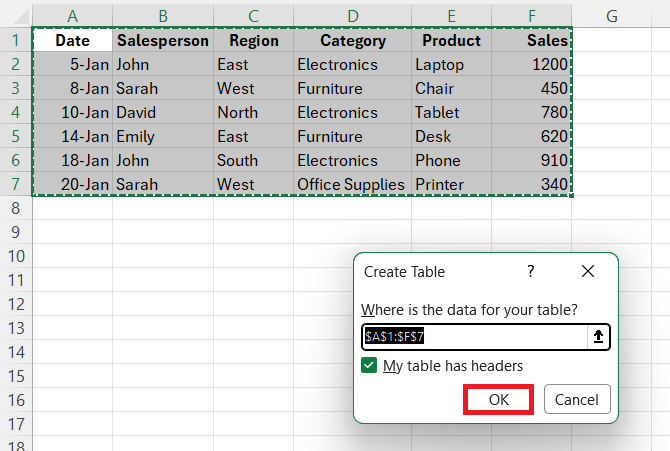
Click OK.
STEP 2: Click on the Copilot button.
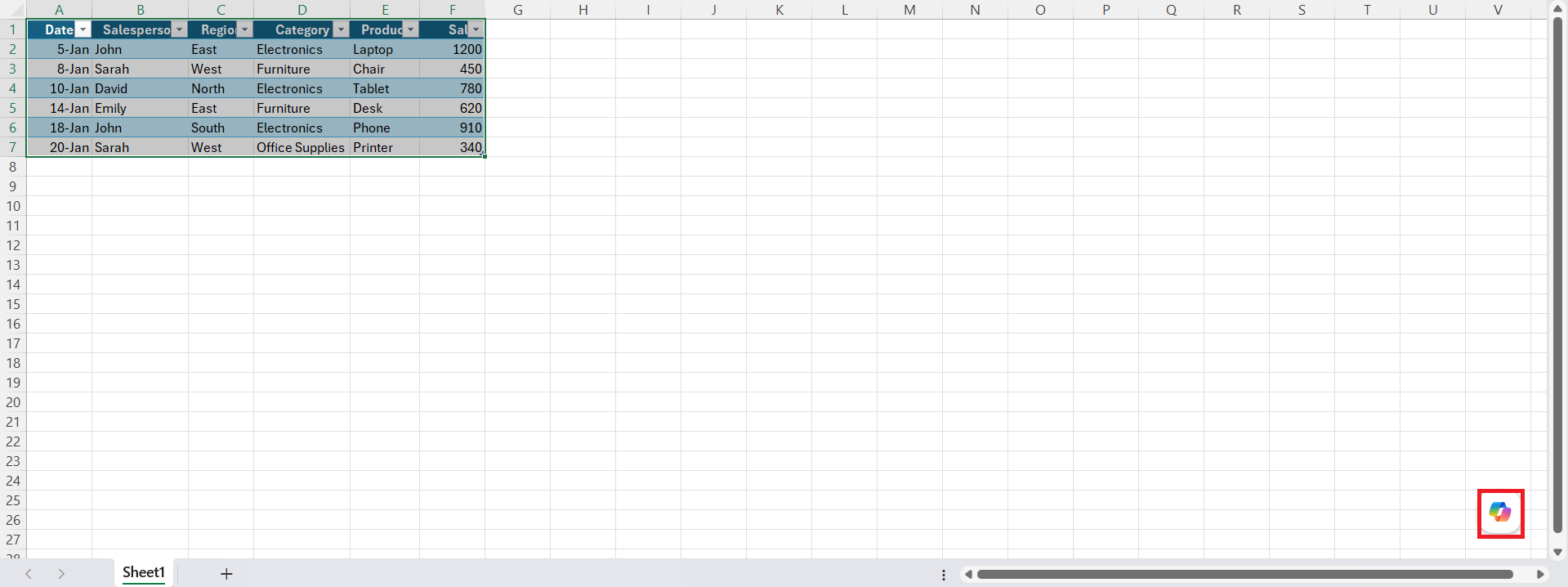
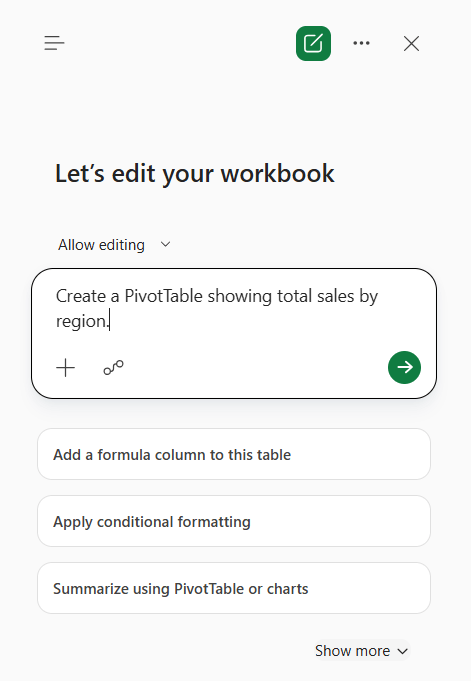
STEP 3: In the Copilot pane, type a clear description of the PivotTable you want to create.
For example, you can use prompts such as:
- Create a PivotTable showing total sales by region.
- Summarize sales by product category.
- Show average sales by salesperson.
- Display monthly sales totals.
STEP 4: Copilot will draft a Pivot table. If you are happy with the suggestion, press Done.
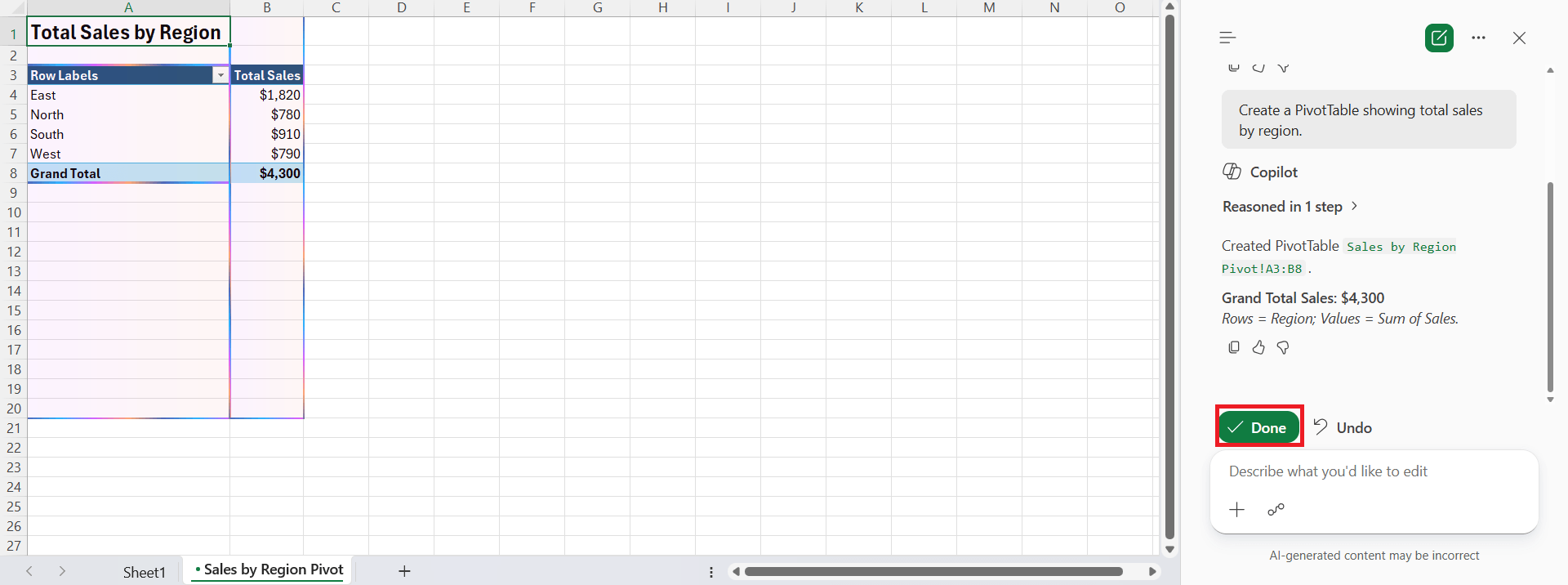
STEP 5: The Pivot Table will be ready.
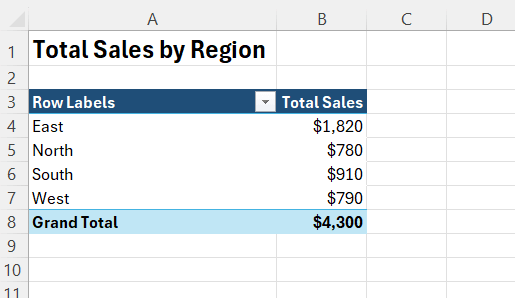
Modify the Pivot Table
Add Filter
- Click anywhere on the Pivot Table.
- The Pivot Table Field dialog box will open.
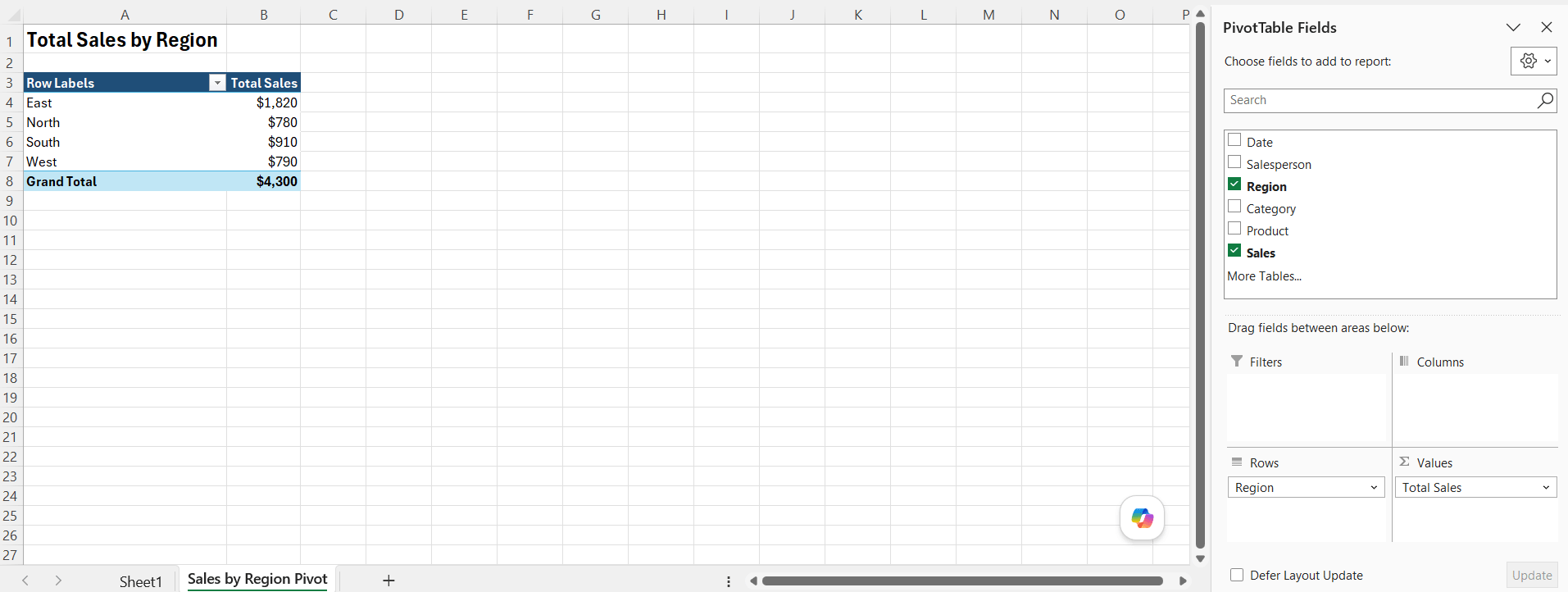
- Add category as a filter.
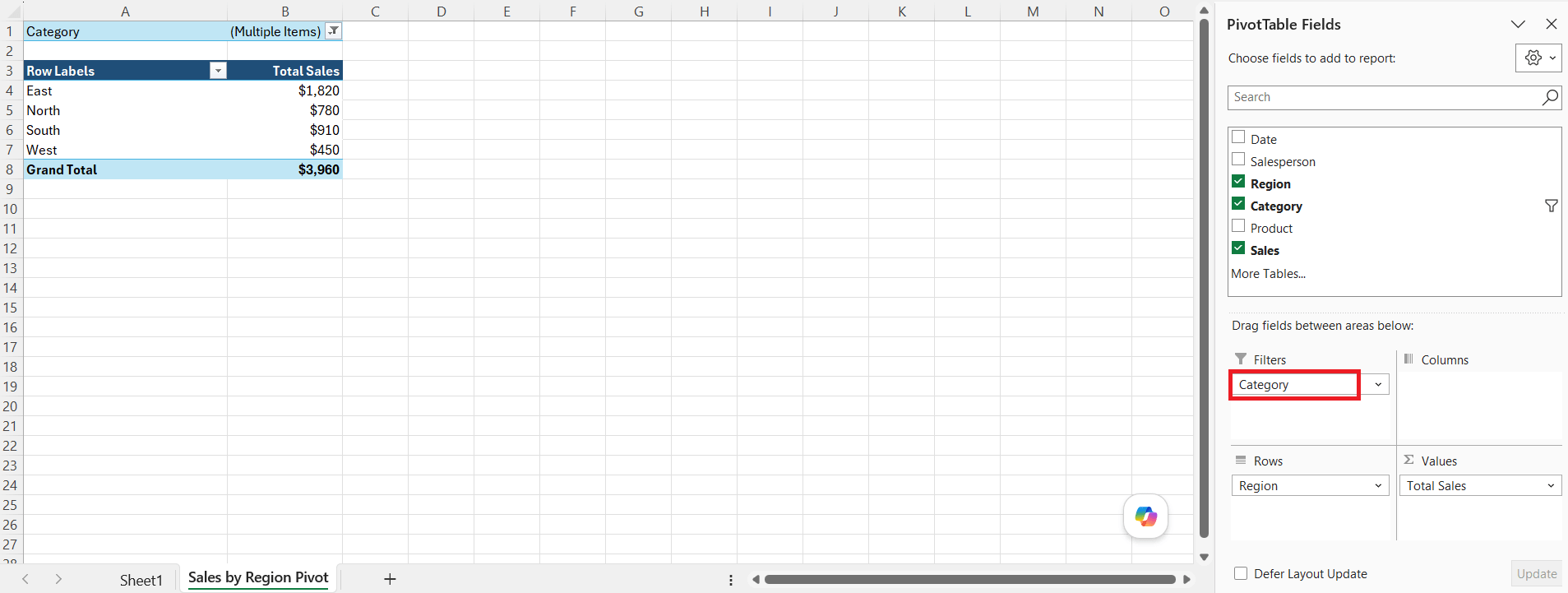
Sort Values
- Click any value in the Sum of Sales column of the PivotTable.
- Right-click the selected value.
- Select Sort > Sort Largest to Smallest.
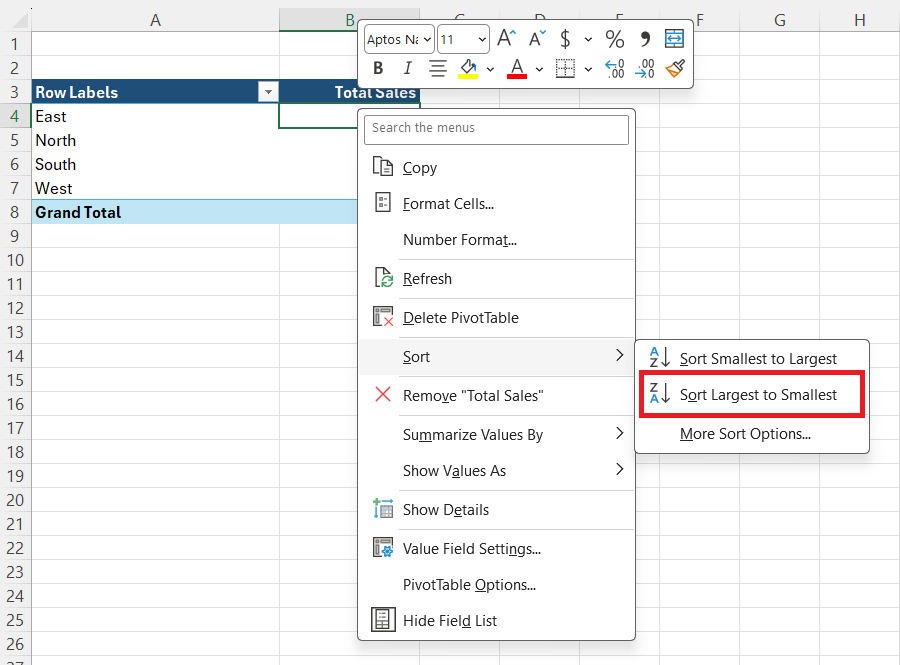
Show as percentage of Grand Total
- Click any value in the Sum of Sales field in the PivotTable.
- Right-click the selected value and choose Show Values As > % of Grand Total.
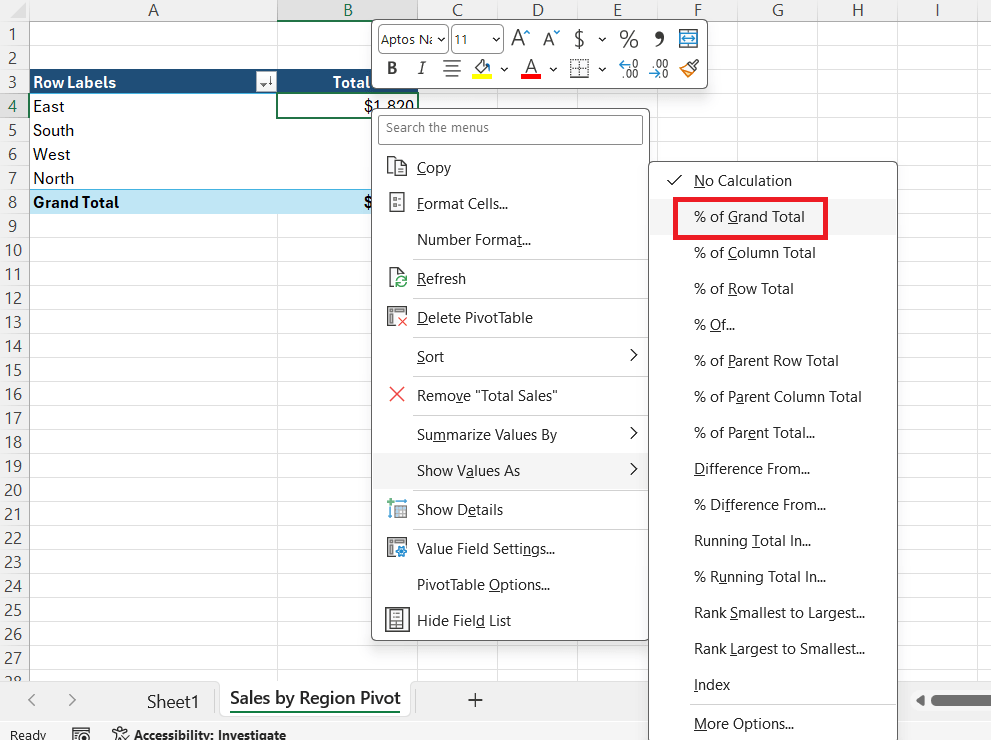
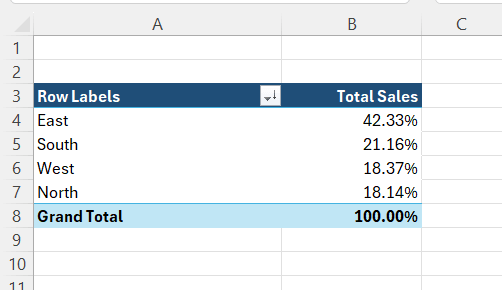
Display average instead of sum.
- Click any value in the Sum of Sales field in the PivotTable.
- Right-click the selected value and choose Value Field Settings.
- In the Summarize Values By tab, select Average.
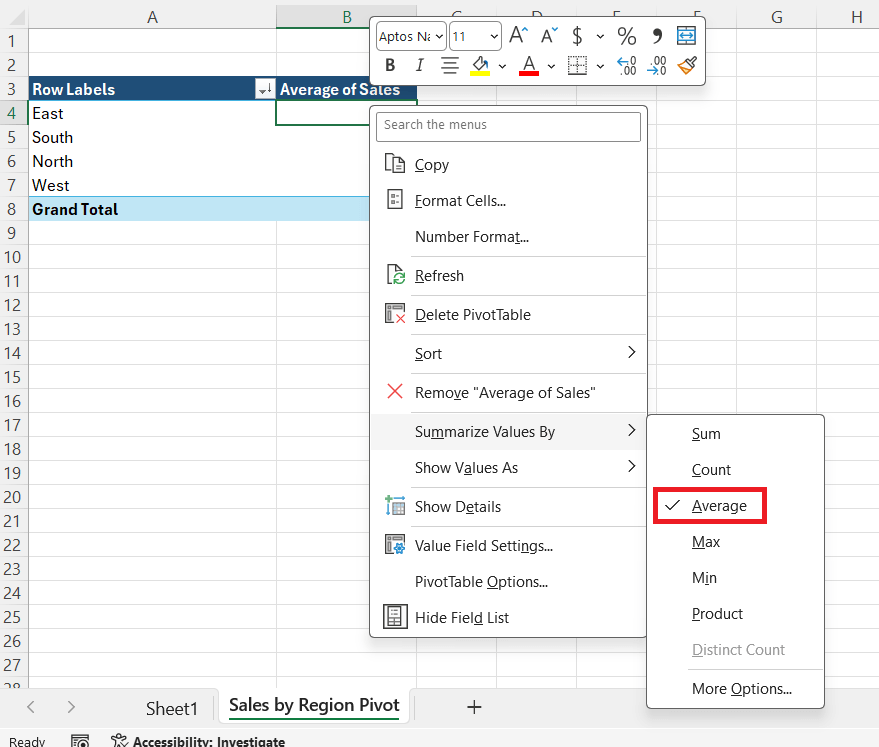
Tips & Tricks
- Convert your data to an Excel Table before using Copilot.
- Be specific with prompts to get better summaries.
- Ask follow-up questions to refine the PivotTable.
- Use filters to create interactive reports.
- Let Copilot generate charts from your PivotTable for quick visual analysis.
FAQs
Can Copilot create PivotTables automatically?
Yes. Simply describe the report you want, and Copilot generates the PivotTable for you.
Do I still need to know how PivotTables work?
No. Copilot handles most of the setup, although understanding PivotTables helps when refining reports.
Can Copilot update an existing PivotTable?
Yes. You can ask Copilot to change filters, calculations, layouts, or sorting.
Does Copilot work with all versions of Excel?
No. Copilot is available only with supported Microsoft 365 plans that include Copilot features.
Can Copilot create charts from PivotTables?
Yes. After creating a PivotTable, you can ask Copilot to generate charts and visual summaries from the data.

John Michaloudis is a former accountant and finance analyst at General Electric, a Microsoft MVP since 2020, an Amazon #1 bestselling author of 4 Microsoft Excel books and teacher of Microsoft Excel & Office over at his flagship MyExcelOnline Academy Online Course.

 30 Days - Full Access









