 Free Practice Workbook
Conditional Formatting is a useful tool in Excel that is used to highlight important data, spot trends, flag outliers, etc. With Copilot, you do not need to set up any complex formula for conditional formatting; you can describe what you want highlighted in plain language. In this article, you will learn how to apply Conditional Formatting with Copilot in Excel.
Key Takeaways:
- Copilot can create Conditional Formatting rules in Excel.
- You can highlight data using simple prompts.
- Copilot can highlight high, low, and duplicate values.
- You can use color scales and data bars to show trends.
- Always review the formatting rule before applying it.
Table of Contents
Introduction to Conditional Formatting
What is Conditional Formatting?
Conditional Formatting is a feature that changes the format of a cell based on a specific condition. Instead of manually changing the format of the data, Excel will highlight important values for you. For example, you can highlight sales above $10,000, mark overdue dates in red, identify duplicate entries, or highlight an entire row when a particular condition is met.
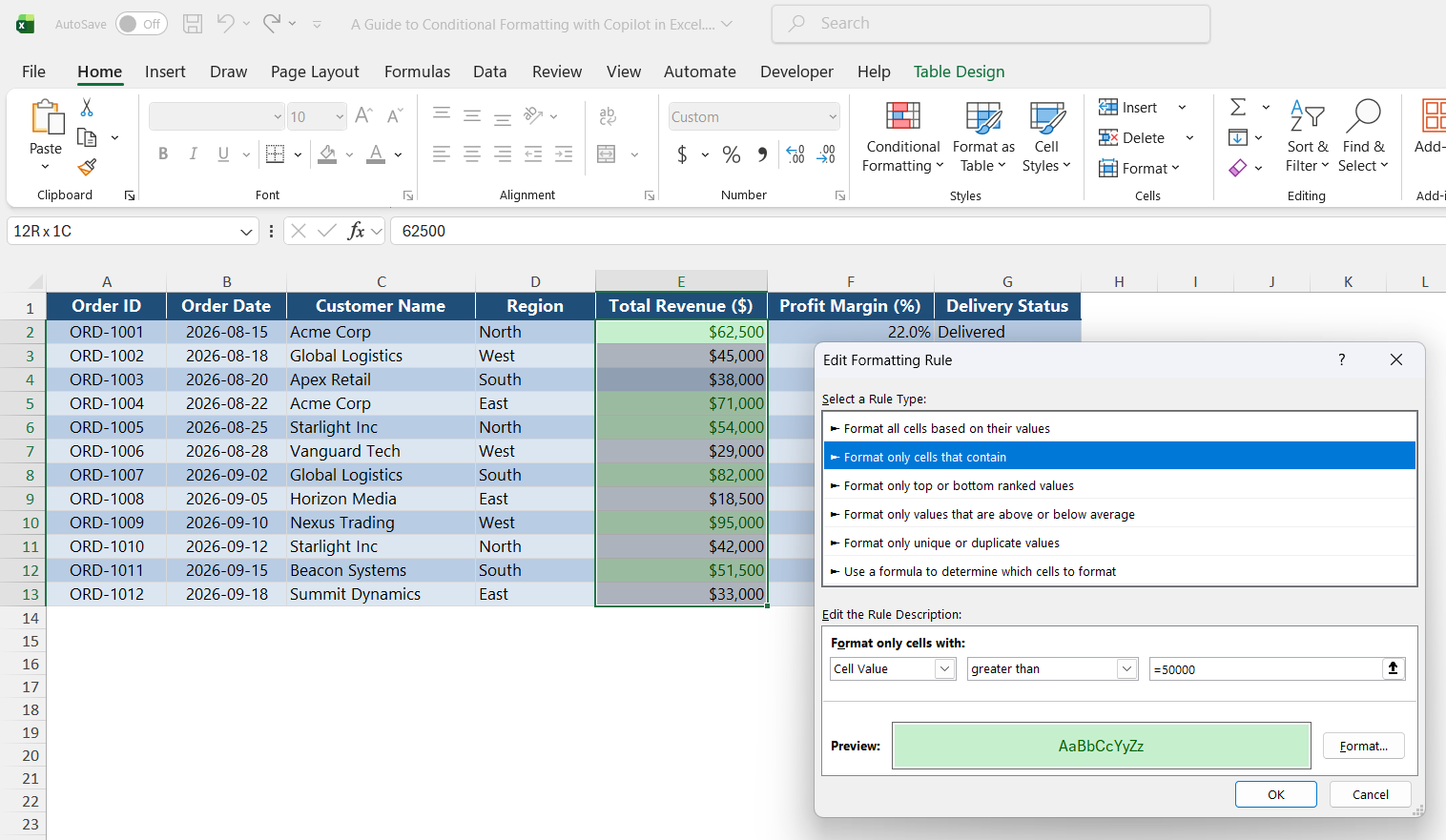
Why Use Conditional Formatting with Copilot in Excel?
- No need to remember complex syntax.
- You can apply multiple conditions using a single prompt.
How to Apply Conditional Formatting with Copilot in Excel
Highlight High/Low Values
STEP 1: Press Ctrl + T to convert the dataset into an Excel Table.
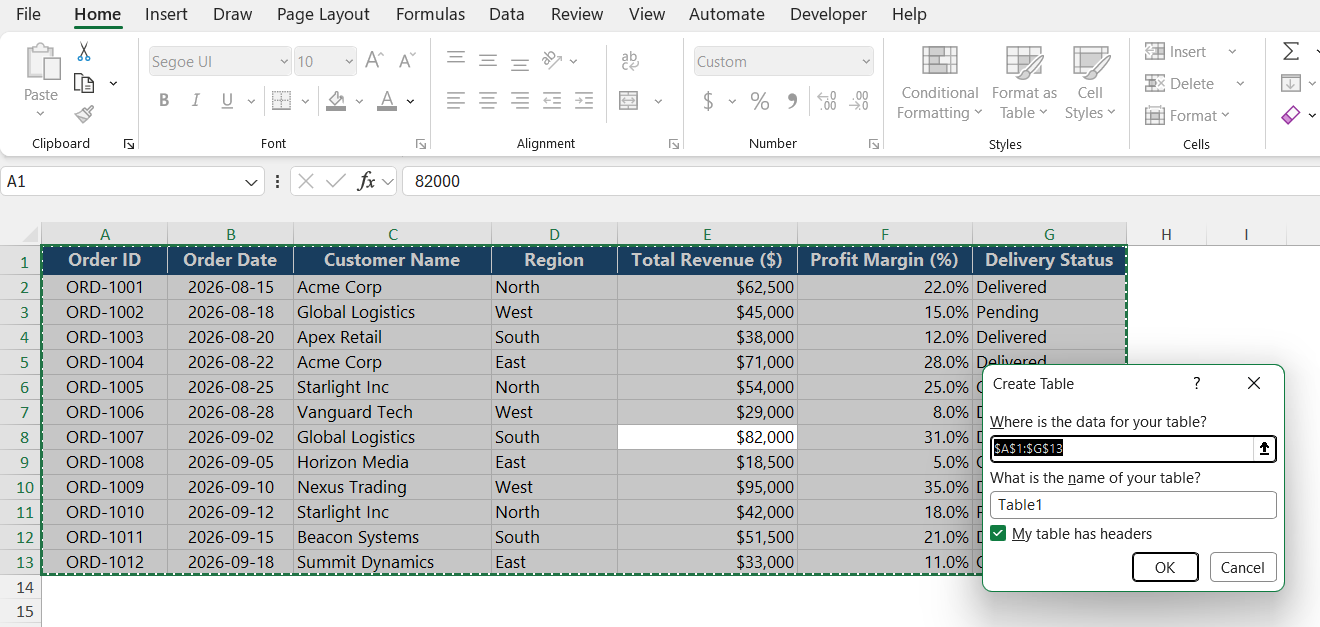
STEP 2: Select a cell in the table and click the Copilot icon.

STEP 3: In the Copilot task pane, enter the prompt.
“Highlight all rows in light green where Total Revenue is greater than 50,000.”
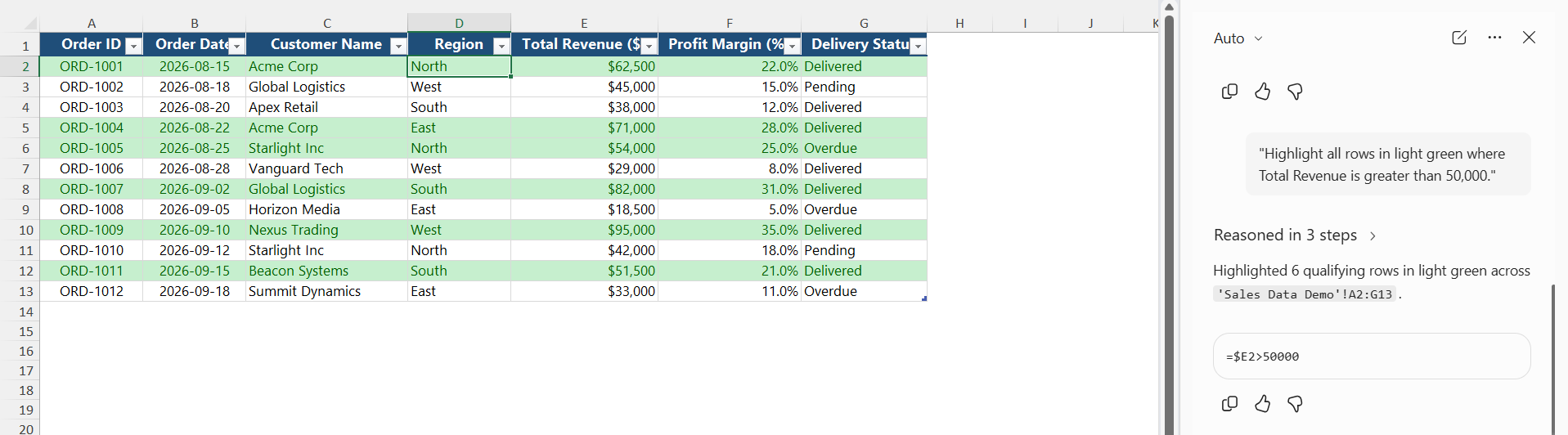
Copilot will generate a preview of the rule and the formula used. Click Done.
Multi-Color Grouping
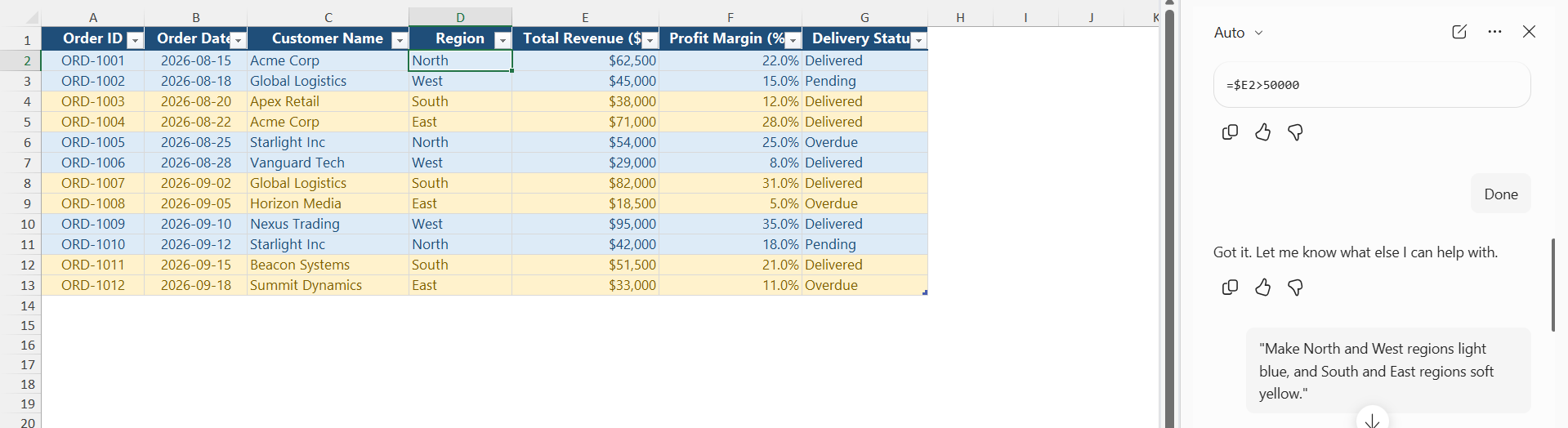
You can ask Copilot to apply multiple conditions using this prompt:
“Make North and West regions light blue, and South and East regions soft yellow.”
Highlight Duplicate Values
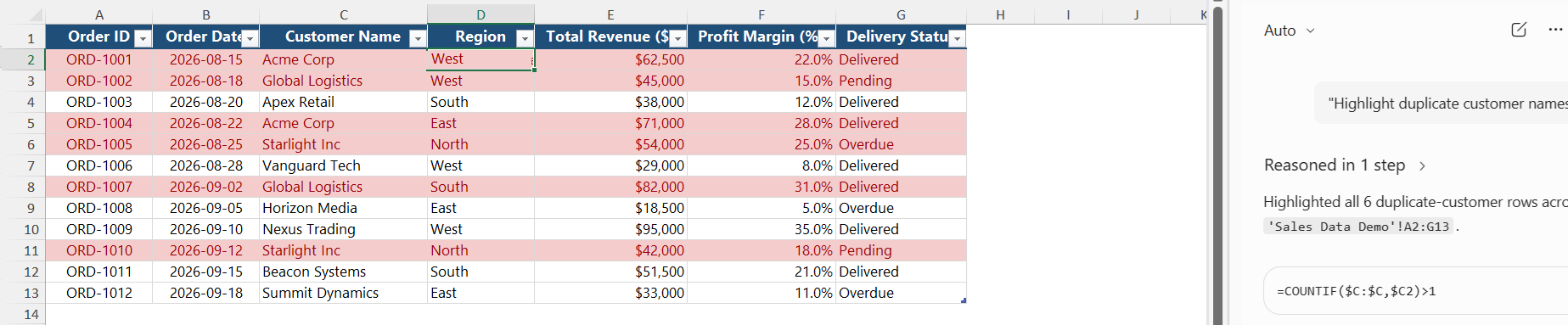
Duplicate records can be difficult to find in a large worksheet. You can ask Copilot:
“Highlight duplicate customer names.”
Highlight Outliers
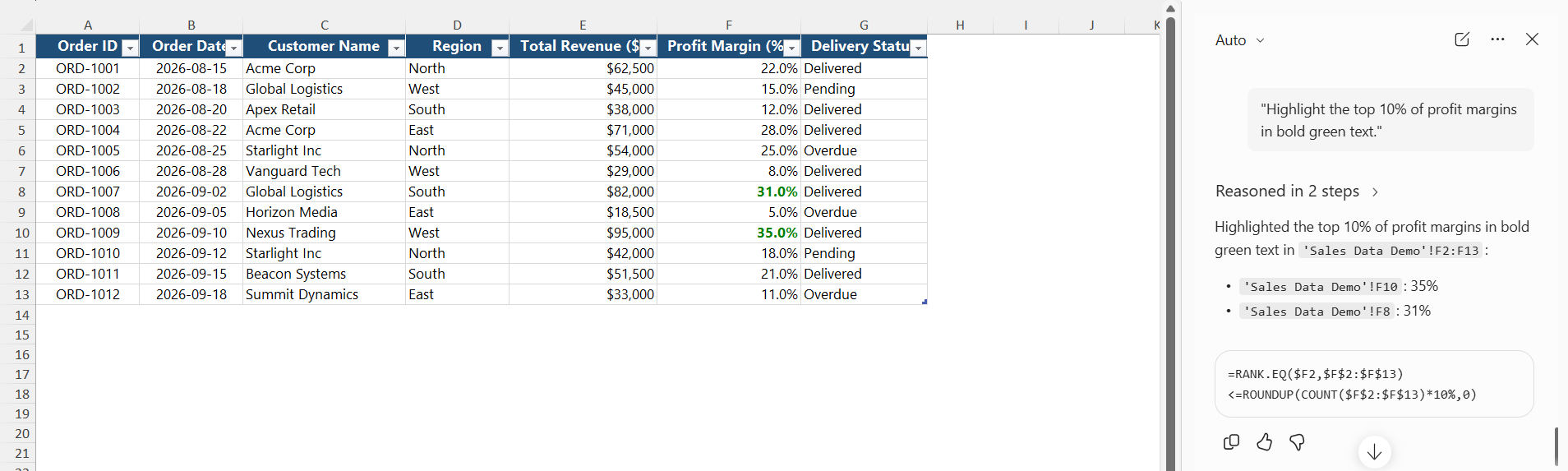
Outliers are values above or below a certain threshold that you define. You can ask Copilot to highlight these values:
“Highlight the top 10% of profit margins in bold green text.”
Highlight Specific Text
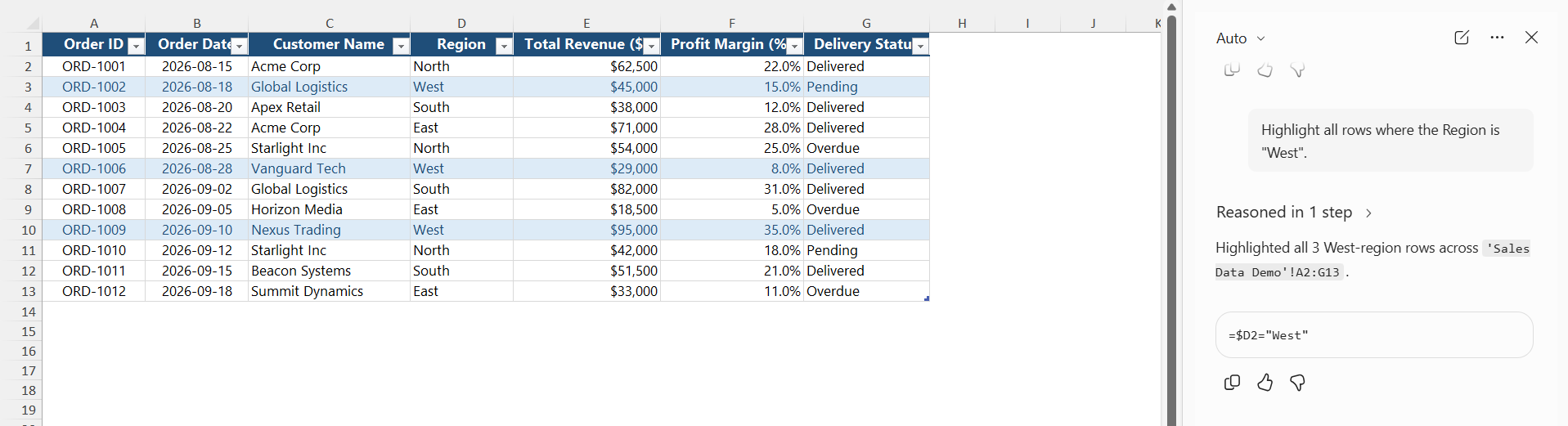
You can ask Copilot to highlight cells containing specific text. For example:
“Highlight all rows where the Region is “West”.
Highlight Dates
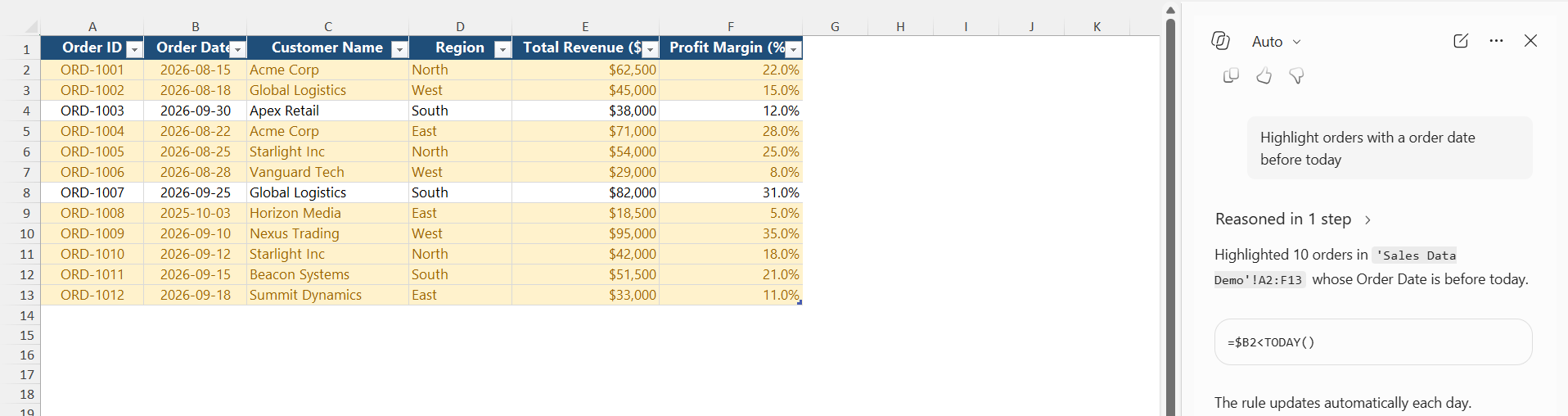
Conditional formatting can also be useful for dates. For example:
Highlight orders with an order date before today.
Create a Color Scale with Copilot
Color scales can show the relative size of values. For example, you can ask:
“Apply a color scale to the Sales column to show low, medium, and high sales.”
The cells will use different formatting based on their values. This can help you identify patterns without sorting the data.
Create Data Bars with Copilot
Data bars provide a visual comparison between values. You can use a prompt such as:
“Add data bars to the Sales column.”
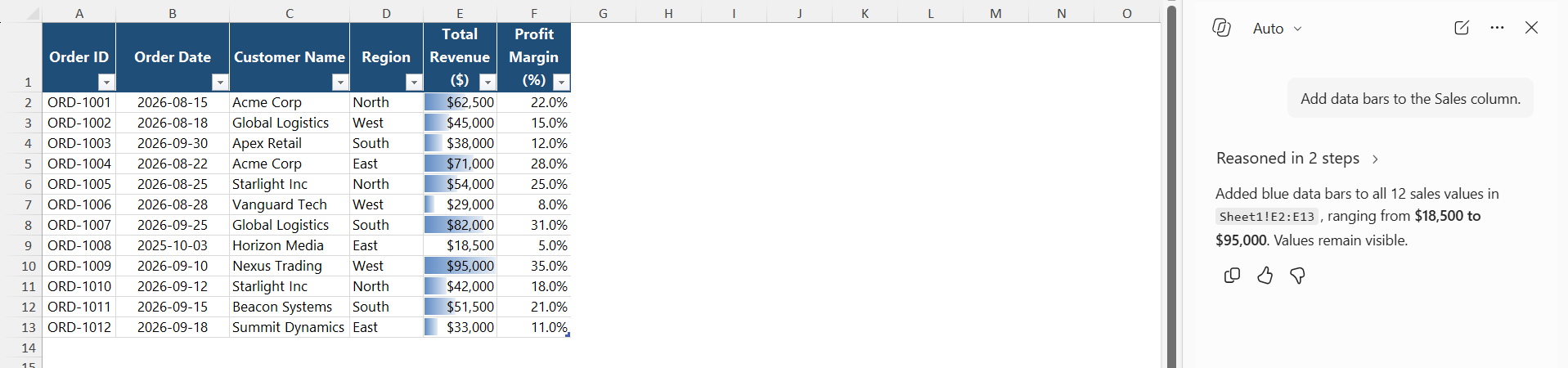
Larger values will have longer bars, while smaller values will have shorter bars. This is useful when comparing sales, revenue, profit, quantities, or other numerical data.
How to Edit or Remove a Conditional Formatting Rule
You can edit or remove a rule after creating it with Copilot.
STEP 1: Select the cells or table where the Conditional Formatting rule is applied.
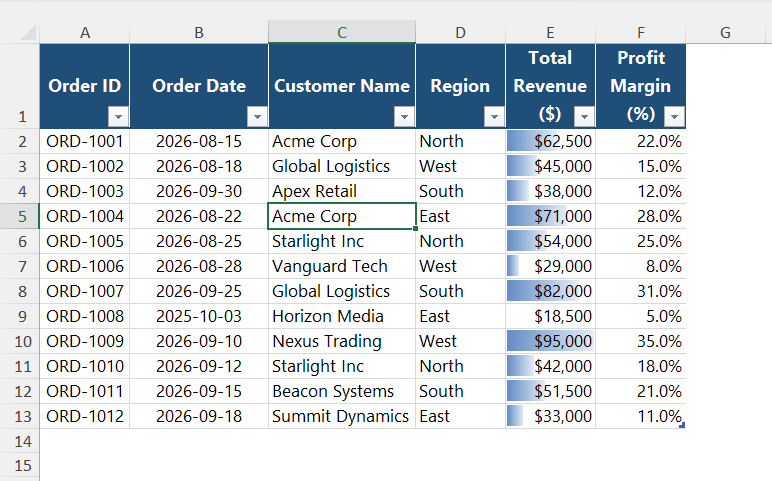
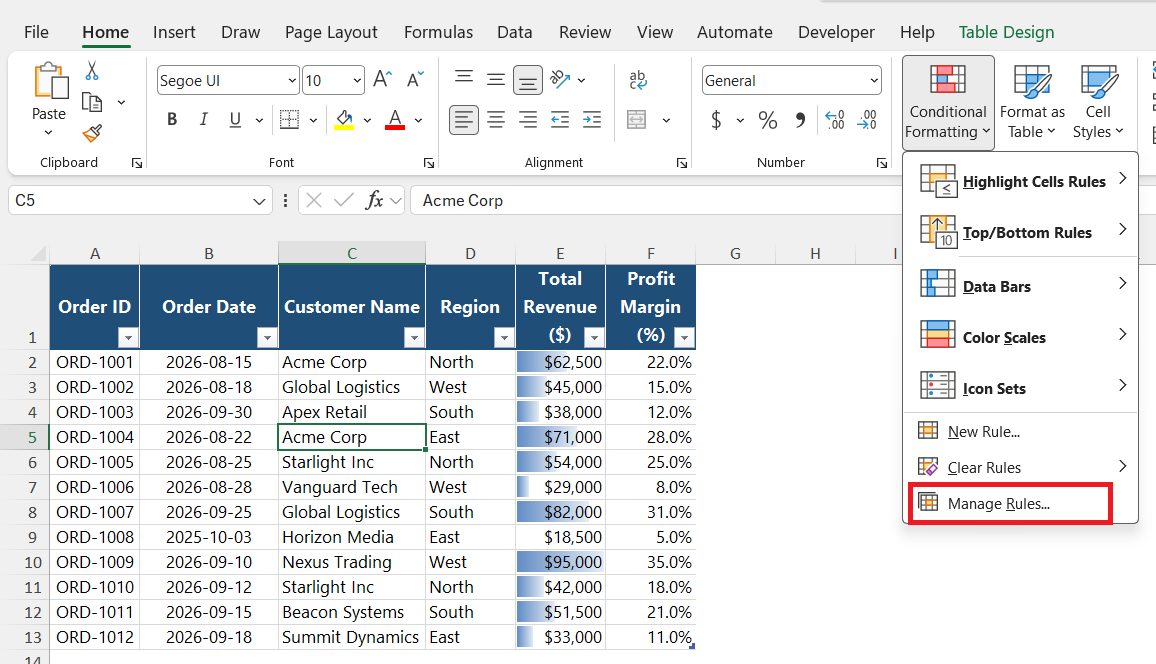
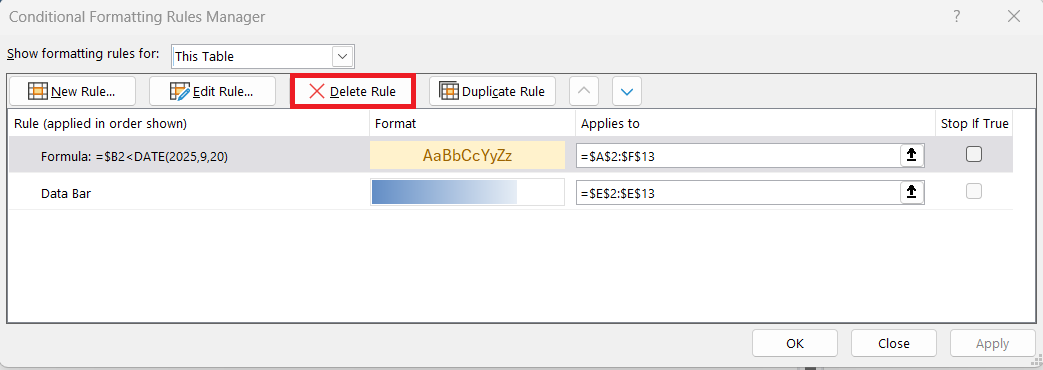
STEP 2: Go to Home > Conditional Formatting > Manage Rules.
STEP 3: Select the rule you want to change.
STEP 4: Click Edit Rule to change the condition or formatting.
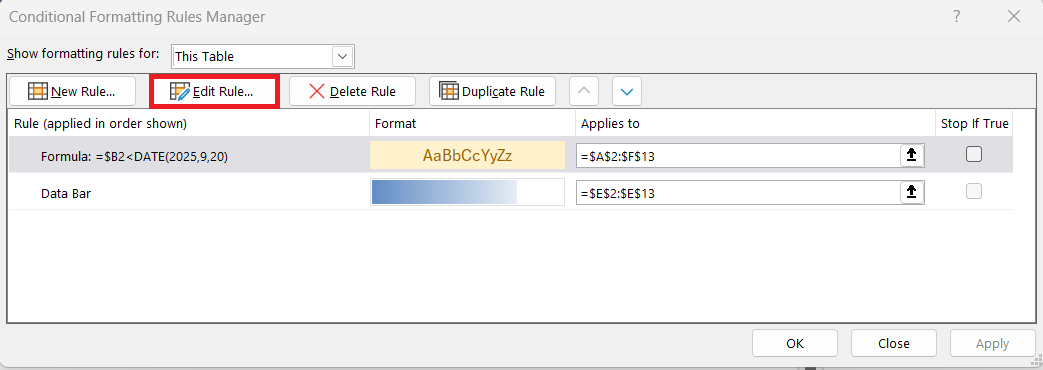
STEP 5: To remove the rule, select it and click Delete Rule.
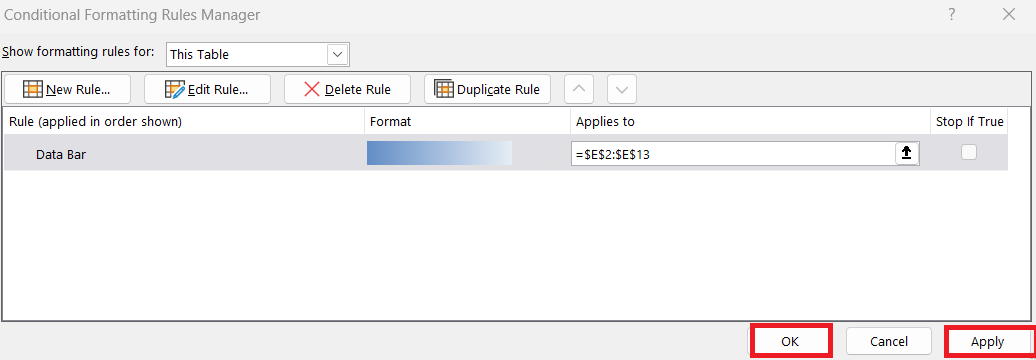
STEP 6: Click Apply and then OK to save the changes.
FAQs
1. What is Conditional Formatting in Excel?
Conditional Formatting changes the format of cells when they meet a specific condition.
2. Can Copilot apply Conditional Formatting in Excel?
Yes. You can describe what you want to highlight, and Copilot can create the formatting rule.
3. Can Copilot highlight duplicate values?
Yes. You can ask Copilot to highlight duplicate names, values, or records.
4. Can Copilot highlight dates in Excel?
Yes. You can ask Copilot to highlight overdue dates or dates that meet a specific condition.
5. Can Copilot create color scales and data bars?
Yes. Copilot can help apply color scales and data bars to numerical data

John Michaloudis is a former accountant and finance analyst at General Electric, a Microsoft MVP since 2020, an Amazon #1 bestselling author of 4 Microsoft Excel books and teacher of Microsoft Excel & Office over at his flagship MyExcelOnline Academy Online Course.

 30 Days - Full Access









