 Free Practice Workbook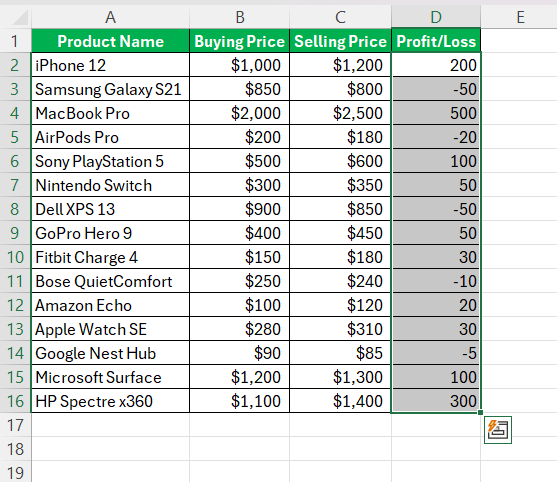
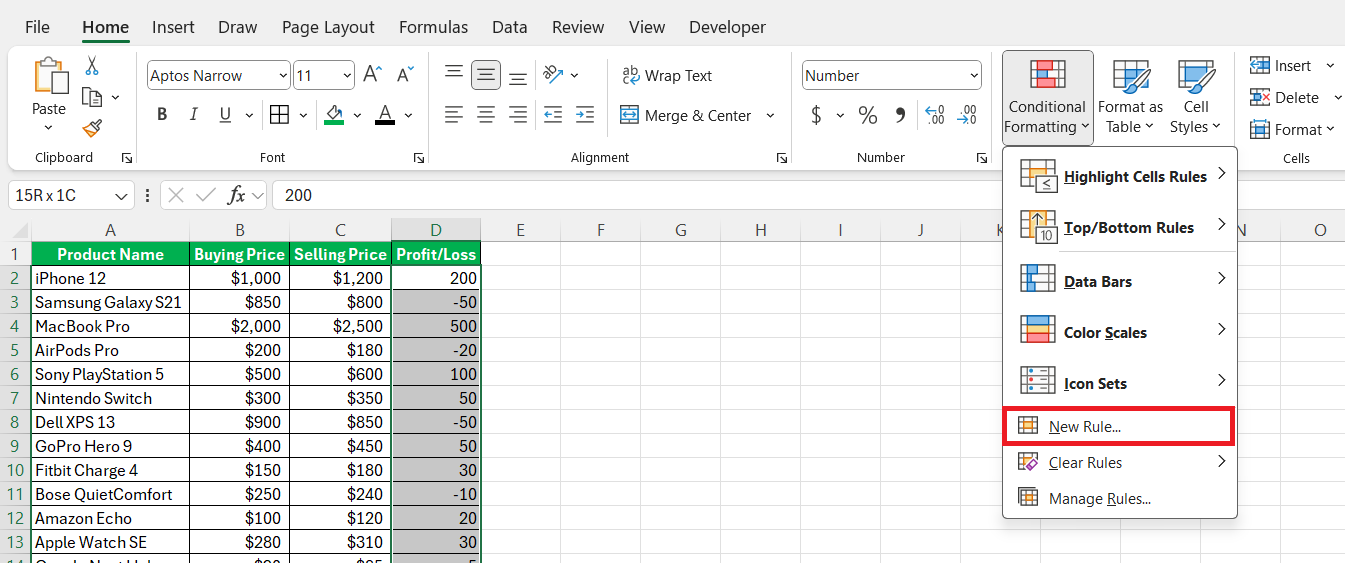
Then, navigate to the ‘Home’ tab and find the ‘Conditional Formatting’ button in the ‘Styles’ group. Choose ‘New Rule’.
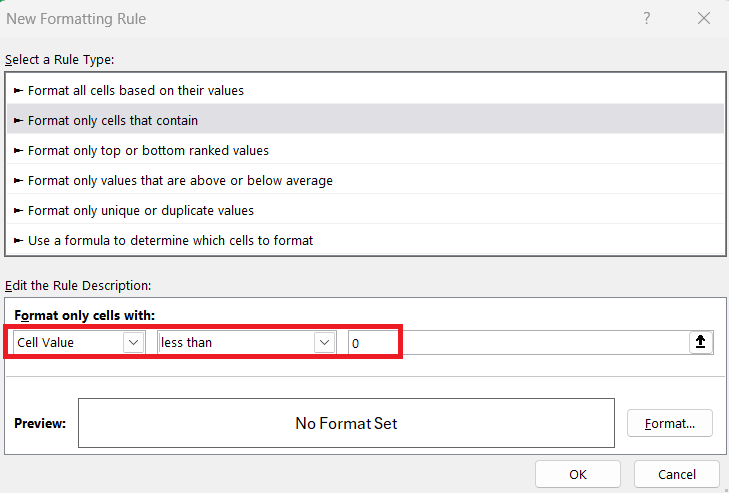
In the dialog box that appears, select ‘Format cells that contain.’ Set the condition for the cell value to ‘less than’ and enter zero.
After this, click on ‘Format,’ choose the red color for the font, and confirm by pressing ‘OK.’
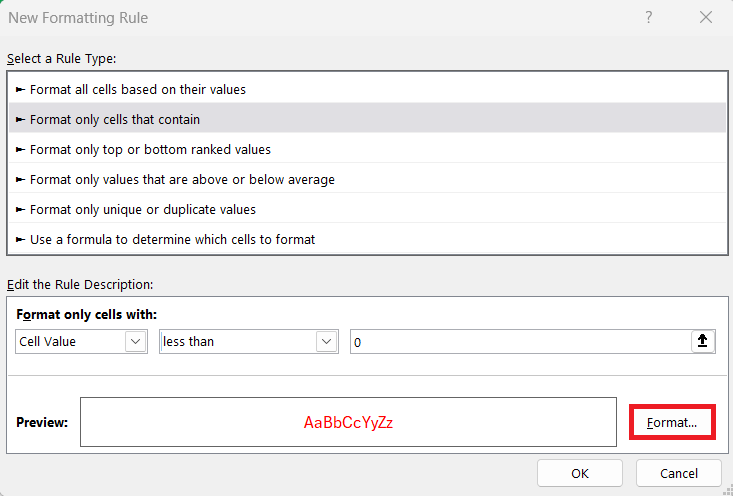
With this rule in place, Excel will automatically turn any negative values within the selected range into red text!
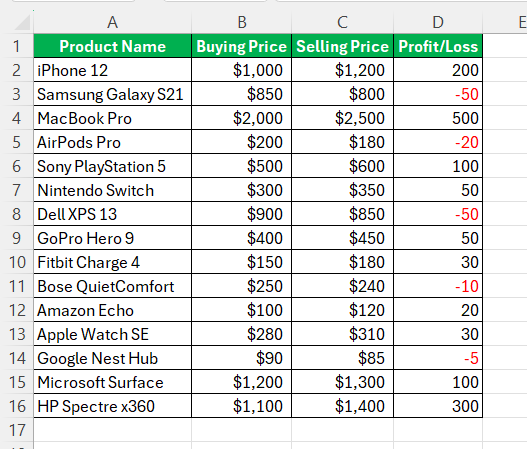
Creating and Saving Custom Formats
Creating and saving custom formats in Excel is straightforward, even for beginners. To begin, select the cells you want to format.
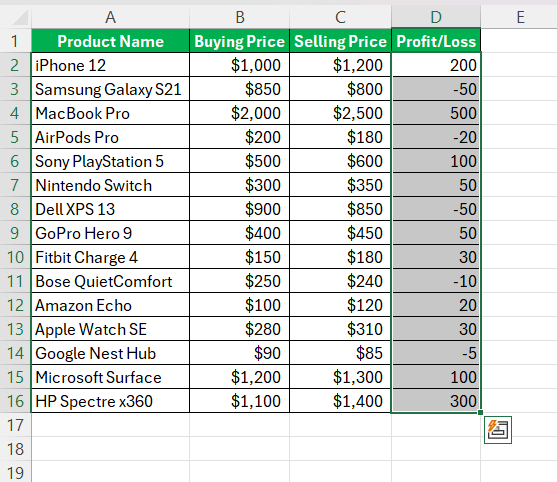
Access the ‘Format Cells’ dialog by right-clicking and choosing ‘Format Cells’ or pressing ‘Ctrl + 1’.
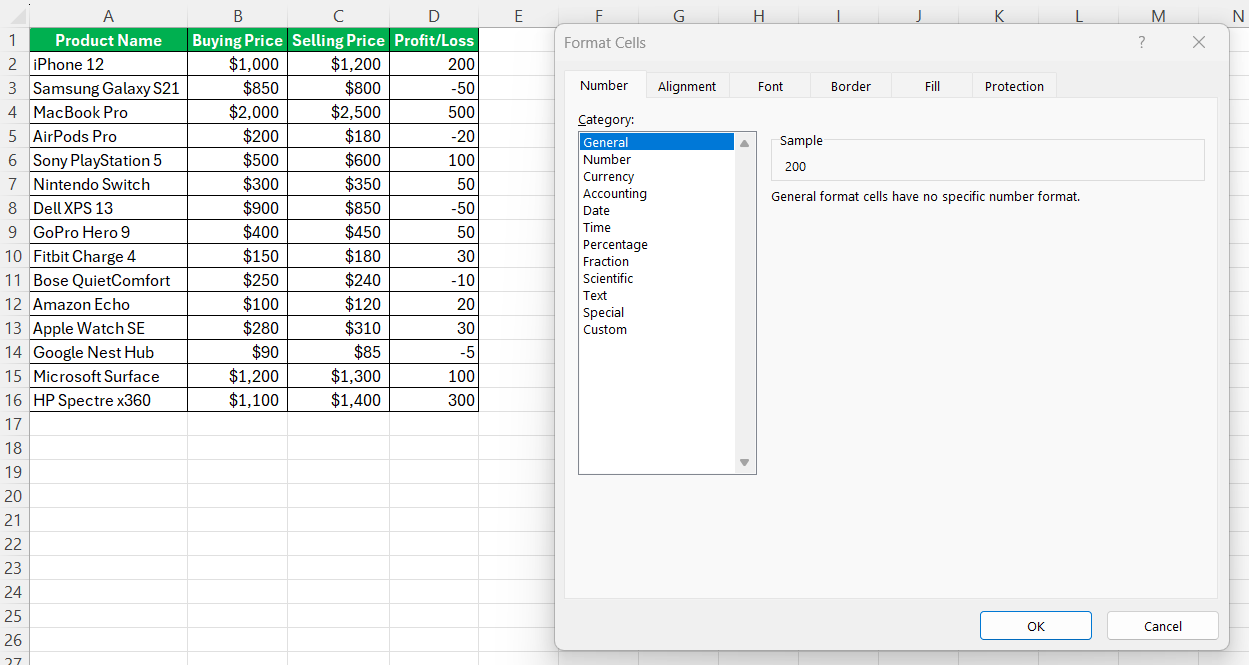
In the dialog, switch to the ‘Number’ tab and select ‘Custom’.
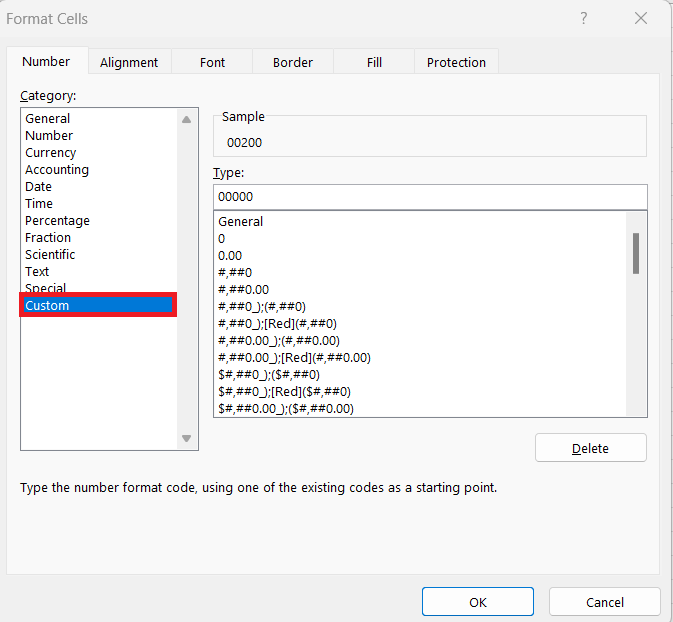
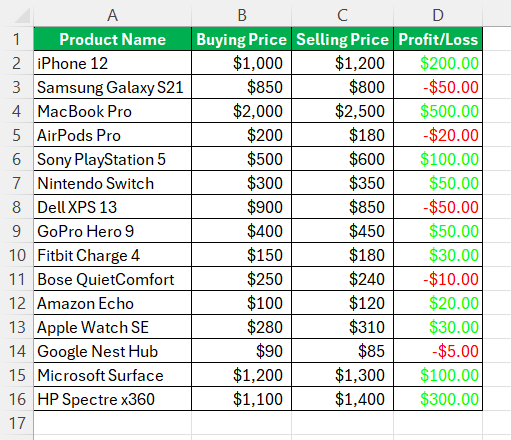
Within the ‘Type’ field, enter a format code that defines the appearance for positive, negative, and zero values, like [Green]$#,##0.00;[Red]-$#,##0.00;$0.00. Once done, click ‘OK’ to apply your custom format.
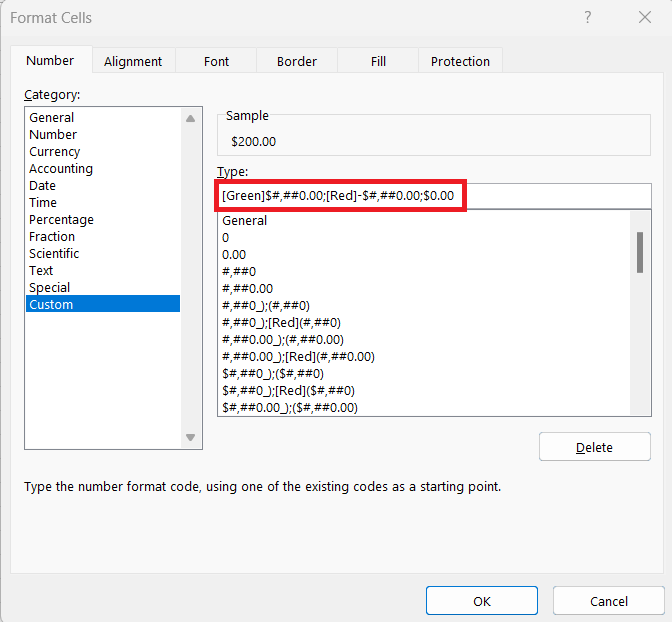
Your custom format now will not only make negative numbers instantly recognizable but will also save the format within the workbook or a template.
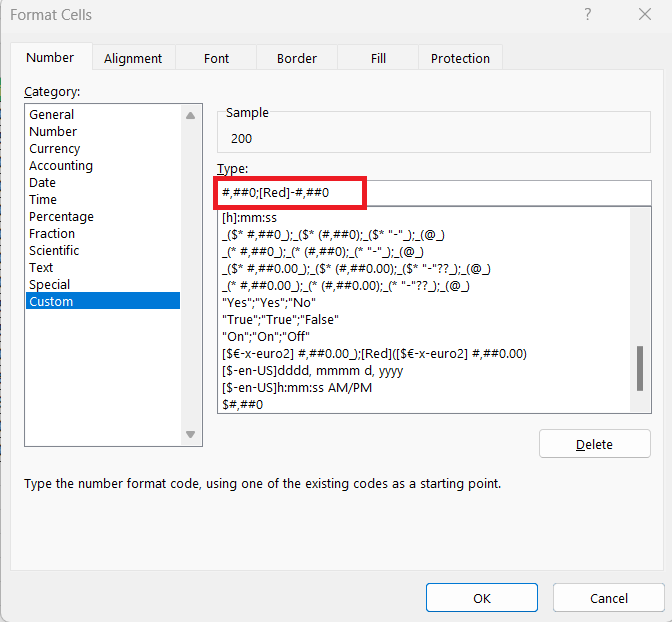
Custom Format Approach for Negative Values
The custom format is a more permanent way to display negative numbers in red throughout an Excel workbook. By creating a custom number format, we tell Excel explicitly how we want positive, negative, zero, and text values to appear. Using a custom format code such as #,##0;[Red]-#,##0, any negative number entered in a cell will automatically turn red, improving readability and consistency within the workbook.
What’s more, this custom format can be saved with the workbook or even as part of a template, making it effortless to preserve our formatting preferences across various documents — a straightforward solution for maintaining visual standards in recurring reports or datasets.
Complex Formats with Number and Currency Options
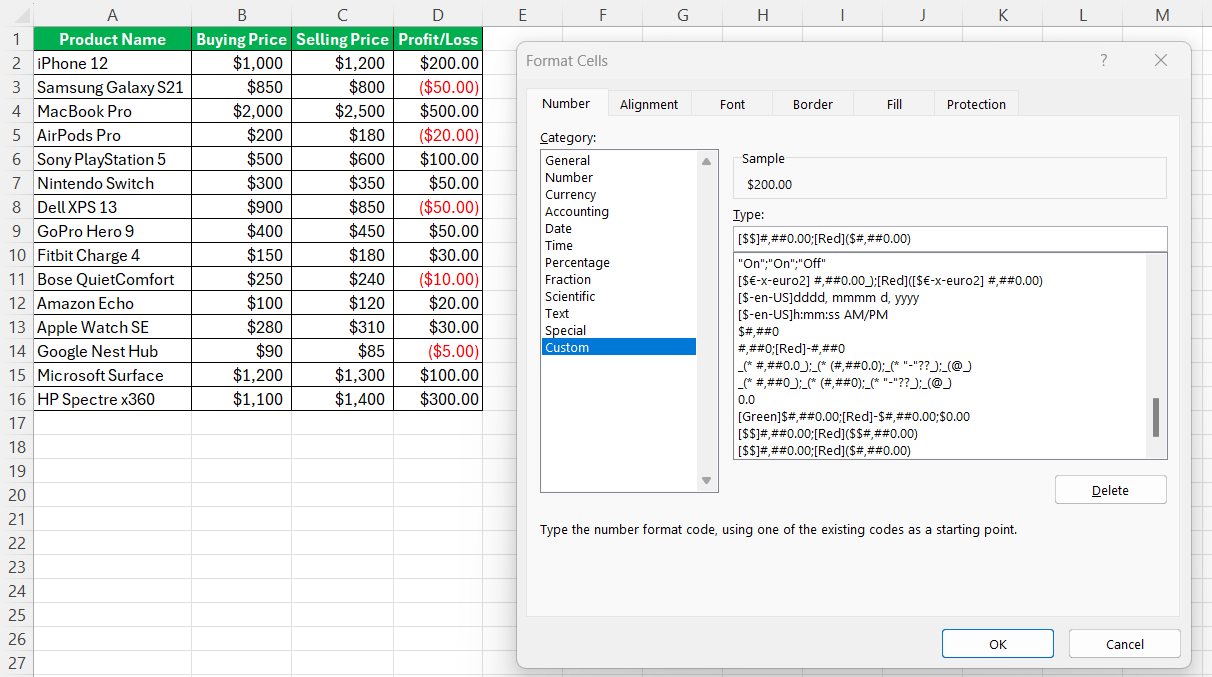
For complex data requirements, crafting formats that handle numbers and currencies can be critical. Advanced Excel users often need to display various formats together, such as differentiating between multiple currency symbols, using accounting formats, or showing negative numbers in parentheses. Excel’s custom format feature allows for such detailed customization.
For instance, to format positive numbers with a dollar sign and negative numbers in red with parentheses, the format code would be [$$]#,##0.00;[Red]($$#,##0.00).
Frequently Asked Questions
How do I apply red formatting to existing negative numbers?
To apply red formatting to existing negative numbers, select the cells, then go to ‘Home’ > ‘Conditional Formatting‘ > ‘Highlight Cells Rules’ > ‘Less Than’. Enter ‘0’ in the box, choose ‘Custom Format’, set the text color to red, and click ‘OK’.
Can I save custom negative number formats for future use?
Yes, custom negative number formats can be saved for future use by creating them in a workbook which you can then save as an Excel template. Next time you need the format, use this template to start your new workbook.
Is it possible to display negative numbers differently based on their value?
Yes, it is possible to display negative numbers differently based on their value by using multiple conditional formatting rules or creating a custom number format with conditions to handle varying ranges of negative numbers.
How do you make negative values red in Excel chart?
To make negative values red in an Excel chart, you must select the data series, right-click, and choose ‘Format Data Series’. Then, under ‘Fill’, use ‘Invert if Negative’ and choose a red color for negative values.
How to format the cell value red if negative and green if positive in excel?
To format cell values red if negative and green if positive in Excel, use conditional formatting. First, select the cells, then go to ‘Conditional Formatting’ on the ‘Home’ tab. Create two rules, one for ‘Less Than’ and one for ‘Greater Than’, and set the formatting to red and green, respectively.

John Michaloudis is a former accountant and finance analyst at General Electric, a Microsoft MVP since 2020, an Amazon #1 bestselling author of 4 Microsoft Excel books and teacher of Microsoft Excel & Office over at his flagship MyExcelOnline Academy Online Course.

 30 Days - Full Access









