 Free Practice Workbook
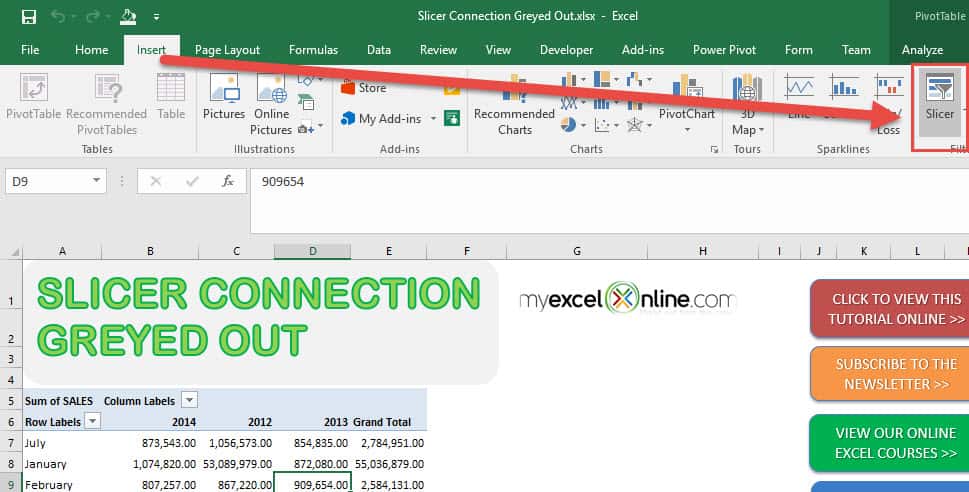
Sometimes when you create a Pivot Table and want to insert a Slicer you are unable to do this as the Slicer button is greyed. You try to click on the Slicer button but nothing happens. What gives??
There are two things that can cause your Slicer connection to be greyed out!

ONE: Your file format is in an older/incompatible format (e.g. an .xls file extension)
TWO: You can see the text [Compatibility Mode] right beside the name of your excel file:

Let me show you quickly how you can resolve this problem in just a few steps!
Key Takeaways:
- The slicer connection option becomes active only when you have multiple Pivot Tables that share the same data source. Ensure that the Pivot Tables are based on the same dataset.
- If the Pivot Tables are created from different sources (e.g., separate ranges, tables, or data models), the slicer connection option will remain greyed out. Consolidate data sources for compatibility.
- Ensure that you select an existing slicer and then check the Slicer Connections option in the Pivot Table’s settings. Without a slicer, this option won’t be available.
- If the slicer connection is still disabled, verify that the Workbook Connections are properly linked under Data > Connections to ensure data synchronization.
- If your Pivot Table is connected to the Data Model, the slicer connection option may behave differently. In such cases, slicer functionality is often managed directly from Power Pivot or the Data Model interface.
Table of Contents
How to Fix Slicer Connection Option Greyed Out For Excel Pivot Table
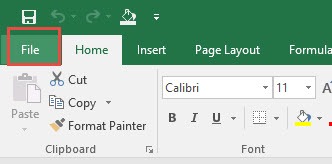
STEP 1: Go to File > Convert
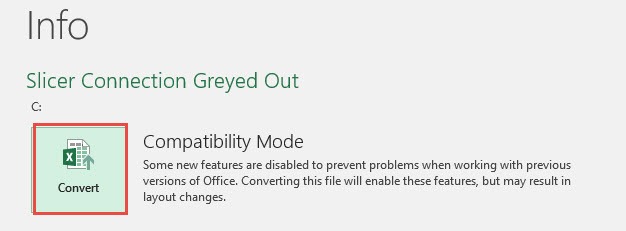
STEP 2: This will convert your Excel file into a more updated version.
Click OK.

Click Yes to reload your workbook.

Voila! You can now insert your slicer!
NB: You can also Save As your current file as an .XLSX file format. Then close this file and open it again and you will be able to use the Slicer button again!
Frequently Asked Questions
Why is the slicer connection option greyed out in my Pivot Table?
The slicer connection option is greyed out if the Pivot Table doesn’t share its data source with other Pivot Tables. To enable this option, ensure multiple Pivot Tables are connected to the same dataset or table in Excel.
Can slicers connect Pivot Tables from different data sources?
No, slicers cannot connect Pivot Tables from different data sources. The Pivot Tables must originate from the same range, table, or data model. If they’re based on separate sources, the slicer connection option will remain unavailable.
What should I do if my Pivot Tables are from the same data source but the slicer connection option is still disabled?
If the Pivot Tables share the same data source but the slicer connection is still greyed out, confirm that both Pivot Tables are in the same workbook. Also, ensure that the slicer is already created and active before attempting to use the connection option.
Does using a data model affect the slicer connection?
Yes, if your Pivot Tables are built on a Data Model, the slicer connection option may behave differently. In such cases, you may need to manage slicers through the Power Pivot window or verify the relationships in the data model.
Can I use a slicer to control Pivot Tables located on different worksheets?
Yes, a slicer can control Pivot Tables across different worksheets as long as the Pivot Tables share the same data source. To connect the slicer, select it, go to PivotTable Analyze > Filter Connections, and enable the desired Pivot Tables.

Bryan
Bryan Hong is an IT Software Developer for more than 10 years and has the following certifications: Microsoft Certified Professional Developer (MCPD): Web Developer, Microsoft Certified Technology Specialist (MCTS): Windows Applications, Microsoft Certified Systems Engineer (MCSE) and Microsoft Certified Systems Administrator (MCSA).
He is also an Amazon #1 bestselling author of 4 Microsoft Excel books and a teacher of Microsoft Excel & Office at the MyExecelOnline Academy Online Course.

 30 Days - Full Access









