 Free Practice Workbook
Pivot Tables are one of the most powerful feature in Excel. It allows you to summarize and visualize large data sets with just a few clicks. But when the data changes, you need to manually refresh the Pivot Table. In this article, you will learn how to automatically refresh your Pivot Tables in Excel.
Key Takeaways
- Pivot Tables do not update automatically when source data changes.
- You can refresh Pivot Tables using workbook or worksheet events.
- Pivot tables can be updated automatically when you add or modify the source data.
- Refreshing keeps your analysis up to date.
Table of Contents
What Is Pivot Table Auto-Refresh?
By default, Excel Pivot Tables are static. They reflect the data at the time of creation or the last refresh. If your source data is updated, your Pivot Table won’t reflect those changes until you refresh it manually. To maintain accuracy, Excel allows automatic refresh using both built-in settings and VBA macros.
Ensuring Data Accuracy
- Implement rules to check for data entry errors, such as incorrect formats or out-of-range values.
- Keep your data sources updated regularly to prevent outdated information.
- Regularly cross-check your pivot table results with the original datasets.
- Use Excel’s error-checking tools to scan for and address potential data errors.
- Make sure that everyone handling the data is trained and follows standardized procedures.
How to Automatically Refresh a Pivot Table in Excel
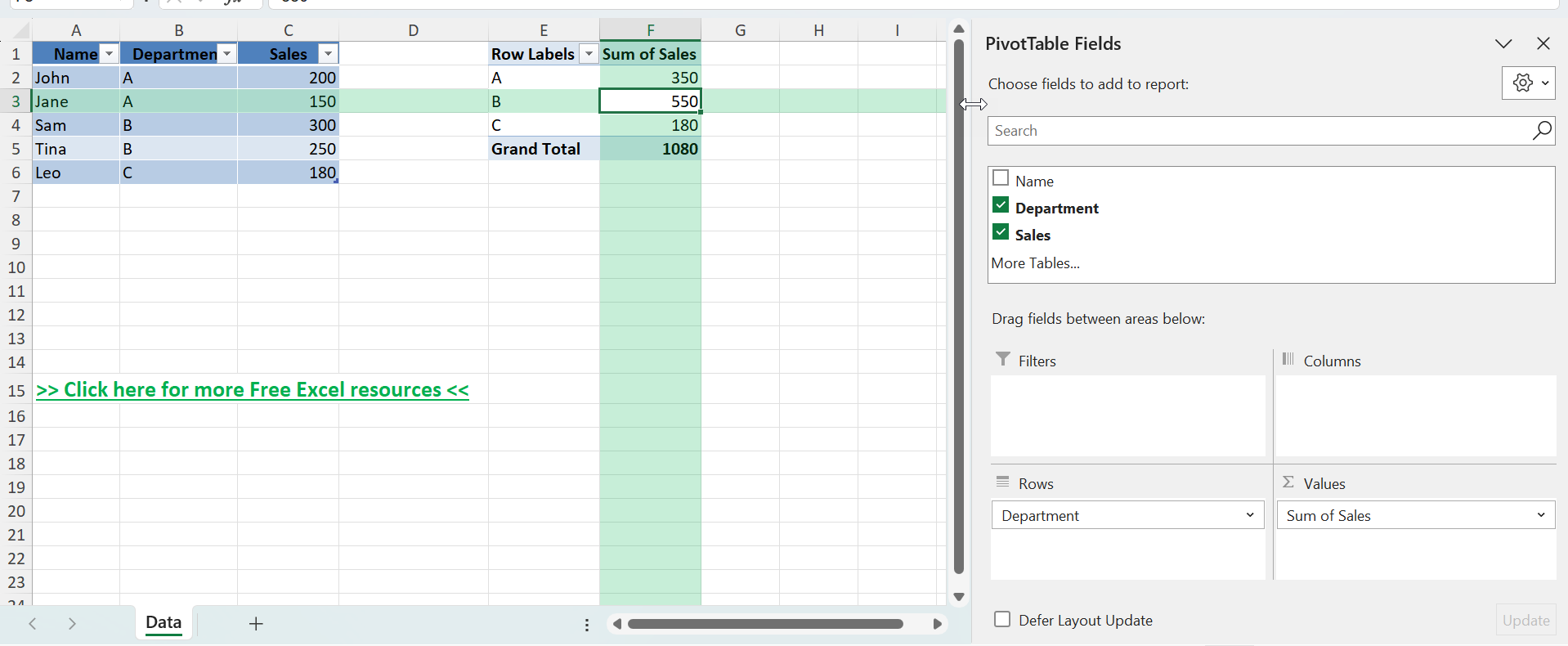
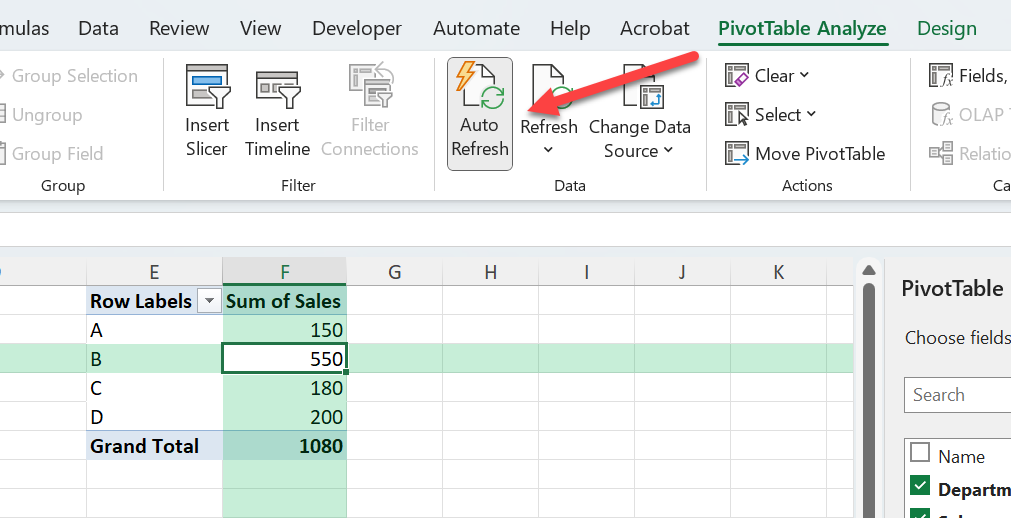
- Select any cell in your Pivot Table.
- Go to PivotTable Analyze > Data > Auto Refresh
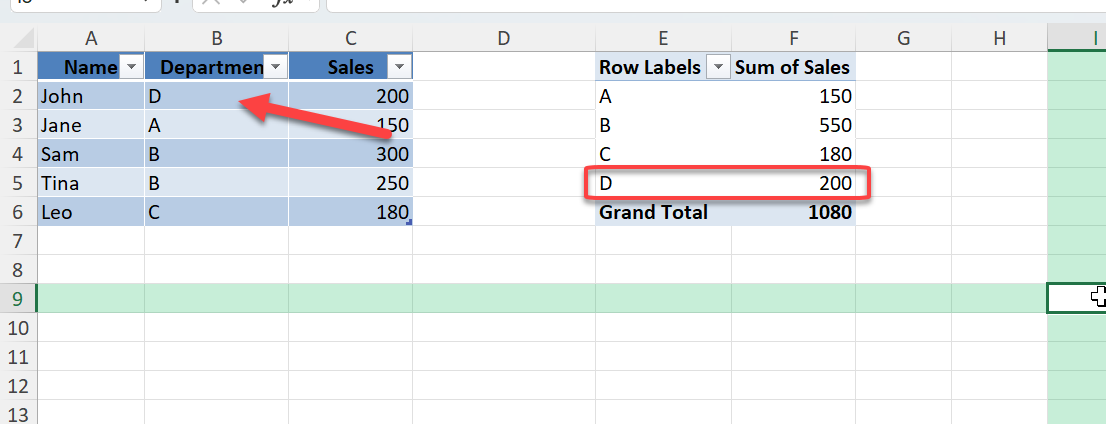
Now make any changes in your data, and see it get reflected instantly in your Pivot Table!
Common Mistakes
- Make sure that macros are enabled when opening the file.
- In the source data, use Excel tables instead of ranges. This will allow the source to auto-expand.
- Double-check Pivot Table locations in VBA.
- Loop through all sheets to make sure that there is a complete refresh.
Preventing Width and Format Reversion
- Pivot Table Options: Right-click on your pivot table and select ‘PivotTable Options.’ Make sure that the ‘Preserve cell formatting on update’ option is checked. This option helps lock your custom formats in place during refreshes.
- Use Styles: Apply table styles to preserve the overall theme and colorcoding. Styles help maintain visual consistency across refreshes.
- VBA Scripting: For more control, use VBA scripts to format cells automatically every time the pivot table updates. This advanced method ensures that settings like column widths and text alignment revert to your specifications.
- Adjust Layout Design: Choose layout designs that inherently support stability during updates, such as the ‘Tabular Form,’ which is less susceptible to reversion issues.
- Regularly Save Formatting: If you experience frequent reversion issues, manually save the workbook after any format change to capture the exact adjustments, mitigating the risk of losing settings after a refresh.
Bonus Tips and Advanced Scenarios
- Auto Refresh on Data Change: Use
Worksheet_Changeevent to trigger refresh when cells are edited. - Power Query Refresh: Combine Pivot Tables with Power Query and use
ThisWorkbook.RefreshAll. - Refresh on Save: Use the
Workbook_BeforeSaveevent to refresh before saving.
Use Cases
- Dashboards that need to show real-time totals from dynamic data.
- Monthly reports where new data is added to the source table before emailing.
- Shared workbooks where users expect up-to-date summaries without manual effort.
- Files with multiple Pivot Tables across different sheets require consistent data.
FAQ
Can I refresh only one Pivot Table automatically?
Yes. In VBA, you can reference a specific Pivot Table by name or location instead of looping through all.
Does the built-in refresh on open setting work with Power Pivot?
Yes. You can enable the same “refresh on open” option within Power Pivot for linked data models.
Can I use VBA to refresh just a specific worksheet?
Yes. Modify the macro to target a single worksheet and its Pivot Tables.
How do I make sure that my data range updates automatically?
Convert your source data to a Table using Ctrl + T. This ensures dynamic range growth when new data is added.

John Michaloudis is a former accountant and finance analyst at General Electric, a Microsoft MVP since 2020, an Amazon #1 bestselling author of 4 Microsoft Excel books and teacher of Microsoft Excel & Office over at his flagship MyExcelOnline Academy Online Course.

 30 Days - Full Access









