 Free Practice Workbook
Table of Contents
How to Insert Special Characters in Excel
Alt Code
The Alt Code method is one of the fatest method to add special characters in Excel. Follow the steps below to understand how to insert it:
- Select the cell where you want to add the special character.
- Hold the Alt key.
- Type the code on the numeric keypad.
- Release the Alt key
- Press enter.
This will instantly add the character to the cell.
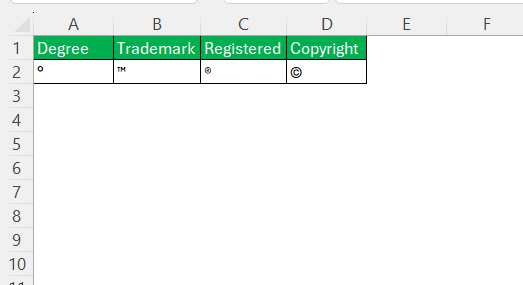
For example, you can use the following codes to insert different symbols:
- 0176 for degree
- 0153 for trademark
- 0174 for registered
- 0169 for copyright
CHAR Function
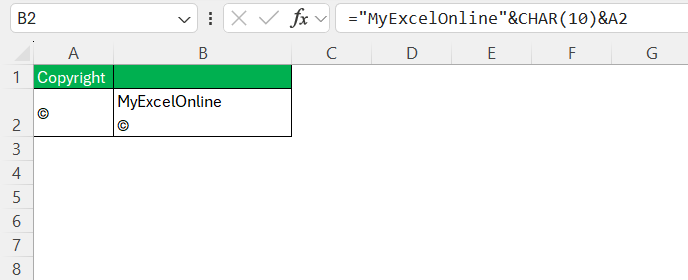
The CHAR function in Excel is used to return a character based on the number provided in the formula. The syntax will be:
=CHAR(number)
The number can be anything from 1 to 255.
For example, you can insert a line break by using 10 as the argument.
Symbol Dialog Box
The symbol dialog box is another method to insert special characters in Excel. This method does not require you to learn the Alt codes or any formula. You can just select the desired symbol, and it will be added.
Follow the steps below:
- Go to the Insert tab
- Select Symbol.

- Select a symbol from the list.
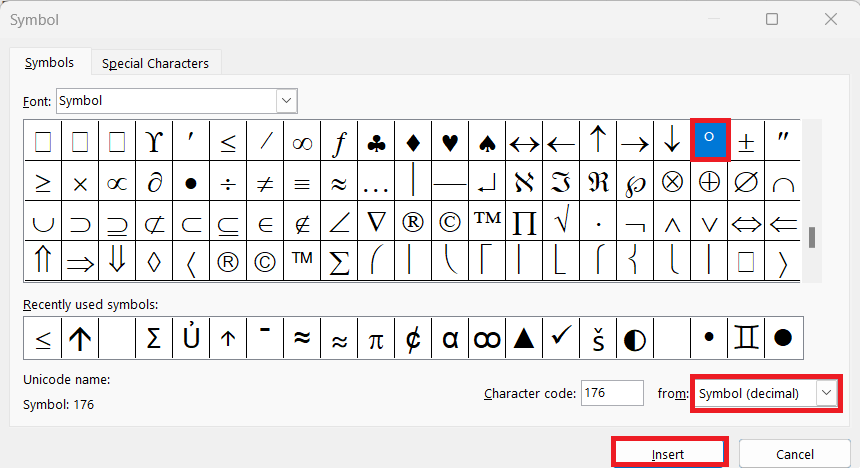
- Press Insert.
FAQs
What is an alt code?
An alt code is a numerical code that allows users to insert special characters or symbols into text fields by using their keyboard. By holding down the “Alt” key and typing a specific sequence of numbers on the numeric keypad, you can produce characters that are not available directly on the keyboard. Alt codes are widely used in various software applications, including Excel, to enhance text with symbols like ©, ¥, and €.
What are special characters list in Excel?
Special characters in Excel are symbols or characters that are not found on a keyboard. They include a variety of symbols like currency, mathematical operators, musical symbols, geometric symbols, etc.
How to type a check mark in Excel?
You can use the symbol dialog box to insert a check mark in Excel. Follow the steps below to insert it:
- Go to Insert Tab
- Select Symbol
- Choose Font as Wingdings
- Select the check mark.
You can press and hold the Alt key and then type 0252 to quickly insert a check mark.
Does Excel support all Unicode characters?
Not all Unicode characters are supported by Excel. Some of the characters may not display properly beacuse font is not supported or because of an outdated version.
Why is Alt + 178 used in Excel?
You can hold the Alt key and then type 178 to insert a superscript of 2. This is used in mathematical operations to square any number.

John Michaloudis is a former accountant and finance analyst at General Electric, a Microsoft MVP since 2020, an Amazon #1 bestselling author of 4 Microsoft Excel books and teacher of Microsoft Excel & Office over at his flagship MyExcelOnline Academy Online Course.

 30 Days - Full Access









