 Free Practice Workbook
Microsoft Excel has a proofing tool called Spell Check that can help you with text accuracy. This feature is important in avoiding the embarrassment of presenting documents filled with spelling errors. In this article, you will learn how to do a spell check in Excel.
Key Takeaways:
- Spell Check can spot all spelling mistakes within worksheets.
- Excel will not highlight spelling errors while typing.
- You must start Spell Check manually using F7 or the Spelling button in the Review tab.
- Excel allows you to customize proofing settings and add new words to the dictionary.
- Spell Check may skip uppercase words, formulas, and protected sheets unless settings are adjusted.
Table of Contents
Introduction to Spell Check
If you have a financial report filled with spelling errors, it will reflect poorly on your professionalism. So, it is important to have a proofing tool to maintain the credibility of your work. Unlike Word or PowerPoint, Excel will not automatically correct misspelled words.
Spell Check is a tool that can be used to keep your text error-free. By using this feature, you can prevent errors from going unnoticed.
How Does Spell Check in Excel Work?
To start a Spell Check in Excel, you’ll select the cells you want to review. Go to the Review tab and select the Spelling button. You can also press F7 to start the spell check. It will scan your text entries for any misspellings against its dictionary. Excel will open a dialog box with its suggestions.
You can then choose to ignore the find, change it, or even add to the dictionary.
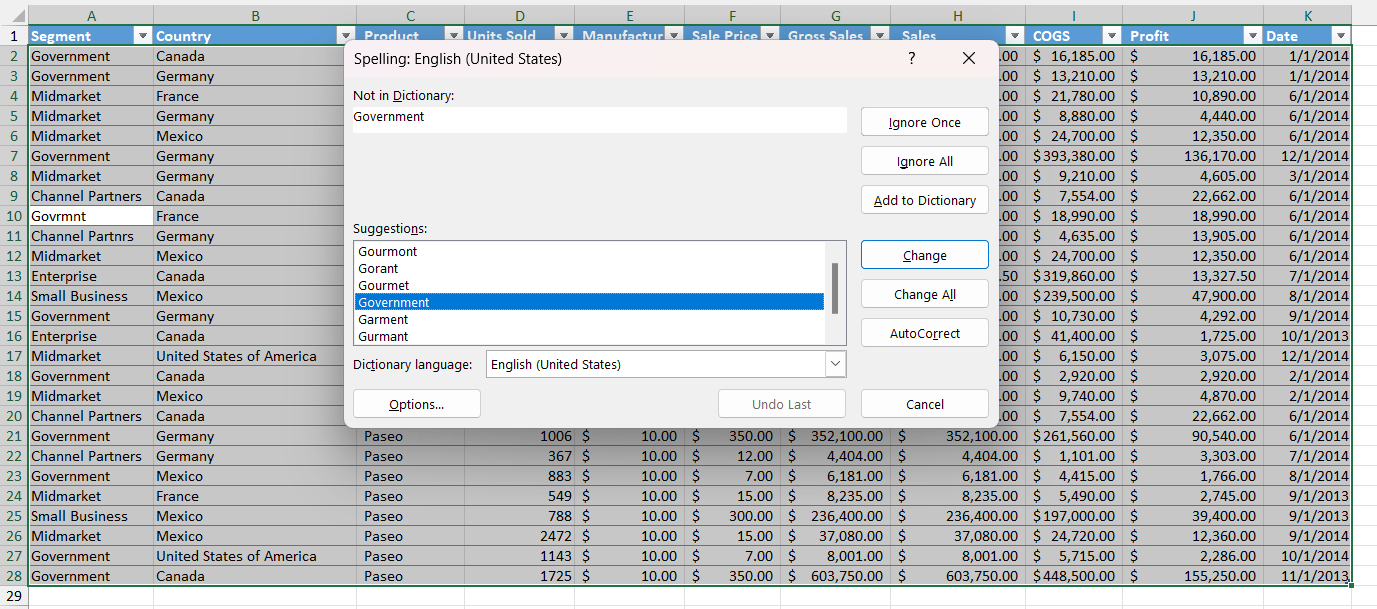
MS Word will check the spelling as you type it and underline the errors. Excel will not underline the errors automatically. You will have to use the spell check option to manually correct the errors.
How to Use Spell Check in Excel
Spell Checking a Single Worksheet
To spell-check a single worksheet is as easy as pie. Just follow these steps:
STEP 1: Open up the worksheet that needs proofing.
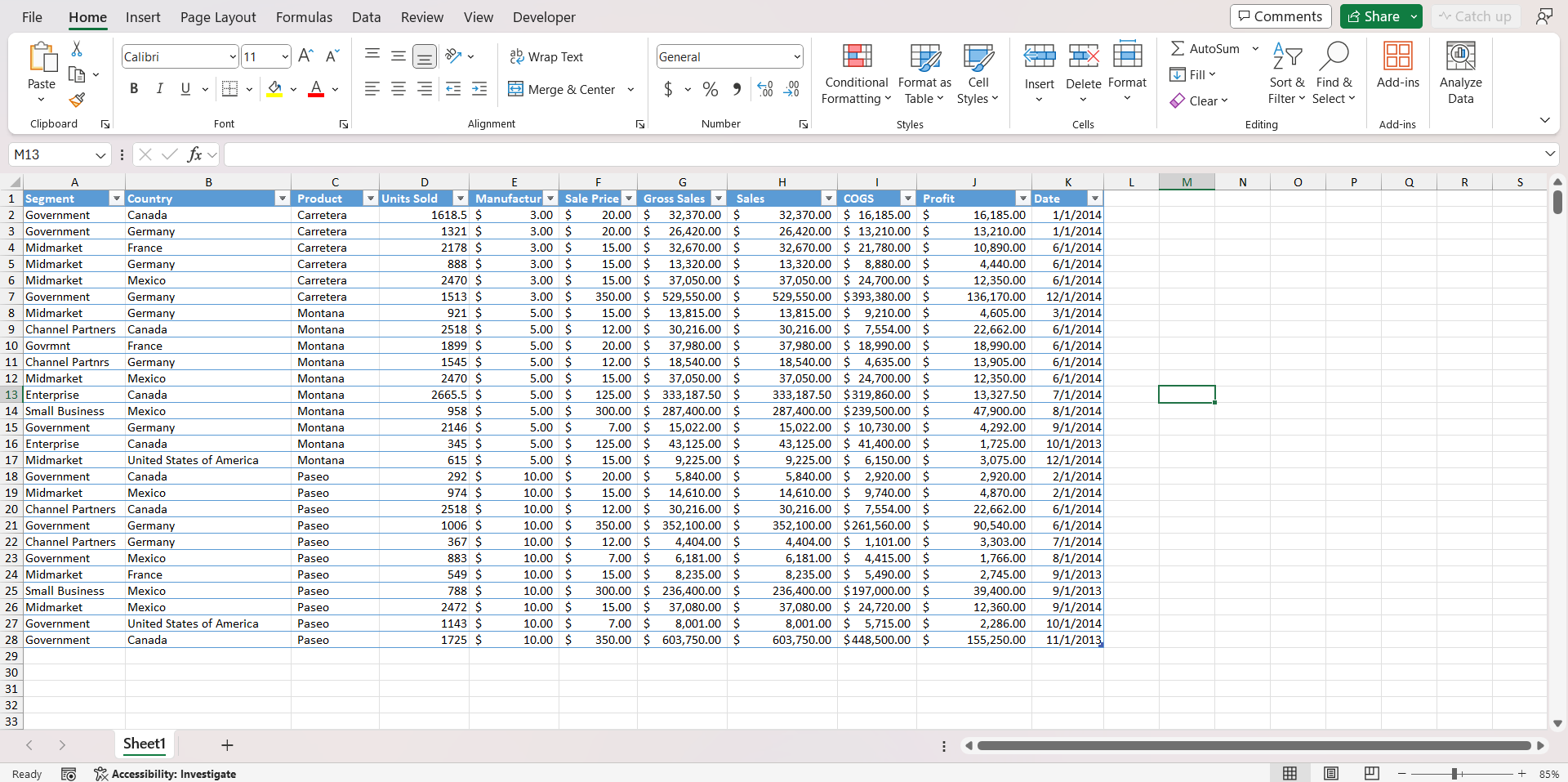
STEP 2: Go to the Review tab.

STEP 3: Select Spelling in the Proofing group.

STEP 4: Click on a single cell in the worksheet. 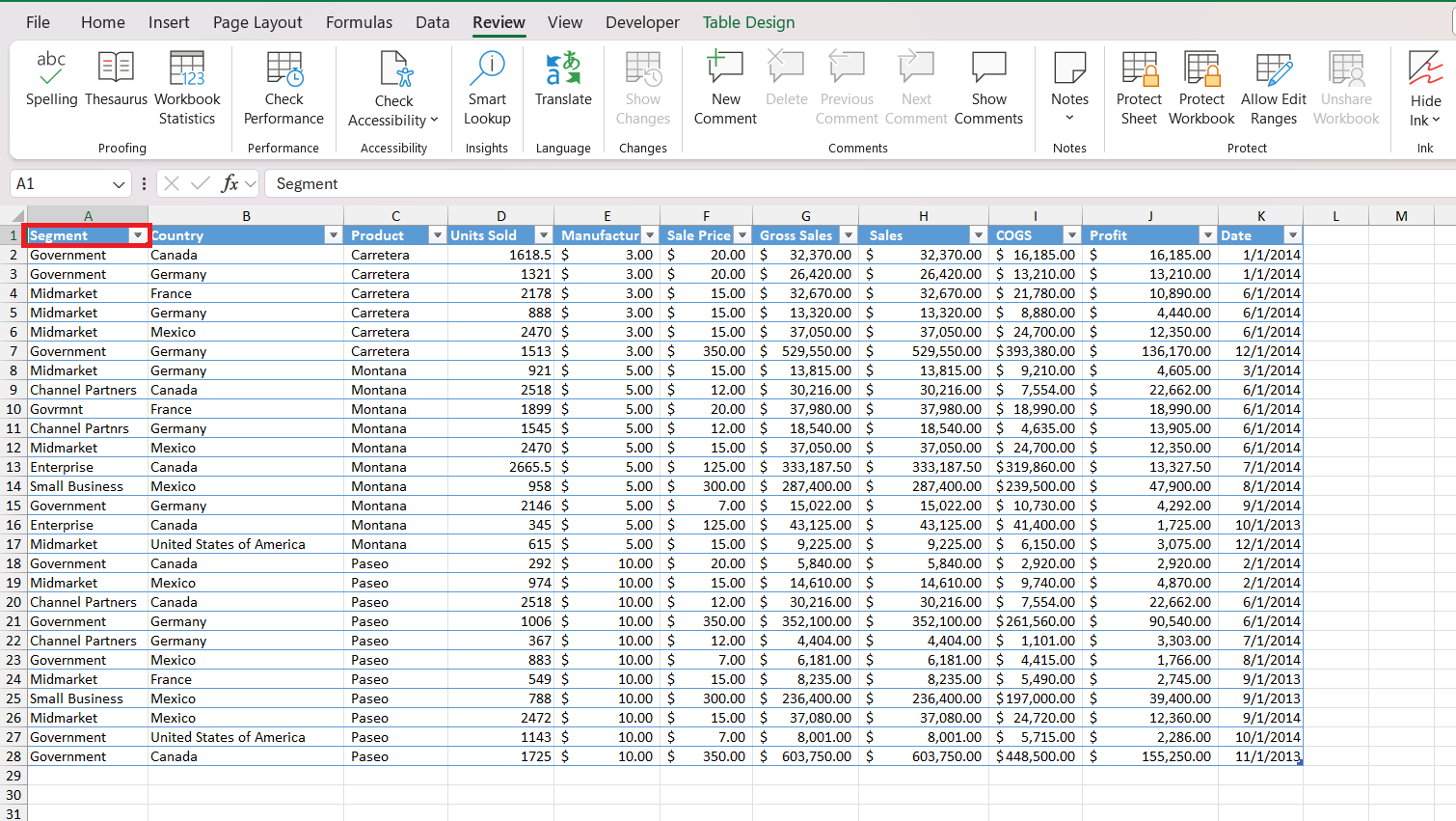
STEP 5: Based on the suggestions, you can either Ignore, Change or Autocorrect the suggestions.
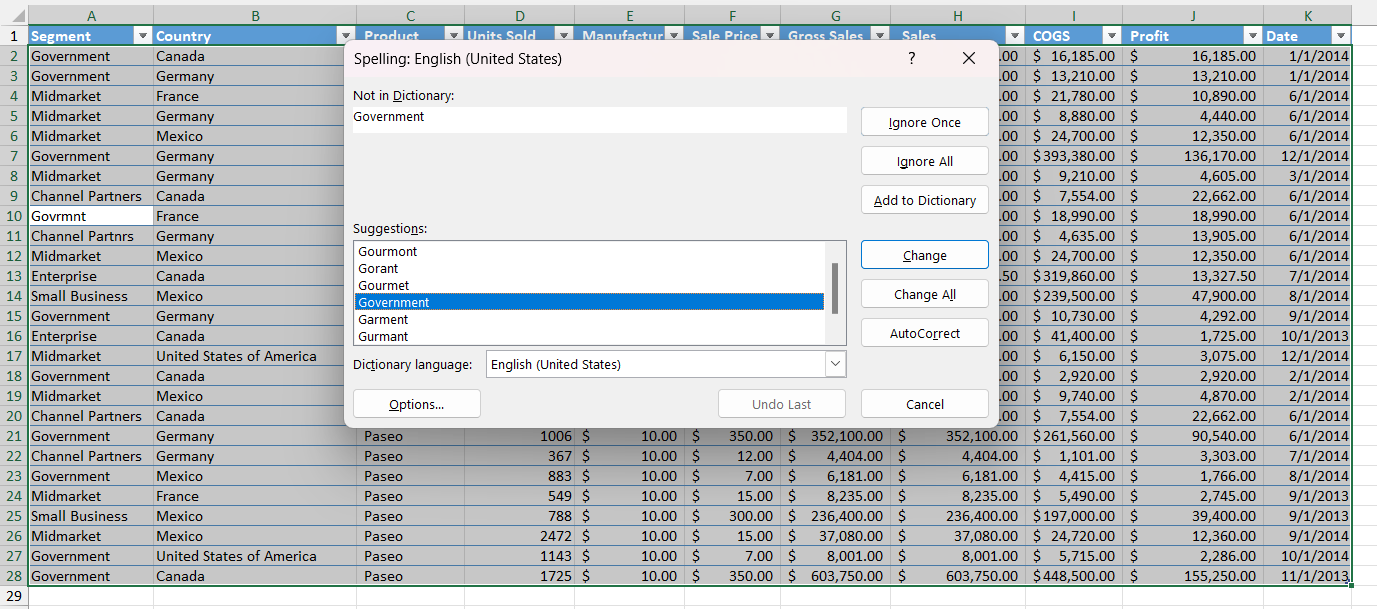
STEP 6: Continue through all the prompts until the spell check wraps up.
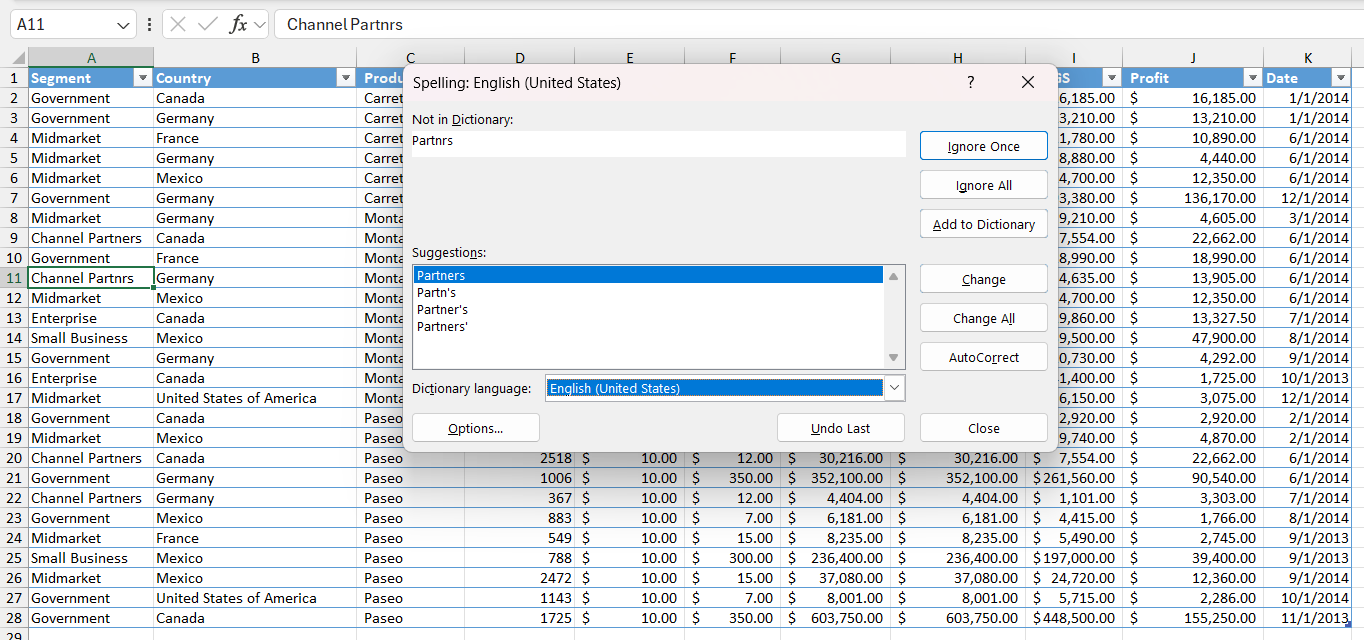
Remember these features – the Review tab, the Spell Check dialogue box, and F7 – as they’re your toolkit for a mistake-free worksheet.
Spell Check Multiple Sheets
Checking multiple sheets for spelling at once in Excel is a real time-saver when working on expansive workbooks. Here’s what you do:
STEP 1: Click on the first sheet tab you want to check.
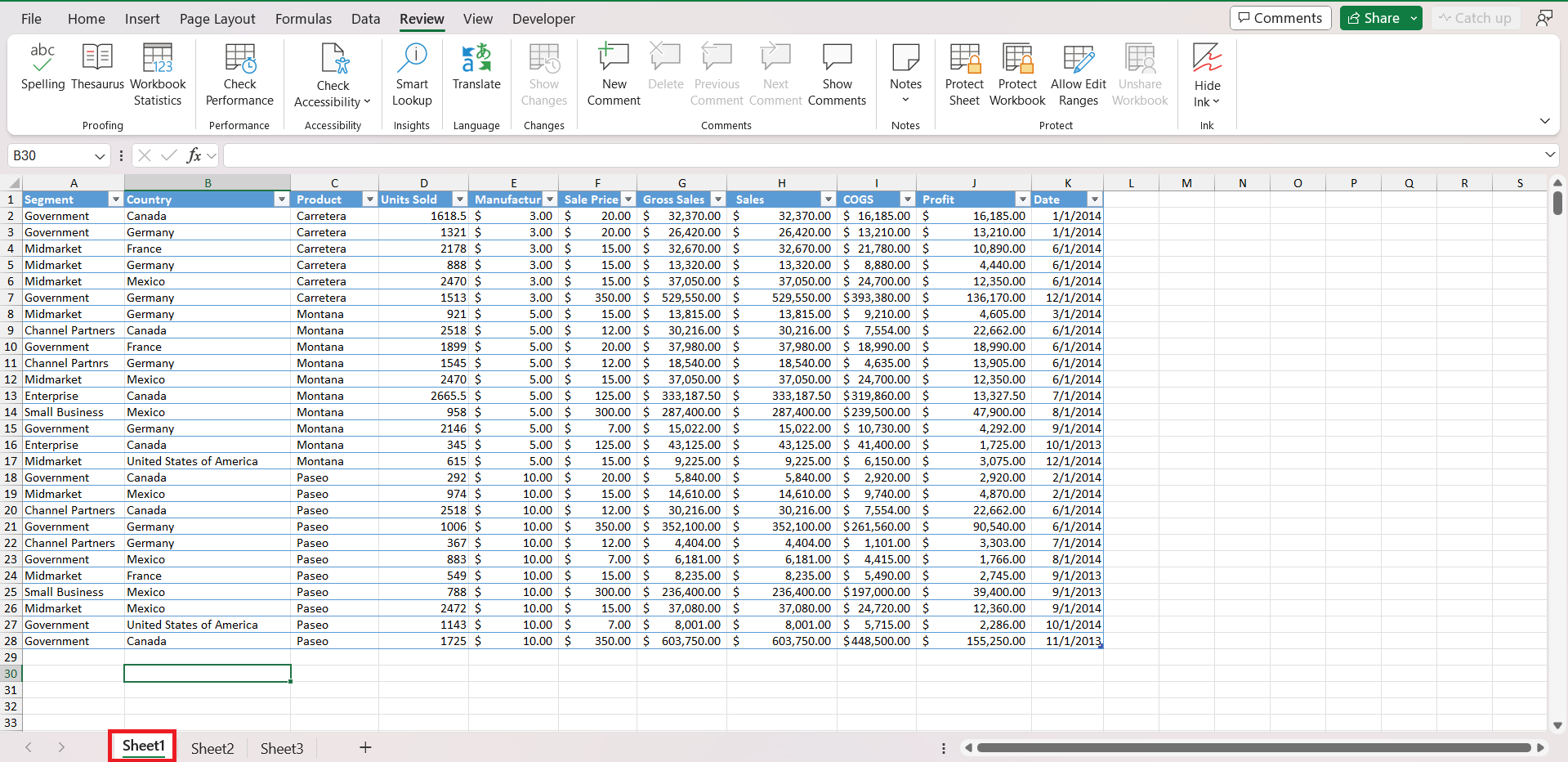
STEP 2: To add non-adjacent sheets to your selection, hold down Ctrl and click their tabs. And for consecutive sheets, click the first sheet, then hold Shift and click the last sheet tab to group them together.
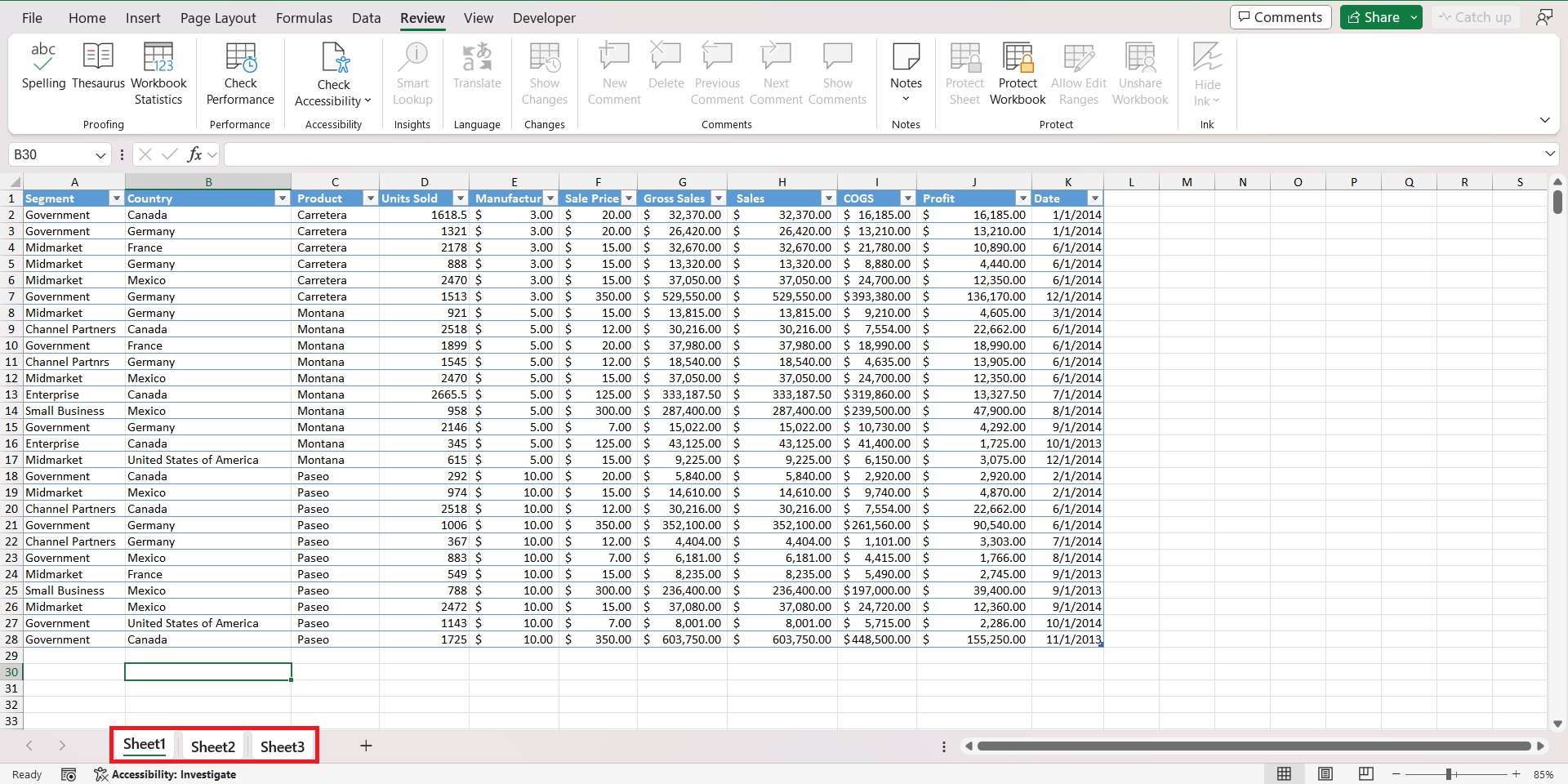
STEP 3: Once your tabs are highlighted, press F7 or go to the ‘Review’ tab and click the ‘Spelling’ button.
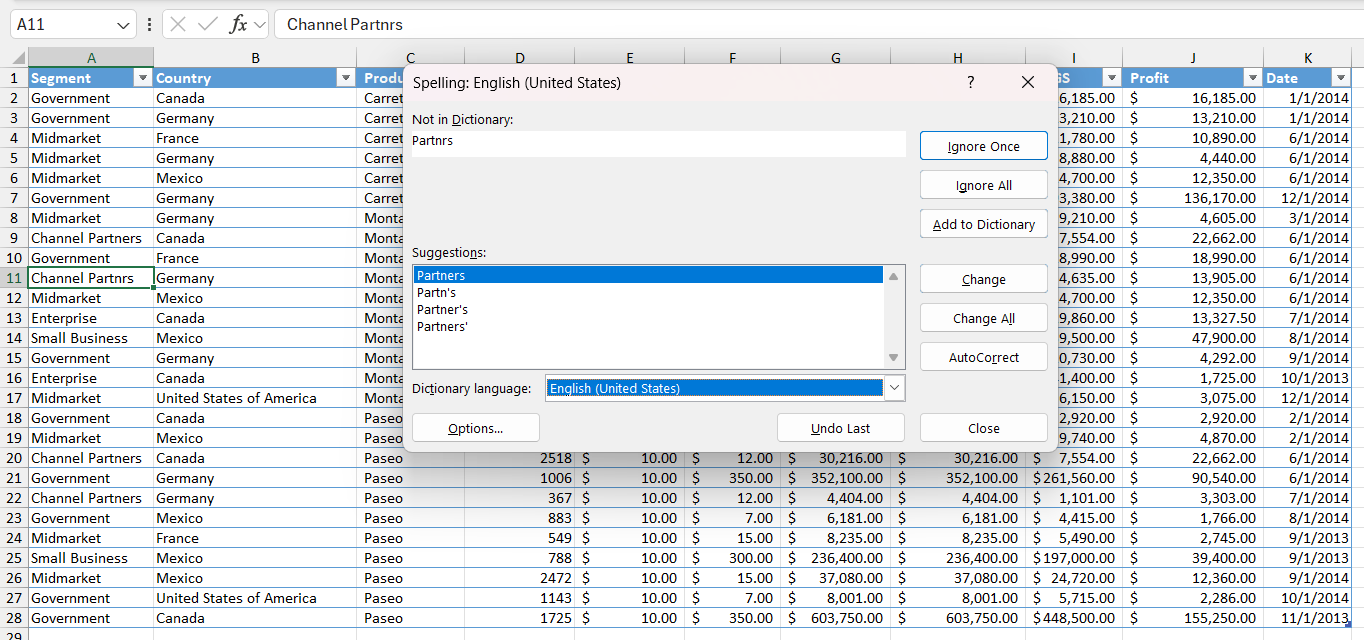
Excel will scrutinize each cell in your selected sheets, one by one, opening up a dialogue box for spelling errors it encounters. After you’ve made the desired corrections or skips, be sure to right-click a sheet tab and select ‘Ungroup Sheets.’
Advanced Options
Expanding your Excel toolkit with customizations in Autocorrect and adding uncommon or specialized terms to the dictionary will significantly refine your proofing process.
Optimizing your Spell Check can massively improve your Excel experience:
- Uncheck ‘Ignore words in uppercase’ if you want to include acronyms in the check.
- Uncheck ‘Ignore words that contain numbers’ to catch errors in alphanumeric text.
- Uncheck ‘Ignore Internet and file addresses’ for URL and filepath precision.
- Check ‘Flag repeated words’ to avoid embarrassing duplications.
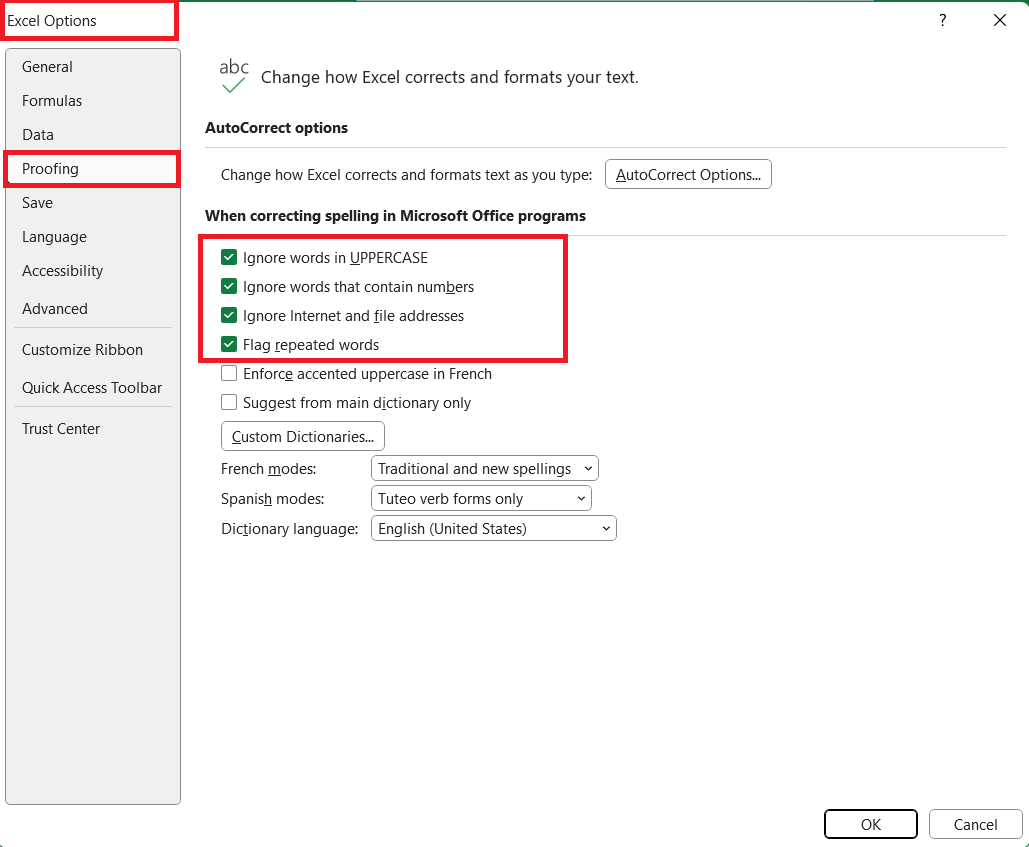
By tweaking these settings, you enhance Excel’s proofing capabilities to match your unique workflow.
Troubleshoot Spell Check Issues
When Spell Check doesn’t work as expected, here are some troubleshooting tips to solve the issue:
- Check if the worksheet is protected. Excel does not perform spell checks on protected sheets.
- Make sure that you are not in edit mode.
- Text within formulas isn’t included in Spell Check by default.
- Spell check usually skips words in ALL CAPS. It assumes that they are acronyms or initials.
- Words combined with numbers are also generally ignored.
- Spell Check cannot search through the VBA code.
- Excel ignores internet URLs and file paths during spell check.
Shortcuts for Spell Check
- F7: F7 launches the Spell Check tool.
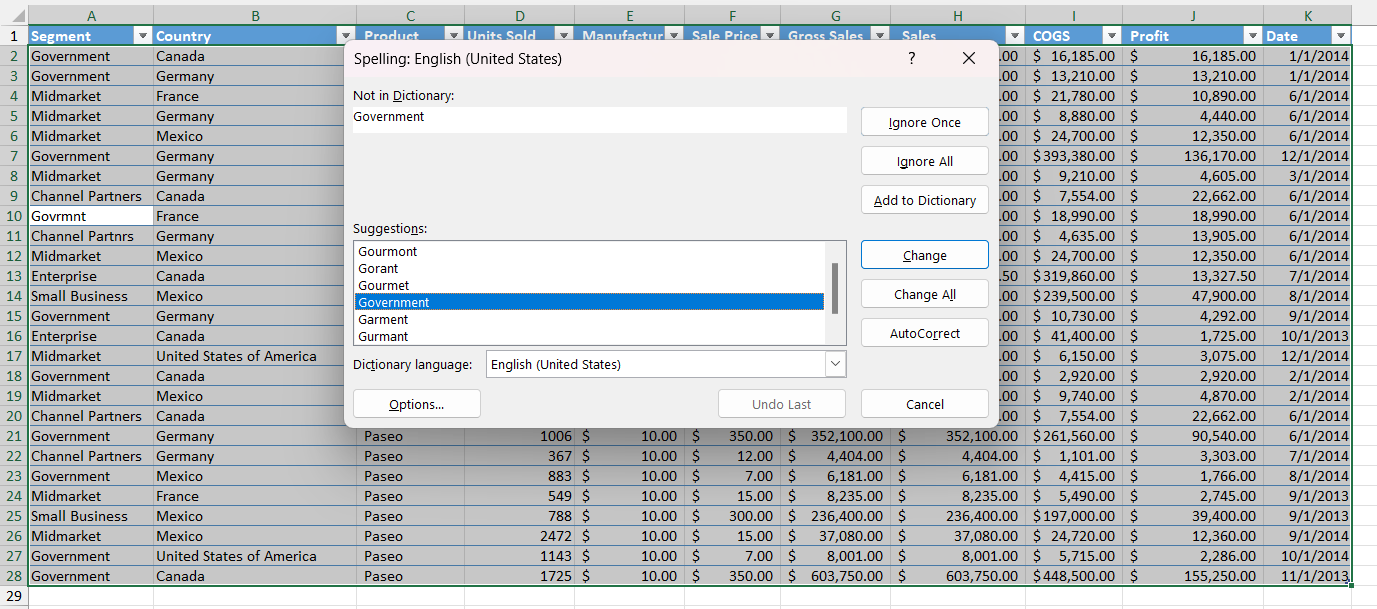
- Alt + E + S + V: Formulas can’t be checked using spell check. So, you can use this shortcut to open Paste Special and select Value.
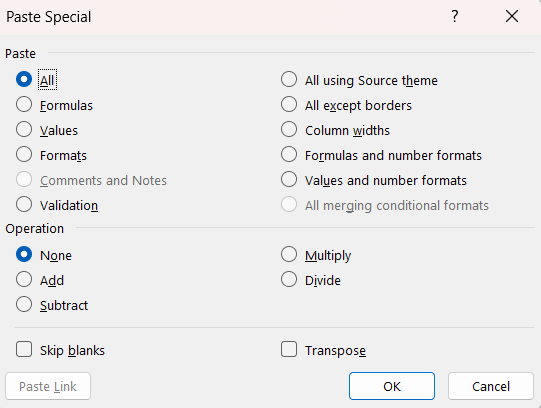
- Alt + R + S: This shortcut will take you to the Review tab and then select the Spelling button.

These shortcuts can be super efficient.
FAQs
How to do spell check?
Follow the steps below to do a spell check in Excel:
- Go to the Review tab.
- Select Spelling.
- In the dialog box, there will be a list of potential misspellings.
- Select Change or Autocorrect.
What options do you get in Spell Check?
In the spell check dialog box, you will get two options:
- Change – This will substitute the incorrect word with the recommendation you choose.
- Autocorrect – This will correct it and remember your choice. It will automatically change to the selected word when you mke the same mistake in the future.
What is the keyboard shortcut for spell check?
The keyboard shortcut for running a spell check in Excel is ‘F7’. It instantly initiates the proofing process on the active worksheet or selected range.
Is Excel Capable of Automatically Underlining Words That Are Misspelled?
No, Excel cannot automatically underline misspelled words like Word does. Spell check needs to be run manually using ‘F7’ or the Review tab options to identify spelling errors.
How to Add New Words to My Excel Spell Check List?
To add new words to your Excel Spell Check list, click ‘Add to Dictionary’ during a spell check session, or edit your custom dictionary in the Proofing options. This saves the new word for future use.

John Michaloudis is a former accountant and finance analyst at General Electric, a Microsoft MVP since 2020, an Amazon #1 bestselling author of 4 Microsoft Excel books and teacher of Microsoft Excel & Office over at his flagship MyExcelOnline Academy Online Course.

 30 Days - Full Access









