Understanding unfiltering in Microsoft Excel is important for anyone who regularly works with data. When the need arises to step back from the specifics and regain a view of the entire dataset, unfiltering can swiftly restore your spreadsheet to its unfiltered state. This article will guide you through the simple steps required to remove applied filters, so you can analyze your data without restrictions.
Key Takeaways
- Excel filters are used to hide the data, not delete it.
- Unfiltering will remove applied filters and maintain data integrity.
- Keyboard shortcuts in Excel enhance speed, precision, and multitasking.
- You can either remove all filters or remove them from a single column.
Mastering Excel’s Unfiltering Shortcuts
What is an Excel Filter?
Filters are applied to view only the data that meets a certain criterion. It temperorarily hids the other data that does not meet the requirement.
How to Unfilter?
When you are working on a large set of data, it is vital to use filters for managing the data efficiently. You can apply the filters to quickly display a few rows that meet the criteria. Once the data is filtered, you may need to revert the action to view the full data.
Follow the step-by-step guide to remove filters:
STEP 1: Select any cell in the data range where filters are applied.
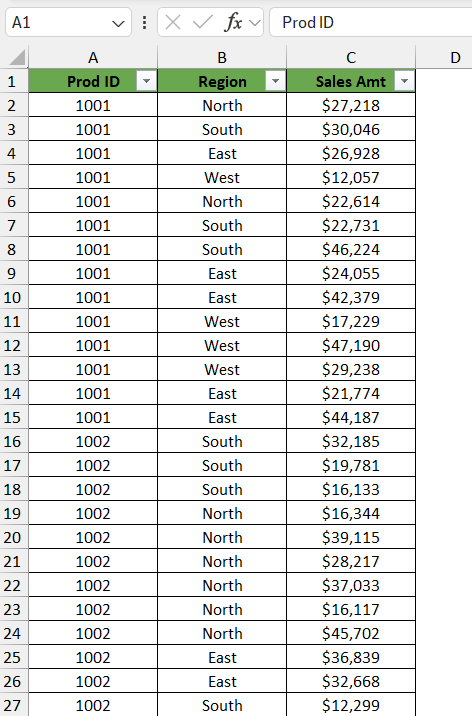
STEP 2: Press Ctrl + Shift + L in Windows to remove the filter. For Mac, shortcut keys will be Command + Shift + L
STEP 3: Once you have pressed the shortcut, check to make sure all filters have been removed. The filter icons at the top of your columns should no longer be highlighted or should have reverted back to their default state, indicating that the entire data set is now visible.
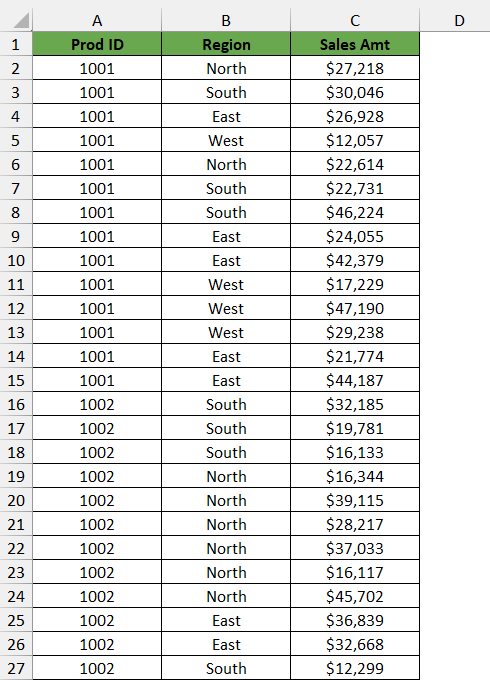
After you’ve filtered your data, it’s always a good practice to quickly verify that all filters were successfully cleared and that no data was lost or hidden in the process.
It’s important to note that this shortcut toggles the filter function. If the filters are not applied, using this shortcut will instead apply them. That’s why it’s important to use this shortcut carefully and check the status of your filters before and after using it.
Mastering this simple yet powerful technique will speed up your workflow and help maintain the accuracy of your data analysis process in Excel.
FAQs
What is the shortcut to remove filter in Excel?
The keyboard shortcut to remove a filter in Excel is Alt + A + C. This shortcut will quickly remove any applied filters to the seelcted range.
Will the Unfilter shortcut work on cells that do not have Active Filters?
If the selected cells do not have any filter, there will be no effect of unfilter shortcut on those cells.
How to Remove Multiple Filters together in Excel?
You can remove all filters at once by going to the Data tab and selecting the Clear button.


John Michaloudis is a former accountant and finance analyst at General Electric, a Microsoft MVP since 2020, an Amazon #1 bestselling author of 4 Microsoft Excel books and teacher of Microsoft Excel & Office over at his flagship MyExcelOnline Academy Online Course.

 30 Days - Full Access









