 Free Practice Workbook
In Power Pivot, one of the major and more powerful feature are Measures. Measures (also known as Calculated Fields in Excel 2013) are formulas/calculations that are added to a Pivot Table. We will work on a simple example to show you how easy it is to add your first Measure.
Key Takeaways
- Create Custom Calculations – Measures allow you to perform advanced calculations using DAX (Data Analysis Expressions) that go beyond standard Excel formulas.
- Efficient Data Processing – Unlike calculated columns, measures are computed only when used in a Pivot Table, making them more memory-efficient and faster.
- Dynamic Aggregations – Measures automatically adjust based on the Pivot Table’s filters and row/column selections, providing flexible and context-aware results.
- Reusable Across Reports – Once created, measures can be reused in multiple Pivot Tables, reducing redundancy and ensuring consistency in calculations.
- Supports Advanced Functions – DAX measures enable complex operations such as running totals, year-over-year comparisons, and ratio analysis, enhancing data insights.
Table of Contents
How to Use Measures in Power Pivot
STEP 1: Select the Sales Table. Go to Insert > Table. Click OK.
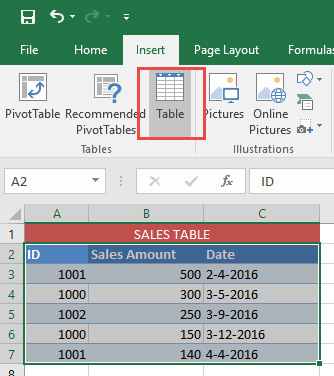
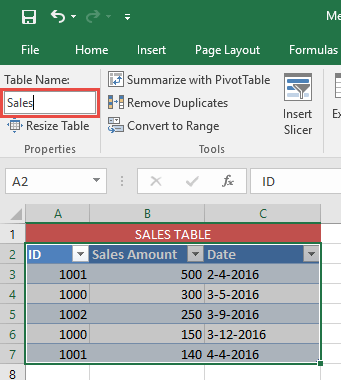
STEP 2: Go to Table Tools > Design > Table Name and give your new Table a descriptive name. In our example, we will name it Sales
STEP 3:
In Excel 2013 & 2016
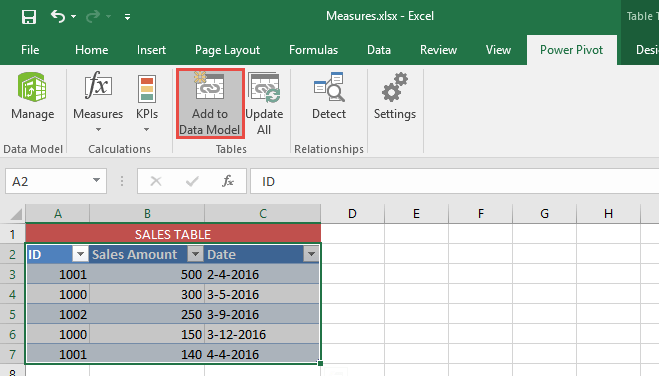
Select your Sales Table. Go to Power Pivot > Add to Data Model.
This will import your new Table into the Power Pivot Window.
In Excel 2010
Go to PowerPivot > Create Linked Table.

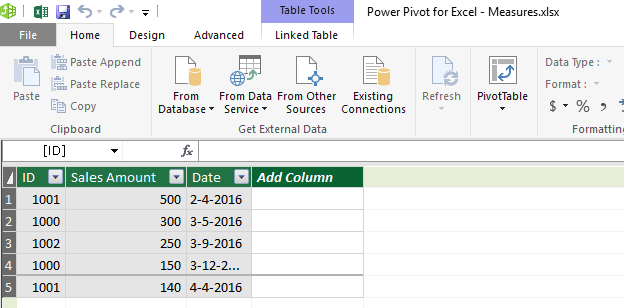
STEP 4: This will open the Power Pivot Window.
The Sales Table will now be automatically loaded to the Power Pivot Data Model.
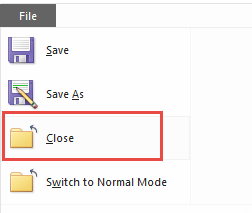
Now Close the Power Pivot Window.
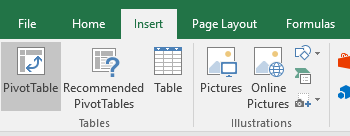
STEP 5: Go to Insert> Pivot Table.
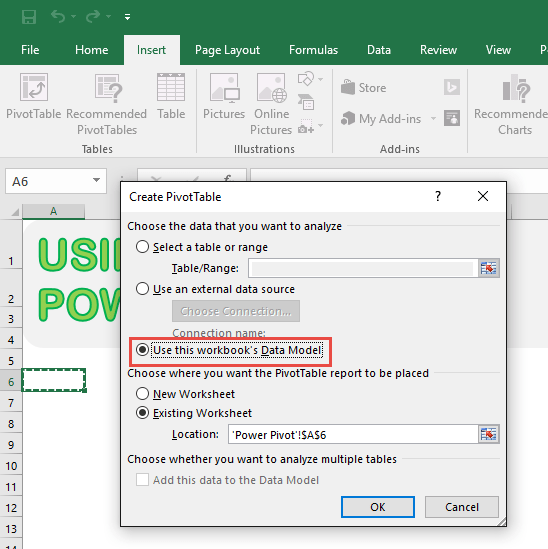
In Excel 2016
Select Use this workbook’s Data Model. This will use the Data Model you just uploaded in the last step.
Select Existing Worksheet and choose your location for your Pivot Table and press OK.
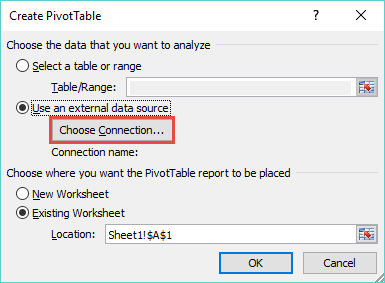
In Excel 2013
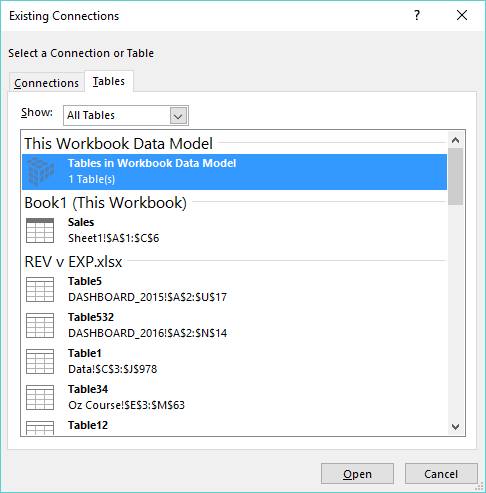
Go to Use External Data Source > Choose a Connection
Now select Tables > This Workbooks Data Model > Open:
In Excel 2010
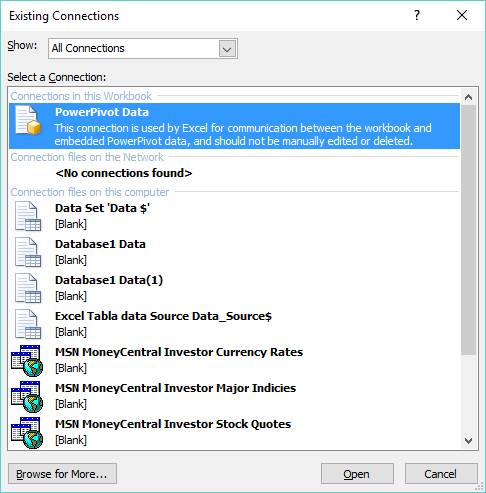
Go to Use an External Data Source > Choose Connection:
Now select PowerPivot Data > Open:
STEP 6: Adding a Measure:
In Excel 2016
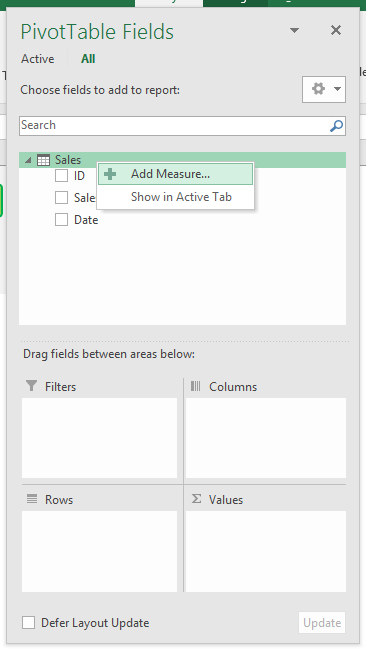
On the Sales Table, right click and select Add Measure.
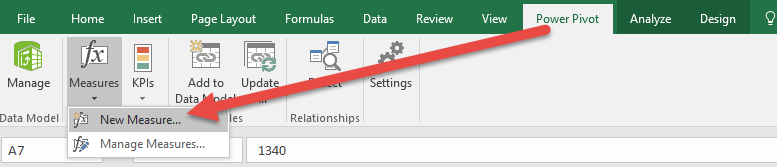
An alternative way in Excel 2016 is go to Power Pivot > Measures > New Measure.
In Excel 2013
Go to PowerPivot > Calculated Fields > New Calculated Field
(In Excel 2013 “Measures” were renamed “Calculated Fields” and returned to “Measures” in Excel 2016…I know, how annoying!)

In Excel 2010
On the Sales table, right click and select Add New Measure.
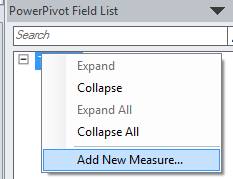
An alternative way in Excel 2010 is to select a cell inside the Pivot Table that was created in the previous step and go to Power Pivot > New Measure:

STEP 7: This is where we create our first Measure.
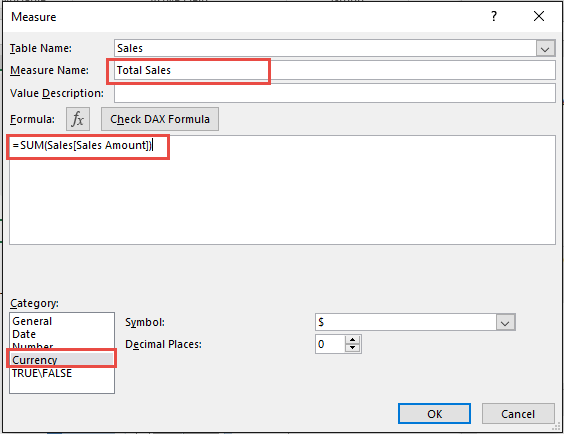
For Measure Name, type in any name that you like e.g. Total Sales
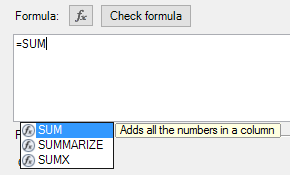
For the Formula, after the = sign start typing the word SUM.
Just like in native Excel, this will bring up the Formula helper and choose the SUM function by either double clicking on the blue highlighted SUM option or by pressing the Tab keyboard to confirm this suggestion:
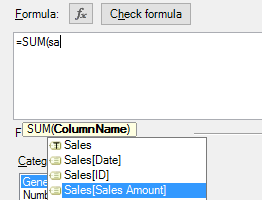
After the SUM formula is selected, type in the Table name that we created in Step 2, which we called Sales.
This will bring up the Formula helper and within here you need to select the Sales [Sales Amount] option and close the parenthesis:
Set the Category as Currency, and this will automatically handle the formatting for you. Press OK to confirm this.
This Measure will now return the Sum Total of the Sales Amount column within the Sales Table.
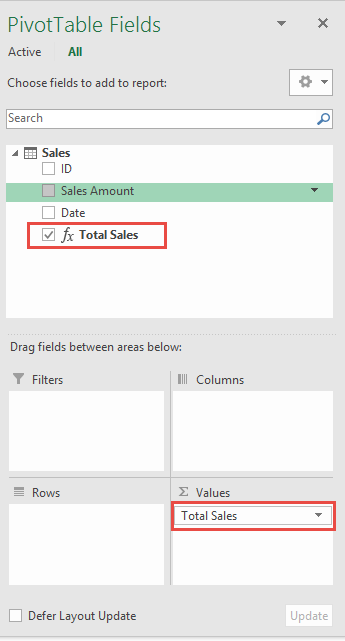
STEP 8: Place your new Measure Total Sales in the Values area.
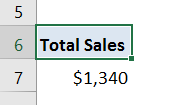
STEP 9: Now we are able to use our new Measure in the Pivot Table.
Frequently Asked Questions:
What is a Measure in Power Pivot?
A Measure is a custom calculation created using DAX (Data Analysis Expressions) that performs aggregations like sum, average, or complex calculations within a Pivot Table. Unlike calculated columns, measures are evaluated only when needed, making them efficient for large datasets.
How do I create a Measure in Power Pivot?
To create a Measure, go to the Power Pivot window, click on the “Home” tab, and select “New Measure.” Alternatively, in an Excel Pivot Table, right-click on the table name in the Fields List, choose “Add Measure,” and enter your DAX formula.
What is the difference between a Measure and a Calculated Column?
A Measure is dynamically calculated based on the Pivot Table’s filters, making it efficient and reusable. A Calculated Column, on the other hand, creates a new column in the data model with static values, increasing memory usage.
Can I use multiple Measures in the same Pivot Table?
Yes, multiple Measures can be added to the same Pivot Table. Each Measure provides its own calculation, and they can be used together to analyze different aspects of the dataset, such as profit margin, total revenue, and average sales.
Why is my Measure not displaying correctly in the Pivot Table?
If a Measure is not working as expected, check the DAX formula for syntax errors, ensure the correct aggregation function is used, and verify that the data model relationships are properly set up. Also, make sure that the Measure is added to the Values area in the Pivot Table.


Bryan
Bryan Hong is an IT Software Developer for more than 10 years and has the following certifications: Microsoft Certified Professional Developer (MCPD): Web Developer, Microsoft Certified Technology Specialist (MCTS): Windows Applications, Microsoft Certified Systems Engineer (MCSE) and Microsoft Certified Systems Administrator (MCSA).
He is also an Amazon #1 bestselling author of 4 Microsoft Excel books and a teacher of Microsoft Excel & Office at the MyExecelOnline Academy Online Course.

 30 Days - Full Access









