 Free Practice Workbook
Performing a case-sensitive search using VLOOKUP in Excel can be a bit tricky, as the standard VLOOKUP function is not case-sensitive. This article explores techniques and workarounds, including the use of the EXACT function, to achieve case-sensitive lookups. This will help provide more accurate and precise data retrieval.
Key Takeaways:
- VLOOKUP is a handy tool to search for items in a list.
- Standard VLOOKUP in Excel is not case-sensitive.
- EXACT formula compares two texts in a case-sensitive manner.
- You can combine VLOOKUP with EXACT for case sensitive search.
- Make sure to enter an array formula with Ctrl + Shift + Enter.
Table of Contents
Introduction to VLOOKUP
Basics of VLOOKUP
VLOOKUP is a handy tool to perform searches in Excel. It is used to search for a value in the first column, and it returns the value in the same row from another column. The syntax for VLOOKUP is:
=VLOOKUP(lookup_value, table_array, col_index_num, [range_lookup])
- lookup_value – Value that you are looking for.
- table_array – Range containing the data.
- col_index_num – Column number containing the result.
- range_lookup – Approximate match (TRUE) or Exact match (FALSE)
VLOOKUP Case Sensitivity
Despite VLOOKUP being one of the most commonly used functions in Excel, it has its limitations. VLOOKUP does not recognise case differences. Words like clue and CLUE may look similar, but they can be different if you are considering product codes, categories, or passwords. In such situations, case sensitivity can play an important role.
When you are handling data where capitalization matters, VLOOKUP may not be the bestchoice. To achieve a case-sensitive lookup, you can use other Excel functions in combination with VLOOKUP. One such function can be EXACT.
How to do Case-Sensitive Searches
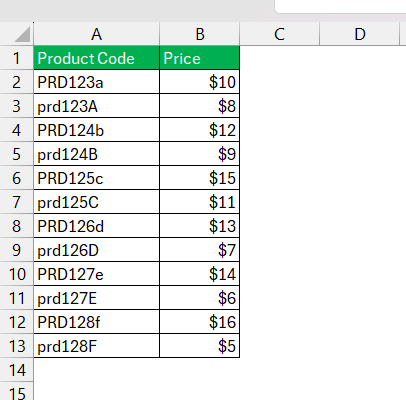
Suppose you have a list of product codes and their prices, and the codes are case sensitive. This means that A123 and a123 are treated as two different product codes. You can follow the steps below to perfoem search that takes case differences into consideration.
STEP 1: Enter the product code and its prices in two separate columns.
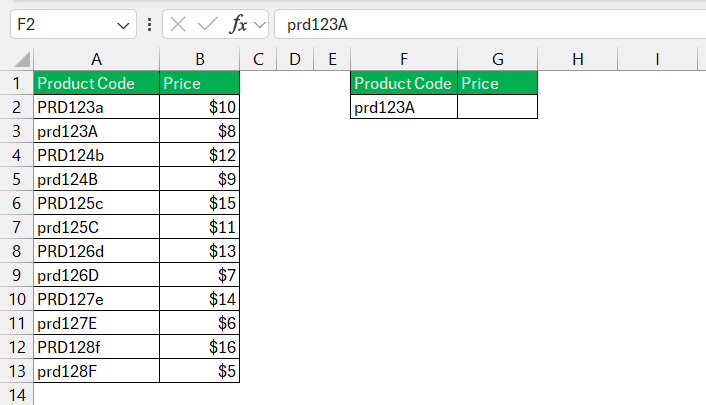
STEP 2: Enter the lookup value. Here, it is the product code – prd123A
STEP 3: Enter the formula.
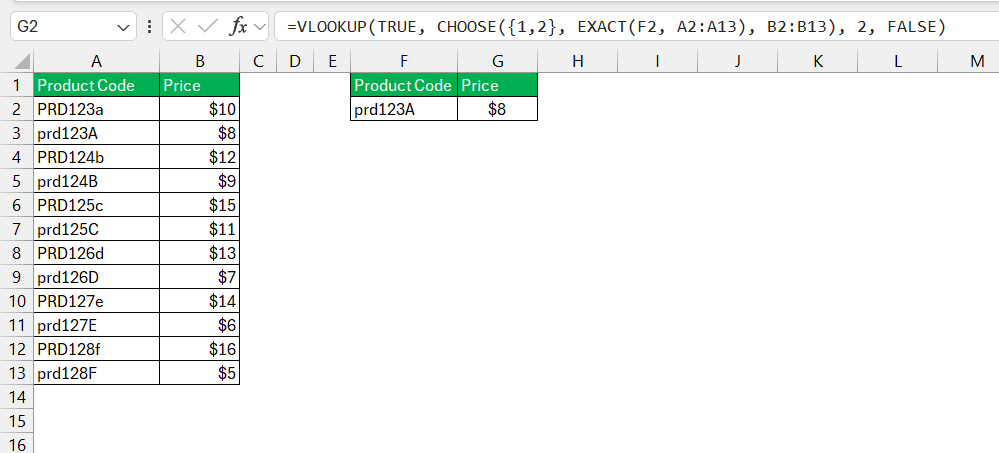
The formula =VLOOKUP(TRUE, CHOOSE({1,2}, EXACT(F2, A2:A13), B2:B13), 2, FALSE) will return $8 because “prd123A” in A3 matches exactly with F2 (“prd123A”).
Explanation
EXACT Function: EXACT(F2, A2:A13) generates an array of TRUE/FALSE values based on whether each value in A2:A13 matches “prd123A” exactly.
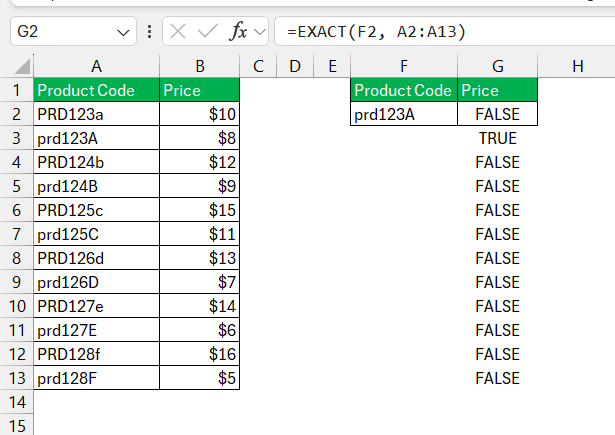
For F2 = "prd123A": [FALSE, TRUE, FALSE, FALSE, FALSE, FALSE, FALSE, FALSE, FALSE, FALSE, FALSE, FALSE].
CHOOSE Function:
CHOOSE({1,2}, EXACT(F2, A2:A13), B2:B13) combines the array of TRUE/FALSE values with the prices, resulting in: {{FALSE, $10},{TRUE, $8},{FALSE, $12},{FALSE, $9},{FALSE, $15},{FALSE, $11},{FALSE, $13},{FALSE, $7},{FALSE, $14},{FALSE, $6},{FALSE, $16},{FALSE, $5}}
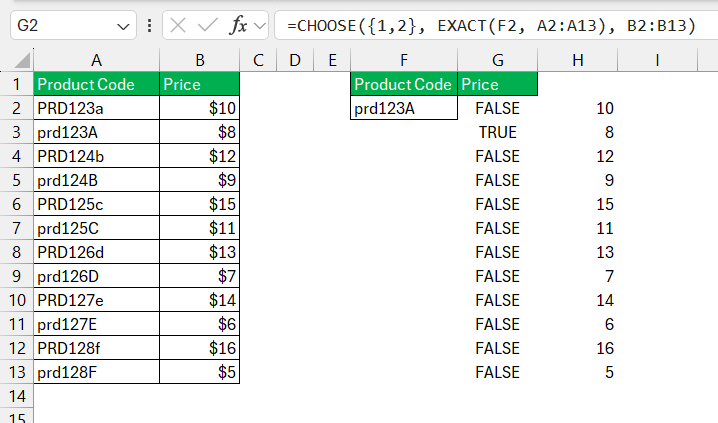
VLOOKUP Function:
VLOOKUP(TRUE, ..., 2, FALSE) searches for the first TRUE value in the first column of the array and returns the corresponding value from the second column. It finds TRUE at the second position, corresponding to the value $8.
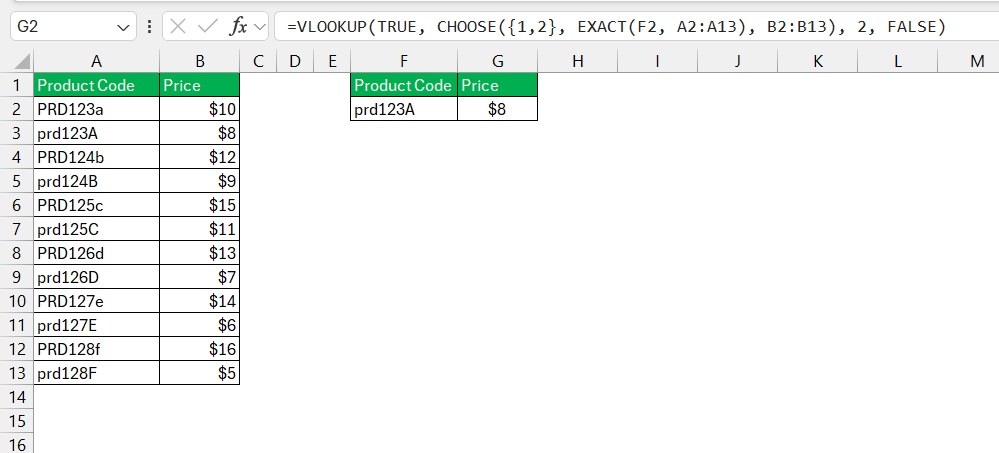
This approach will make sure that your lookup respects case sensitivity, distinguishing between different cases like “PRD123a” and “prd123A”.
Common Issues
When creating case-sensitive VLOOKUPs, a few typical mistakes that can occur are:
- Ignoring the fact that VLOOKUP is case-insensitive.
- Mising up the range lookup arguments in VLOOKUP.
- Forgetting to use Ctrl + Shift + Enter to enter an array function when using an older version of Excel.
- When the column for the lookup value is on the right of the result column.
FAQs
Is VLOOKUP case sensitive in Excel?
No, VLOOKUP function is not case-sensitive in Excel. It treats uppercase and lowercase characters as the same. For example, VLOOKUP will match ‘apple’ with ‘Apple’ and ‘APPLE’.
How to Make My VLOOKUP Searches Case Sensitive by Default?
There isn’t a direct setting to make VLOOKUP case sensitive by default. However, you can attain case sensitivity by combining VLOOKUP with other functions, such as the EXACT function within an array formula. This workaround can be established as your standard template if case sensitivity is consistently required in your Excel tasks.
Why is My Case Sensitive VLOOKUP Not Returning Correct Results?
Your case-sensitive VLOOKUP might not return correct results if there’s a mistake in the function’s structure or syntax. Check that the EXACT function is used correctly within an array formula, and confirm that you’ve entered the formula as an array (using CTRL+SHIFT+ENTER). Also, double-check that your lookup value and the range being searched are both consistent in case usage.
How to check case-sensitivity in Excel?
You can use the EXACT function to check case sensitivity in Excel. It will compare two texts and return TRUE if they are exact and FALSE otherwise.
How to ignore case sensitivity while searching?
If you do not want to search data without case sensitivity, you can use standard functions like VLOOKUP, MATCH, or FIND. These functions do not differentiate between uppercase and lowercase. They have a uniform approach for upper case, lower case, or mixed case.

John Michaloudis is a former accountant and finance analyst at General Electric, a Microsoft MVP since 2020, an Amazon #1 bestselling author of 4 Microsoft Excel books and teacher of Microsoft Excel & Office over at his flagship MyExcelOnline Academy Online Course.

 30 Days - Full Access









