 Free Practice Workbook
Weighted averages in Excel are a useful tool for analyzing data where different values have different levels of importance. By assigning weights to each data point, I can calculate an average that reflects the relative significance of each value. This method is especially useful when I need to account for varying contributions in datasets, such as in financial reports or academic assessments. Excel’s built-in functions and formulas make it easy for me to perform these calculations accurately and efficiently.
Key Takeaways:
- Weighted averages allow different values to have varying levels of importance.
- Use the SUMPRODUCT and SUM functions to calculate weighted averages.
- The SUMPRODUCT formula multiplies and sums arrays in one step.
- Make sure that values and weights are accurately organized to avoid calculation errors.
- Use named ranges to streamline calculations and manage large datasets.
Table of Contents
What is a Weighted Average?
Understanding weighted averages is akin to uncovering a hidden gem within Excel’s repertoire of functions. When I came across the weighted average for the first time, it became clear that not all data points in a set are created equal.
For instance, if I’m calculating my overall course grade, each assignment has a different impact on the final mark. Weighted average steps in to ensure that each score is given its appropriate significance. To put it simply, it’s the average accumulated not just by adding and dividing numbers, but by assigning importance to each number through weights.
This concept turns out to be crucial in fields such as education, finance, and data analysis, where emphasis on certain elements affects the outcome.
Weighted Average Calculator in Excel
Prepare Dataset
The first step is to properly organize the data. Incorrectly entered data can lead to flawed calculations, and you will be wasting hours troubleshooting them.
To prevent this, ensure that your data is clean and structured. Begin by designating separate columns for values (such as test scores or financial figures) and their corresponding weights (such as the percentage of the total grade or the share of investment in a portfolio). It’s also essential to avoid mixing data types within the same column, as Excel requires consistency to perform calculations correctly.
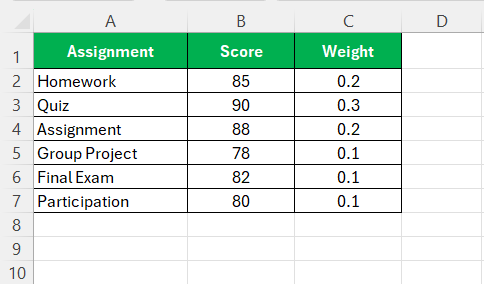
By meticulously entering data and paying close attention to detail, you’re setting yourself up for success when executing weighted average calculations, or indeed, any form of data manipulation in Excel.
Syntax of SUMPRODUCT
The formula for the SUMPRODUCT to calculate a weighted average is:
=SUMPRODUCT(range_of_values, range_of_weights) / SUM(range_of_weights)
SUMPRODUCT(range_of_values, range_of_weights)multiplies each value by its weight and then sums up these products.SUM(range_of_weights)computes the total weight.
The SUMPRODUCT Command
The SUMPRODUCT function in Excel is quite the power player when it comes to weighted averages. It combines multiplication and addition, allowing me to multiply related data sets and sum up the results in one go. For those of you who appreciate efficiency, this command is a game-changer.
To use SUMPRODUCT for calculating weighted averages, two arrays are required: values and their corresponding weights. In Excel terms, arrays are simply ranges of cells. The magic happens when SUMPRODUCT multiplies each value in the first array by its corresponding weight in the second array and then sums it all up.
Here’s a practical formula structure: =SUMPRODUCT(B2:B7, C2:C7) / SUM(C2:C7)
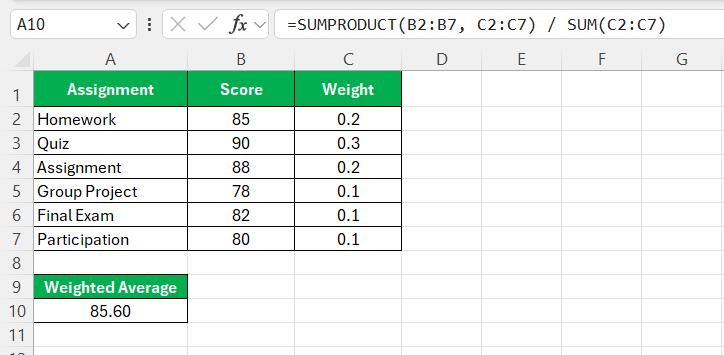
This formula, where B2:B7 holds the values and C2:C7 holds the weights, simplifies the process, delivering the weighted average without the need for additional steps.
Alternative Method: Using SUM and Helper Columns
Sometimes, clarity trumps conciseness. In scenarios where a transparent and easily traceable method is preferred, breaking the weighted average calculation into more digestible steps using SUM and helper columns is a prudent choice.
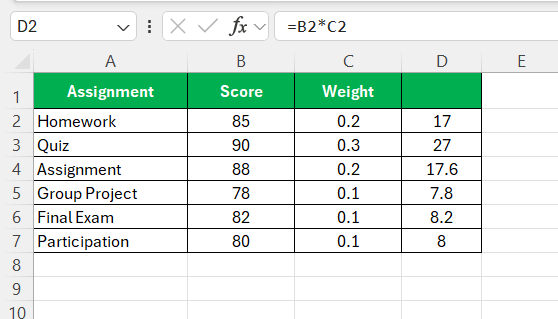
This method requires you to create a helper column that multiplies each individual value by its corresponding weight. This creates a new array of weighted values, which can then be summed using the SUM function to find the total sum of weighted values.
Next, to get the weighted average, I would divide the total sum of weighted values by the sum of the weights, also calculated using the SUM function on the weights array.
The formula might look like this:
STEP 1: In a third column, multiply each value by its weight: =B2*C2
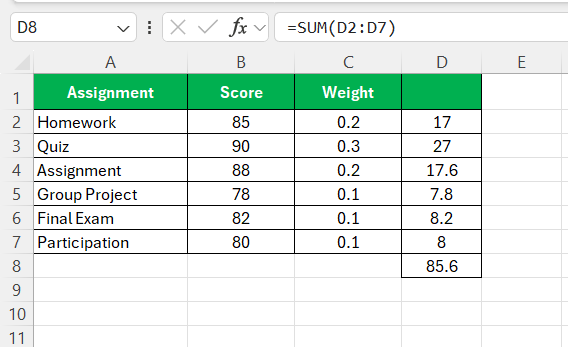
STEP 2: Sum the results of this column: =SUM(D2:D7) (with D2:D7 being the helper column)
STEP 3: Sum the weights: =SUM(C2:C7)
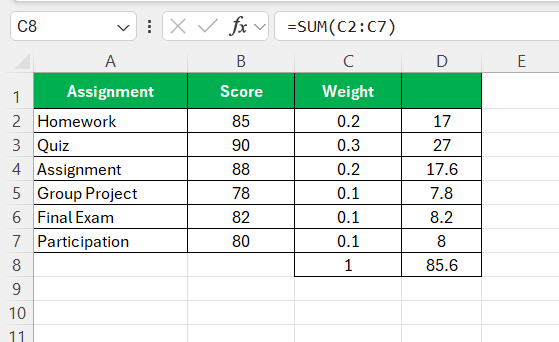
STEP 4: Divide the sum of the weighted values by the sum of the weights.
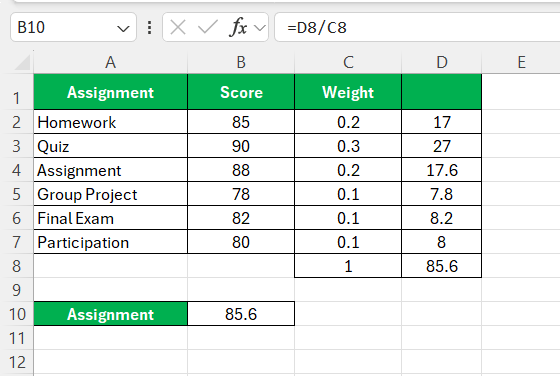
Though this method requires more space and a few extra steps, it greatly enhances the formula’s transparency and facilitates validation and error checking.
Tips for Handling Large Datasets
Here are a few tips that you should use when handling large datasets:
- Named Ranges: Instead of manually selecting ranges each time, I suggest that you name the range. For instance, name the score range
Scoresand the weight rangeWeights. The formula will be: =SUMPRODUCT(Scores, Weights) / SUM(Weights).

- Dynamic Ranges: By converting my data into an Excel Table, the range automatically updates.
FAQs
How to calculate the weighted average?
To calculate the weighted average, follow the steps below:
- Input values and weights in two different columns.
- Use the SUMPRODUCT function to multiply each value by its weight.
- Use the SUM function to get the total weight.
- Divide the two values.
What is the SUMPRODUCT function?
The SUMPRODUCT function is used to return the sum of products of corresponding arrays. It is ideal for calculating a weighted average.
=SUMPRODUCT(array1, [array2], [array3], …)
How to Calculate a Weighted Average?
You can use a helper column to calculate a weighted average in Excel.
- In the helper, multiply each value by its weight
- Use the SUM function column to add these values.
- Divide the sum by the total weight.
The formula will be =SUM(helper_column)/SUM(weights_column).
What Is the Formula for Weighted Average in Excel When Dealing with Percentages?
In Excel, when dealing with percentages, the weighted average formula is the same: =SUMPRODUCT(array_of_values, array_of_percentages)/SUM(array_of_percentages). Ensure that the percentages are in decimal format (e.g., 50% as 0.5) for accurate calculation. This formula ensures that each value is weighted by its percentage out of the total.
How to Use an Array Formula for Weighted Averages?
An array formula can be used to calculate a weighted average in a single step. If the values are mentioned in the range B2:B6 and the weights are mentioned in the range C2:C6. The formula will be:
=SUM(B2:B6*C2:C6)/SUM(C2:C6)

John Michaloudis is a former accountant and finance analyst at General Electric, a Microsoft MVP since 2020, an Amazon #1 bestselling author of 4 Microsoft Excel books and teacher of Microsoft Excel & Office over at his flagship MyExcelOnline Academy Online Course.

 30 Days - Full Access









