 Free Practice Workbook
Table of Contents
How to Change Date to YYYYMMDD format
Using Standard Date Display
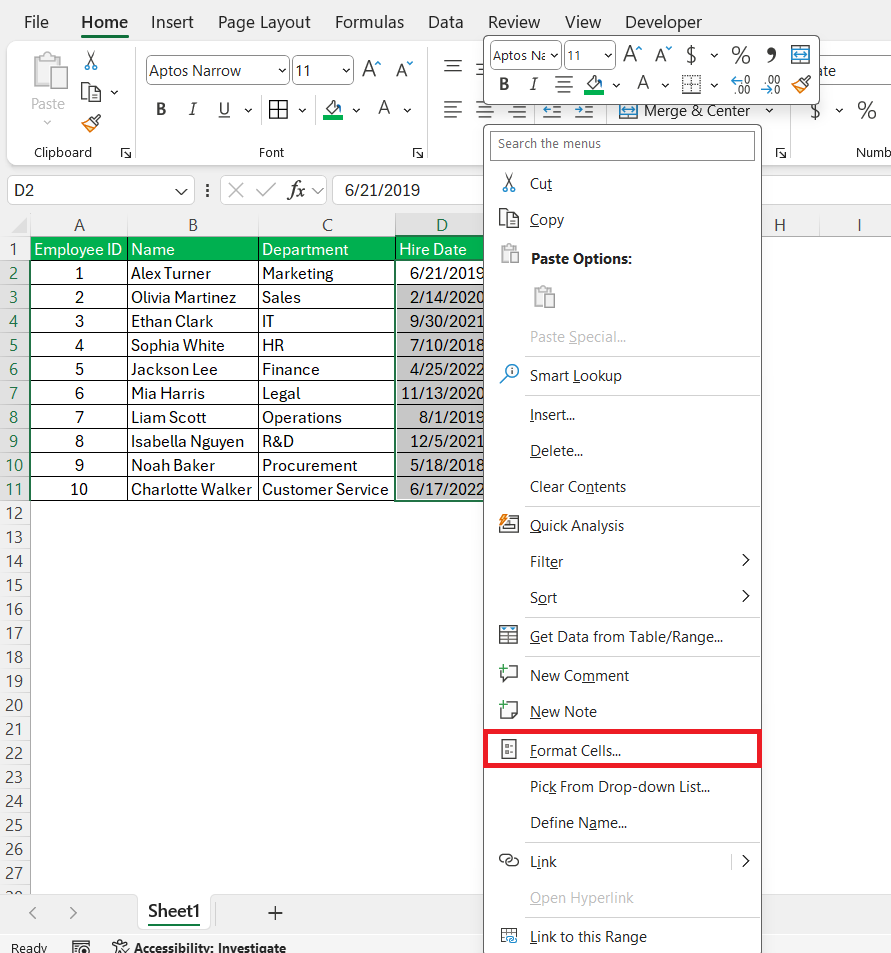
Converting ‘yyyymmdd’ to a more familiar date format in Excel is something I’ve done countless times. For instance, I’d select the cells with the ‘yyyymmdd’ format, right-click to bring up the context menu, and choose ‘Format Cells’.
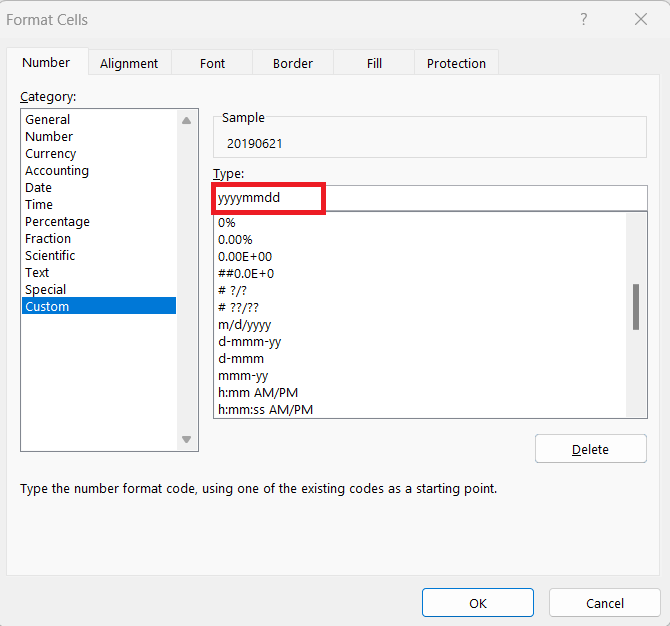
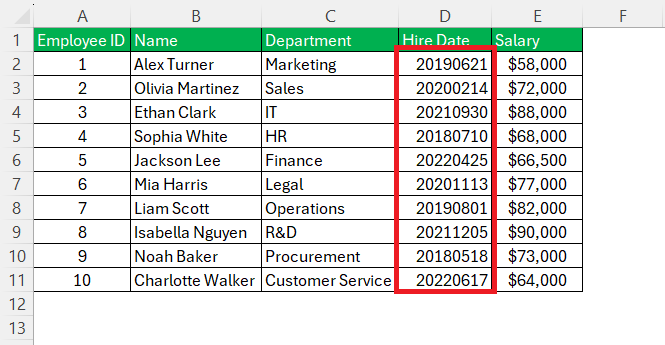
Under the Number tab, selecting Custom from the list and inputting the desired format like ‘yyyymmdd’ transforms the date display.
This flexibility lets me tailor dates to the preferred style for my projects or reports.
Using Formula
Sometimes, you might want to convert a date to this format using a formula, especially if you need to generate a string or work with the date in a more complex formula. Here’s how to do that: Use the TEXT function:
=TEXT(D2, “yyyymmdd”)
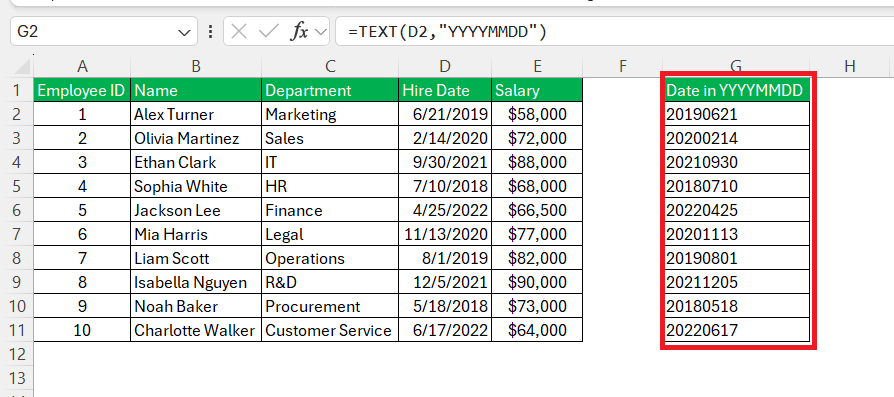
This formula will convert the date in cell A1 to a text string in the YYYYMMDD format.
Tips and Tricks
Avoiding Common Pitfalls in Date Formatting
Avoiding common pitfalls in date formatting is important to preventing data discrepancies. I always make sure that Excel is set to recognize dates in the correct regional format. By going to File > Options > Advanced and scrolling down to the section titled ‘When calculating this workbook’. Check ‘Use 1904 date system’.
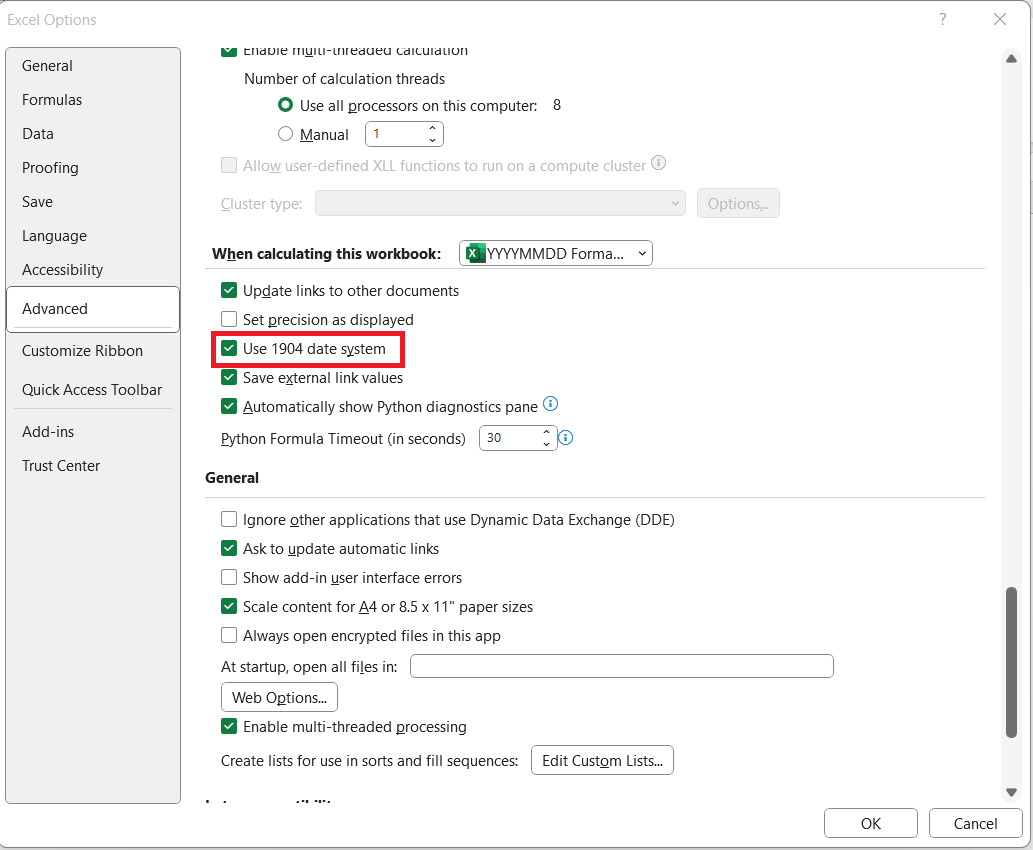
It’s essential to remember that Excel stores date as serial numbers; thus, it’s important to confirm that date entries are recognized as dates and not plain text, as this impacts calculations and sorting.
When Excel Doesn’t Recognize Your Date Format
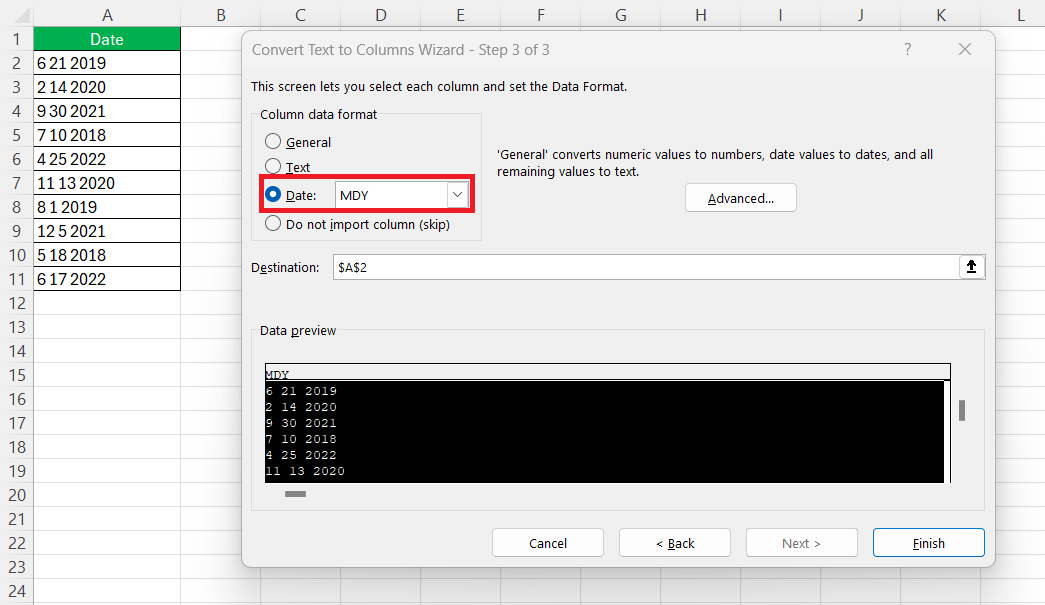
When Excel doesn’t recognize your date format, it can be perplexing. I’ve learned that it’s often because the dates are entered as text or the system’s regional settings don’t match the date format used. First, I check for leading spaces or non-date characters.
If that’s not the issue, I try using the ‘Text to Columns’ wizard, choosing ‘Delimited’, and then ‘Date’ with the correct format. This often coaxes Excel into recognizing the dates correctly.
FAQs
How to use Consistent Date Formats Across My Worksheets?
To maintain a consistent date format:
- You should use a standard format like YYYYMMDD.
- Make sure to use the same format when entering new dates.
- You should also use it when creating Excel templates.
How to Automate Date Conversions for Large Datasets?
You can use the Text to Column method to quickly convert dates in Excel. For repetitive tasks, you can also use macros and change the format with a single click.
How to change the date format in Excel from dd mm yyyy to mm dd yyyy?
To change the date format in Excel from ‘dd mm yyyy’ to ‘mm dd yyyy’, I select the cells with the dates, and then use ‘Ctrl + 1’ to bring up the Format Cells dialog. Under the Number tab, I choose Custom and then adjust the format by typing ‘mm dd yyyy’ in the Type box. This simple change makes the dates fit my preferred American-style format.
How do you convert date TEXT to date format in Excel?
To convert date text to a date format in Excel, I use the DATEVALUE function. For example, if the text date is in cell A1, I’ll enter =DATEVALUE(A1) in cell B1. Excel then interprets the text as a serial date number, which I can format using the Format Cells dialog to display as a standard date.

John Michaloudis is a former accountant and finance analyst at General Electric, a Microsoft MVP since 2020, an Amazon #1 bestselling author of 4 Microsoft Excel books and teacher of Microsoft Excel & Office over at his flagship MyExcelOnline Academy Online Course.

 30 Days - Full Access









