 Free Practice Workbook
Time conversion can be a necessary task when tracking time or scheduling projects. Converting time from hours to minutes can make the calculation clear and more accurate. Excel has plenty of functions that can be used to accomplish this task. In this guide, we will understand the simple process of converting 1.5 hours to minutes in Excel.
Key Takeaways
- The HOUR function extracts the hour from the time value.
- The MINUTE function extracts minutes from the time value.
- To convert hours to minutes in Excel, use the formula =HOUR(A1)*60+MINUTE(A1).
- Utilize Excel’s Fill Handle feature to copy the formula to other cells quickly.
- Apply the =CONVERT(cell,”mn”,”hr”) function for converting minutes back to hours in Excel.
Download the spreadsheet and follow along with the tutorial on How to convert 1.5 hours to minutes in Excel – Download excel workbook1.5-hours-to-minutes.xlsx
Table of Contents
Methods to Convert Hours to Minutes
Multiply by 60
STEP 1: Type the time value in hours.
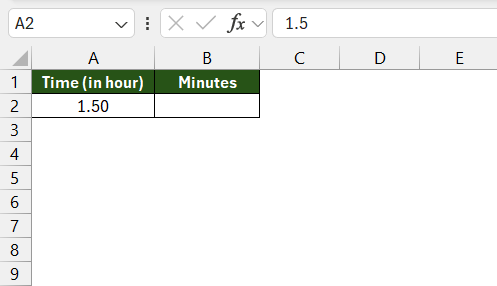
STEP 2: Then, multiply the time in hours by 60 to get the value in minutes.
=A2*60
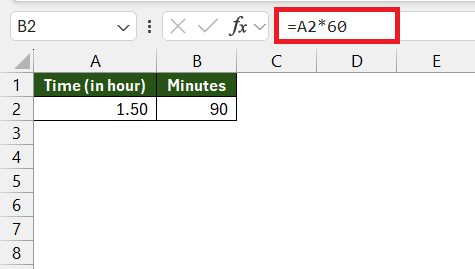
This multiplication method can quickly convert hours in decimal format to minutes.
Using the Convert Function
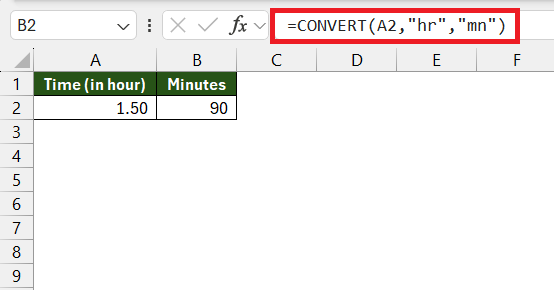
Excel offers various built-in functions that can be used to do time calculations. Using CONVERT function, will help to automate the process of converting time value from one unit to another.
=CONVERT(A2, “hr”, “mn”)
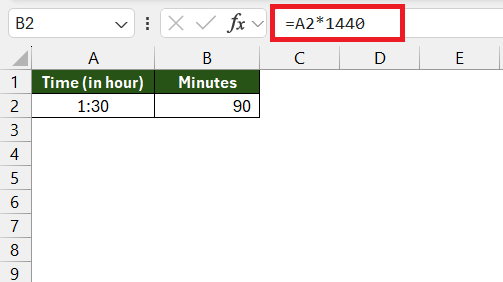
Convert Time in hh:mm format to Minutes
Simple Multiplication
To convert hours to minutes, you need to multiply the time component by 1440. As there are 24 hours in a day, and each hour has 60 minutes. So, in total, there are 24*60 i.e. 1440 minutes.
Using HOUR, MINUTE, and SECOND Functions
HOUR, MINUTE, and SECOND functions extracts respective hour, minute, and seconds component from the time value in Excel.
=(HOUR(A2) + MINUTE(A2)/60 + SECOND(A2)/3600) * 60
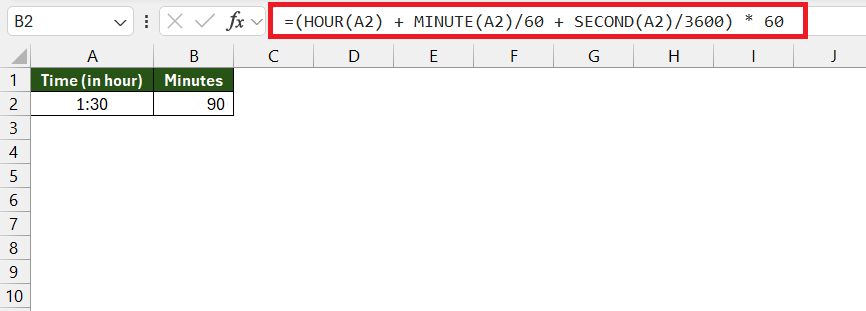
In this example, A2 contains the actual time stamp, and the formula breaks the time into its components before converting it to minutes.
Regardless of the function or feature you choose, Excel’s utility in automating the time conversion processes is in its skill to correctly and effectively handle large datasets, executing these conversions with a high degree of reliability, and reducing the time it would otherwise take to manually calculate each conversion.
Apply Custom Formatting
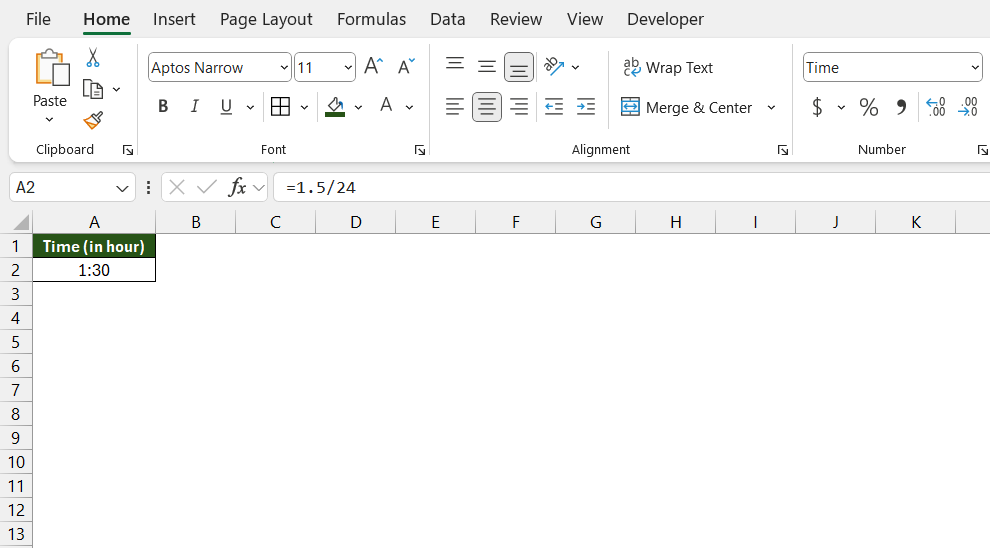
Follow the steps below to change time in decimal format to time in hh:mm format:
STEP 1: First, you need to divide the time by 24.
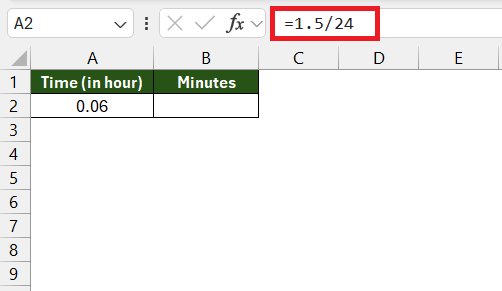
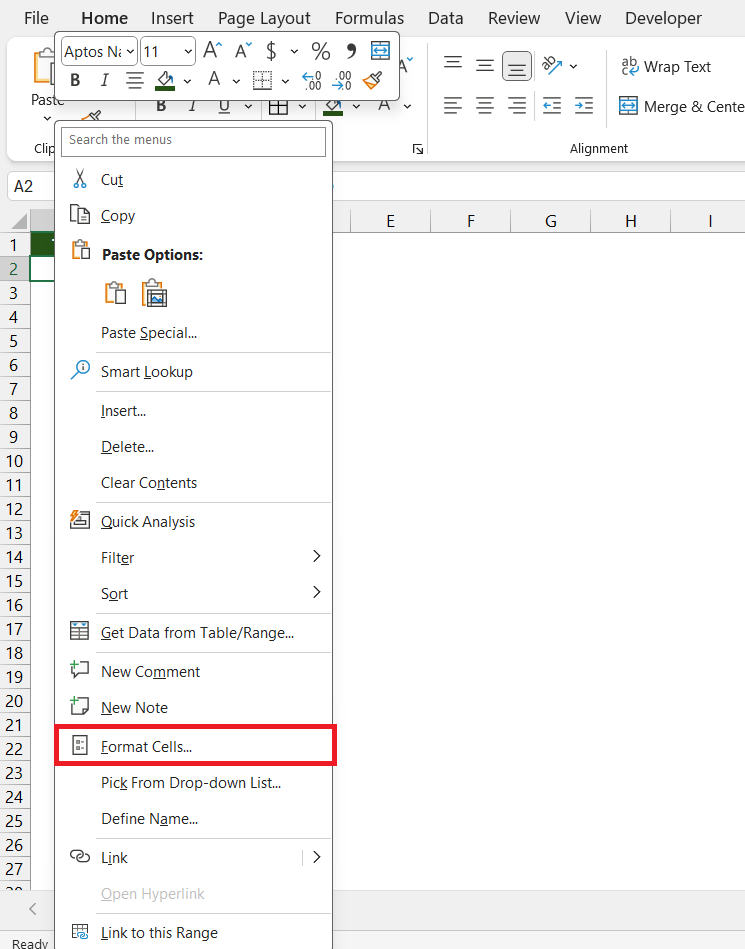
STEP 2: You need to right click on that cell and select Format Cells.
STEP 3: In the dialog box, select Time and then select the format hh:mm.
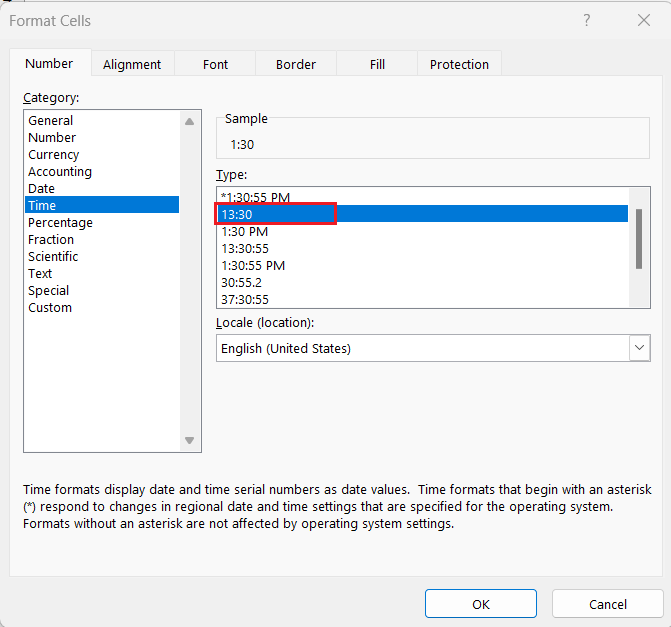
The new format will now be applied.
FAQs
1. How to Convert Hours to Minutes using Excel functions?
A simple formula to convert hours to minutes is to use the HOUR and MINUTE formulas.
=HOUR(A1)*60 + MINUTE(A1)
2. How to Format time value that is 24 Hours?
If the time value goes beyond 24 hours, we will need to change the formatting for the cell to display the time correctly. To change the format, right click on the cell and select Format Cells. Then, in the dialog box, select Custom from the left panel and [h]:mm:ss.
3. How to convert 1.5 hrs to mins?
You can convert 1.5 hours to minutes in Excel using the CONVERT function.
=CONVERT(1.5,”hr”,”mn”)
This will automatically calculate the value and return 90 minutes.
4. How to add 1.5 hours to a time in Excel?
You can add 1.5 hours to a time value by simply using the addition formula.
=A1+”1:30″
This will increase the time mentioned in cell A1 by 1 hour and 30 minutes.

John Michaloudis is a former accountant and finance analyst at General Electric, a Microsoft MVP since 2020, an Amazon #1 bestselling author of 4 Microsoft Excel books and teacher of Microsoft Excel & Office over at his flagship MyExcelOnline Academy Online Course.

 30 Days - Full Access









