 Free Practice Workbook
When working with time-related data like an employee's work hours, project timeline, marathon duration, or calculating video length, you may need to convert time units.
One of the common time conversions is to transform seconds to minutes.This task can easily be accomplished by using simple formulas in Excel.
In this guide, you will learn different methods of converting 1800 seconds to minutes in Excel.
Methods of Time Conversion
Method 1 – Division
Converting seconds to minutes or other time units in Excel often begins with simple arithmetic. By simply dividing the number of seconds by 60, Excel users can translate seconds to minutes.
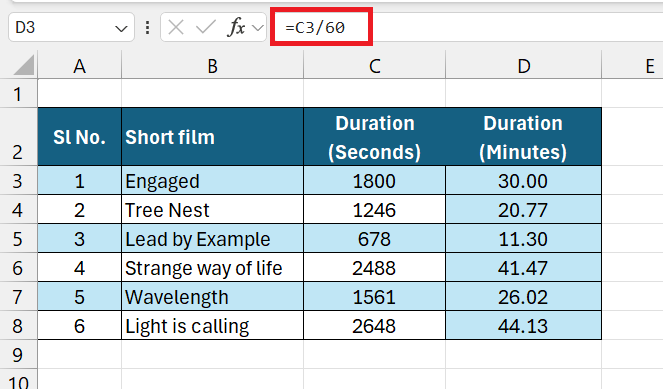
This simple method lets you convert time units without any complication.
Method 2 – Using Inbuilt Functions
Excel has plenty of functions to execute time conversions. The CONVERT function is one of the most commonly used ones. It can easily change time from one measuring unit to another.
The syntax of the CONVERT function is:
=CONVERT(number, "from_unit", "to_unit")
Below is a table with film names mentioned in column B and their durations mentioned in column C. You can use the CONVERT formula to change time in seconds to minutes.
=CONVERT(C3, "sec", "mn")
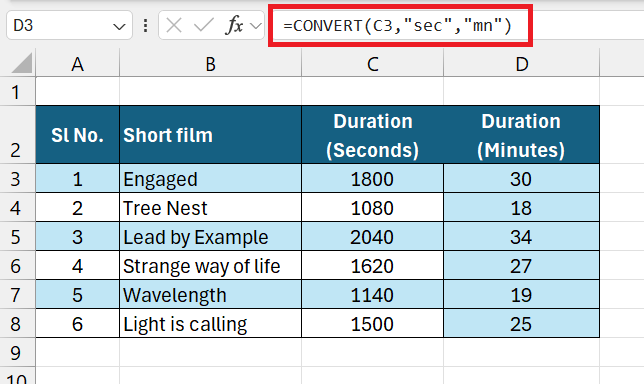
The convert function can easily convert seconds to minutes. This method is useful in standardising the conversion process and preventing errors from manual calculations.
Method 3 – Custom Format
You can use a custom format to change how the time format appears without changing the actual data. Follow the steps below to apply a custom format for minutes and seconds:
STEP 1: Suppose you have a list of times in seconds and you want to present them as minutes and seconds (mm:ss). First, convert the time in seconds into Excel’s serial number format by dividing by 86400, which is the total number of seconds in a day.
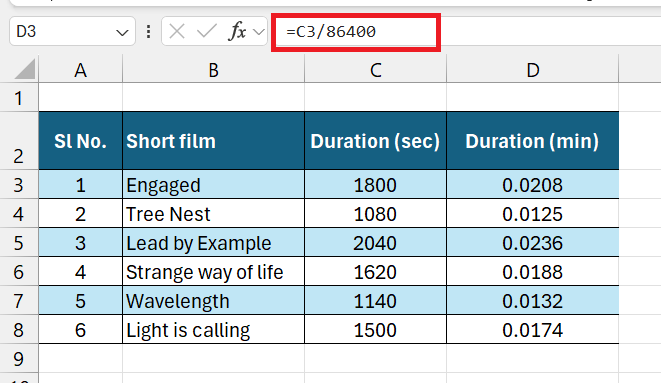
STEP 2: Press Ctrl + 1 to opens the Format Cells dialog box.
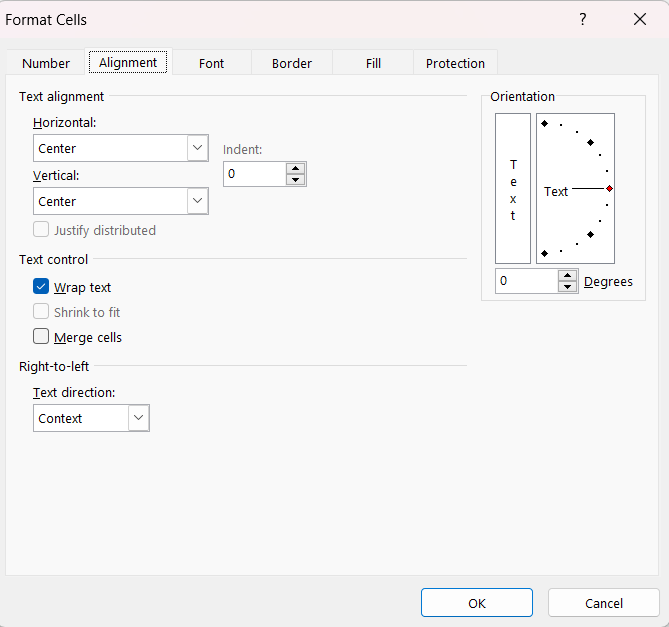
STEP 3: Select Number tab.
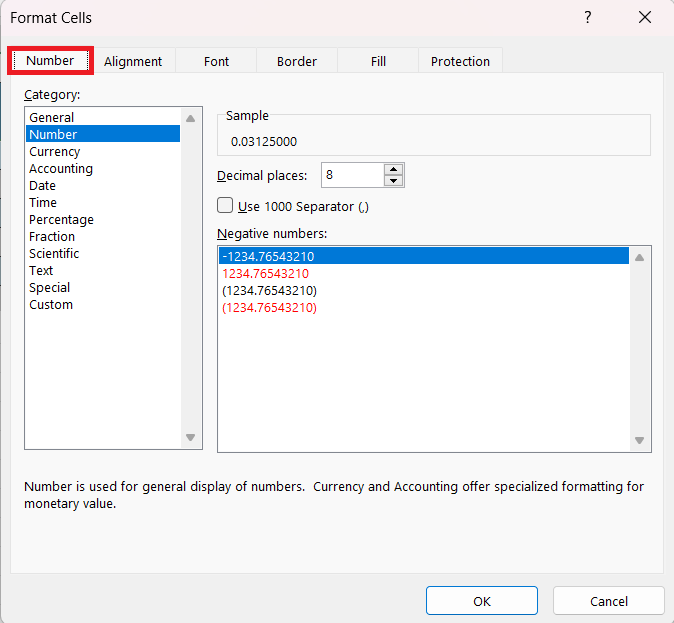
STEP 4: Choose Custom and type mm:ss
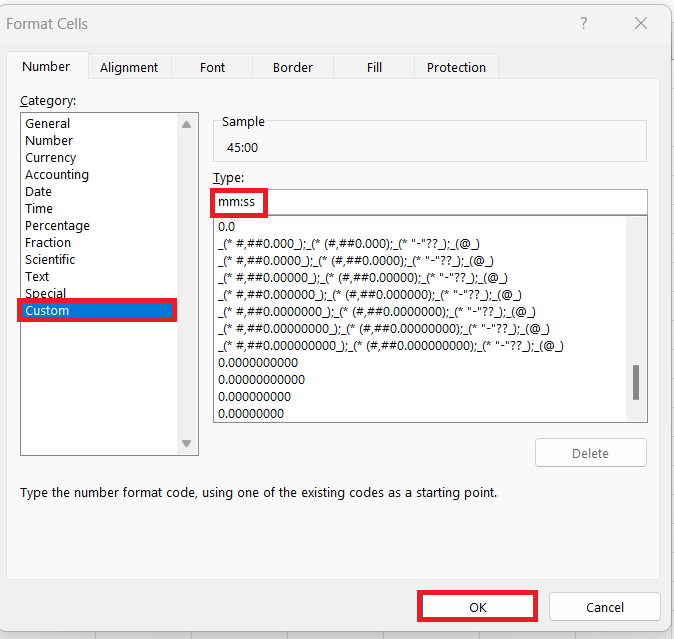
All the numerical values will be displayed in the format mm:ss. For example, 1800 seconds will be displayed as 30:00, i.e., 30 minutes.
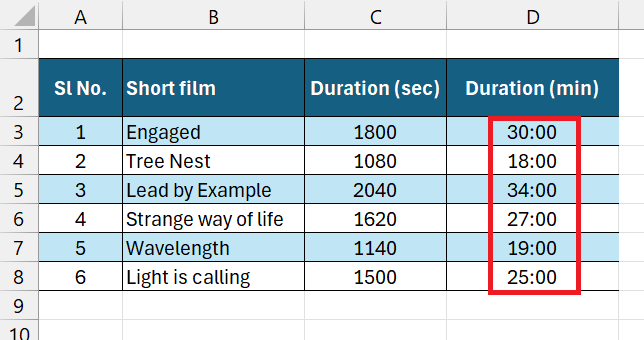
It is important to remember that only the data is being displayed in time format; the cell contains the original value only.
Method 4 – Text Function
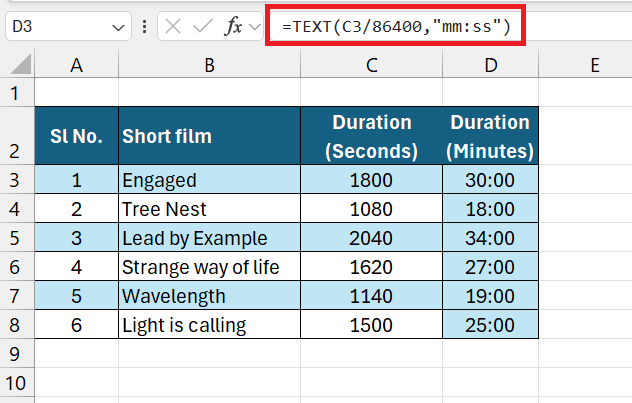
The TEXT function is used to convert and display time in a specific format. If time is seconds in seconds, you can use the TEXT formula to display it in mm:ss format:
FAQs
How to convert seconds to mm:ss format in Excel?
You can follow the steps below to convert seconds to a time format:
- Enter the time in seconds in cell A1.
- Use th TIME formula: =TIME(0, 0, A1).
- Right-click on the cell.
- Select Format Cells.
- Select Custom.
- Type mm:ss.
How to convert seconds to minutes in bulk?
First, enter the formula to convert one time unit to another. Once the formula returns the desired result, you can easily copy it to other cells by using the fill handle.
How to convert seconds to minutes in Excel?
You can use the CONVERT function to transform minutes to seconds in Excel. The formula will be:
=CONVERT(A1,”sec”,”mn”)
Make sure that the time in minutes in mentioned in cell A1.

John Michaloudis is a former accountant and finance analyst at General Electric, a Microsoft MVP since 2020, an Amazon #1 bestselling author of 4 Microsoft Excel books and teacher of Microsoft Excel & Office over at his flagship MyExcelOnline Academy Online Course.

 30 Days - Full Access









