Adding 36 months from today in Microsoft Excel is a straightforward method that uses the EDATE function. It is a useful tool for date arithmetic in financial models and time-sensitive calculations. In this article, you will learn how to craft a dynamic function to add 36 months from the current date in Excel.
Key Takeaways
- The EDATE function can be used to add months to a date.
- The TODAY function can be used to return the current date.
- Make sure to format the cells as dates.
- Use the keyboard shortcut Ctrl + Shift + # to format a cell as a default date.
- Use the WORKDAY function to exclude weekends and holidays.
Microsoft Excel is not just a tool for crunching numbers and storing data. It can also be used for time based calculations. Whether you’re calculating loan payment due dates, projecting future sales, or simply planning an event, date functions in Excel give you the power to add time with precision.
Adding months to a date is useful in many scenarios:
- Businessmen use it for quarterly revenue prediction.
- Project managers use it for tracking project deadlines.
- Borrowers use it for tracking loan payoff timelines.
- Investors find it useful to calculate the maturity dates of their investments.
Table of Contents
Date functions in Excel
DATE Function
Excel’s DATE function is fundamental for anyone looking to perform date calculations. This function lets you create a date by defining three separate components: the year, the month, and the day. Each of these is input as an argument in the function. For instance, the formula =DATE(2022, 12, 31) will return the date of December 31st, 2022.
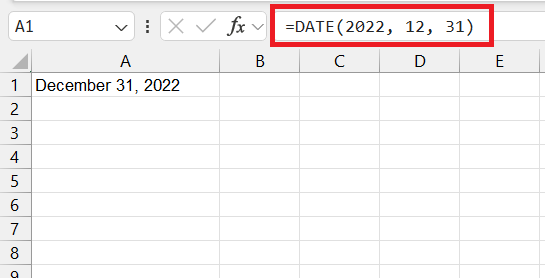
YEAR: A four-digit number showing the year.MONTH: A value between 1 and 12 that shows the month.DAY: A value that shows the day of the month.
This function is used for its flexibility and can operate on both static and cell references.
EDATE Function
The EDATE function is used to add a specific number of months to a date. The syntax is:
Where months represents the number of months you plan to add to the start date.
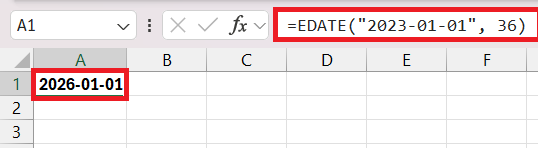
It is important to note that months can be positive to move into the future or negative to step back in the past.
Add 36 Months from Today
Using EDATE
Suppose you want to add 36 months from today’s date, you can replace the start date with the TODAY function and months with 36.
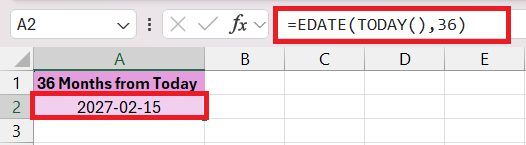
If the current date is mentioned in a cell, the formula will be:
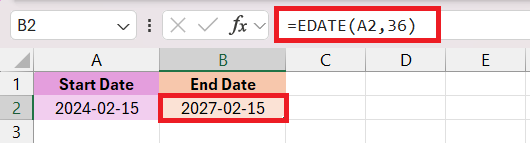
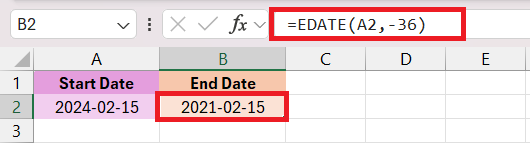
If you need to go 36 months from the start date, you need to use -36 as the second argument.
Custom Formulas
You can use a combination of WORKDAY, DAYS, and EDATE functions for custom addition to a date. Suppose you want to add 36 months, 15 days, and exclude weekends in the calculation. The formula will be:
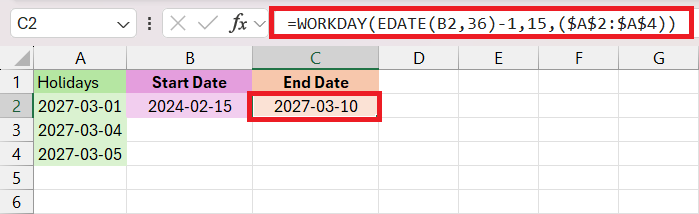
In this example, B2 contains the start date, 36 is the number of months to add, and 15 is the number of days to add. The $A$2:$A$4 would be a range of cells that include dates of holidays, which you’d also like to exclude from your calculation.
By understanding the purpose and power of each function, you can tailor a solution that closely aligns with your specific temporal needs.
FAQs
How to add 36 months to a date?
Follow the steps below to add 36 months to a date in Excel:
- Enter the start date in cell A2.
- Enter the EDATE formula.
- Select cell A2 as the first argument of the function.
- Type 36 as the second argument.
- Press Enter.
This will add 36 months to the date mentioned in cell A2.
How to calculate months from today in Excel?
To calculate a certain number of months from today’s date in Excel, you would once again call upon the EDATE function, but this time in combination with the TODAY function, which fetches the current date.
How to Handle Date Calculation in Excel?
You can use Excel’s built-in date functions like DATE, EDATE, DATEADD, DATEDIF, and TODAY. These functions are designed to handle date calculations accurately and take into account leap years.
How to get the current date in Excel?
You can use the TODAY function to get the current date in Excel.
=TODAY()
This function keeps updating every time you reopen the file.
What is the shortcut to insert today’s date?
You can press Ctrl + ; to insert the current date. But this will be a static value and will remain the same.

John Michaloudis is a former accountant and finance analyst at General Electric, a Microsoft MVP since 2020, an Amazon #1 bestselling author of 4 Microsoft Excel books and teacher of Microsoft Excel & Office over at his flagship MyExcelOnline Academy Online Course.

 30 Days - Full Access









