 Free Practice Workbook
When working with dates in Excel, I often need to adjust them by adding or subtracting days. Fortunately, Excel makes it incredibly simple to add a day to a date using basic formulas. In this guide, I’ll walk you through the different methods I use to add a day to a date in Excel.
Key Takeaways:
- Adding days to dates in Excel is simple using basic formulas like
=A2+1or=A2+B2. - Functions like WORKDAY and WORKDAY.INTL helps exclude weekends and holidays for precise scheduling.
- The DATE function allows dynamic date manipulation by modifying the day, month, or year components.
- Advanced functions like EDATE and NETWORKDAYS improve business calculations for deadlines and financial planning.
- Proper date formatting ensures accurate results and prevents errors when working with Excel date calculations.
Table of Contents
Power of Dates in Excel
Dates play an important role in data management in Excel. It can be used to track deadlines, plan projects, and analyze timelines.
If dates are managed properly, the worksheet will be more organized and easier to use.
There are many scenarios where you have to add days to dates:
- Calculating the due date of the task by adding the duration to the start date.
- Add grace periods to the payment deadline date.
- Calculating follow-up date for clients.
- Determining the expiration date of products.
How to Add a Day to a Date
Simple Addition
Using the simple addition method to add days to a date in Excel is straightforward. For instance, if you have a start date in cell A2 and you want to add a certain number of days located in cell B2, the formula =A2+B2 does the trick. As you drag the formula down, it adds the respective days in column C to each date in column B, updating the results in the cell where you entered the formula.
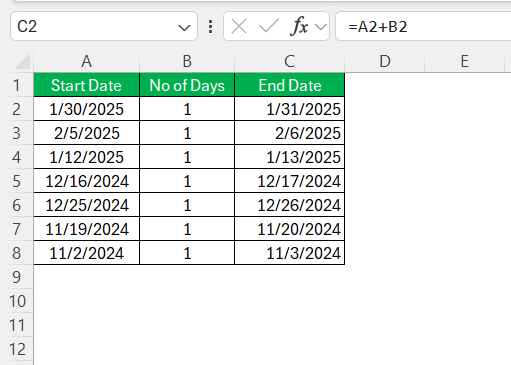
It is a great technique when you have to add days to a series of dates quickly.
Date Functions
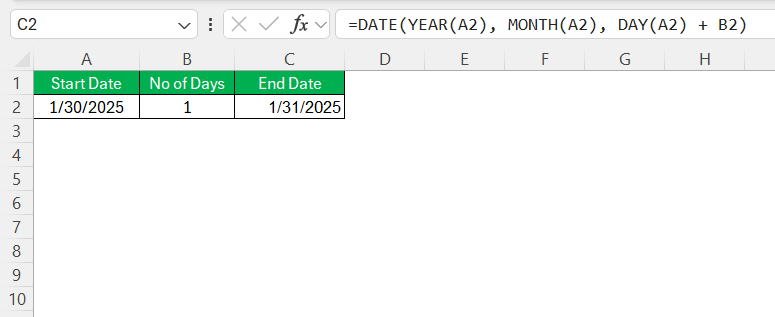
The DATE function can be used when you have to add days with precision. It allows you to create a date by combining individual components like year, month and day.
=DATE(YEAR(A2), MONTH(A2), DAY(A2) + B2)
Here, the original date is mentioned in cell A2, and the number of days to be added is mentioned in cell B2.
Advanced Techniques
EDATE and WORKDAY Functions
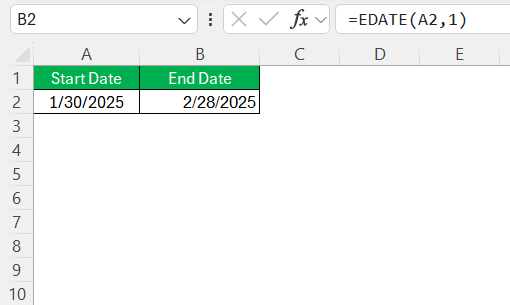
The EDATE and WORKDAY functions are used when you have to work with advanced date calculations. The EDATE function is used to add months to a specific date.
=EDATE(A2, 1)
This function can be used to add 1 month to the date mentioned in cell A2.
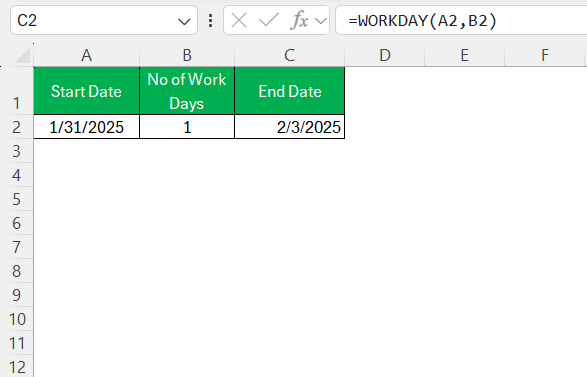
On the other hand, WORKDAY is used to get a date that is a certain number of business days in the future or the past. In its calculation, this function will exclude weekends.
=WORKDAY(A2, B2)
This will return the date after adding B2 workdays to the date in A2.
You can add a list of holidays as the third argument of the function. Excel will exclude those dates in its calculation.
=WORKDAY(A2, B2, [weekend])
These functions are useful when calculating deadlines, scheduling payments, or other date-related calculations. Each function caters to different needs: EDATE helps me project dates based on a monthly cycle, while WORKDAY keeps business routines running smoothly by factoring in workweek patterns and holidays. No matter the scenario, these functions have proven themselves time and again in my Excel toolkit.
Weekends and Holidays
When working with dates, it is important to account for weekends and holidays. Excel has various functions like WORKDAY and WORKDAY.INTL. that can exclude weekends and holidays in their calculations.
The WORKDAY function allows you to calculate a future date by adding business days to a start date. It will exclude standard weekends i.e. Saturday and Sunday.
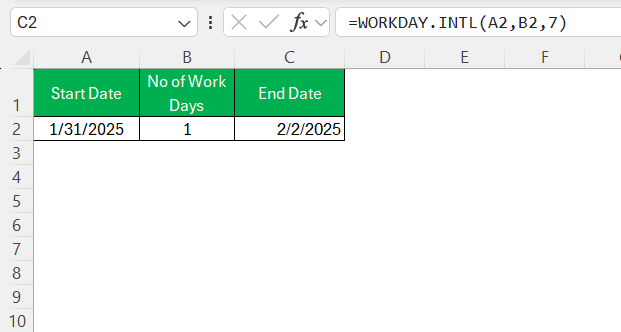
WORKDAY.INT can be used in calculations where Saturday and Sunday are not considered as weekends. You can use the third argument, i.e., weekend, to tell Excel which days are considered weekends. For example, if Friday and Saturday are weekends, then you can use the number 7.
=WORKDAY.INTL(start_date, days, [weekend], [holidays])
FAQs
How to add a day to a date?
You can use the addition operator to add a day to a date in Excel. If the date is mentioned in cell A2, you can use this formula:
=A2+1
How do you account for weekends when adding day to date?
You can use the WORKDAY function to exclude weekends when adding days. If the date is mentioned in cell A1 and you want to add 10 business days to this date, the formula will be:
=WORKDAY(A1, 10)
How to increase a date by day?
You can add 1 to the date to increase it by a day.
=A2+1
How to subtract two dates?
Subtract the two dates like you would subtract two numbers in Excel. If the end date is mentioned in cell B2 and the start date is mentioned in cell A2, use this formula:
=B2 – A2
How to format the result of date subtraction as date?
To format the result of date subtraction to display as a date, follow the steps below:
- Right-click on the cell.
- Select Format Cells.
- Choose a desired date format
- Click OK

John Michaloudis is a former accountant and finance analyst at General Electric, a Microsoft MVP since 2020, an Amazon #1 bestselling author of 4 Microsoft Excel books and teacher of Microsoft Excel & Office over at his flagship MyExcelOnline Academy Online Course.

 30 Days - Full Access









