In PowerPoint, columns are used to organize text into vertical or horizontal sections. It allows you to distribute content in a neat way. It allows you to display text in side-by-side format for easy comparison.
Table of Contents
How to Add Columns in PowerPoint Slides
Method #1: Text Box
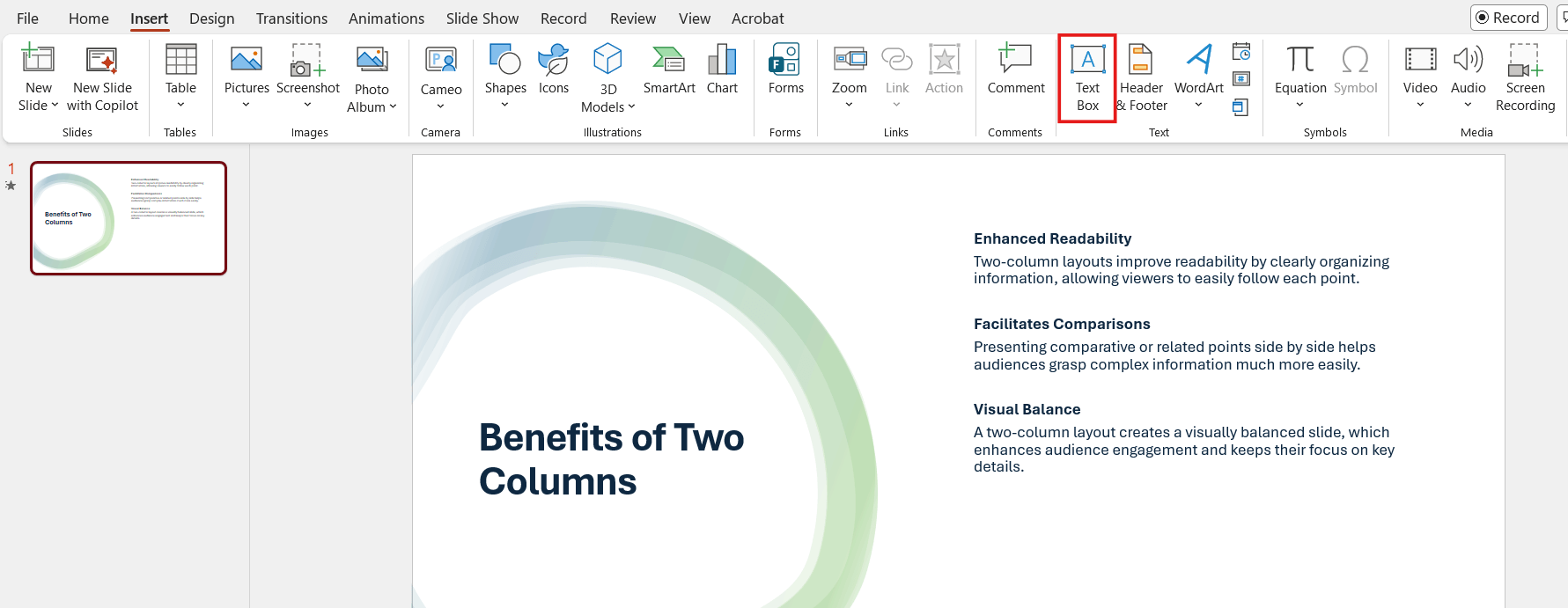
- Go to the Insert tab.
- Click on Text Box.
- Enter your content.
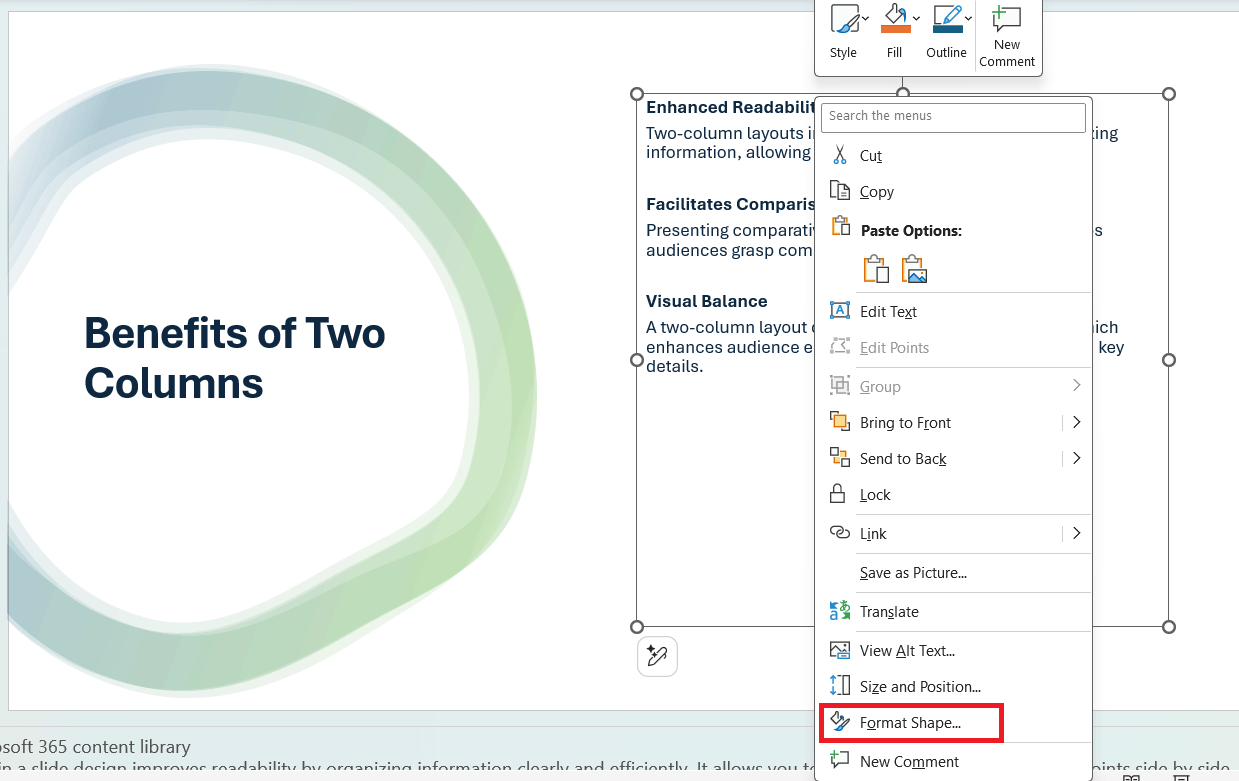
- Right-click on the text box and select Format Shape.
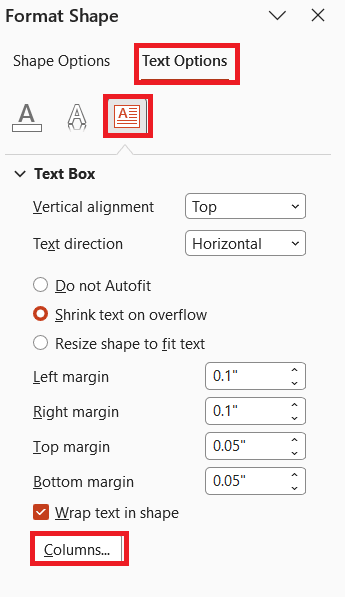
- Click on Text Options > TextBox > Columns.
- Enter the Columns as needed.
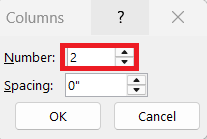
The text will be split into the number of columns provided.
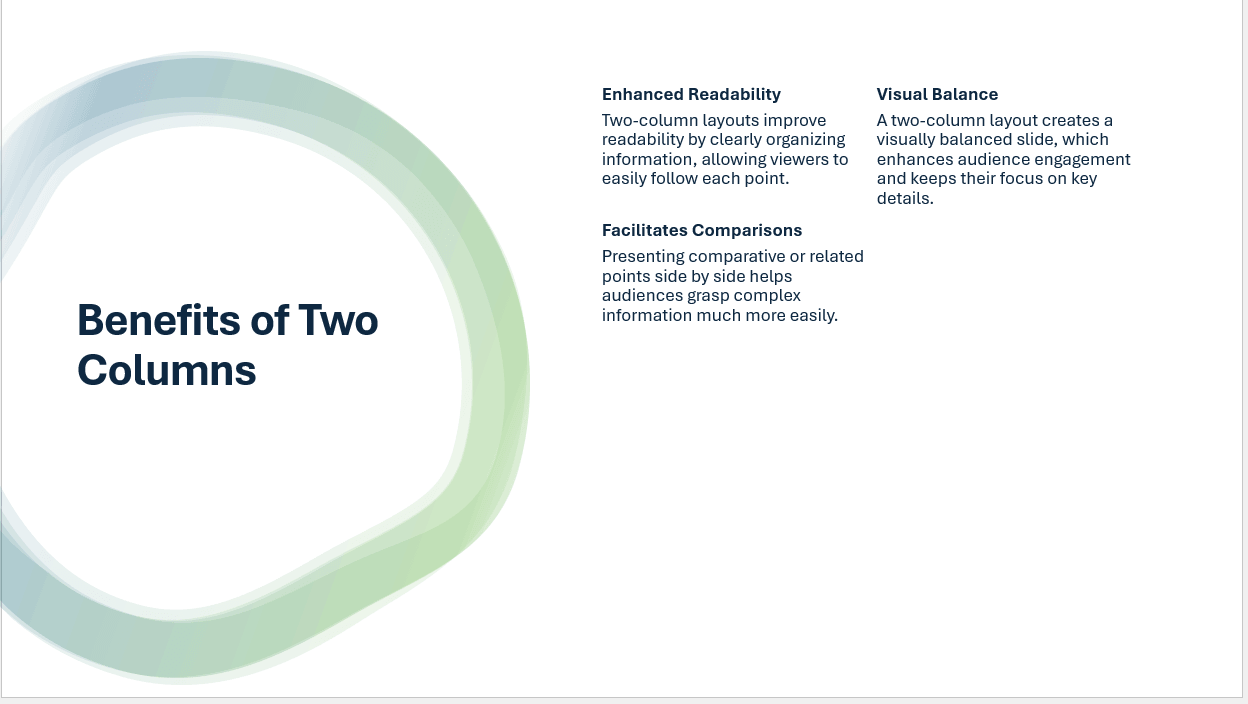
Method #2: Slide Layouts
- Go to the Insert tab
- Select Text Box.
- Go to the Home tab
- Select the columns icon.
- Click One Column, Two Columns, or more as per your requirement.
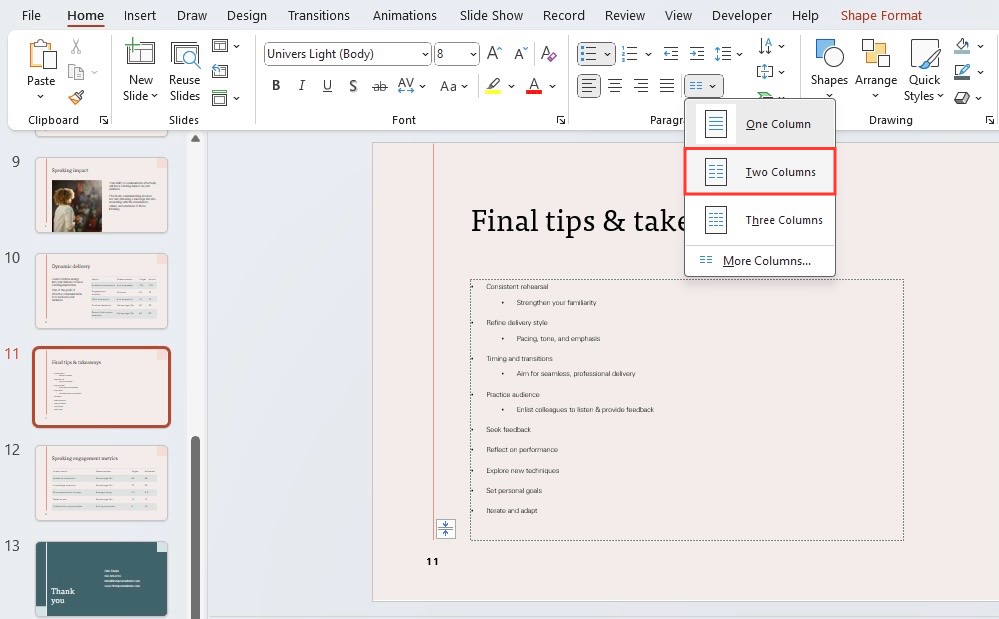
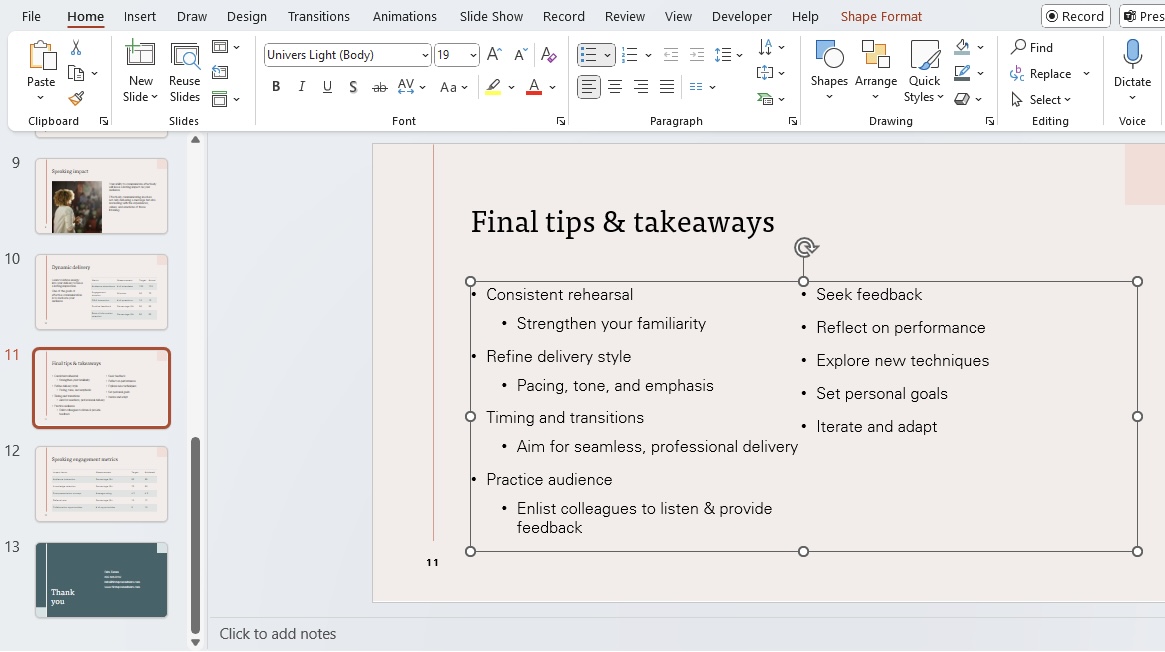
Method #3: Tables
- Click on the Insert tab.
- Select Table and choose the number of columns and rows.
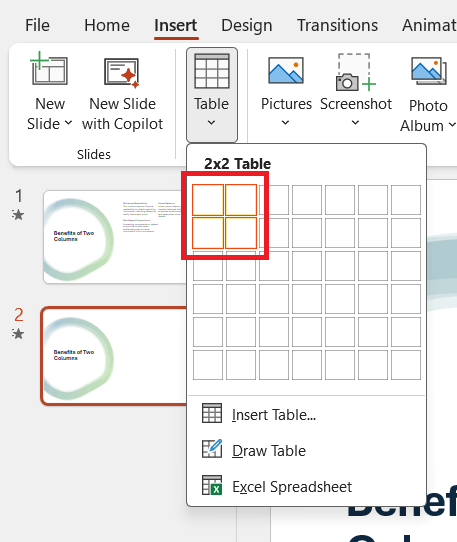
- Enter your content into each cell.
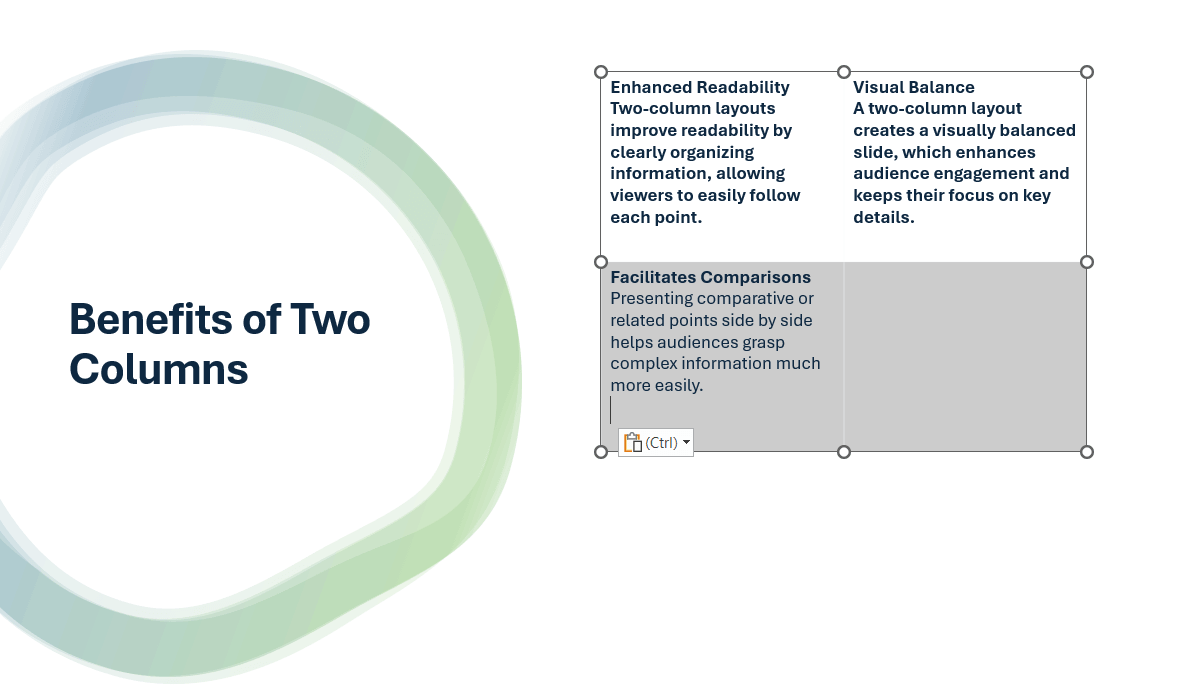
- Adjust the column width as needed.
Advanced Techniques
Alignment and Spacing
You can change alignment and spacing to improve the professionalism of your slides.
- Go to the Format tab
- Click on the Align dropdown
- Choose an appropriate alignment
For even spacing, use consistent margins within text boxes.
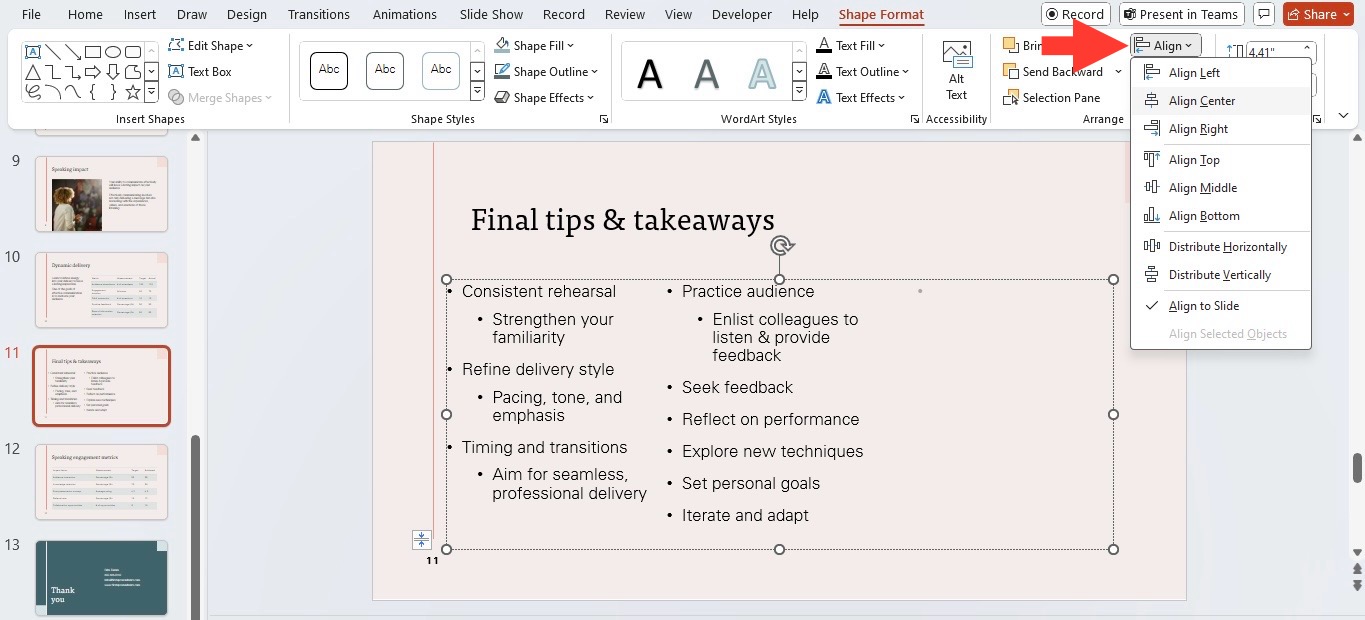
Adjust the space between columns so that it is neither too cramped nor too wide. Overall, well-aligned and evenly spaced content promotes better flow and readability.
Right Fonts and Sizes
The fonts and sizes you choose play a key role.
- Select a clear, legible font that fits the tone of your presentation. Example – Sans-serif fonts like Arial or Calibri
- Select a minimum size of 24 points for body text and a larger size for headers.
FAQs
How to Convert a List into Columns in PowerPoint?
To convert a list into columns in PowerPoint, follow the steps below:
- Select the text box containing your list.
- Go to the ‘Home’ tab
- Click the Columns button
- Select the number of columns you’d like to split your text into.
- If you need to make adjustments, click ‘More Columns’ for further customisation.
How to add more than three columns in PowerPoint?
You can use the “More Columns” option to add extra columns.
Why should I use columns in slides?
Columns make content clearer and easier to understand.
How to apply columns to all slides at once?
You can use the Slide Master to apply a column layout across multiple slides.

John Michaloudis is a former accountant and finance analyst at General Electric, a Microsoft MVP since 2020, an Amazon #1 bestselling author of 4 Microsoft Excel books and teacher of Microsoft Excel & Office over at his flagship MyExcelOnline Academy Online Course.

 30 Days - Full Access









