Key Takeaways
- A hanging indent keeps the first line at the margin and moves the other lines to the right.
- Hanging indents are useful for lists, citations, references, and bibliographies.
- You can create a hanging indent in PowerPoint using the ruler or Paragraph settings.
- The shortcut Ctrl + Shift + T can help open indentation options quickly.
- Consistent indents make slides look clean, organized, and professional.
Table of Contents
Introduction to Hanging Indents
A hanging indent is a formatting style that separates the first line from the rest of the text. The first line of a paragraph starts at the left margin, and the remaining lines are shifted to the right. For example, when you are writing a citation, the author’s name can start from the margin, and the rest of the citation can continue inwards.
Hanging Indents can create breaks between list items or paragraphs and prevent your slides from looking chaotic. It also allows you to easily update text without changing the layout. They give your presentation a consistent and professional look.
How to Create Hanging Indents
Manual Indentation
STEP 1: Click on the text box where you want to create a hanging indent.
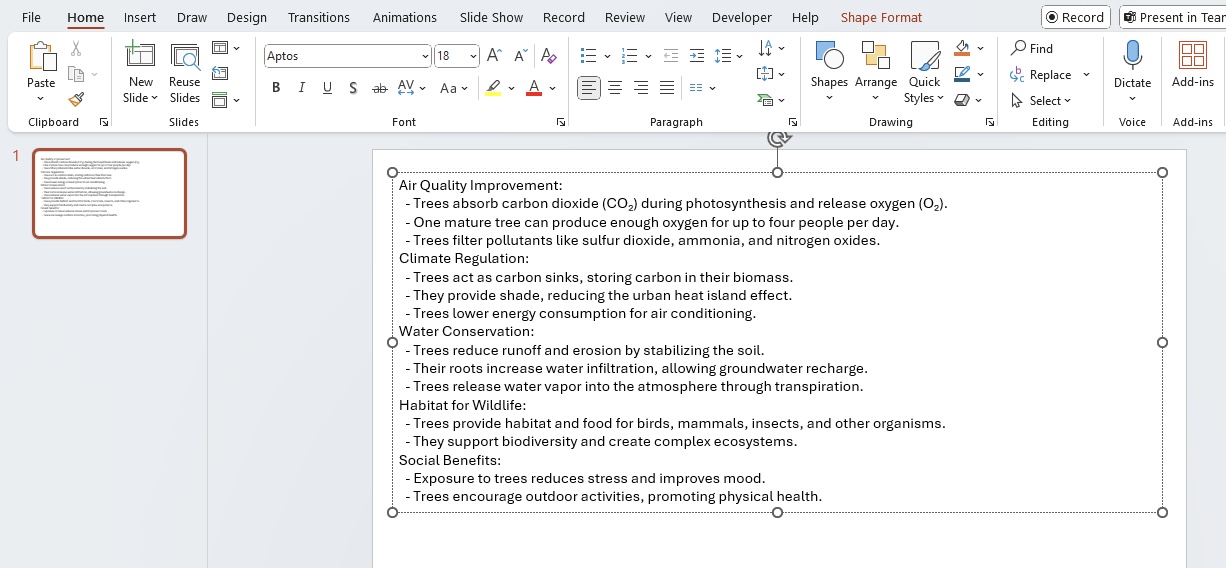
STEP 2: Highlight the block of text.
STEP 3: Click on View > Ruler.
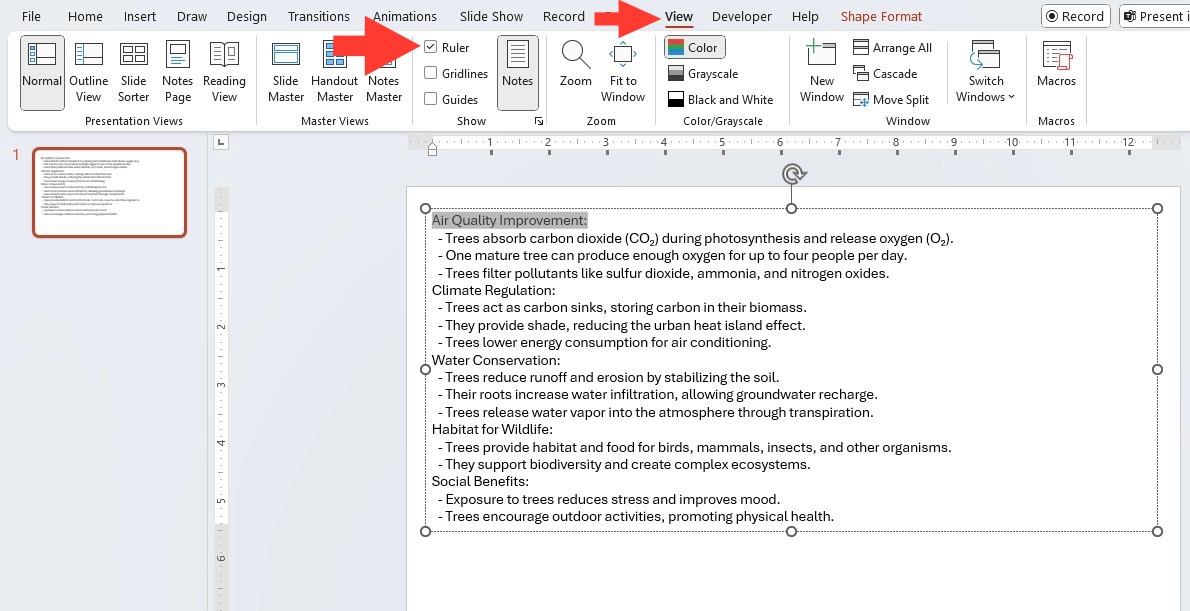
STEP 4: Now, find the markers on this ruler. They look like an upside-down ‘T’.
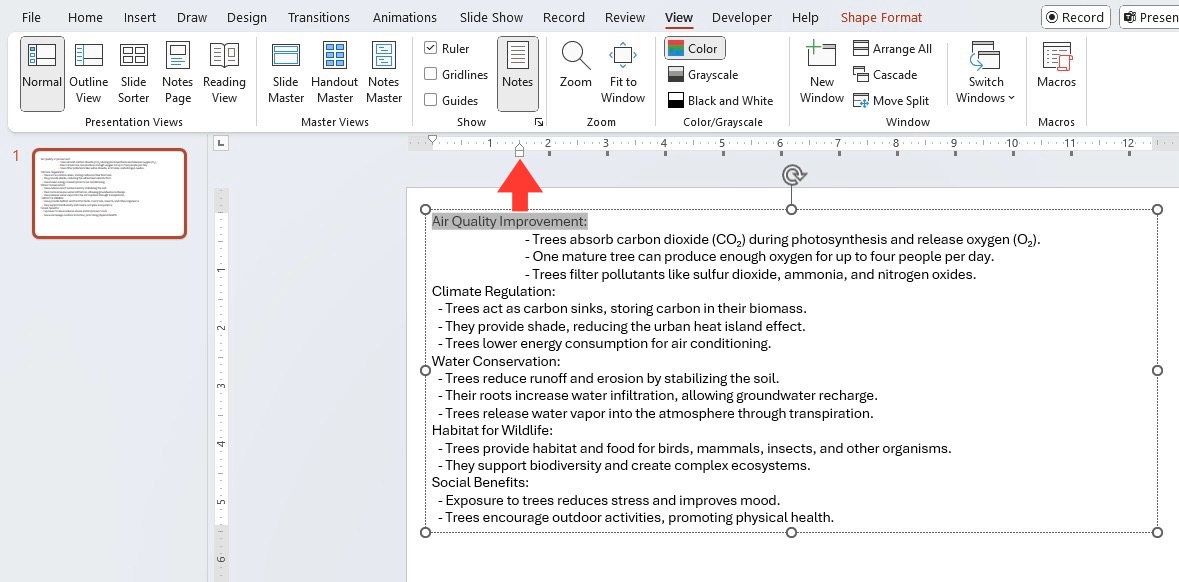
STEP 5: Click and drag this marker to the right for how much you want your lines to hang back.
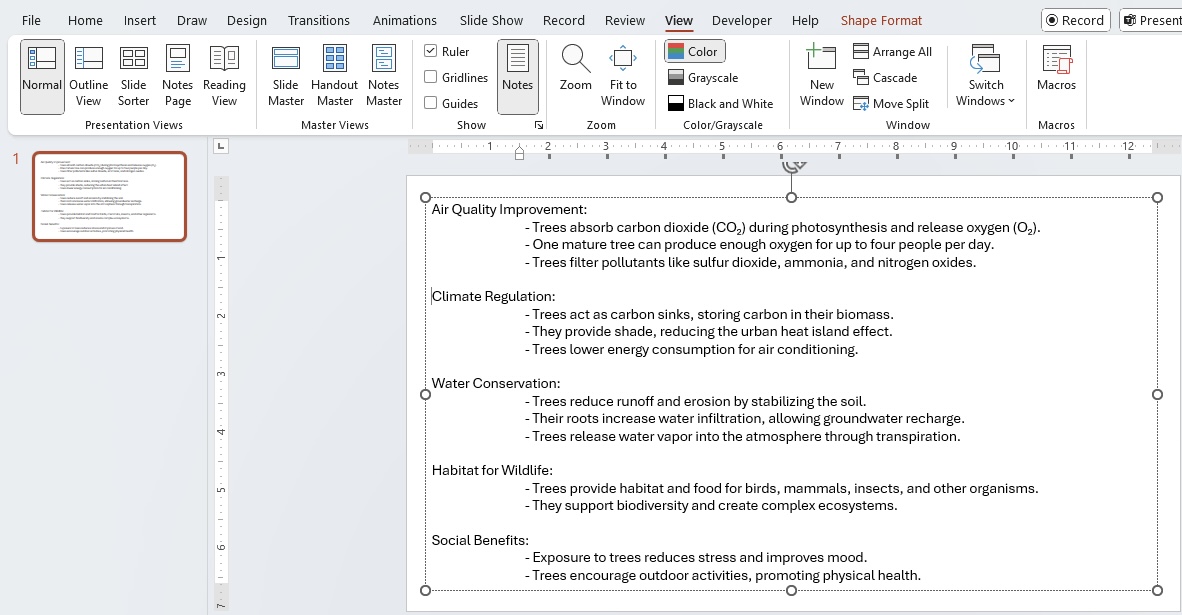
STEP 6: Release your mouse and check out your work. All lines except the first one should now have taken a step back from the margin.
Shortcut Keys
STEP 1: Highlight the text you want to format.
STEP 2: Now press and hold the Ctrl, Shift, and T keys simultaneously. Alternatively, you can access the Paragraph dialog box by clicking the bottom-right arrow in the Paragraph section of the Home Ribbon.
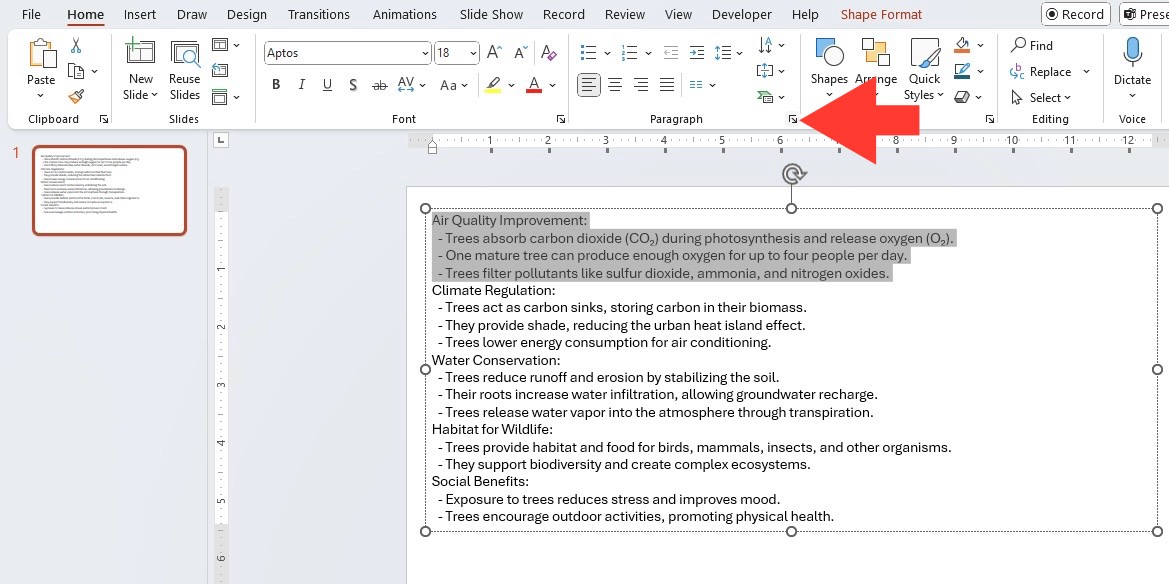
STEP 3: With the dialog box open and the Indents and Spacing tab in the spotlight, click away to “Hanging” in the Special menu.
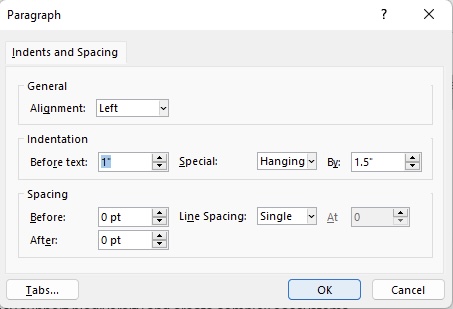
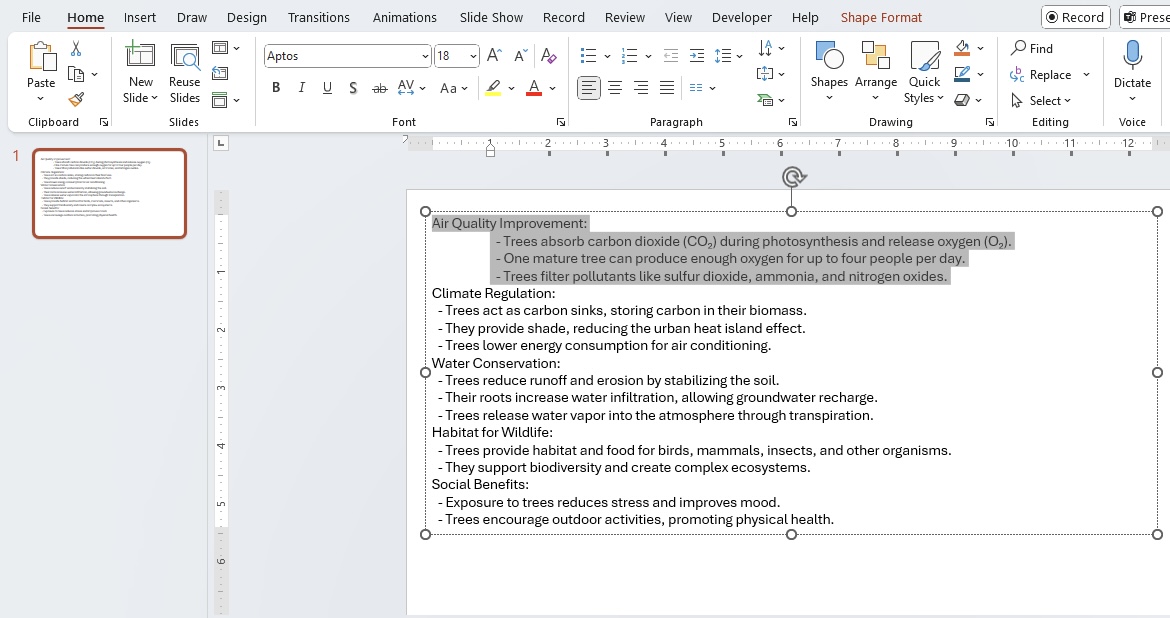
STEP 4: Adjust the indentation to how you like it – tweak the numbers until it looks just right.
STEP 5: Once you’re happy with how things look, tap OK.
Common Mistakes
Overcoming Uneven Indentation
If you’re staring down a slide where the indentation seems to have a mind of its own, you can apply a few simple tweaks to fix it:
- Remove custom indentation: Just clear any special indents by resetting them in the Paragraph settings.
- Adjust paragraph spacing: Make sure that there isn’t an odd gap or overlap messing with the visual flow.
- Check line spacing: Consistency is key here. If your lines are at different beats, align them all to the same line spacing setting.
Resolving Indent Application Issues
- Check the ruler: First up, ensure the ruler is visible (go to View > Show > Ruler). It’s your secret weapon for precision adjustments.
- Look for formatting issues: If there’s something stealthily throwing your indent off, unfold the mystery by looking for any hidden formatting that could be the culprit.
- Adjust the ruler: Snag the “Left indent” icon (it’ll look like a little square under a triangle on the ruler). Holding down the Shift key while you click and drag allows for micro-adjustments until you hit that sweet spot of alignment.
Tips for Polished Presentations
- Pick a bullet style and stick with it.
- Use a slide template with pre-set indentations.
- Use the master slide feature to apply the indentations for all slides.
- Check indent markers for each list. If you’ve manually set any indents, make sure they’re at the same position on the ruler for each slide.
- Increase the font size for headlines, so they’re visible from the back of the room. For body text, stick to a size that’s easy on the eyes.
- Dark text on a light background or vice versa will help your words jump off the slide.
- Keep text away from the edges of your slide.
Advanced Techniques
Creating Emphasis with First-Line Indents
Want to make a statement that sticks? Creatively using first-line indents can amp up the emphasis on your key narratives within your presentation. While hanging indents usually draw the eye to the text that follows, a first-line indent puts the emphasis on the opening line, highlighting its importance. Here’s how to employ this technique:
- Storytelling Flow: When unraveling a tale, a first-line indent marks the beginning of a new chapter or idea. It subtly signals to your audience that something noteworthy is coming up.
- Managing Attention: Use first-line indents to prioritize information. It draws eyes to the starting line, setting the stage for what follows.
Using the Format Painter for Efficient Editing
The Format Painter in PowerPoint is your fairy godparent of formatting. Say goodbye to manual tweaks that eat up your precious time. Here’s how to wield its magic wand for quick, efficient edits:
- Format Matchmaking: Got a perfectly indented paragraph? Click that beauty and then click the Format for the same setup on other paragraphs.
- Slide-Wide Style: Double-click the Format Painter if you’re on a formatting frenzy — style can be applied to multiple sections across multiple slides in one go.
FAQs
1. What is a hanging indent in PowerPoint?
A hanging indent keeps the first line in place and moves the following lines to the right.
2. Where is a hanging indent used?
It is used in citations, references, bullet lists, and long text entries.
3. How to create a hanging indent in PowerPoint?
- Select the text
- Open Paragraph settings
- Choose Hanging
- Click OK
4. Can I use the ruler to create a hanging indent?
Yes, turn on the ruler and move the lower indent marker to the right.
5. Why is my hanging indent uneven?
It may happen because of different paragraph spacing, line spacing, or custom formatting.

John Michaloudis is a former accountant and finance analyst at General Electric, a Microsoft MVP since 2020, an Amazon #1 bestselling author of 4 Microsoft Excel books and teacher of Microsoft Excel & Office over at his flagship MyExcelOnline Academy Online Course.

 30 Days - Full Access









