 Free Practice Workbook
Calculating averages is a common task when you are working with sales reports, exam scores, expenses, etc. Excel has simple formulas that can be used to calculate averages. In this article, you will learn different ways to find average values using Excel formulas.
Key Takeaways:
- The AVERAGE function in Excel is used to calculate the arithmetic mean of a set of data.
- The syntax of the AVERAGE function is
=AVERAGE(range). - Use AVERAGEIF for conditional averaging and AVERAGEIFS for multiple criteria averaging.
- Use IFERROR with AVERAGE to manage errors in your dataset.
- Use AVERAGEIF to exclude zeros or specific values.
Table of Contents
Introduction to Excel Average Formulas
Understand the Function
The AVERAGE function simplifies the process of calculating the arithmetic mean. It analyses a set of numbers to find their central value. This function is useful in various scenarios, particularly for those in fields where data interpretation is key.
Averages help us spot trends and understand central tendencies within datasets.
Syntax and Parameters
The syntax of the AVERAGE function is:
=AVERAGE(number1, [number2], …)
number1is required and represents the first number or range.[number2]is optional and represents additional numbers or ranges.
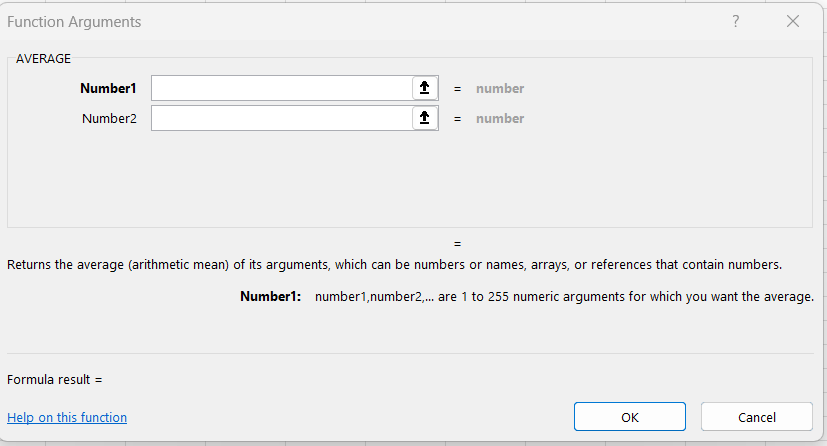
You can include up to 254 additional numbers or ranges as optional arguments.
Use AVERAGE in Simple Calculations
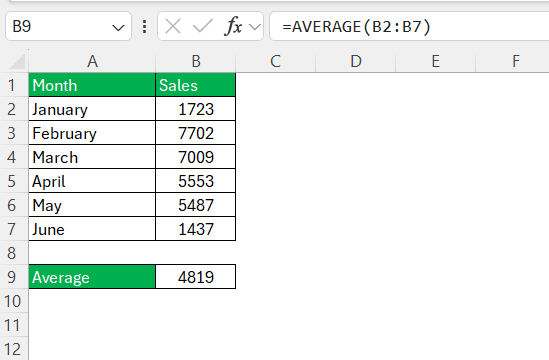
If you aim to find the average sales from January to June, you can:
- Enter the AVERAGE formula
- Select the cells from B2 to B7
- Press Enter
The resultant figure reflects the average sales over that six-month period.
Variations of the AVERAGE Function
AVERAGEIF for Conditional Averages
The AVERAGEIF function takes our data analysis a step further by allowing us to calculate averages that meet a specific condition we set. This is particularly useful when we need to pinpoint average values within a subset of our dataset. The syntax is
=AVERAGEIF(range, criteria, [average_range]),
where range refers to the cells that will be evaluated by the criteria, and [average_range] contains the actual numbers to average—if different from range.
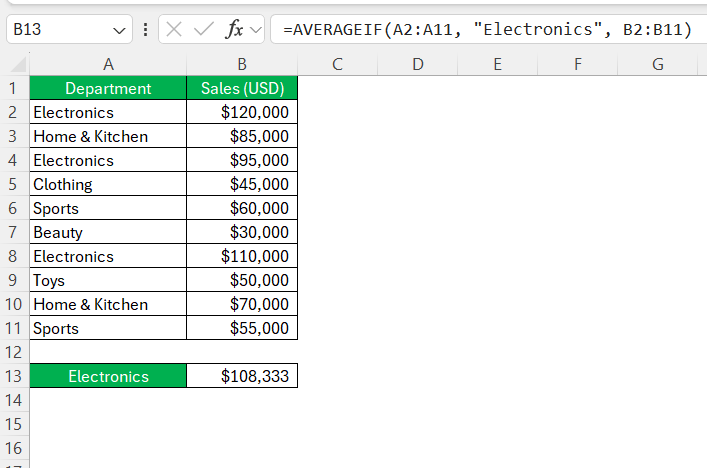
Suppose we have a list of different departments with their respective sales, and we only want to know the average sales of the ‘Electronics’ department. We could set the range to the department names, the criteria to “Electronics”, and the average_range to the sales figures.
This would look something like:
AVERAGEIFS for Multiple Criteria
The AVERAGEIFS function can calculate averages based on multiple criteria. The function is important when multiple factors must be considered simultaneously.
The syntax is
=AVERAGEIFS(average_range, criteria_range1, criteria1, [criteria_range2, criteria2], ...)
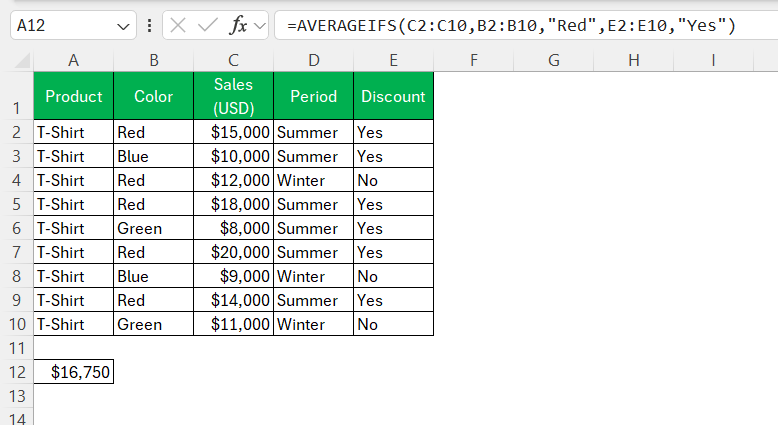
For example, imagine we want to find the average sales of red shirts sold during a summer discount period.
Tips & Tricks
Dealing with Errors
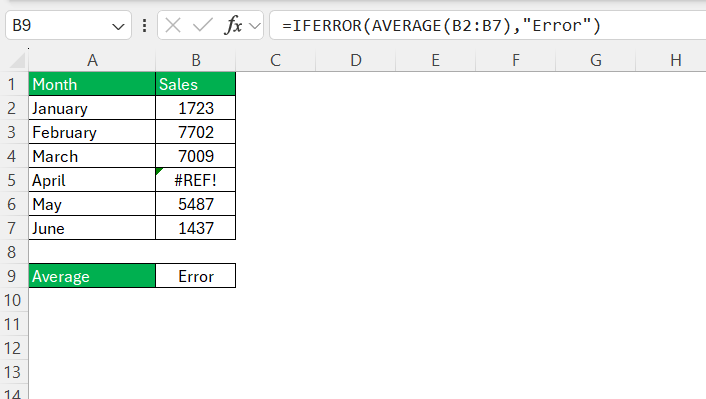
Errors can be common when calculating averages in Excel. When they appear in our dataset, the AVERAGE function will return an error. To fix this issue, we can use the IFERROR function with AVERAGE
=AVERAGE(IFERROR(range, ""))
Excluding Zeros and Non-Numeric Data
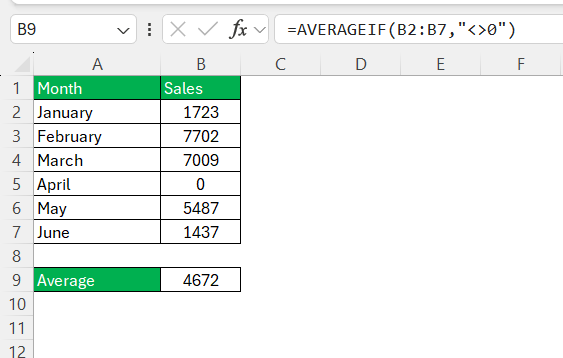
When working with ranges in Excel that include zeros or non-numeric data, we have to be cautious so that they do not skew our average calculations.
To exclude zeros, we can use AVERAGEIF or AVERAGEIFS with the criteria set to “<>0”. This will make sure that our average only takes into account non-zero numbers.
You can use the AVERAGEA function to calculate the average in a range that includes text. This function will treat text as 0 and continue with the calculations.
FAQs
How to average function in Excel?
To use the average function in Excel,
- Enter the AVERAGE function
- Followed by the cells or range you want to find the average for
- Press Enter
How to Fix the #DIV/0 Error When Averaging?
If Excel returns #DIV/0 error when calculating average, make sure that there is at least one numeric value in the range.
How to exclude zeros from an average?
You can exclude zeros when calculating averages by using the AVERAGEIF function.
=AVERAGEIF(A1:A10,”<>0″)
How to average only selected values in Excel?
You can use the AVERAGEIF function with a condition to average selected values only.
How to Exclude Specific Values from the Average Calculation?
You can use the AVERAGEIF function to exclude specific values from an average calculation. To exclude any cell with a value of 5, use this formula:
=AVERAGEIF(A1:A10, “<>5”)
How to Calculate the Average If Cells Contain Text?
To calculate an average in a range that includes text, use the AVERAGEA function. For instance, =AVERAGEA(A1:A10) will average the numeric values in the cells A1 through A10 while treating text entries as zeroes in the calculation.

John Michaloudis is a former accountant and finance analyst at General Electric, a Microsoft MVP since 2020, an Amazon #1 bestselling author of 4 Microsoft Excel books and teacher of Microsoft Excel & Office over at his flagship MyExcelOnline Academy Online Course.

 30 Days - Full Access









