Table of Contents
List of the Top 10 Fonts for Microsoft Word in 2024
1. Helvetica – for Elegance
Helvetica is a safe pick. You could think of this as a combination between being classic and modern at the same time.
Best For: Corporate brochures, academic papers, or creative portfolios.

2. Garamond – for Readability
Garamond is your go-to font if you’re aiming to focus on readability. Its roots in 17th-century France breathe a historical charm into your documents.
Best For: Writers and professionals who produce academic papers, articles, and business proposals.

3. Arial – All-around Font
Arial is a staple in Microsoft Word’s font library makes it a solid pick for a variety of 2024 documents.
Best For: Business documents to casual flyers—where reader-friendliness is top priority.

4. Verdana – for computers
Verdana is the perfect for digital screens. If the Microsoft Word document is intended for on-screen viewing, then this font is perfect for that purpose.
Best For: Individuals writing for websites, e-books, and online publications.

5. Georgia – for the Web
Georgia is a reader-friendly serif font. Designed for readability across webpages.
Best For: Web designers, bloggers, and anyone who’s crafting documents meant for on-screen consumption.

6. Calibri – Modern Font
Calibri is a sans-serif font that has a modern rounded edge look. We like to use this across Word documents
Best For: Users who prefer a contemporary, clean aesthetic look – suitable for office memos to academic papers, digital presentations, or casual blog posts.

7. Futura – Geometric Font
Futura is a geometric font that has a modern look. This font can add an modern touch to your Microsoft Word documents.
Best For: Creative professionals who want their documents to make a bold statement – graphic design portfolios to architectural presentations.

8. Times New Roman – The Academic Font
Times New Roman is the default font for academic and professional writing. This serif font is traditionally a top choice for those seeking a classic look in their documents.
Best For: Scholars, lawyers, and professionals writing research papers, legal documentation, and formal correspondence.

9. Cambria – For On-screen Reading
Cambria is a font that’s easy on the eyes when reading from a screen.
Best For: Reports, dissertations, and any on-screen reading material.

10. Consolas – For Technical Documents
Consolas is a monospaced font with clear, consistent spacing. It is usually used for coding environments and technical documents.
Best For: Developers, programmers, and technical writers – perfect for coding, data presentation, and technical schematics where consistent character spacing is essential.

Tips and Tricks for Choosing Fonts
- Emphasize Key Points: To make the text bold, click the “B” icon in the “Home” tab or press “Ctrl + B”. For italics, click the “I” icon or use the shortcut “Ctrl + I”.
- Pairing Fonts: Combine a serif with a sans-serif for contrast in headings and body text. Like using Helvetica for headings, then using Garamond for the body text.
- Creating Hierarchy: Use font size, weight (boldness), and style (italicization) to create a visual hierarchy.
- Color Usage: When using color, ensure there’s enough contrast between the text and background for readability.
- Proofing: Always review your document or have another set of eyes glance over it to ensure the fonts look good.
Frequently Asked Questions on Using Fonts in Microsoft Word
What Makes These Fonts Suitable for 2024 Documents?
These fonts are deemed suitable for 2024 documents due to their timeless design, versatility, and widespread compatibility. They achieve a balance between traditional and modern aesthetics and are created with legibility in mind, which is crucial as we increasingly shift between paper and digital screens. These fonts have also been refined over time to meet evolving standards of readability and accessibility. Furthermore, with the evolving workplace and the need for clear communication, these fonts provide the professionalism and adaptability required for future-oriented documents.
Are These Fonts Available for All Versions of Microsoft Word?
Most of the fonts listed, such as Times New Roman, Arial, and Calibri, come pre-installed in Microsoft Word and are available across different versions. However, some fonts may not be included in older versions or may be part of newer updates or font packages. Always check your version of Word and, if needed, you can easily download additional fonts from reputable sources to ensure you have the desired typeface for your documents.
How Can I Install New Fonts into Microsoft Word?
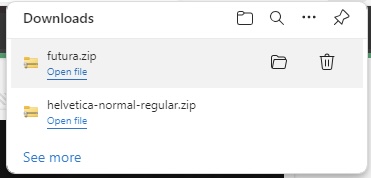
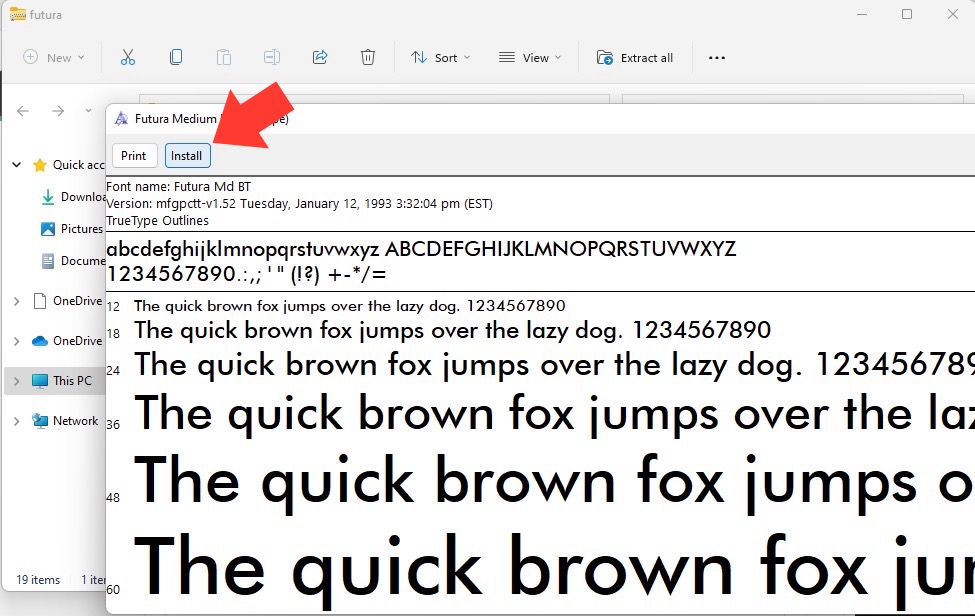
Installing a new font in Microsoft Word is straightforward. Download the font file of your choice from a reliable source, then right-click the file and select ‘Install. It will automatically add to your font library in Word. On a Mac, open the font file and click ‘Install Font‘. Restart Word, and your new font will be ready to use.
Where can I get fonts?
For a fantastic variety of fonts that can elevate your Word documents, explore Google Fonts for a treasure trove of downloadable options suitable for nearly any context. Websites like DaFont, Font Squirrel, and FontSpace also offer an abundance of fonts for all kinds of projects. Just make sure that the fonts you choose come with the appropriate licenses for your intended use.

John Michaloudis is a former accountant and finance analyst at General Electric, a Microsoft MVP since 2020, an Amazon #1 bestselling author of 4 Microsoft Excel books and teacher of Microsoft Excel & Office over at his flagship MyExcelOnline Academy Online Course.

 30 Days - Full Access









