 Free Practice Workbook
Creating bingo game cards in Excel is a simple process. Excel can design, populate, and personalize bingo cards for any occasion. In this article, you will learn how to create bingo game cards in Excel.
Key Takeaways:
- Excel can be used to create customized bingo game cards easily.
- Use borders, equal row heights, and column widths for a clean grid.
- The
RANDBETWEENfunction helps generate random bingo numbers. - Unique number formulas prevent duplicate values in the card.
- Personalize cards with images, themes, and custom fonts.
Table of Contents
Setting Up Excel for Bingo Game Cards
- Label the top row for easy reference. Use “B,” “I,” “N,” “G,” and “O” as your column headers.
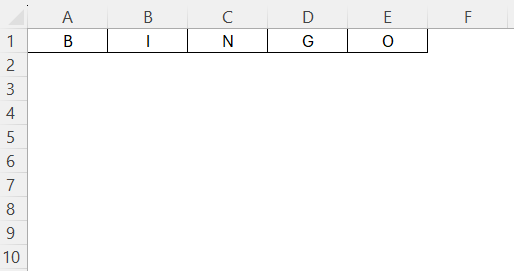
- Name this sheet “Bingo Cards” to avoid confusion as we proceed.
- Save your file to prevent data loss.
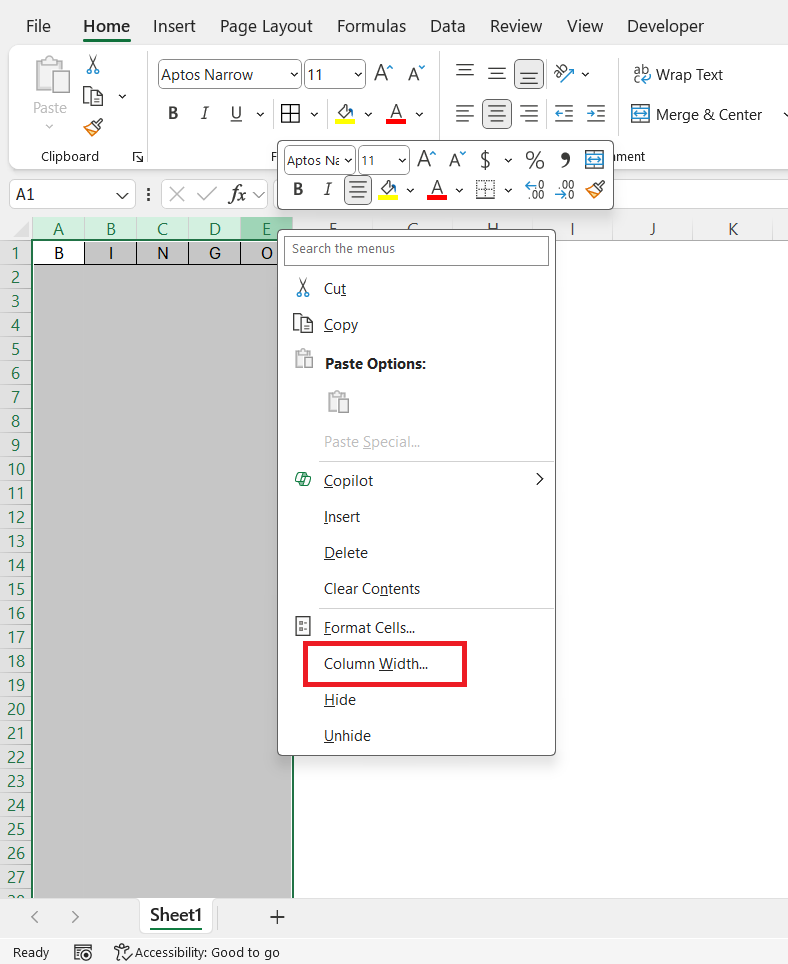
- Adjust the column widths to make sure that each square is uniform.
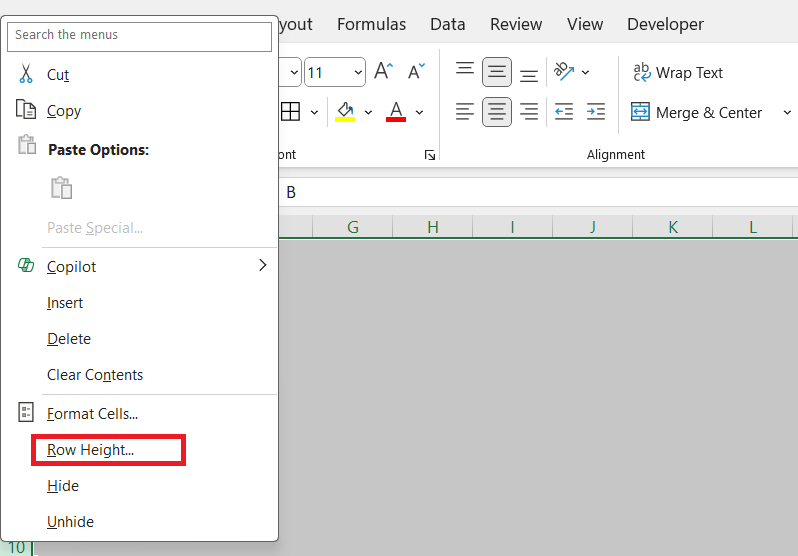
- Adjust the row heights to match and create perfect squares.
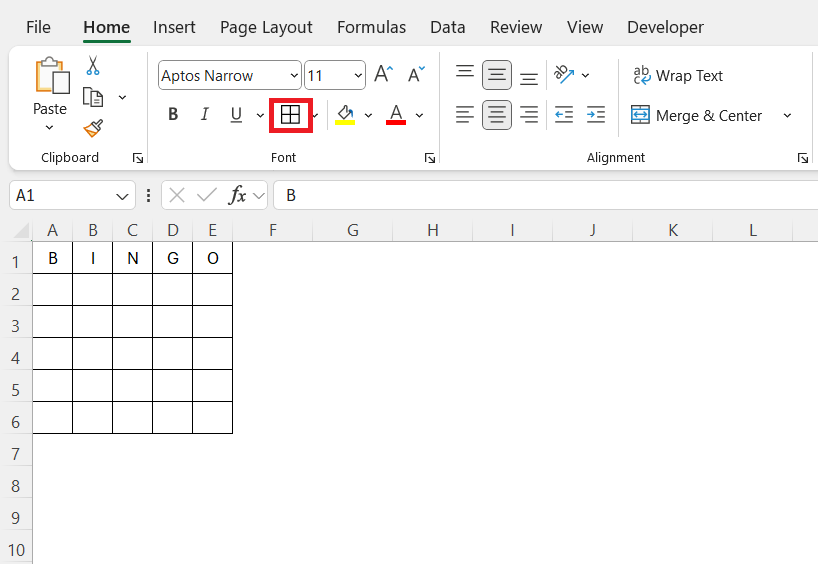
- Use borders to define each cell clearly
- Apply a distinct line around the entire grid.
- Use the Wrap Text feature for cells to keep text contained.

- Freeze the top row containing headers to keep titles visible as you scroll.
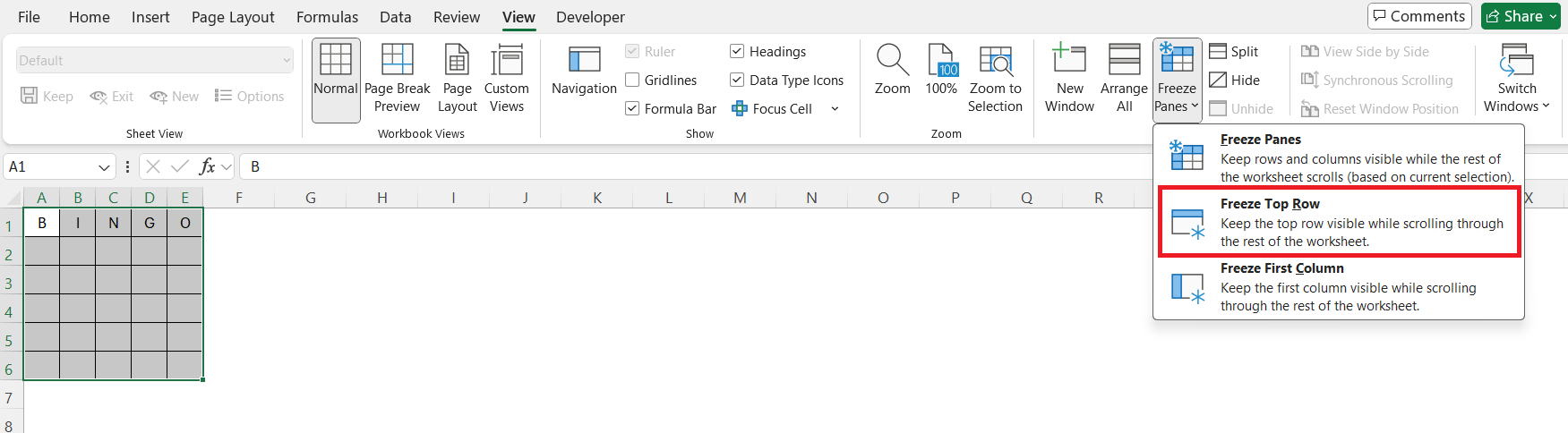
Populate Bingo Numbers
Excel Functions for Random Numbers
To generate random numbers within specific ranges, use the RAND and RANDBETWEEN functions.
=RANDBETWEEN(start, end)
- Enter 1 to 15 for column B
- Enter 16 to 30 for column I
- Enter 31 to 45 for column N
- Enter 46 to 60 for column G
- Enter 61 to 75 for column O
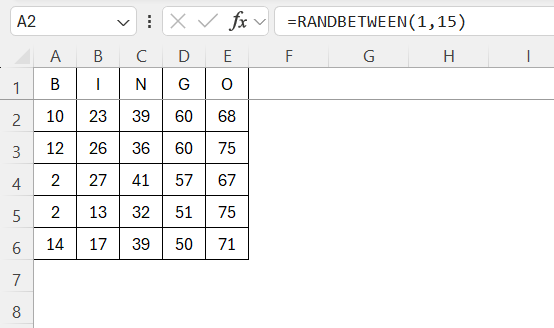
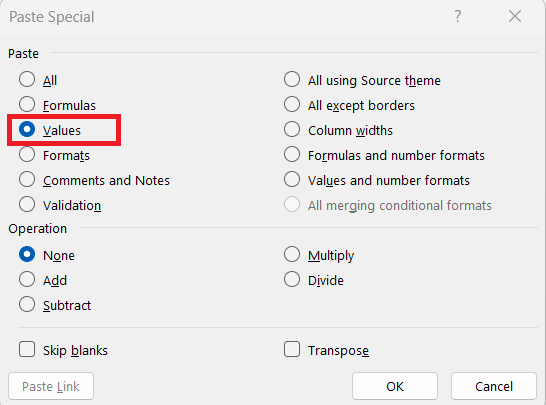
To prevent these numbers from changing every time Excel recalculates,
- Copy the number.
- Press Alt + E + S to open Paste Special.
- Select Values.
Non-Repeating Values
Preventing duplicate numbers in your bingo grid is important for a functional and fair game. To achieve this, we can use this formula:
=INDEX(SORTBY(SEQUENCE(15,,1), RANDARRAY(15)), SEQUENCE(5))
- SEQUENCE(15,,1) → generates the numbers 1 to 15.
- RANDARRAY(15) → generates 15 random numbers.
- SORTBY(…, RANDARRAY(…)) → randomly shuffles the numbers from 1 to 15.
- INDEX(…, SEQUENCE(5)) → picks the first 5 from the shuffled list (so they’re guaranteed to be unique).
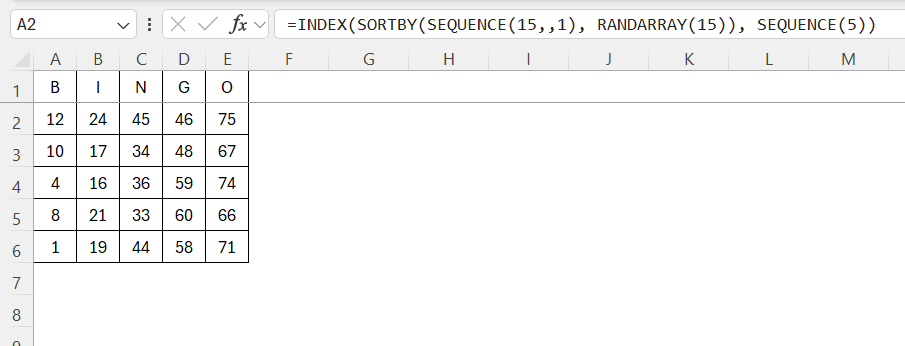
Chnage the sequence formula to SEQUENCE(15,,16) for 2nd column, SEQUENCE(15,,31) for 3rd column and so on. With these functions, combined with vigilant initial setup, we can ensure our bingo grid remains dynamic yet free from duplicate entries, enhancing the gameplay experience.
Personalizing Your Bingo Game Cards
Incorporating Themes or Images
Adding themes or images to your bingo cards in Excel can elevate your game’s personalized touch. Start by selecting a theme relevant to your event or audience, such as holidays, seasons, or hobbies. For images, use the “Insert” tab to add pictures directly into your cells.
You can insert small, themed icons like pumpkins for fall or hearts for Valentine’s Day directly into your grid.
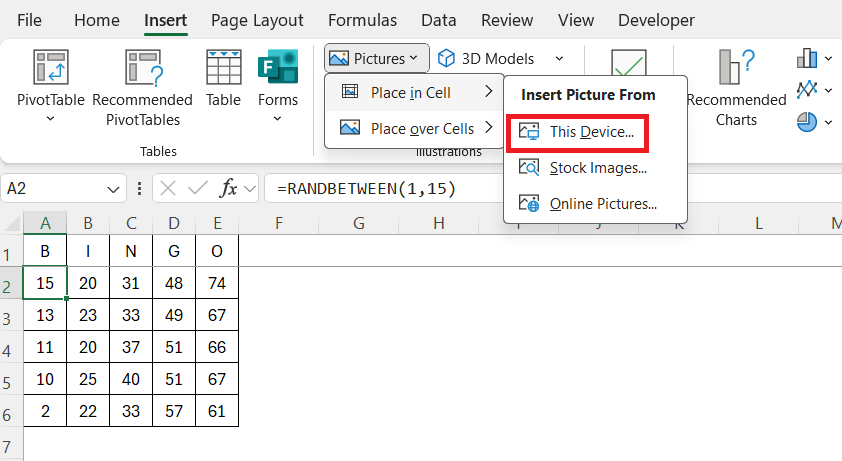
When placing images, adjust the cell size to accommodate and lock their position using the “Format Picture” menu.

This will make sure that images stay aligned and not disrupt your game layout. Excel also allows for subtle background images. Use “Page Layout” > “Background” to add a full-page image.

Finally, enhance your theme with matching colors and fonts, creating a cohesive appearance. This customization enriches the gameplay, making each card a unique keepsake for participants.
Adjusting Text and Layout
Fine-tune the text and layout in your bingo cards to improve readability.
- You should center the numbers horizontally and vertically within each cell for a clean look.

- Change the font style to align with your bingo theme.
- Keep the text size large enough so easy viewing from a distance.
- Balance the spacing between rows and columns so the bingo grid remains a perfect square.
- Use Excel’s “Page Layout” options to adjust margins and orientation.
Print Bingo Cards
Begin by selecting the area you want to print and setting it as the “Print Area” under the “Page Layout” tab.

Next, adjust the orientation to “Landscape”.
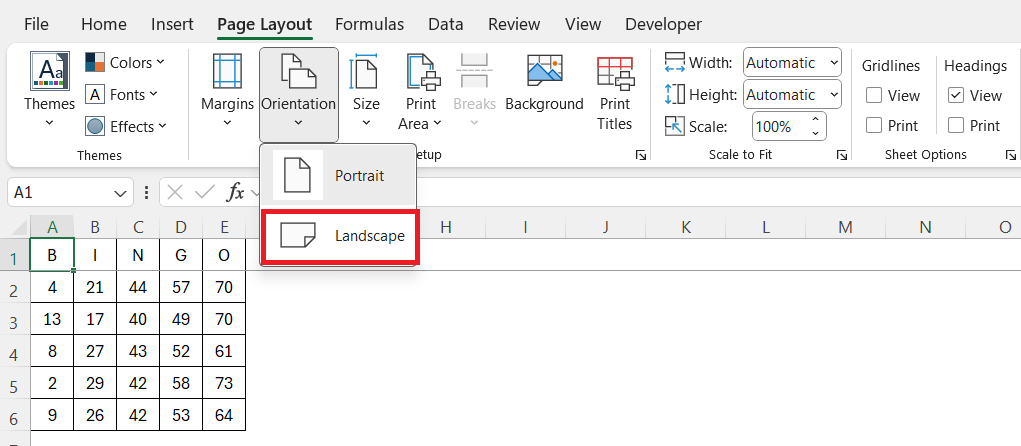
Set the margins to “Narrow” to maximize space usage on the page.
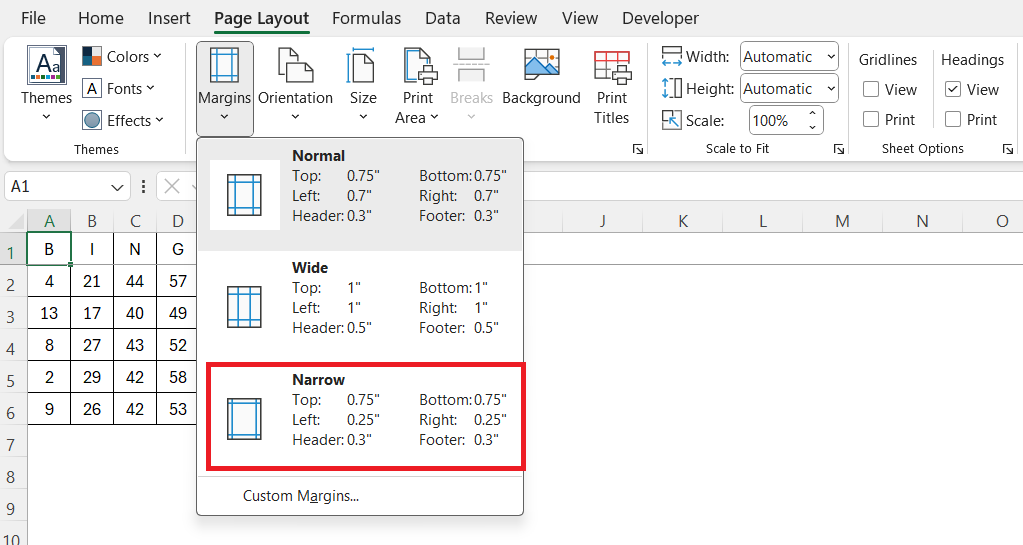
Finally, preview your setup using “Print Preview” to verify that everything aligns as expected.
FAQs
Can I create bingo cards in Excel?
Yes, Excel can be used to design and print bingo cards.
Which function creates random bingo numbers?
The RANDBETWEEN function can be used to generate random numbers for bingo.
How to avoid duplicate numbers on my bingo card in Excel?
To prevent duplicates, use the UNIQUE and SORT functions in combination with RANDBETWEEN. This will make sure that each column contains only distinct values within its assigned range (e.g., 1–15 for the B column).
=SORT(UNIQUE(RANDBETWEEN(1,15)))
Can I insert images into my bingo cards in Excel?
Yes! Go to the Insert tab and choose Pictures to add images directly into individual cells. You can resize the cell and image, then use “Format Picture” to lock the image’s position.
How to print my bingo cards properly from Excel?
- Set the exact range of cells to print using the Page Layout > Print Area feature.
- Use Landscape orientation and narrow margins
- Set “Fit to One Page” scaling under Page Setup to optimize the layout.
- Preview the document to make sure that it’s not cut off or misaligned.

John Michaloudis is a former accountant and finance analyst at General Electric, a Microsoft MVP since 2020, an Amazon #1 bestselling author of 4 Microsoft Excel books and teacher of Microsoft Excel & Office over at his flagship MyExcelOnline Academy Online Course.

 30 Days - Full Access









