 Free Practice Workbook
Table of Contents
What are External Links in Excel?
An external link points Excel to pull data from another workbook or external data source. For example:
=’C:\Reports\Sales.xlsx’!A1
This reference tells Excel to pull data from cell A1 of the workbook named Sales, located in the Reports folder in C drive. These links are very useful but may cause errors when the files are renamed, moved, or archived.
Any broken links can cause these problems:
- Update links error every time a file opens.
- The workbook becomes slow.
- File refresh fails.
- File points to an unavailable location.
- Error in formula or reports.
Find External Links
External links can be present across different components like data ranges, charts, embedded objects, and more. You can use the Find and Replace feature to search the cells containing the left bracket within the formulas.
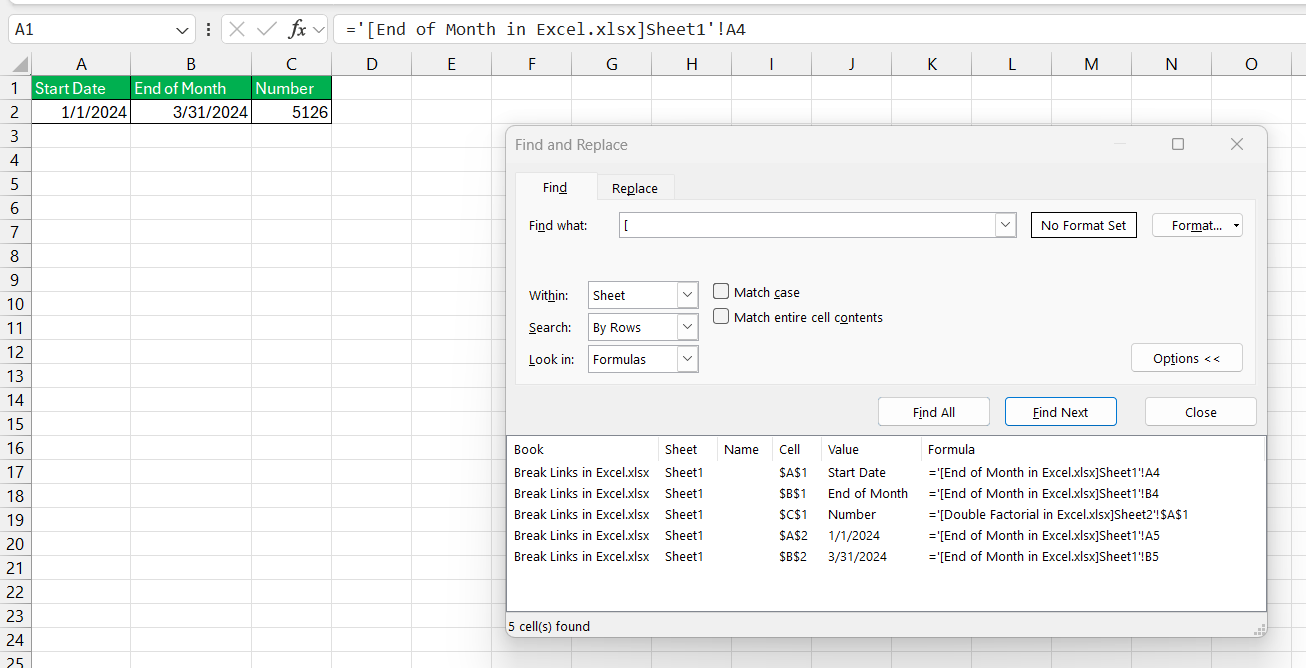
You can also go to the Data tab and select Workbook Links to find external links.

Methods to Break Links in Excel
Using Dialog Box
Follow the steps below to know how to break lines in Excel:
STEP 1: Go to the Data tab on the ribbon.

STEP 2: In the Queries & Connections group, I click on Workbook Links. This opens the Workbook Links dialog box, showing all external links in the workbook.
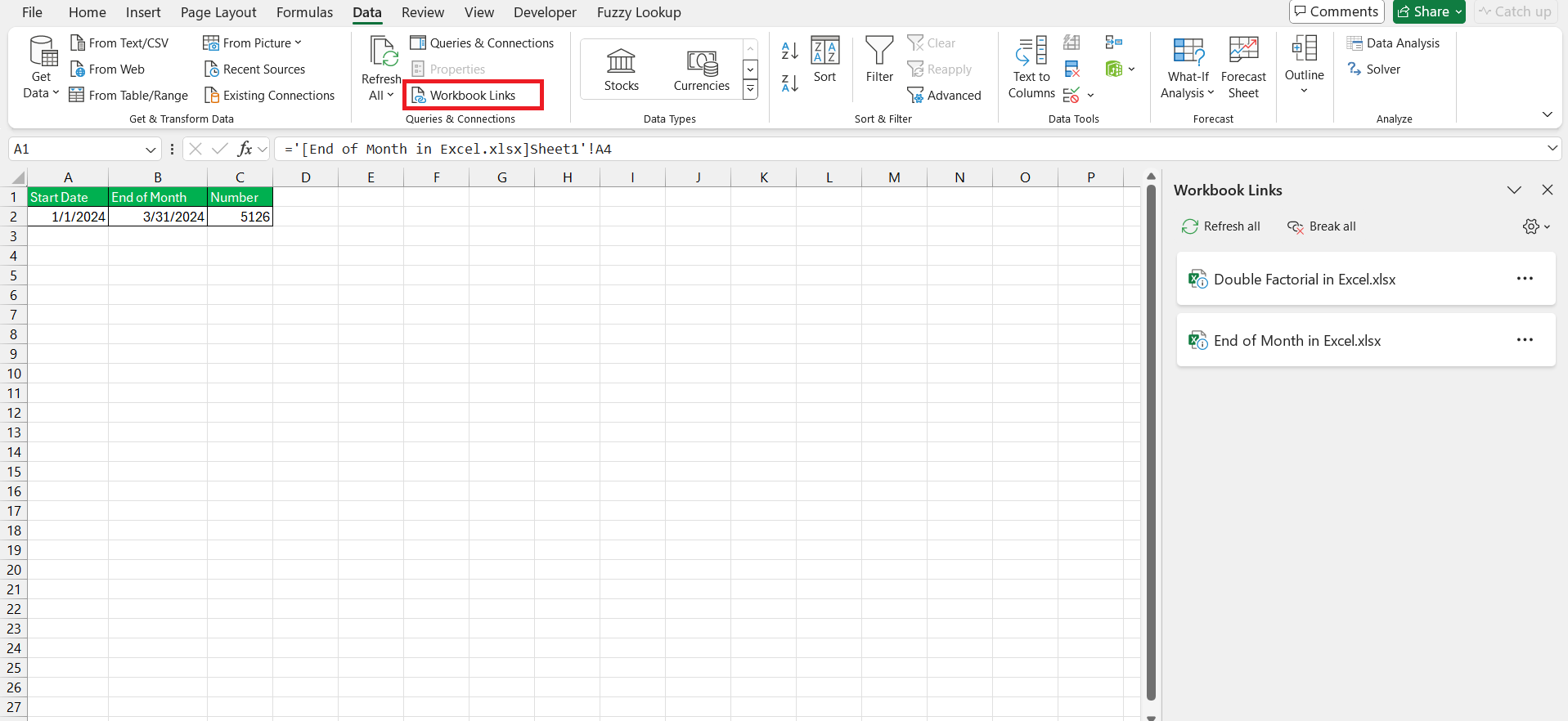
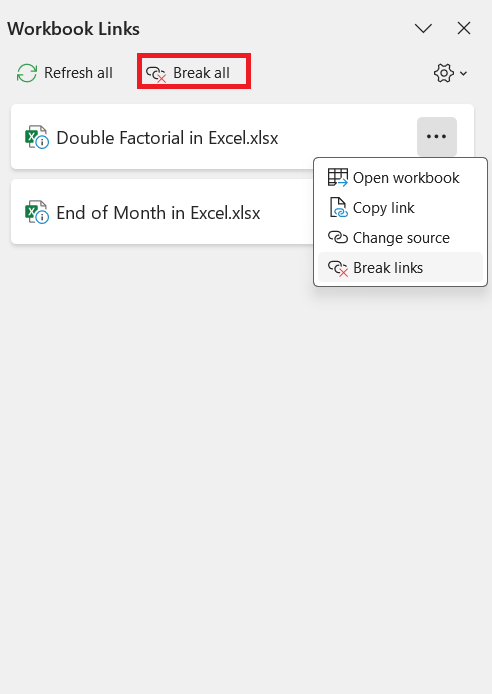
STEP 3: If I want to edit a link, I select the one I need to change and click Change Source to update it with a new file or location.
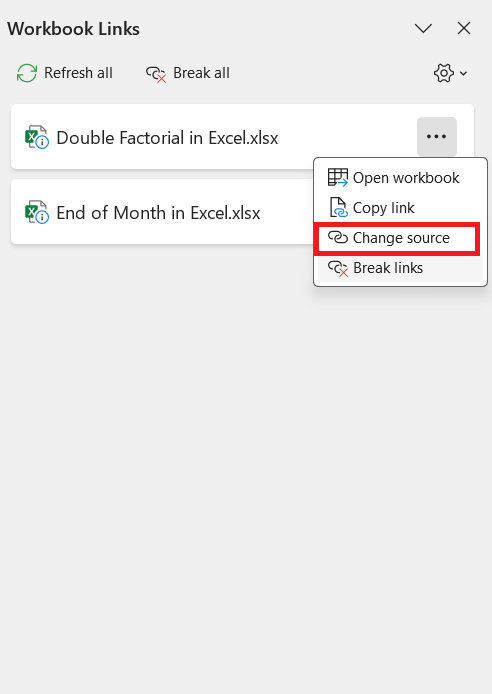
STEP 4: If I want to break a link, I select the link and click Break Link.
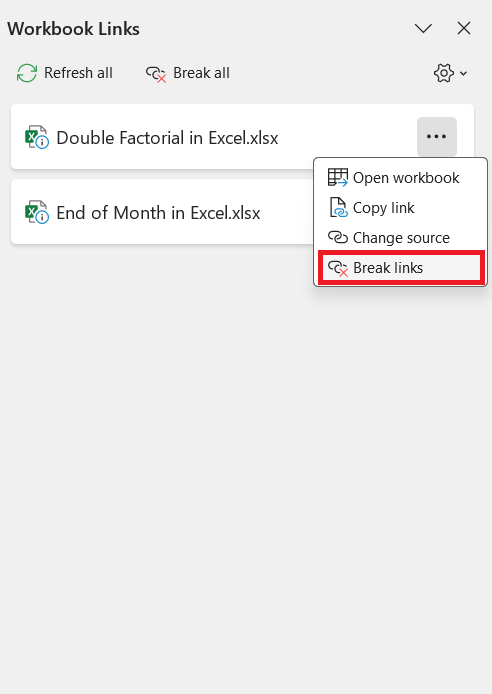
STEP 5: Excel asks me to confirm since breaking the link is permanent. I then click Break Links to finalize it, and now the link is gone—replaced by the current value from the external source.
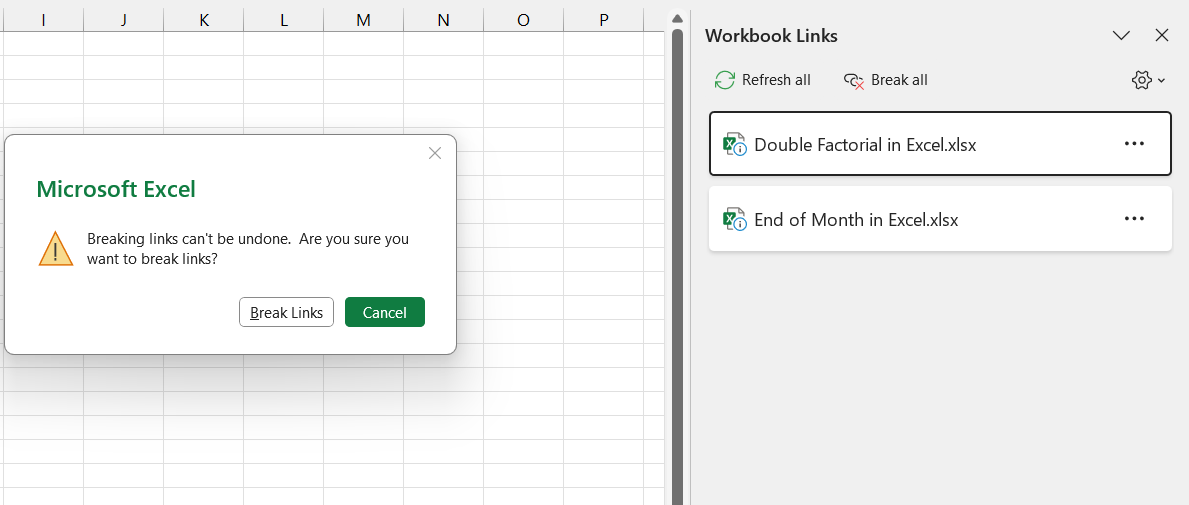
If you wish to break all links at one go, simply click on ‘Break All’.
Using Find & Replace Option
Follow the steps below to use the Find and Replace option to break lines:
STEP 1: Press Ctrl + H to open the Find & Replace dialog box.
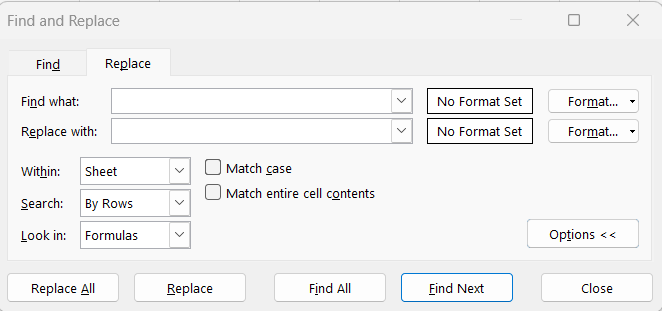
STEP 2: In the Find what field, enter external link you want to remove.
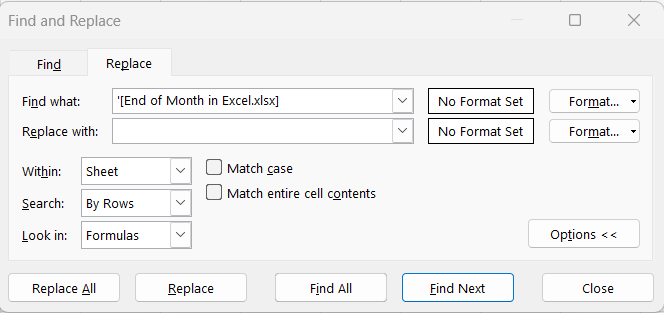
STEP 3: In the Replace with field, leave it blank.
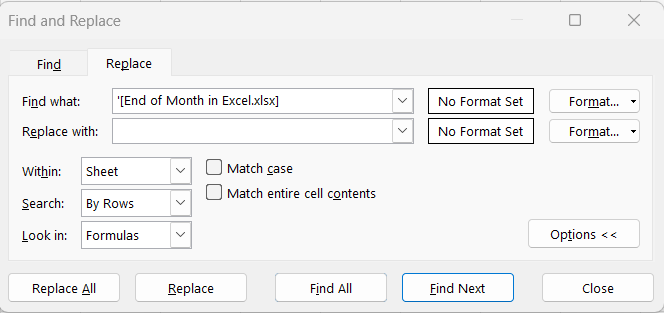
STEP 4: Click Find All. This will display all the cells that contains external links.
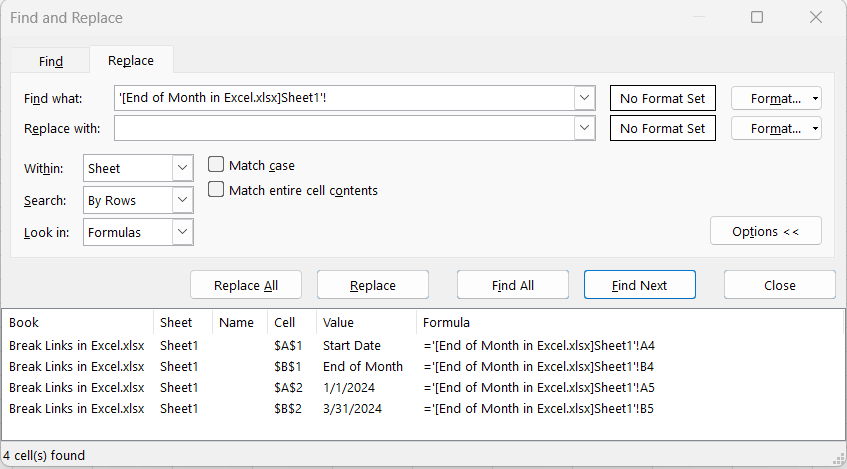
STEP 5: Click Replace All to remove the links.
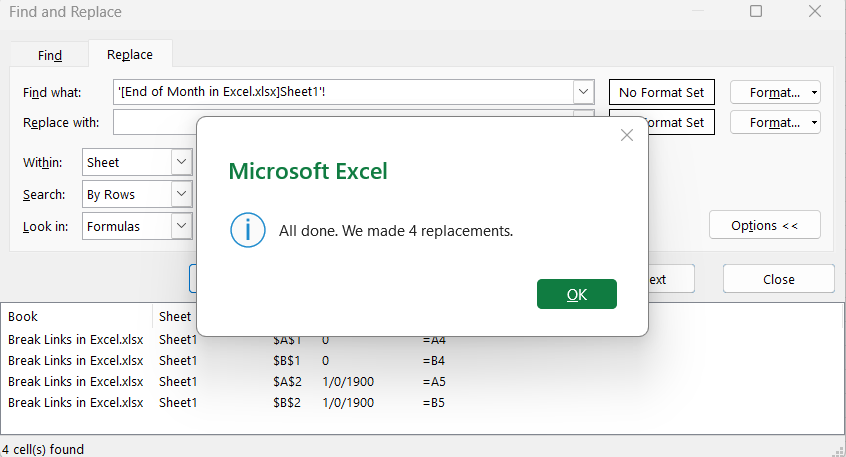
Managing External Links
Refresh Existing Links
Refreshing and updating existing links in Excel are important task in data management. Suppose you want to update your reports with the latest figures, you can go to the Data tab and select Refresh All. This will refresh the data and pull the latest values from all links.

Replace Formulas with Values
It is important to replace formulas with values to make sure that the numbers do not change every time you refresh the data.
- Press Ctrl + C to copy the formula.
- Go to the Home tab.
- Under the clipboard, select Paste > Paste Values.
Alternatively, you can press Alt + E + S + V to paste as value.
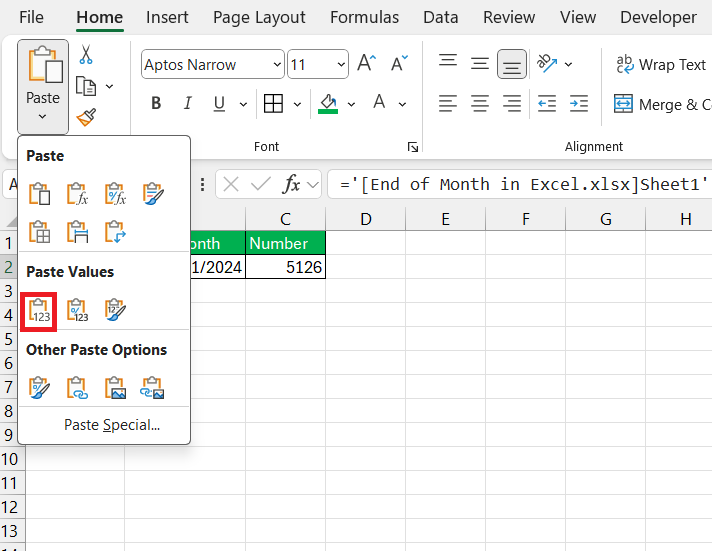
This will remove the underlying formula and replace it with the current value.
FAQs
What is the shortcut key to break links in Excel?
There are no shortcuts to break links in Excel.
How to break links without changing the values?
You have to replace formulas with values to make sure that the data does not change when links are broken. This way the values will not be dependent on the external links.
How to update links in Excel?
To update links without constant prompts, go to File > Options > Trust Center > Trust Center Settings > External Content, and select ‘Enable automatic update for all Workbook Links’. This means Excel will refresh links automatically without nudging you each time the workbook is opened.
What should I do if I cannot find the source of a mysterious external link?
If you cannot locate the source of a mysterious external link, comb through all named ranges, chart data series, conditional formatting, data validation rules, and objects with assigned macros. If the link still lurks unseen, consider using a specialized add-in to search for hidden links or engage in a VBA macro that’s designed to hunt down and reveal elusive links.
How do I break all hyperlinks in Excel?
To break all hyperlinks in Excel, try selecting all the cells containing hyperlinks, right-click, and choose ‘Remove Hyperlinks’. If they’re scattered throughout the workbook, use the ‘Go To Special’ feature under ‘Find & Select’ in the Home tab to select all hyperlinks at once, and then remove them.

John Michaloudis is a former accountant and finance analyst at General Electric, a Microsoft MVP since 2020, an Amazon #1 bestselling author of 4 Microsoft Excel books and teacher of Microsoft Excel & Office over at his flagship MyExcelOnline Academy Online Course.

 30 Days - Full Access









