 Free Practice Workbook
When working with location-based data, I often need to calculate the distance between cities in Excel. While Excel doesn’t have a built-in function for this, there are multiple methods to get the job done as I will show below.
Key Takeaways:
- Excel’s Geography Data Type helps retrieve latitude and longitude for cities.
- The Haversine formula calculates the shortest distance between two points using coordinates.
- Google Maps links can be generated in Excel to find distances visually.
- VBA can automate distance retrieval using the Google Maps API.
Table of Contents
Unlocking Excel for Distance Calculations
Preparing the Dataset
Before calculating the distance, I need to ensure that my dataset is well-structured. The key elements of my dataset are:
- City Names: Names of the cities for which I want to find distances.
- Latitude and Longitude: Geographic coordinates that Excel can fetch using the Geography Data Type.
- Distance Calculation Methods: Various approaches to computing the distance.
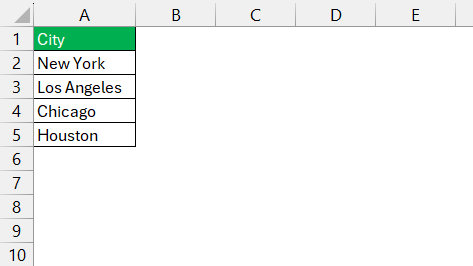
To start, I enter the names of cities in Column A:
Extracting Latitude and Longitude Using the Geography Data Type
Excel has a built-in Geography Data Type that allows me to retrieve location-specific details, including latitude and longitude.
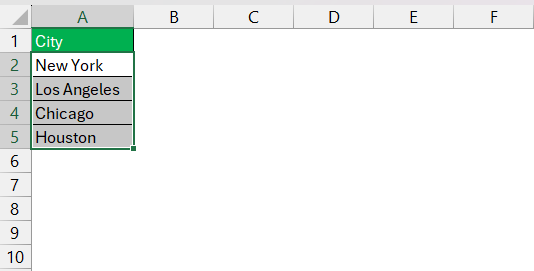
STEP 1: Highlight the city names in the range A2:A5.
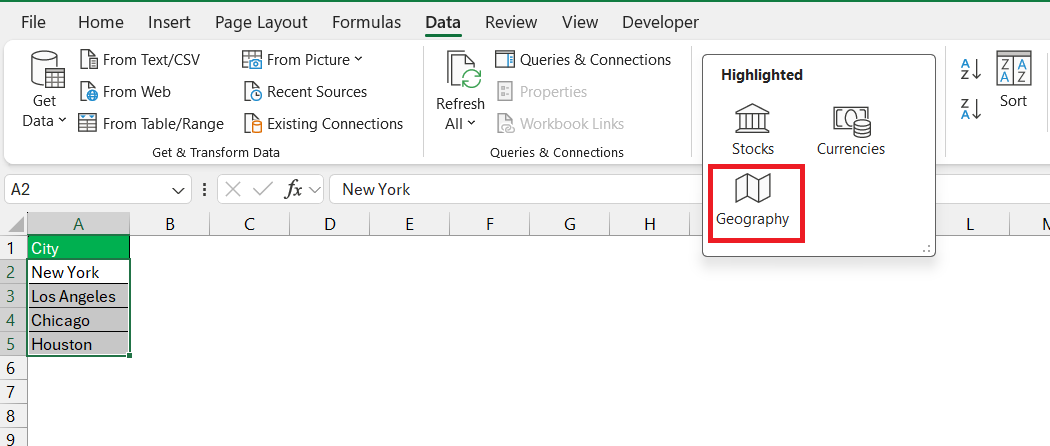
STEP 2: Go to the Data tab. Click on Geography in the Data Types group.
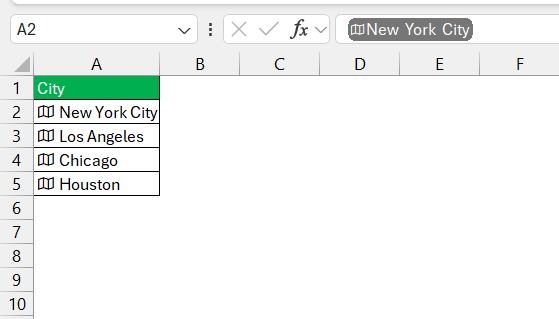
Excel converts the city names into geographical entities (indicated by a small map icon next to the city name).
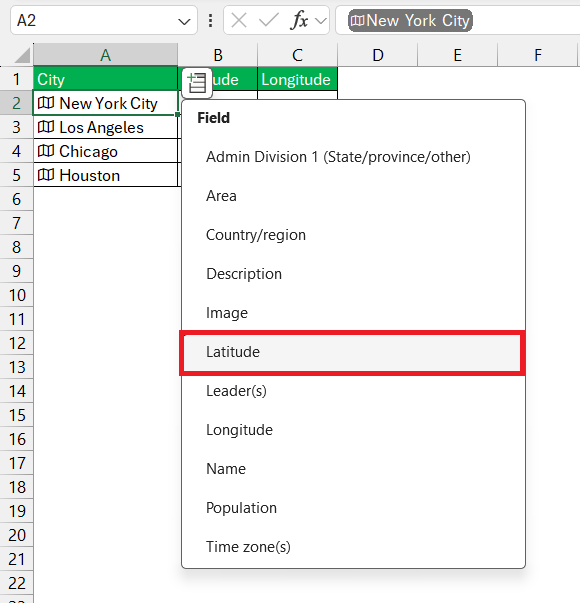
STEP 3: Click on the small button and select Latitude as the field.
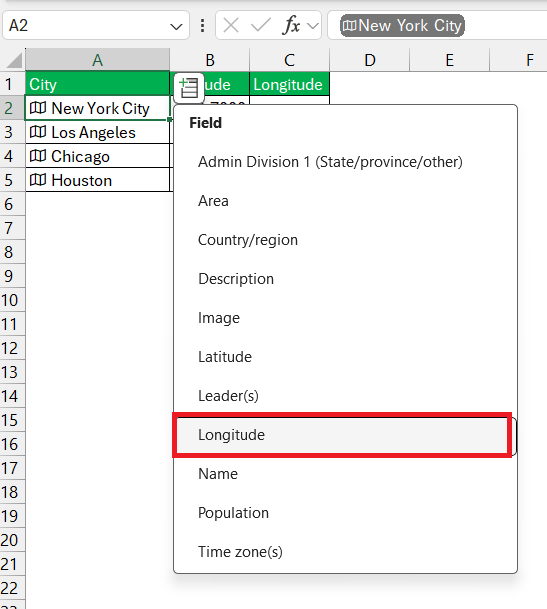
STEP 4: Next, select Longitude as a field.
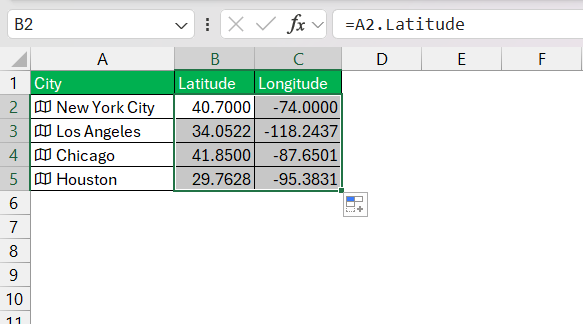
STEP 5: Drag the formula down.
Methods to Calculate Distance Between Two Cities
Method 1: Using the Haversine Formula
The Haversine formula calculates the shortest distance between two points on a sphere using latitude and longitude. It looks complicated initially but once you have the formula setup it is very easy to use.
=6371 * ACOS(COS(RADIANS(90 – A2)) * COS(RADIANS(90 – A3)) + SIN(RADIANS(90 – A2)) * SIN(RADIANS(90 – A3)) * COS(RADIANS(B2 – B3)))
- 6371 is the Earth’s radius in kilometers.
- ACOS calculates the arc cosine.
- RADIANS converts degrees to radians.
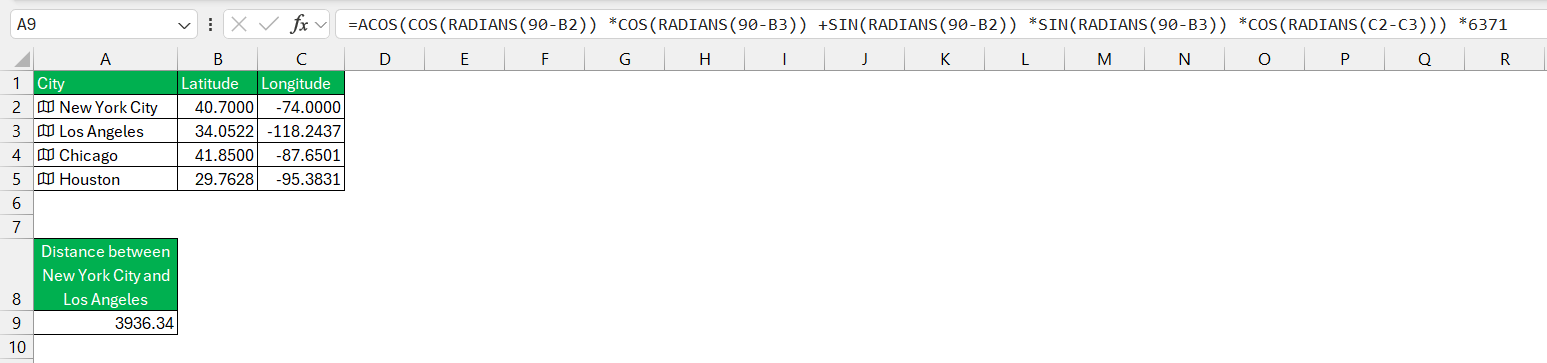
This will provide the distance in kilometers.
Method 2: Using a Google Maps Link
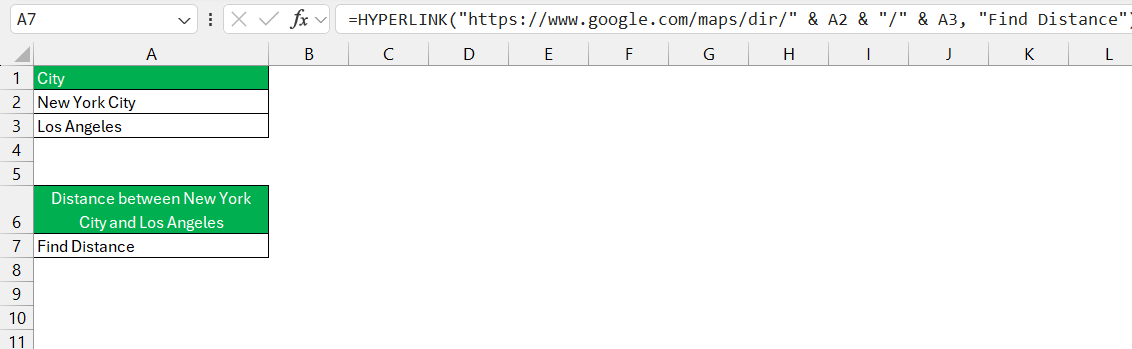
Use the CONCATENATE function to create a clickable Google Maps link, this gives a visual view of your route when you click on it.
=HYPERLINK(“https://www.google.com/maps/dir/” & A2 & “/” & A3, “Find Distance”)
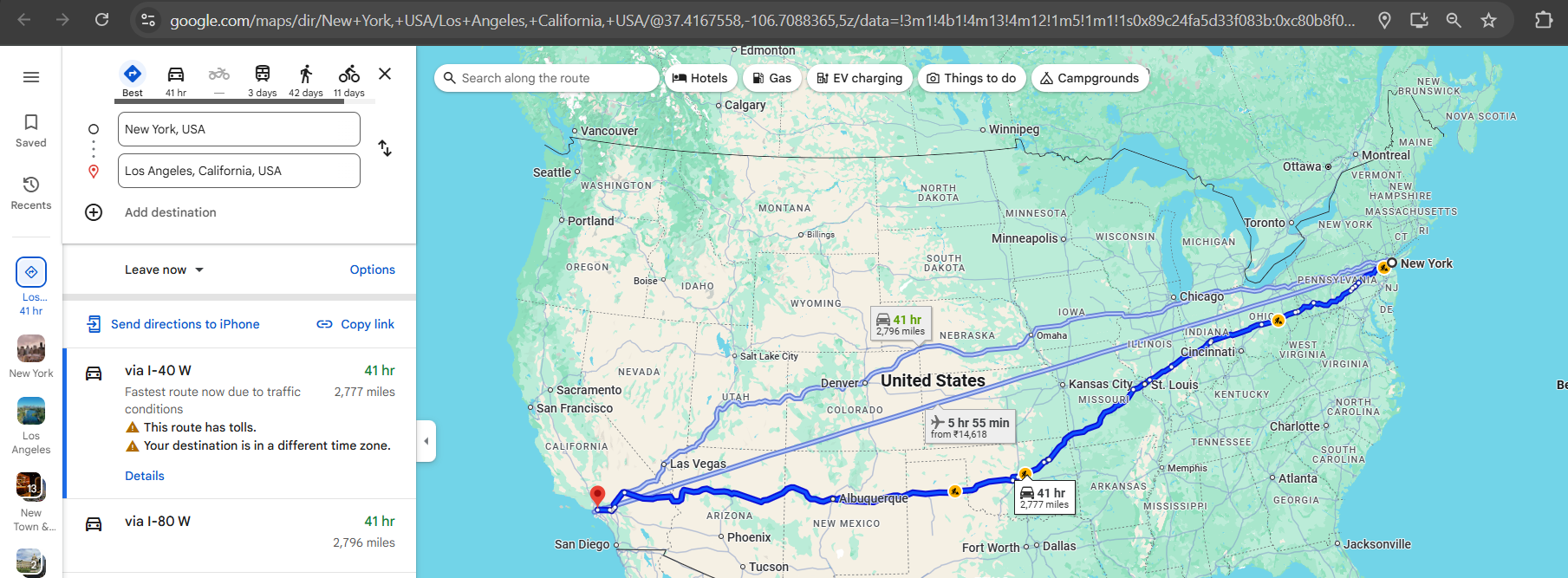
Click the Link to open Google Maps with the route displayed.
Method 3: Using VBA
VBA (Visual Basic for Applications) can fetch the distance from Google Maps API. Enable the Developer Tab in Excel if it’s not already enabled.
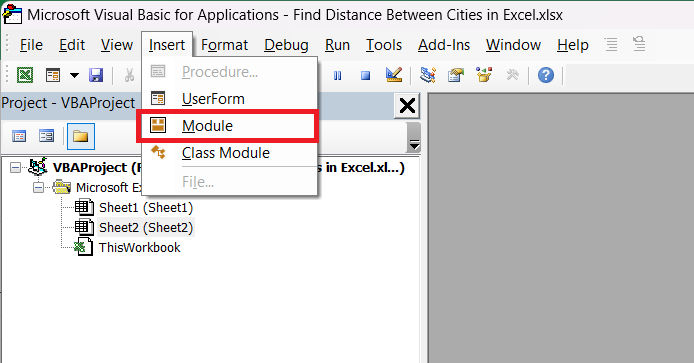
STEP 1: Open VBA Editor (ALT + F11) and insert a new module.
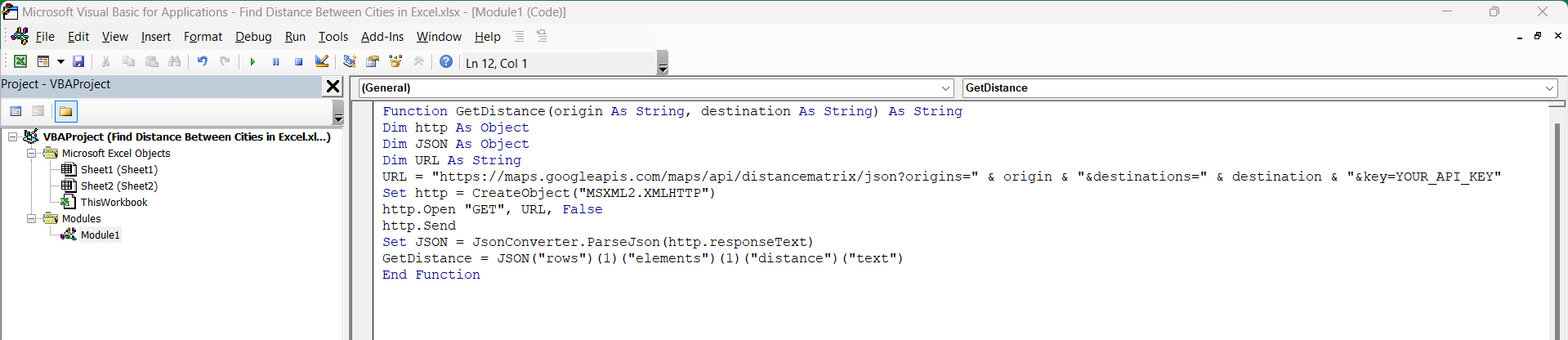
STEP 2: Paste the following VBA code:
Function GetDistance(origin As String, destination As String) As String
Dim http As Object
Dim JSON As Object
Dim URL As String
URL = "https://maps.googleapis.com/maps/api/distancematrix/json?origins=" & origin & "&destinations=" & destination & "&key=YOUR_API_KEY"
Set http = CreateObject("MSXML2.XMLHTTP")
http.Open "GET", URL, False
http.Send
Set JSON = JsonConverter.ParseJson(http.responseText)
GetDistance = JSON("rows")(1)("elements")(1)("distance")("text")
End Function
STEP 3: Replace ‘YOUR_API_KEY’ with your Google Maps API key.
STEP 4: Call the Function in Excel:
=GetDistance(“New York, USA”, “Los Angeles, USA”)
Press Enter to get the distance in miles or kilometers.
Frequently Asked Questions
How can I get the latitude and longitude using Excel?
Highlight city names, go to the Data tab, and select the Geography Data Type. Then, select Latitude and Longitude as fields to retrieve the geographic coordinates.
How can I use Google Maps in Excel?
You can use Google Maps in Excel by generating clickable links with the HYPERLINK function. This lets you create direct links to view distances between locations on Google Maps.
How do I automate distance calculations?
To automate distance calculations, you can use VBA (Visual Basic for Applications) with the Google Maps API to fetch distance data directly from the Maps service based on city names or addresses.

John Michaloudis is a former accountant and finance analyst at General Electric, a Microsoft MVP since 2020, an Amazon #1 bestselling author of 4 Microsoft Excel books and teacher of Microsoft Excel & Office over at his flagship MyExcelOnline Academy Online Course.

 30 Days - Full Access









