 Free Practice Workbook
If you are working with numbers in Excel, you might need to calculate the average of a dataset. In this article, I will show you how to calculate mean in Excel.
Key Takeaways:
- Properly structured data is important for accurate mean calculation.
- The AVERAGE function can be used to calculate the mean.
- It automatically excludes non-numeric and blank cells.
- Manually calculate the mean value by using the SUM and COUNT functions.
- Macros can also be used to automate the mean calculation process.
Table of Contents
Excel Mean Calculation
When beginning to calculate the mean in Excel, proper data entry is important. Each value in your set represents a data point that will be included in the mean calculation. Make sure that the data is clean and is free from errors or inconsistencies.
Excel’s AVERAGE function is a fundamental tool for statistical analysis. It provides a quick way to calculate the arithmetic mean of a range of numbers. To use this function, I simply input it =AVERAGE(range) into a cell. This function sums all the numbers and divides by the count of values. This process is used to determine the central tendency of your data.
How to Calculate Mean in Excel
Method 1: AVERAGE Function
To use the AVERAGE function for calculating the mean in Excel, I follow these steps: First, I select the cell where I want the mean to be displayed. Then, I enter the formula =AVERAGE( followed by the range of cells containing my data, for instance, B2:B13). After closing the parentheses and pressing Enter, Excel displays the mean of the specified cells.
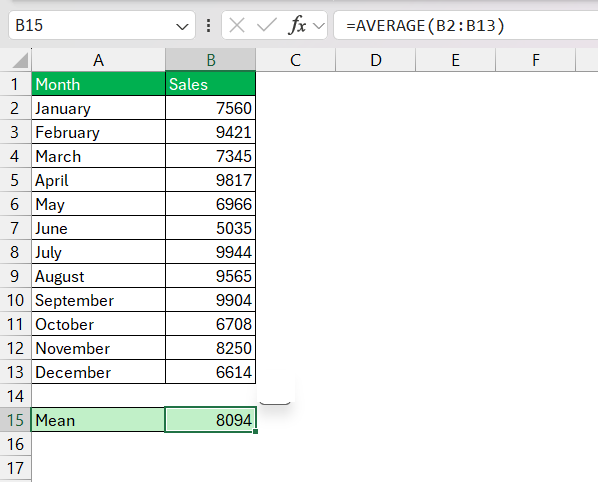
This function will automatically exclude text or blank cells from its calculation and focus on numbers only.
Method 2: SUM and COUNT Functions
Instead of using the MEAN function, I can combine two functions – SUM and COUNT functions to calculate the average value.
Use the SUM function to get the total sum of the values.
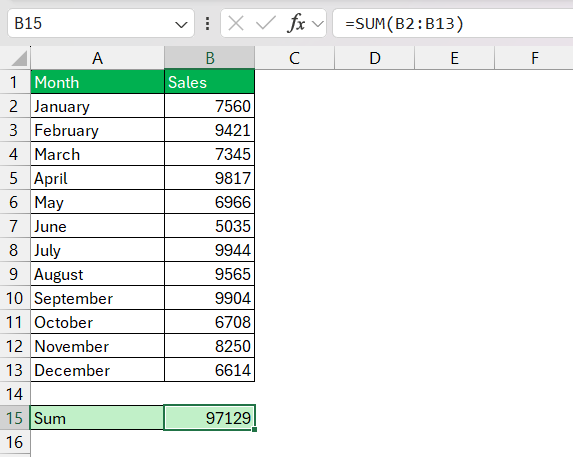
Count the number of values with the COUNT function.
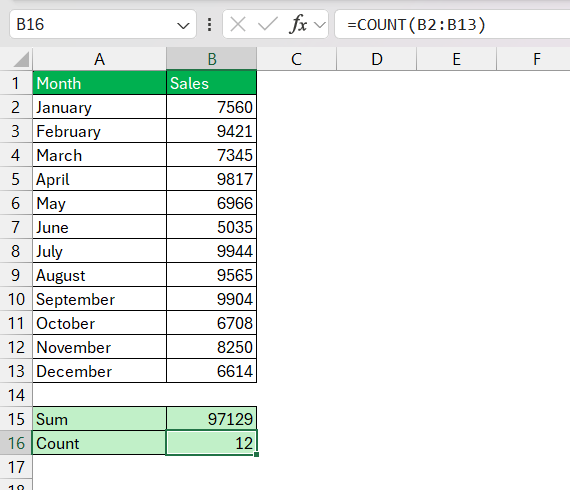
Divide the total sum by the count to obtain the mean.
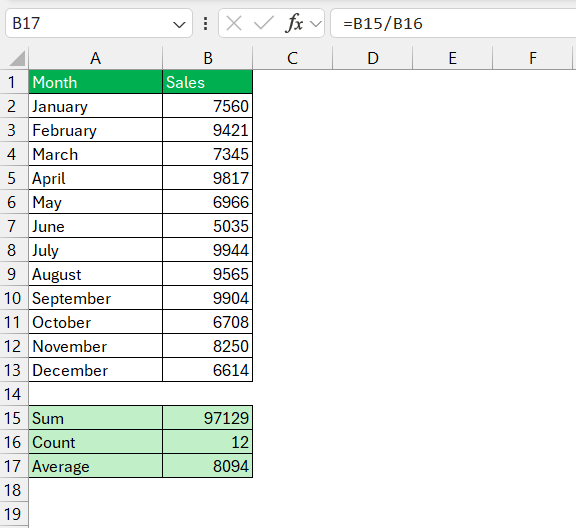
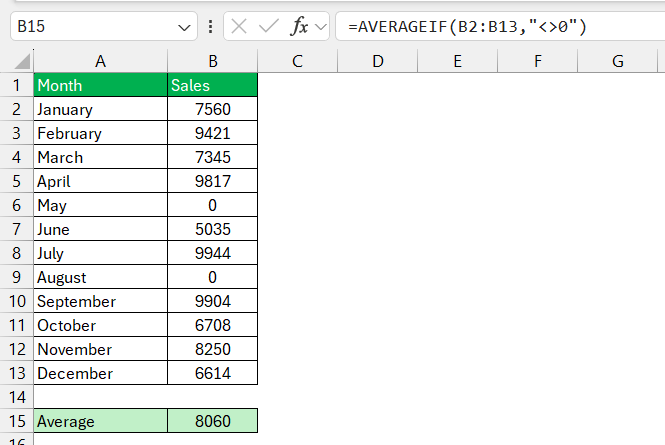
To ignore zeros, I use the function below to consider the cells with values greater than zero only.
Advanced Techniques for Data Analysis
Data Analysis Toolpak
The Data Analysis Toolpak in Excel unlocks advanced statistical capabilities, and one of its offerings is an enhanced mean calculation. This feature is particularly useful when dealing with large data sets. To engage the Toolpak, I ensure it’s installed and then select ‘Data Analysis’ under the ‘Data’ tab. From there, choosing ‘Descriptive Statistics’ lets me compute the mean alongside other summary statistics.

To utilize this function, input the data range and specify whether the first row contains labels, if applicable. Next, choose the output range and let Excel do the heavy lifting. 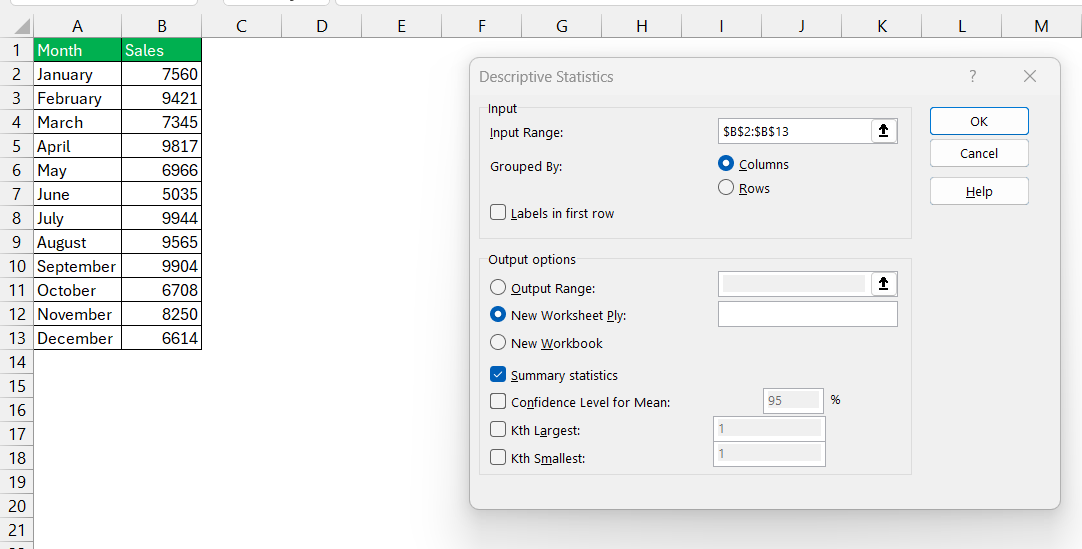
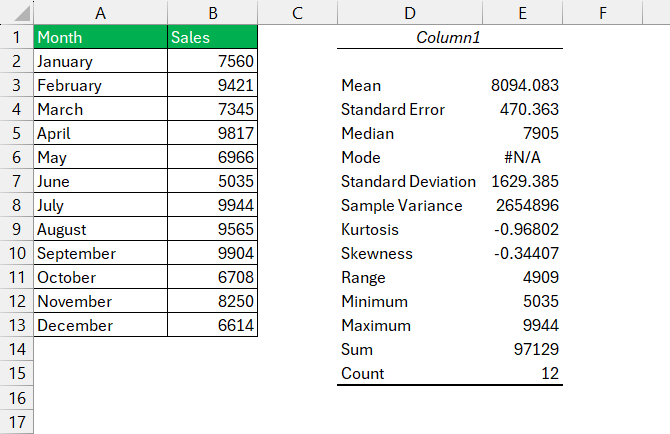
This tool provides a complete statistical breakdown, where the mean is prominently displayed at the top.
Weighted Average
The SUMPRODUCT function can be used with the SUM function to calculate the average value.
- The SUMPRODUCT function will calculate the total value.
- The SUM function will calculate the total weight.
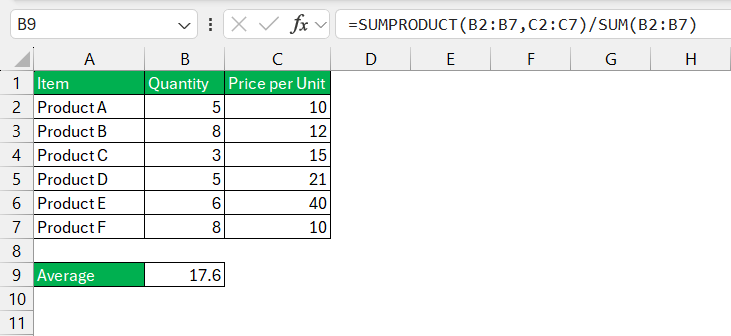
The SUMPRODUCT multiplies corresponding values and weights and sums the results. While SUM adds the total weights. Finally, dividing the two gives the weighted average.
Tips & Tricks
- Press Ctrl + Shift + Arrow Key to select a range of cells.
- Press Alt + + to instantly calculate an average.
- Quick Access Tool can be used to access the mean calculation.
- For repeated tasks, I can use macros to perform mean calculations with a single command.
- Use Flash fill ot fill in the data when a pattern is established.
FAQs
How to calculate mean?
To calculate mean in Excel, you add up all the numbers in your dataset using the SUM function, then divide by the total count of those numbers with the COUNT function. Alternatively, use the AVERAGE function, which automates this process. Simply select the cell range and input =AVERAGE(selected range) for Excel to calculate the mean for you.
Is average in Excel the same as mean?
Yes, in Excel, the average is the same as the mean. The AVERAGE function calculates the mean by summing the numbers in a range and dividing by the count of numbers. It represents the central value of the dataset.
How to calculate the mean for a subset of data in Excel?
Yes, you can calculate the mean for a subset of data in Excel by using the AVERAGEIF or AVERAGEIFS function. This allows you to define specific criteria for which values to include in the calculation.
How to calculate an average while ignoring specific values?
You can use the AVERAGEIF function to ignore a specific value. Like, if you want to ignore zeros, the function will be:
=AVERAGEIF(A1:A10, “<>0”)
How to handle non-numeric values in mean calculation?
You can use the AVERAGE function to ignore non-numeric and text values. You can use the Text to Column feature or the VALUE function to convert text to a number.

John Michaloudis is a former accountant and finance analyst at General Electric, a Microsoft MVP since 2020, an Amazon #1 bestselling author of 4 Microsoft Excel books and teacher of Microsoft Excel & Office over at his flagship MyExcelOnline Academy Online Course.

 30 Days - Full Access









