 Free Practice Workbook
Table of Contents
Step-by-Step Guide to Effortless Pro Rata Calculation
Using the YEARFRAC Function
The YEARFRAC function calculates the fraction of the year represented by the number of whole days between two dates. This function is particularly useful for financial calculations where the exact duration of the period in terms of the year is vital.
=YEARFRAC(start_date, end_date, [basis])
- start_date and end_date are the two dates between which you want to calculate the year fraction.
- [basis] is an optional argument that specifies the day count convention to use. It can be from 0 to 4, representing different conventions like actual/actual, actual/360, etc. If omitted, Excel uses 0 (US (NASD) 30/360) by default.
To calculate the pro rata share of an annual investment of $10,000 for the period from March 1, 2023, to August 31, 2023:
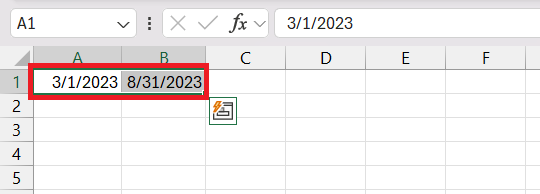
STEP 1: Input the start date in cell A1 (3/1/2023) and the end date in cell B1 (8/31/2023).
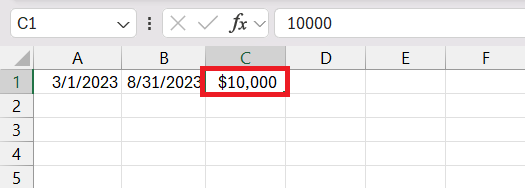
STEP 2: Enter the total annual amount in cell C1 ($10,000).
STEP 3: In cell D1, use the formula to calculate the pro rata share:
=C1*YEARFRAC(A1, B1)
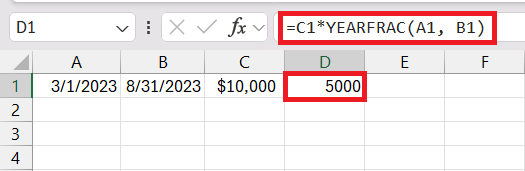
This formula will give you the proportion of the annual amount that corresponds to the period between the two dates.
Using the DAYS Function
The DAYS function calculates the number of days between two dates, which is useful for more straightforward pro rata calculations where the basis is simply the number of days.
=DAYS(end_date, start_date)
- end_date is the end date of the period.
- start_date is the start date of the period.
For example, if the annual rental is $3,000 and you want to calculate how much rent to pay based on the number of days stayed. Follow the steps below to get the amount –
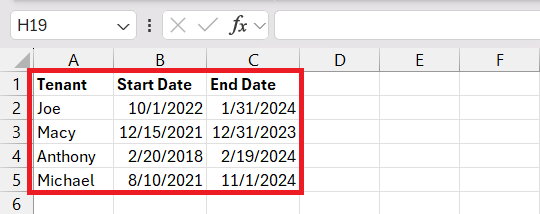
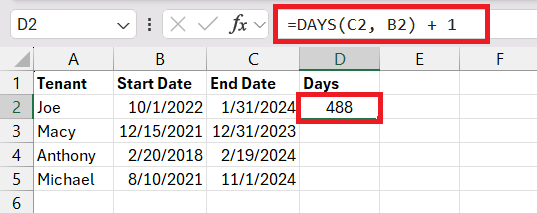
STEP 1: Enter the start date and end date for each tenant in columns A, B, and C, respectively.
STEP 2: In column D, use the DAYS function to calculate the total days each tenant stayed. Add 1 to the formula.
=DAYS(C2, B2) + 1
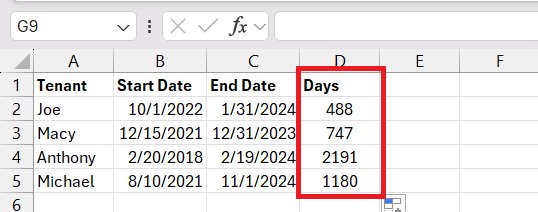
STEP 3: Drag this formula down.
STEP 4: In column E, input the following formula to find the amount.
=D2/SUM($D$2:$D$5)*3000
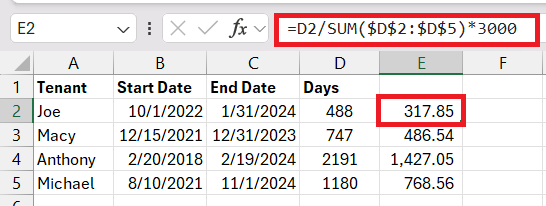
Calculating pro rata shares for tenants with different occupancy dates in Excel requires a detailed setup but follows a straightforward process. This calculation gives you the tenant’s pro rata share of the annual expense based on the number of days they occupied the property.
Real-Life Examples
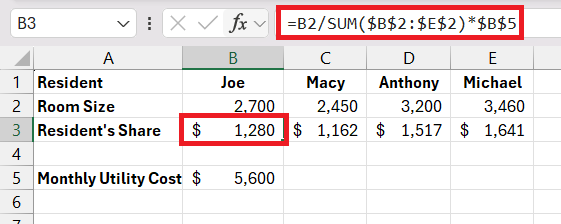
Distributing Utility Cost among Tenants
In a shared occupancy, utility cost has to be distributed among the tenants in a fair manner. For this process, you can really do a pro rata calculation based on the room size or individual usage.
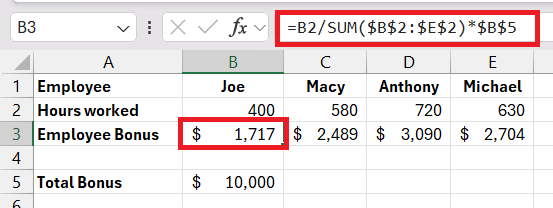
Distributing Bonuses Among Part-time Employees
When calculating the bonus at the year’s end, the bonus payment for part-time employees also has to be made. So, you can use pro rata share calculations in Excel to calculate the bonus amount for each part-time employee based on the number of hours worked.
FAQs
How to calculate pro rata in Excel?
To calculate pro rata in Excel, input your values and apply the formula (Amount / Total Units) * Units Used in a cell. Replace “Amount” with the total sum to be allocated, “Total Units” with the full value that amount represents, and “Units Used” with the portion you’re calculating for. Press Enter ,and Excel will display the pro rata amount.
What is the simplest formula for calculating pro rata shares?
The simplest formula for calculating pro rata shares is Pro Rata Share = (Individual Share / Total of All Shares) x Total Distribution. This quickly gives you each party’s proportional share of the total amount being divided.
Can Excel calculate pro rata based on varying periods or dates?
Yes, Excel can calculate pro rata based on varying periods or dates. Use the formula Pro Rata Amount = (Total Amount * Number of Days in Period) / Total Days in Year and adjust the date ranges to suit the specific period you’re dealing with. Use Excel’s date functions to help with calculations involving days.
How do I avoid common pitfalls in pro rata calculations within Excel?
To avoid common pitfalls in pro rata calculations within Excel, make sure that there is accurate data input, use correct formulas, apply conditional formatting to spot inconsistencies, and double-check calculations with Excel’s auditing tools. Always cross-reference outcomes against manual calculations for additional verification.
How does pro rata apply to dividends per share?
Pro rata applies to dividends per share by letting each shareholder receive a portion of the dividends directly proportional to their number of shares. The formula Dividend Per Share = Total Dividends / Total Shares Owned calculates the exact amount due per share, reflecting the equitable distribution of profits.

John Michaloudis is a former accountant and finance analyst at General Electric, a Microsoft MVP since 2020, an Amazon #1 bestselling author of 4 Microsoft Excel books and teacher of Microsoft Excel & Office over at his flagship MyExcelOnline Academy Online Course.

 30 Days - Full Access









