 Free Practice Workbook
 Logarithm is used when you want to analyze growth, scaling, or binary data. You also need to compute logathrim of a number to base 2. The LOG function in Excel uses the default base as 10, but you can change it to 2. In this article, I will show you different methods to find log 2 in Excel.
Key Takeaways:
- Excel’s LOG function allows custom bases.
- It can be used to compute numbers with a log base 2.
- Log base 2 is useful in binary-related calculations.
- Using cell references instead of hardcoded numbers improves accuracy.
- Antilog calculations help reverse logarithmic transformations.
Table of Contents
Understanding the Log 2 Function
Logarithms provide a method to express complex numbers as exponents. It is used to find which power a base number must be raised to, to produce another number. For example, if 2 raised to the power of x equals 8, the logarithm tells us that x is 3.
Base-2 logarithms are important in fields where data operates extensively in binary systems. It allows users to transform values into a binary exponential form.
How to Use the Log 2 Function in Excel
Step-by-Step Guide
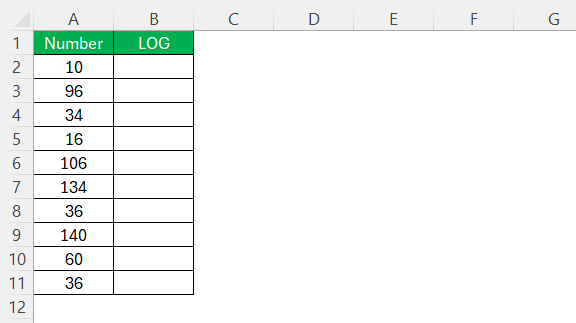
STEP 1: Make sure that your data is organized.
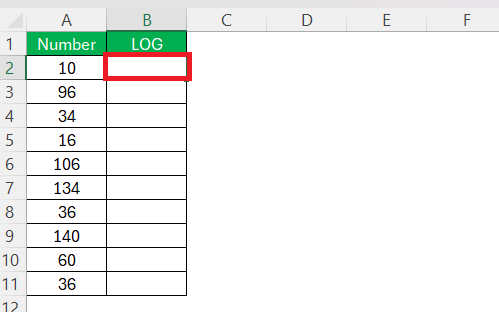
STEP 2: Click on the cell where you want to the result.
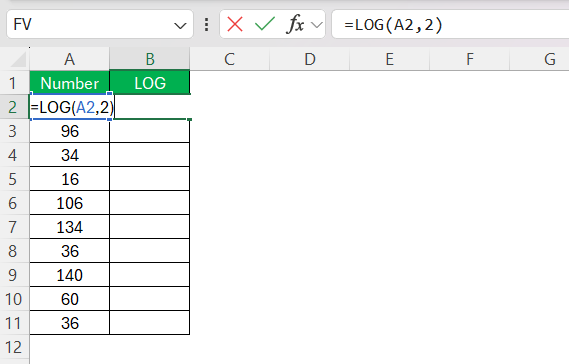
STEP 3: Type the formula
STEP 4: Press Enter.
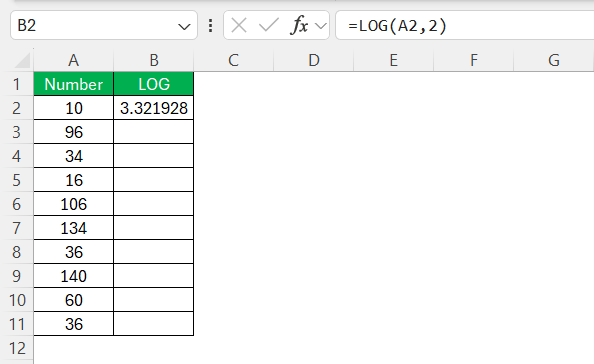
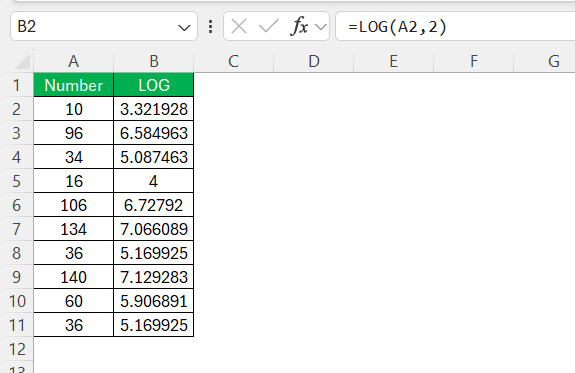
STEP 5: Drag the fill handle to copy the formula to adjacent cells.
Best Practices for Accurate Results
- Always include the base when calculating. If no base is specified, Excel will use the base as 10.
- Use a cell reference in the formula instead of manually typing the numbers.
- Make sure that the syntax of the formula is correct.
- Verify some results manually to make sure the function is operating as expected.
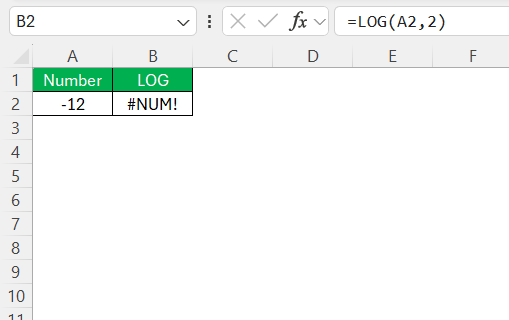
- Make sure that the number is positive.
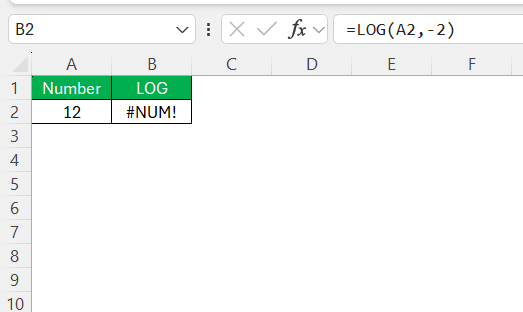
- The base must be greater than zero.
- Verify you’ve used the correct base. Mixing up bases can lead to inconsistent results.
Related Functions
Comparing LOG with LOG10
LOG and LOG10 functions are used to calculate logarithms. The only difference between the two functions is that they use different bases. The LOG function allows the user to specify the base.
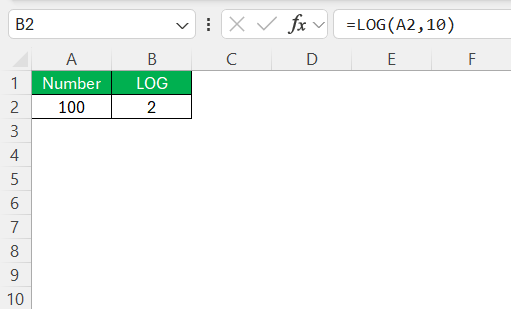
The LOG10 function is used when you want the base number to be 10.
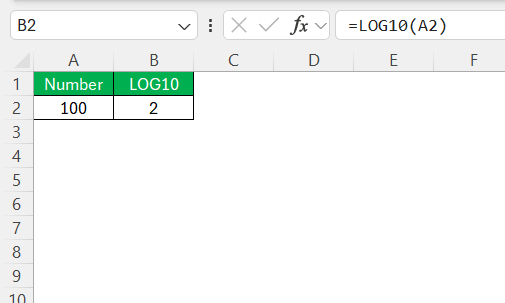
Antilog Calculation
Antilog is the reverse of a logarithm. Logrithms gives you the power, and antilog gives you the original number. Excel does not have a direct formula for antilog. However, you can use either the caret operator or the POWER function to get the result.
For base 2, you can use this formula:
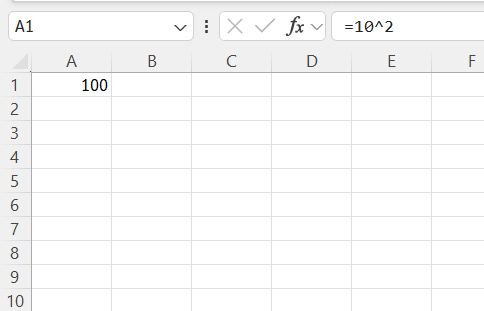
You can use the POWER function for other bases.
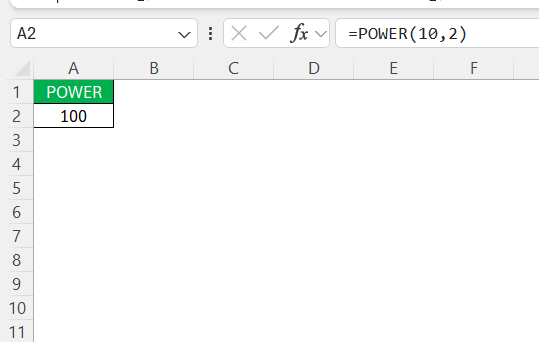
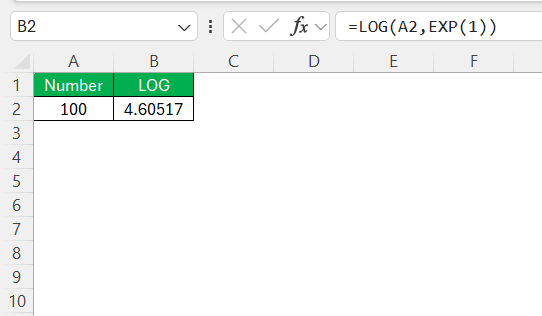
For natural logarithms, you can use the EXP function. It uses the value of e as the base.
FAQs
How to use log2 in Excel?
You can use the LOG function to calculate log 2 in Excel.
=LOG(number, 2)
Why use Log 2 over other logarithmic bases?
Log 2 is particularly useful in computing data with binary systems.
How to automate Log 2 calculations in Excel?
You can enter the log function with base 2 in one cell. Use the fill handle to drag the same formula to the entire range.
How to find the inverse of log?
You can use the caret operator or the POWER function to find the inverse of log.
What are the errors you can get when calculating log in Excel?
- #NUM! → Number is zero or negative
#VALUE! → Input is not a number
#REF! → Cell reference is broken

John Michaloudis is a former accountant and finance analyst at General Electric, a Microsoft MVP since 2020, an Amazon #1 bestselling author of 4 Microsoft Excel books and teacher of Microsoft Excel & Office over at his flagship MyExcelOnline Academy Online Course.

 30 Days - Full Access









