 Free Practice Workbook
Pivot tables are a great tool to summarize your data in Excel. In the past, adding a calculated field required you to know the correct formula and syntax. With Copilot, the process is much easier. You can simply describe the calculation in plain English, and Copilot creates the formula and adds the calculated column for you.
In this article, you will learn how to create Calculated Fields Using Copilot.
Key Takeaways:
- Copilot can create calculated fields using plain English prompts.
- You do not need to write complex PivotTable formulas.
- Calculated fields use the existing data in your PivotTable.
- The source data remains unchanged.
- Always review the generated formula before using it.
Table of Contents
Introduction to Calculated Fields
What is Calculated Field?
Calculated Fields allow you to add a new column in a Pivot Table. Instead of using cell references, you can use the data fields used in the Pivot Table. The new calculated fields are added directly to your Pivot Table. Thus, they help you get more information using the existing data fields. They are especially useful when you need additional calculations without editing the original dataset.
You can use calculated fields to:
- Calculate Profit by subtracting Cost from Sales.
- Find the Profit Margin as a percentage.
- Calculate Commission based on Sales.
- Create custom totals and ratios.
- Calculate discount or bonus.
Why use Copilot?
To add a calculated field, you must know the correct syntax of the new value. But using Copilot removes that barrier. You can describe the new column in plain English language and it will be created for you.
Benefits of using Copilot include:
- No need to remember PivotTable formula syntax.
- Create calculated fields faster.
- Reduce the chance of formula errors.
- Use simple, natural language prompts.
- Save time when building reports.
How to Create Calculated Fields using Copilot
Using Formulas
STEP 1: Click anywhere inside the PivotTable.
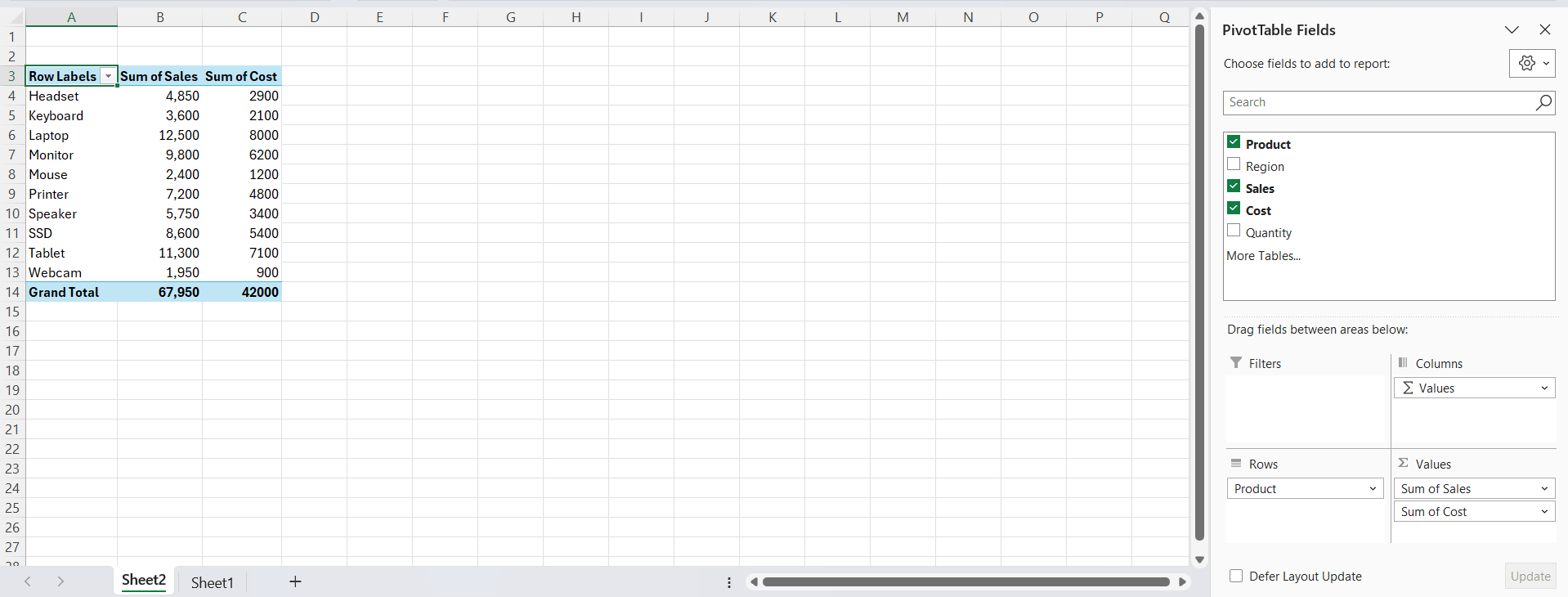
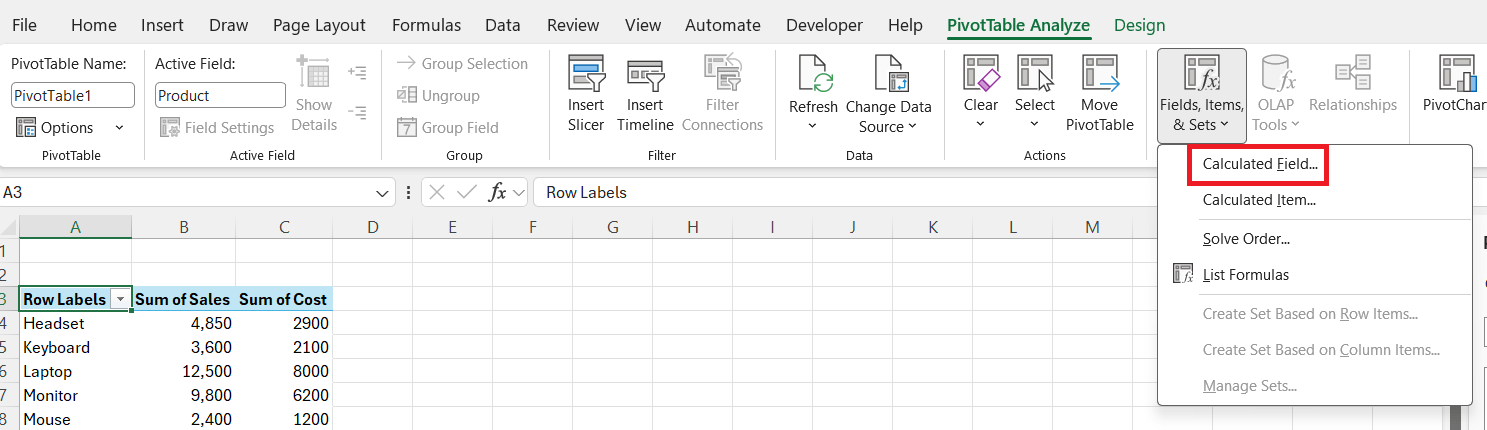
STEP 2: Go to the PivotTable Analyze tab.

STEP 3: Click Fields, Items & Sets and select Calculated Field.
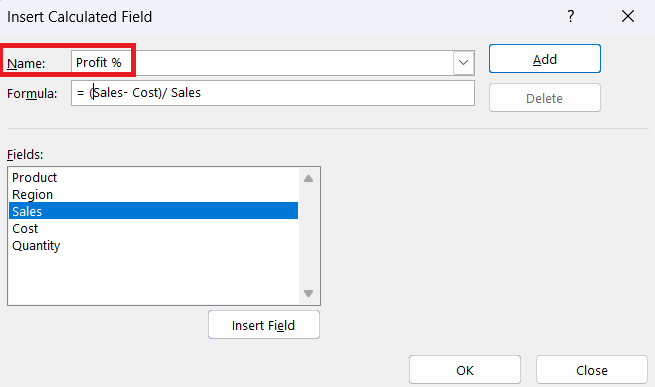
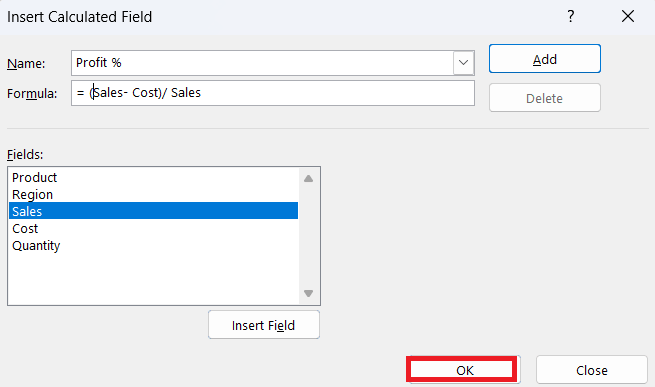
STEP 4: Enter a name for the new calculated field.
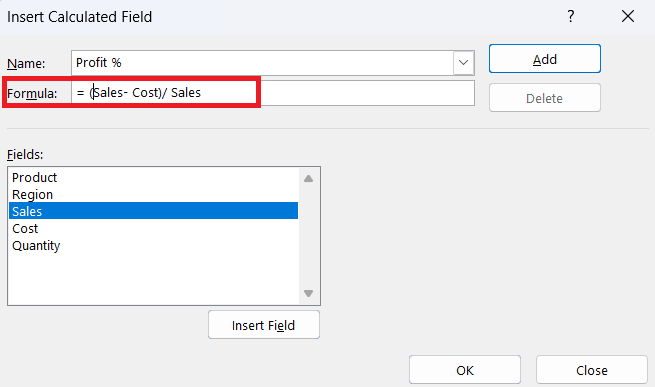
STEP 5: Type the formula using the available PivotTable fields.
STEP 6: Click OK.
STEP 7: Excel adds the new calculated column to the PivotTable.
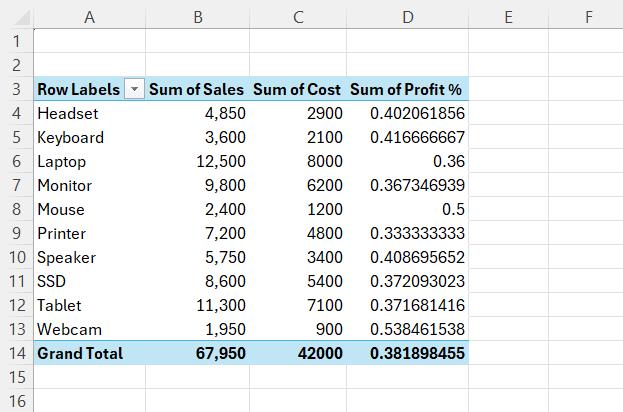
You can now use the new field in your PivotTable just like any other value field.
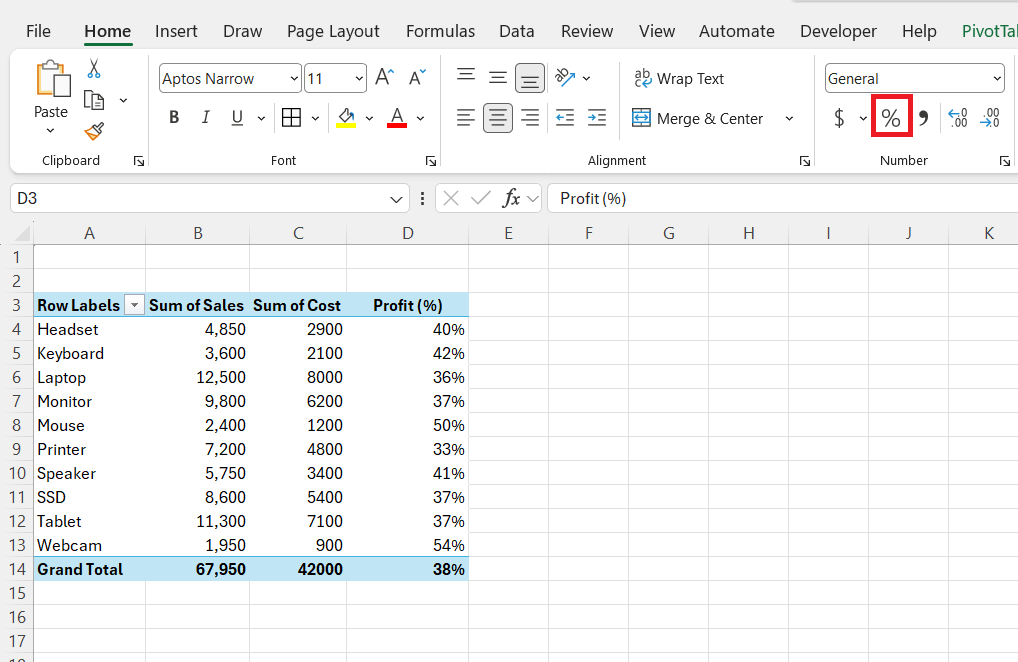
STEP 8: Go to the Home tab and select the appropriate format.
Using Copilot
STEP 1: Click anywhere inside the PivotTable.
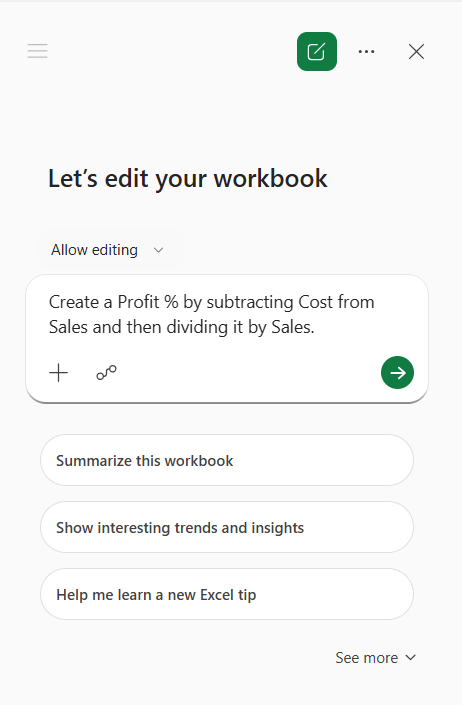
STEP 2: Open Copilot in Excel.
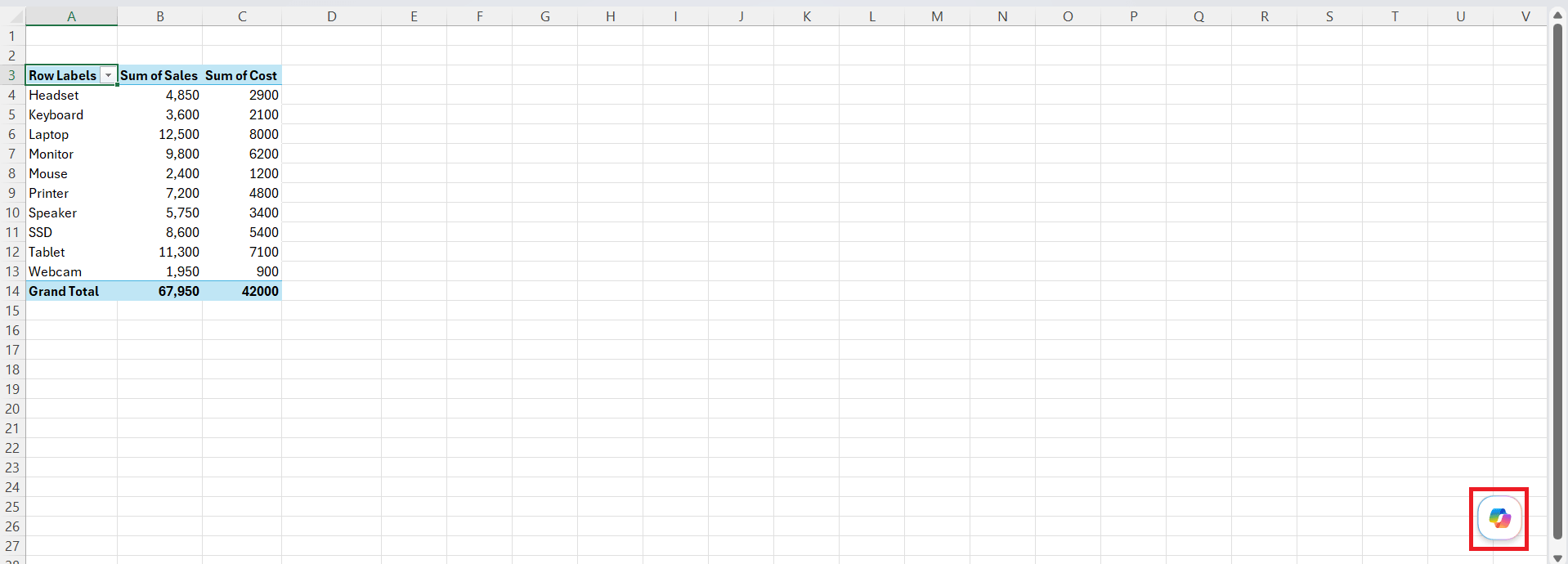
STEP 3: Enter a prompt describing the calculation you want.
Example: Create a Profit % by subtracting Cost from Sales and then dividing it by Sales.
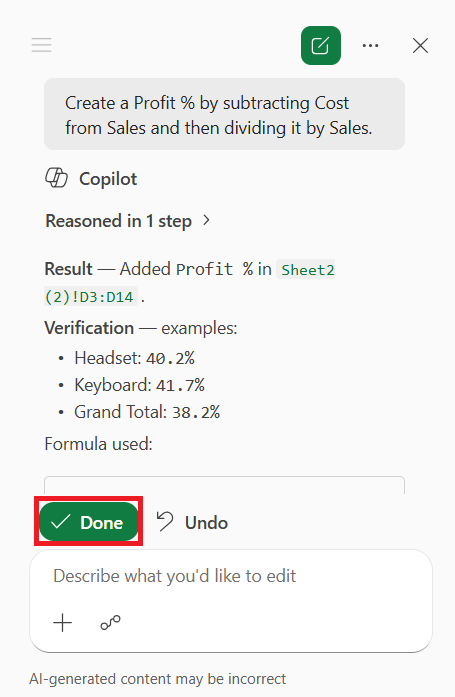
STEP 4: Review the formula suggested by Copilot. Press Done.
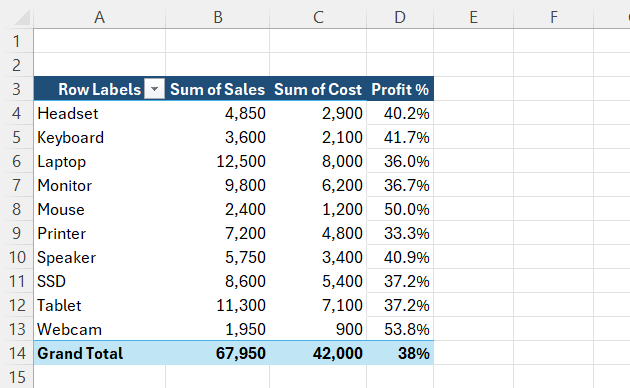
STEP 5: The new calculated column appears in the PivotTable.
Tips & Tricks
- Use proper field names in your prompt.
- Keep calculations simple.
- Verify the generated formula.
- Refresh the PivotTable after updating the source data.
- Rename calculated fields to make reports easier to understand.
FAQs
1. What is a calculated field in a PivotTable?
A calculated field is a custom column that performs calculations using existing PivotTable fields. It helps you create new values without changing the original data. The calculation updates whenever the PivotTable is refreshed.
2. Does Copilot create the formula automatically?
Yes. Copilot generates the formula based on your prompt. You should still review the suggested formula before applying it.
3. Can I edit a calculated field after creating it?
Yes. You can edit or delete a calculated field at any time. This makes it easy to update your calculations when your reporting needs change.
4. Will calculated fields change my original data?
No, Calculated fields do not change the original data. They are only added in the Pivot Table.
5. Do I need Copilot to create calculated fields?
No. You can create calculated fields manually. But Copilot makes the process faster and easier.

John Michaloudis is a former accountant and finance analyst at General Electric, a Microsoft MVP since 2020, an Amazon #1 bestselling author of 4 Microsoft Excel books and teacher of Microsoft Excel & Office over at his flagship MyExcelOnline Academy Online Course.

 30 Days - Full Access









