 Free Practice Workbook
Excel is primarily used for numeric calculation, sorting, applying formulas, etc. But when required, it can be used to convert alphabets to numeric values as well. In this article, we will cover 4 easy methods to convert letters to numbers.
Key Takeaways
- Excel can be used to convert letters to numbers easily.
- The COLUMN function can be used to convert a column letter to its corresponding number.
- The CODE function, alongwith UPPER, can be used to convert a single letter to its matching ASCII value.
- The MATCH function can be used to convert a letter to its relevant numerical column position.
- A VBA script can be used to create a custom function for letter-to-number conversion.
Table of Contents
Methods to Convert Alphabet to Number
Method 1 – COLUMN function
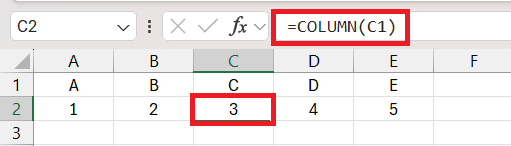
Transforming letters into their corresponding numbers in Excel can become very easy if you are using the COLUMN function.
=COLUMN(C1)
Excel will return the column number of the cell reference mentioned. For example, here it returns 3 for column C1, because C is the third column in the spreadsheet.
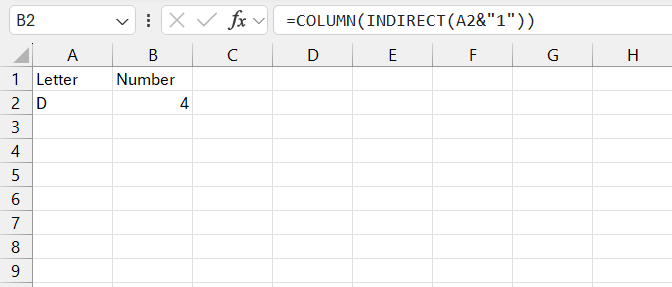
A quicker way would be to use the formula:
=COLUMN(INDIRECT(A2&"1"))
Excel will first convert the letter into cell reference and then COLUMN function will return the corresponding number based on the cell reference.
Method 2 – CODE function
The CODE function in Excel is another quick and easy method that can be used to convert a single alphabet to a number.
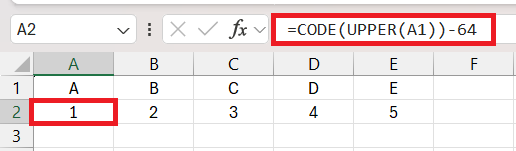
=CODE(UPPER(A1))-64
- The UPPER function will convert alphabets to uppercase.
- The CODE function will return the ASCII value of the letter.
- Subtracting the result by 64 will provide you with the letter equivalent number
For example, the ASCII value of uppercase is 65, and when subtracted by 64, will return the value 1. This trick works effortlessly from ‘A’ to ‘Z’, transforming each letter into numbers ranging from 1 to 26.
Method 3 – MATCH function
Converting alphanets to numbers can also be achieved using the MATCH function.
=MATCH(A2&"1", ADDRESS(1, COLUMN($1:$1), 4), 0)
This will return the numeric equivalent of the letter mentioned in cell A2.
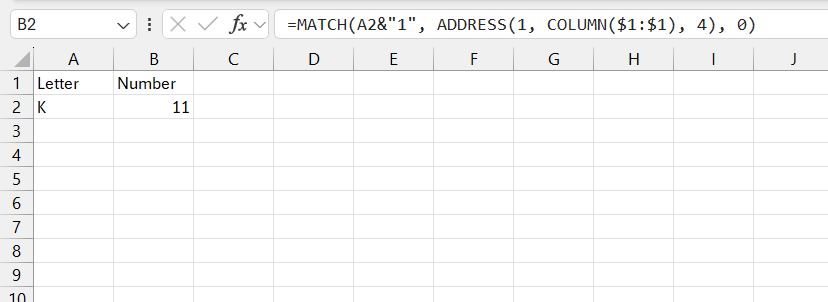
How so? It’s akin to piecing together a puzzle. First, you combine the desired letter with “1” to create a cell address like “A1”. Next, the ADDRESS function, with a little help from COLUMN, produces an array resembling a spellbound ribbon of all first-row cell addresses: {“A1″,”B1” … “XFD1”}. Finally, the MATCH function reveals where your letter fits into this enchanted array, disclosing the numerical column position, and the transformation is complete.
Method 4 – Custom Functions for Advanced Users
Sometimes, Excel users prefer to create their own custom function. This can be done by writing a User Defined Function (UDF) that can perform alphanumeric conversions. Let’s look at an example to understand this better.
This VBA script will help you in converting alphabets to numbers:
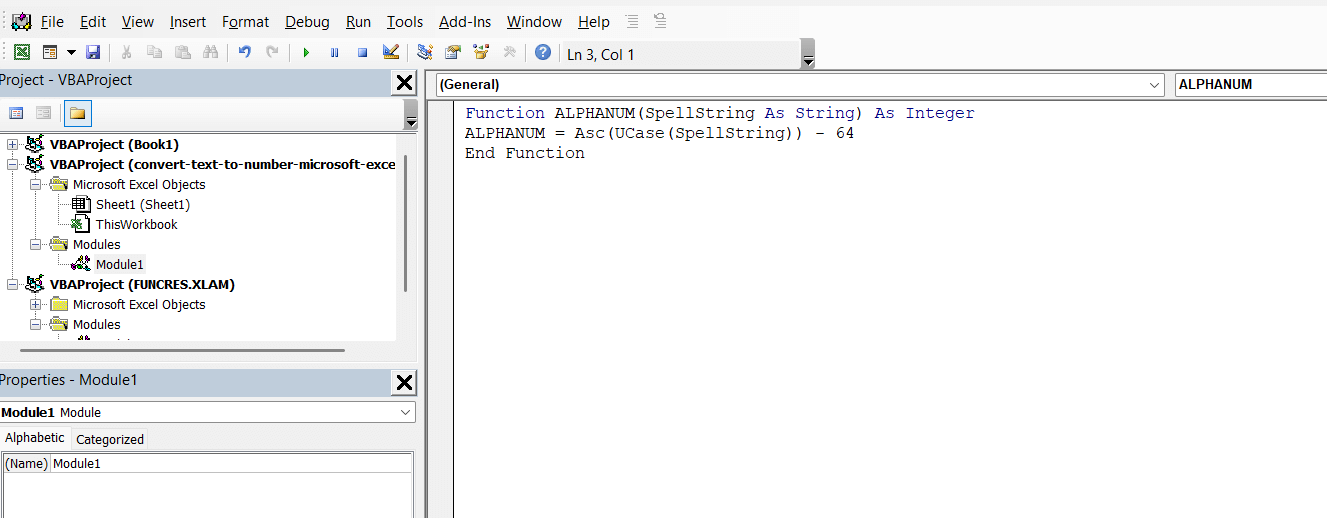
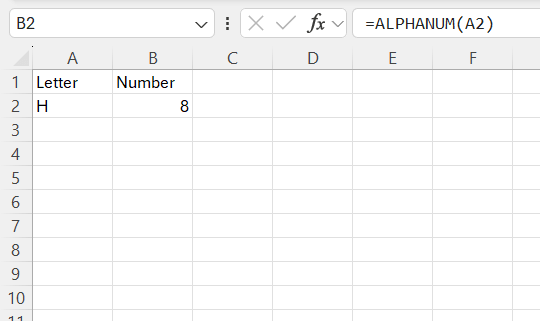
In this VBA script, UCase makes sure that your letter is uppercase, and Asc provides the ASCII value. Subtract 64, and the result is the position of the letter in the alphabet. Use your newly crafted function by typing =ALPHANUM(A2) into a cell. If A2 is an ‘H’, the cell will resonate with the number ‘8’.
FAQs
Can Excel automatically convert letters to numbers?
Yes, Excel can convert letters to numbers using built-in functions like COLUMN, CODE, and MATCH, or through custom functions created in VBA.
Which is the easiest method to convert a column letter to a number?
The COLUMN function is the easiest method to convert a column letter to a number. Just refer to a column letter, and it will provide the number.
How to use the CODE function to convert letters to numbers?
The CODE function can be used to convert a single letter to its matching ASCII value =CODE(A1)-64 . For example, the ASCII value of A will be 65, and subtracting 64 will return 1.
How to convert numbers back to letters?
Yes, you can use the CHAR function to turn numbers into letters. For example, , =CHAR(64 + A1) will convert the number in A1 into a letter.

John Michaloudis is a former accountant and finance analyst at General Electric, a Microsoft MVP since 2020, an Amazon #1 bestselling author of 4 Microsoft Excel books and teacher of Microsoft Excel & Office over at his flagship MyExcelOnline Academy Online Course.

 30 Days - Full Access









