 Free Practice Workbook
Table of Contents
Creating Your Time Converter
STEP 1: Set Up Your Excel Spreadsheet
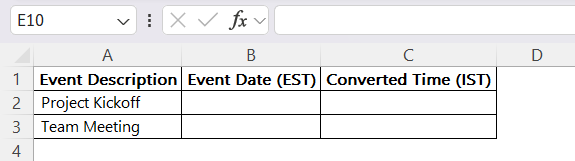
Create a table with the following columns to keep track of your events –
- Event Description
- Event Date in EST
- Converted Time in IST
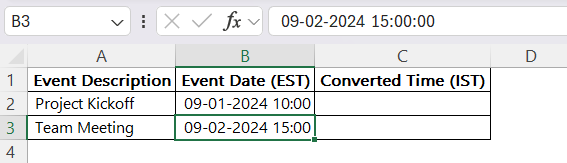
STEP 2: Input the Date and Time in EST
In the first column (Event Date (EST)), enter the date and time of your event in Eastern Standard Time (EST).
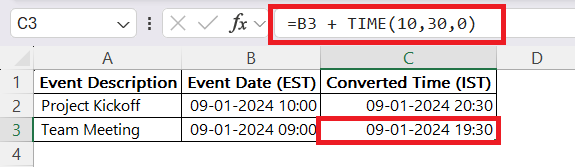
STEP 3: Convert EST to IST Using Excel Formula
Now, we’ll convert the EST time to IST. To do this, we’ll add the 10-hour and 30-minute difference directly in the Excel formula. Here, B2 is the cell where your EST time is stored, and TIME(10,30,0) adds 10 hours and 30 minutes to the EST time. So in C2 enter this formula: “=B2 + TIME(10,30,0)” and copy the formula to other row(s) as well.
Avoid Common Mistakes
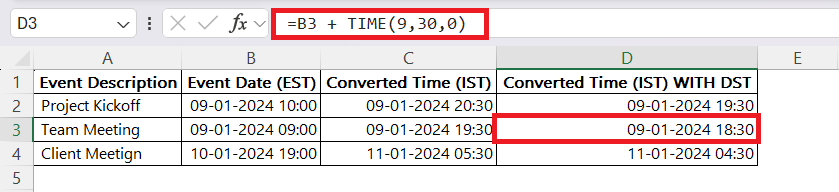
Include Daylight Saving Changes
One thing we must be careful about when converting between EST and IST is daylight saving time (DST). EST observes daylight saving, meaning clocks are set forward by an hour during warmer months. To mitigate errors, make sure you include adjustments for Daylight Saving Time. Instead of adding 10 hours 30 minutes to EST, you need to add only 9 hours 30 minutes to get time in IST.
Validate Results
Always make sure to validate your result to aim for accuracy. After applying the EST to IST conversion formulas or macros, I try to check the results with a reliable online time zone converter. This check reassures me that my spreadsheet is functioning as intended.
It’s also wise to double-check the calculations when the conversion crosses over midnight.
FAQ Section
How do I calculate the time difference between EST and IST?
To calculate the time difference between EST and IST, you can use a simple calculation knowing that IST is 9 hours and 30 minutes ahead of EST. Add 9 hours and 30 minutes to the EST time to get the time in IST. If you’re handling this in Excel, input the EST time in a cell and add a formula to add 9 hours and 30 minutes to the EST time. For example, =EST_time + TIME(9,30,0) where EST_time is the cell containing the EST time. Remember to account for daylight saving time changes in EST, where the difference may sometimes be only 8 hours and 30 minutes.
What formula should I use to convert EST to IST in Excel?
In Excel, to convert a time from EST to IST, you should use a formula that correctly adds the 9 hours and 30 minutes time difference. The basic formula is =A1 + TIME(9,30,0), where A1 is the cell containing the EST time. However, keep in mind to update the formula to account for daylight saving time if needed. If you’re dealing with a large range of data, you can fill down this formula to apply it to other cells. Always double-check to ensure the formula reflects the time accurately across date changes.
Is there a way to convert time zones in Excel?
Yes, there is a way to convert time zones in Excel. Excel does not have a built-in function specifically for time zone conversions, but we can utilize a combination of Excel’s date and time functions to calculate the difference. By adding or subtracting the time difference using the TIME function (like =A1 + TIME(hours, minutes, 0)), we can achieve the desired conversion. Additionally, for recurring and complex conversions, creating macros can automate the process, turning it into a one-click task.
What is the formula for time conversion in Excel?
The formula for time conversion in Excel generally involves adding or subtracting the time difference to your given time. For example, if you are converting from one time zone to another that is ahead, you would use a formula like =A1 + TIME(hours, minutes, 0). If the time zone is behind, you would subtract: =A1 - TIME(hours, minutes, 0). Replace “hours” and “minutes” with the specific time difference, and A1 with the cell reference that houses your original time.

John Michaloudis is a former accountant and finance analyst at General Electric, a Microsoft MVP since 2020, an Amazon #1 bestselling author of 4 Microsoft Excel books and teacher of Microsoft Excel & Office over at his flagship MyExcelOnline Academy Online Course.

 30 Days - Full Access









