 Free Practice Workbook
Table of Contents
Convert Unix Timestamp to Date
Method 1: Basic Unix Timestamp to Date
To convert a Unix timestamp to a date in Excel, we can use a simple formula. Assuming that we have a Unix timestamp in cell A2, the formula would be =INT(((A2/60)/60)/24)+DATE(1970,1,1).
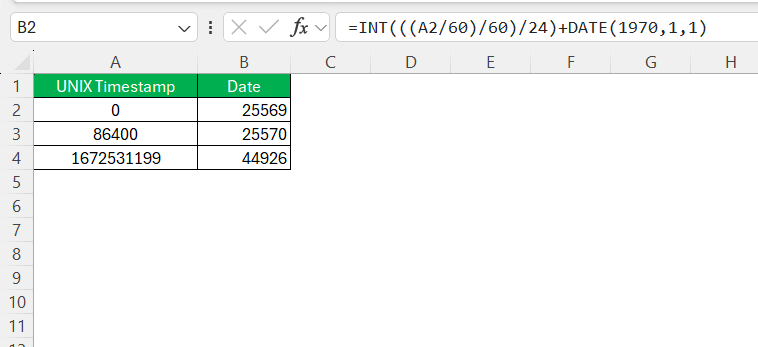
When entered into a new cell, this equation counts the elapsed seconds from the timestamp, converts them to days, and then adds that number to the base date of January 1, 1970.
The result will give a date in the standard Excel date format. After completing this step, you might need to format your result. To do this, just right-click on the cell, choose ‘Format Cells’, and set the date format to your preference.
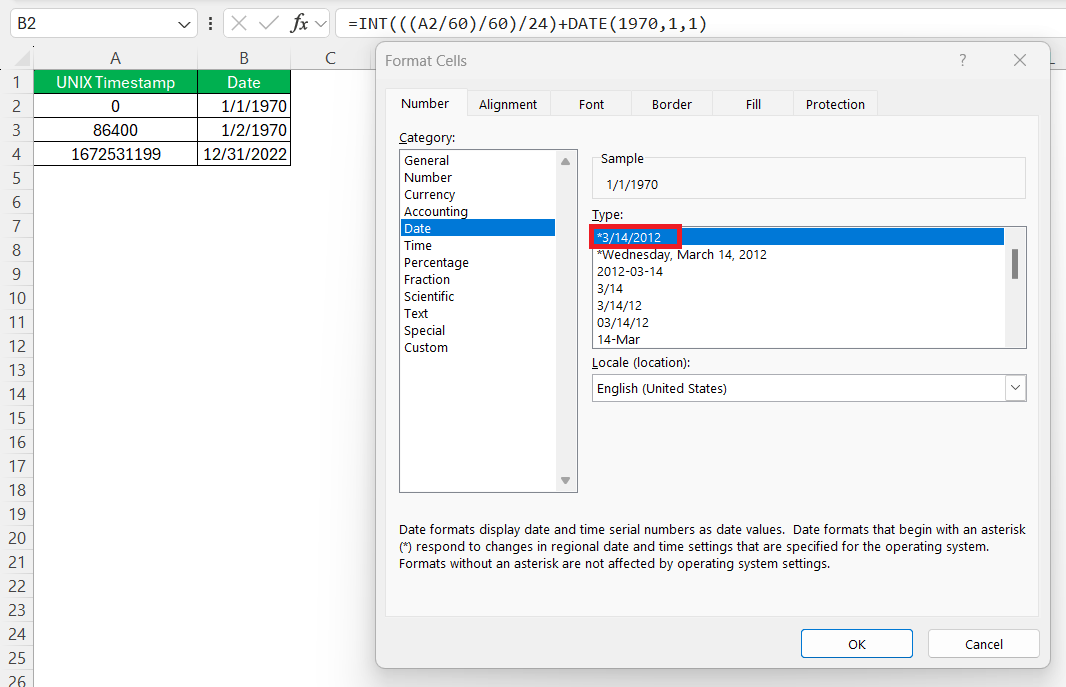
Excel should now display a human-readable date, helping demystify the raw Unix timestamp that you started with.
Method 2: Including Time in Your Conversion
When we include time in our conversion from a Unix timestamp to a date in Excel, a slight modification to our previous formula is required. Instead of just calculating the days, we need the exact time as well.
To do this, enter the following formula into a cell, say B2, where A2 contains the Unix timestamp: =A2/86400+DATE(1970,1,1). Here, we are first dividing the Unix timestamp value by 86,400 to get tge number of days that has passed since January 1, 1970. Now, we will just add the Unix Epoch date to the result.
After entering the formula, you might notice the result appears only as a date.
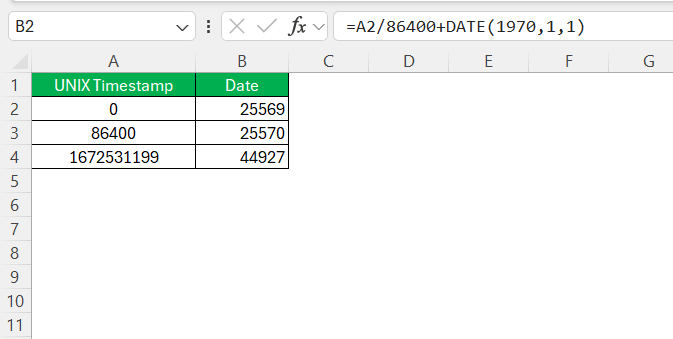
That’s not an issue because the time is stored in there; we just need to format it properly.
- Select the cell containing the date
- Click Ctrl +1 to open the ‘Format Cells’ dialog
- Go to ‘Date’, and select “3/14/12 1:30 PM”
This will show the date with hours and minutes.
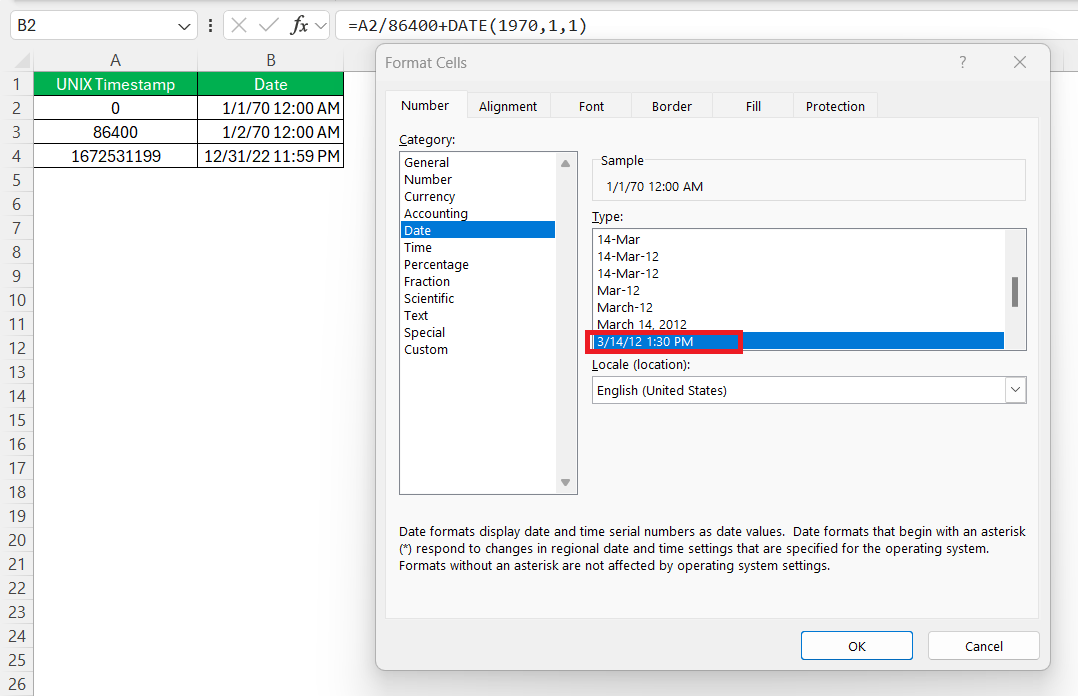
Using this method, you can easily convert Unix timestamps to date-time format.
Method 3: Using VBA
Instead of manually converting Unix timestamps using Excel formulas, you can use a VBA function to do the conversion automatically. Follow the steps below:
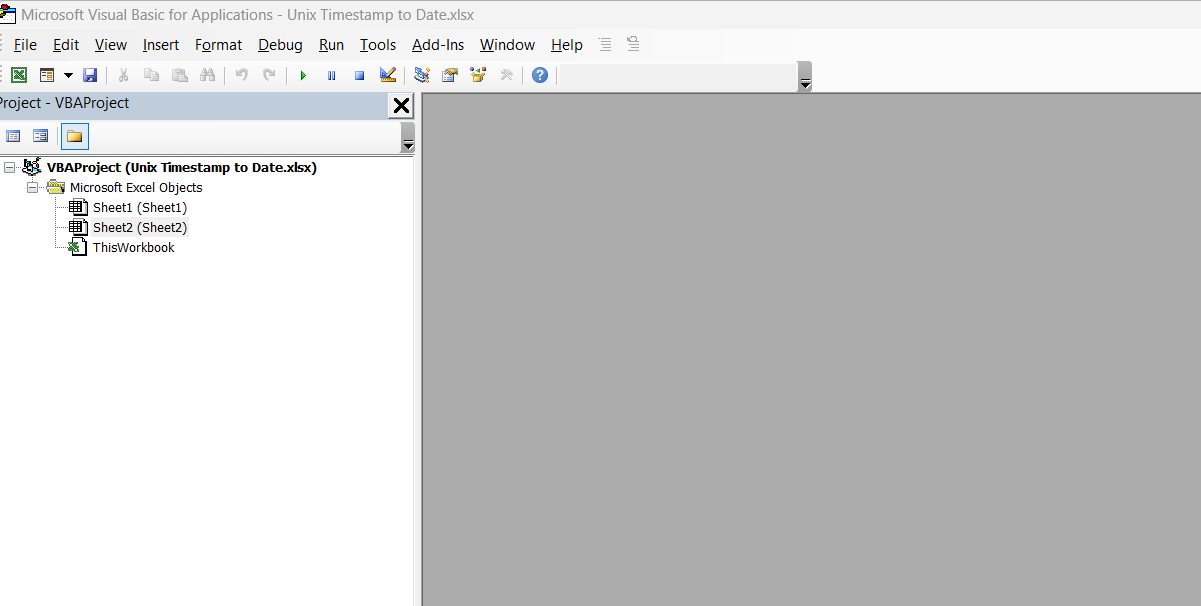
STEP 1: Press Alt + F11 to open the VBA editor.
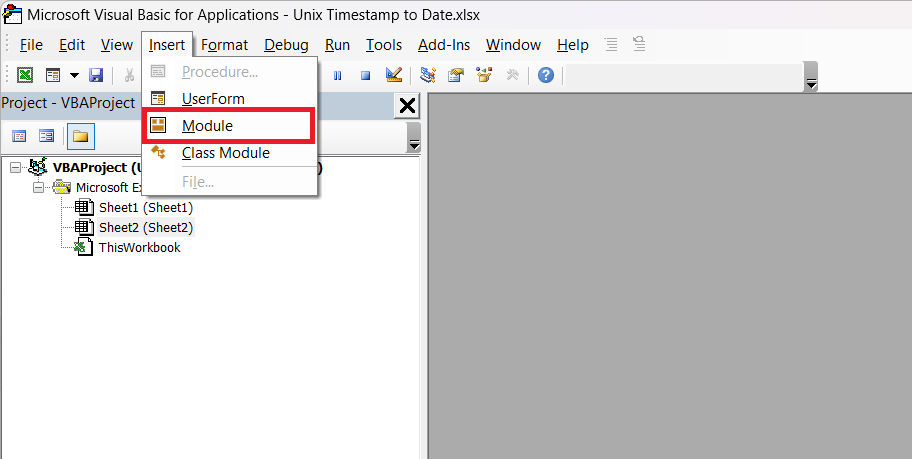
STEP 2: Click Insert > Module.
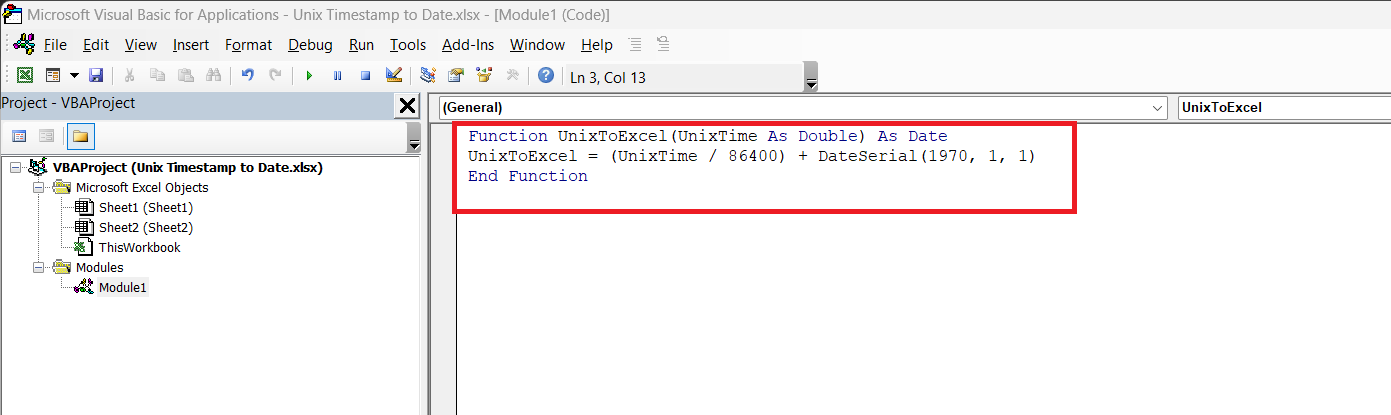
STEP 3: Paste this code:
Function UnixToExcel(UnixTime As Double) As Date
UnixToExcel = (UnixTime / 86400) + DateSerial(1970, 1, 1)
End Function
STEP 4: Close the editor and use the function like this in Excel:
=UnixToExcel(A2)
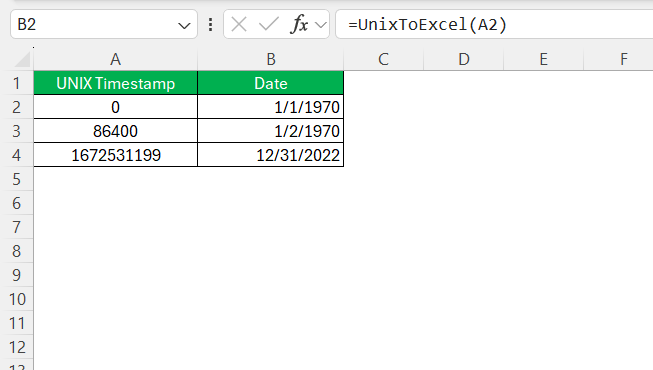
This function will effortlessly convert Unix timestamps into Excel-readable dates.
Troubleshooting Common Issues
Here are some common issues I encounter while converting Unix timestamps and how I resolve them:
- Dates Not Displaying Correctly: Make sure that the cell format is set to Date instead of General or Number.

- Negative Dates: This happens when the timestamp is before January 1, 1970. Excel does not support negative dates by default.
- Incorrect Time Adjustments: If the output time seems incorrect, double-check whether daylight saving time (DST) adjustments are needed.
By handling these concerns with the above-mentioned approach, we can readily correct mistakes and confidently convert Unix timestamps into conventional date and time formats.
FAQ
How to know if a value is a Unix Timestamp in Excel?
To quickly identify Unix timestamps in Excel, notice the large integer values, typically 10 or more digits long. This value represents the elapsed seconds since January 1, 1970. Look for patterns in your data, like similar number lengths or a sequence indicating time progression, to pinpoint Unix timestamps. Additionally, if you know the approximate date range of your data, calculate the Unix timestamp for those dates and compare them to the values in question.
What formula can be used to convert a Unix timestamp to a date in Excel?
To convert a Unix timestamp to a date in Excel, you can use the formula =(A1/86400)+DATE(1970,1,1). Here, you can input the Unix timestamp value in cell A1. After entering the formula, the output will be the date based on the timestamp value. You may need to format the cell as a date to see the conversion result.
What to do when you have timestamps from different time zones?
Yes, you can convert timestamps for different time zones within Excel by adjusting for the time zone’s offset from UTC. Add or subtract the number of hours from the converted date-time as per the time zone difference. For example, for PST (UTC-8), subtract eight hours using this formula: =(UnixTimestampCell/86400)+DATE(1970,1,1)-(8/24), and format the cell for date-time.
How do you convert from standard time to unix time in excel?
To convert from standard time to Unix time in Excel, use the formula =(StandardTimeCell-DATE(1970,1,1))*86400, where StandardTimeCell is the cell with your standard time. Format ‘StandardTimeCell’ to a date format, and includes both the date and time for an accurate Unix time. Remember that Unix time is in seconds.

John Michaloudis is a former accountant and finance analyst at General Electric, a Microsoft MVP since 2020, an Amazon #1 bestselling author of 4 Microsoft Excel books and teacher of Microsoft Excel & Office over at his flagship MyExcelOnline Academy Online Course.

 30 Days - Full Access









