 Free Practice Workbook
When working with trigonometric calculations in Excel, I often use the COS function to determine the cosine of an angle. In this article, you will learn all about cosine function in Excel.
Key Takeaways:
- The COS function calculates the cosine of an angle in radians
- It is important for trigonometric computations.
- Convert degrees to radians using the RADIANS function.o
Table of Contents
Introduction to the Cosine Function
The COS function calculates the cosine of a specific angle provided in radians. It belongs to the Math and Trigonometry functions and can be used in formulas or VBA.
By employing trigonometric functions like COS, users can analyze periodic data and predict future trends. This can improve decision-making and provide greater information into data patterns.
Breaking Down the Excel COS Function
Syntax and Parameters
The syntax for the COS function is:
=COS(number).
The number is the angle in radians.
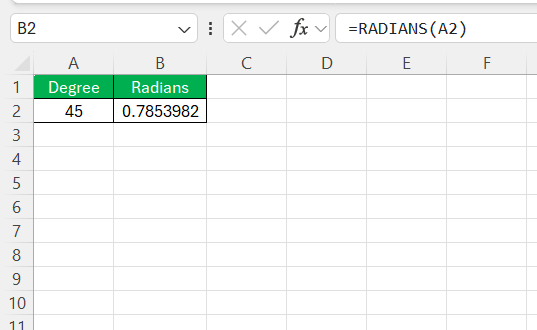
It is important to make sure that the angles are converted from degrees to radians if necessary before using them in this function.
Converting Degrees to Radians for Accurate Results
To convert degrees to radians in Excel, you have two options:
- Multiply the degree value by
PI()/180.
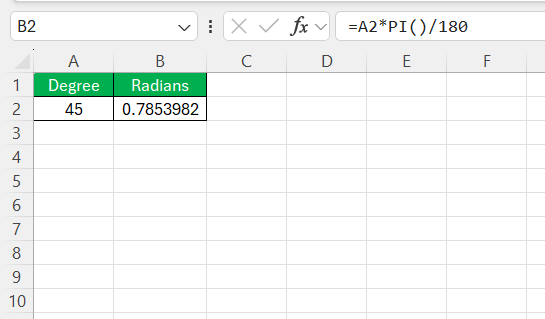
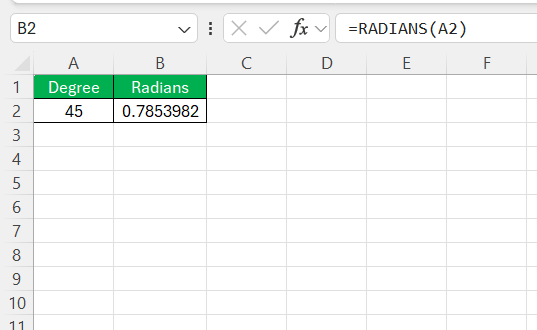
- Use the
RADIANSfunction to convert degrees to radians.
How to Use COS Function
Example 1 – Computing COS for Angle 0
When computing the cosine of angle 0 in Excel, you’ll typically get a result of 1. This is because the cosine of 0 radians (or 0 degrees) on the unit circle represents the x-coordinate at that point, which is 1. Here’s a simple illustration:
= COS(0)
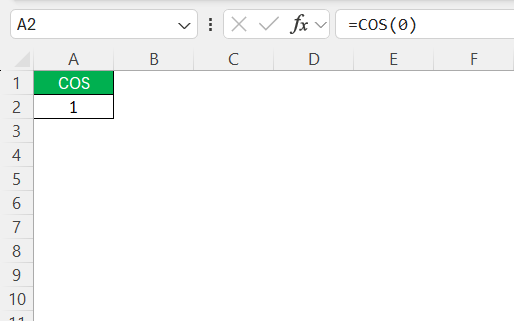
This formula returns 1 since the cosine of 0 is exactly 1.
Example 2 – COS at 30 Degrees
To find the cosine of 30 degrees using Excel, it’s necessary to first convert 30 degrees to radians. As previously mentioned, the conversion can be made directly in the formula:
= COS(RADIANS(30))
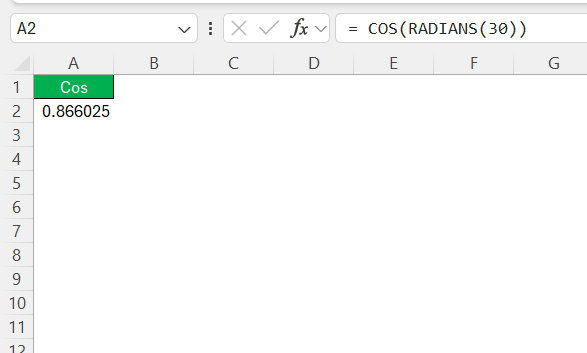
Alternatively, you could use this formula:
= COS(30 * PI() / 180)
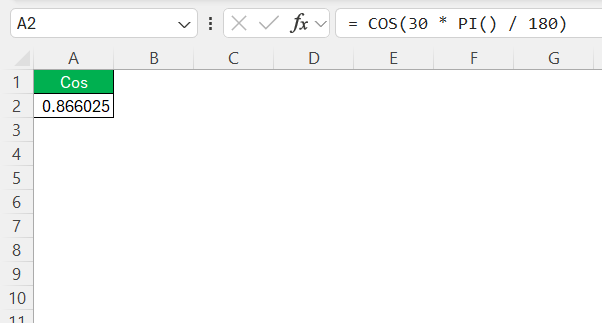
Using either method, Excel will yield the cosine of 30 degrees, which is approximately 0.866.
Example 3 – COS at 45 Degrees
For a 45-degree angle, the cosine calculation can be illustrated in Excel with the following formulas. As with other angles, it is important to convert degrees to radians:
= COS(RADIANS(45))
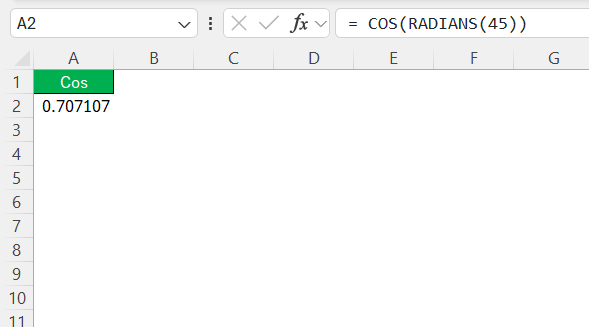
Excel computes the cosine of 45 degrees in radians, and the result displayed would be approximately 0.7071.
Example 4 – COS at 60 Degrees
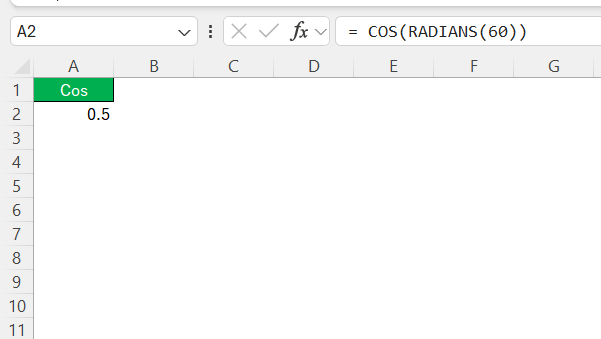
When this formula is entered into a cell, Excel returns the cosine of 60 degrees, which is exact 0.5.
Example 5 – COS at 90 Degrees
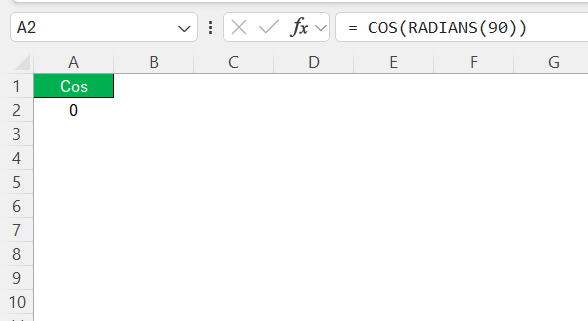
Excel gives us the expected result of 0, because the cosine of 90 degrees, which corresponds to a vertical line on the unit circle, indeed has an x-value of zero.
Visualizing COS² in Excel Graphs
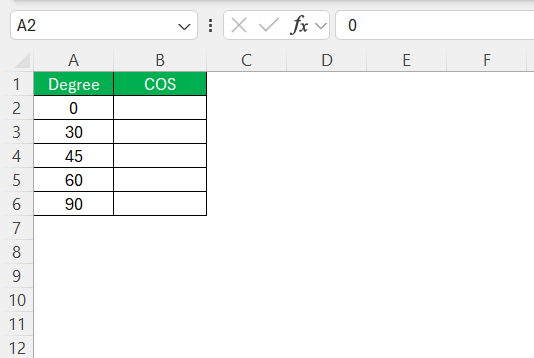
STEP 1: Input a series of angles in degrees into column A of your spreadsheet.
STEP 2: In column B, calculate the COS² for each angle with the formula.
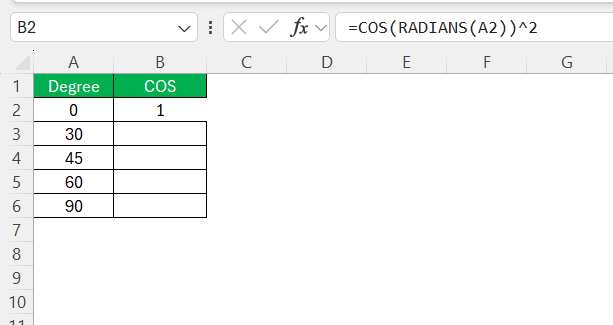
STEP 3: Drag this formula down to fill the column corresponding to each angle.
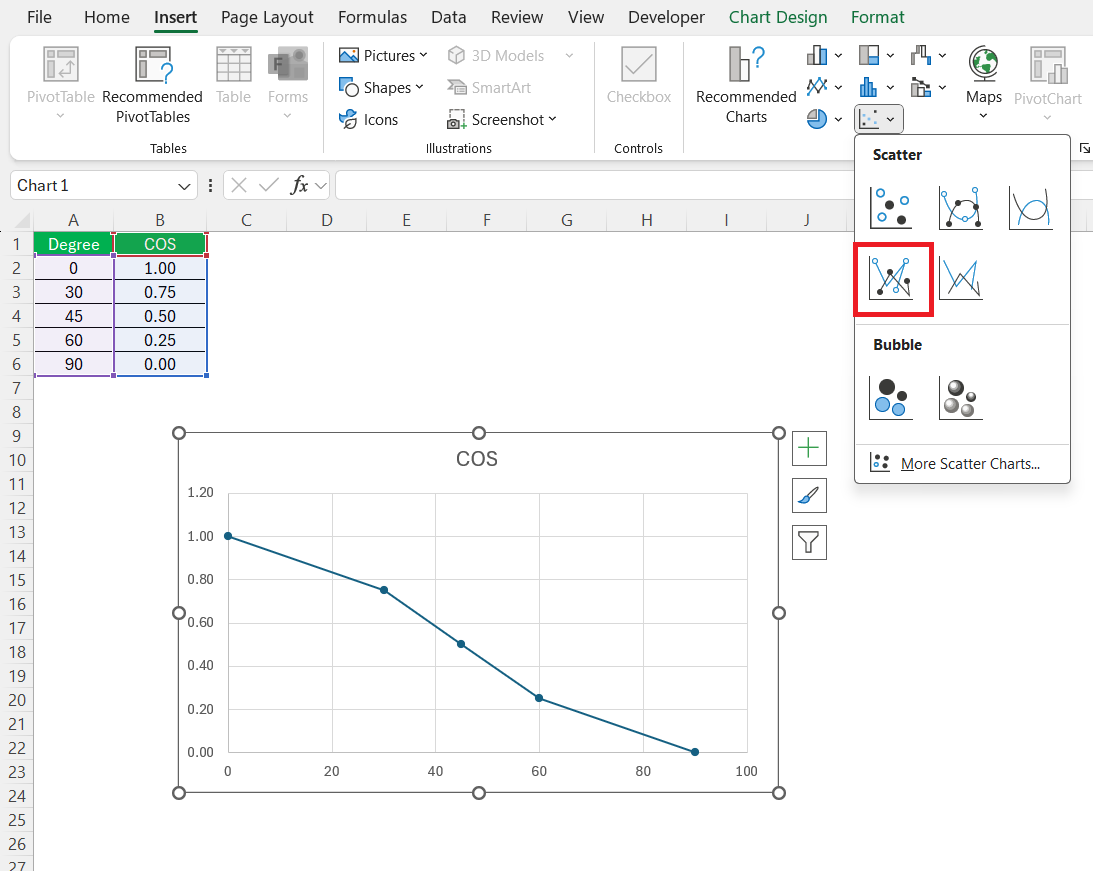
STEP 4: Highlight both columns A and B. Insert a scatter plot via the ‘Insert’ tab in Excel, selecting ‘Scatter with only Markers’.
Tips and Tricks
- Make sure that the angle is in radians before applying trigonometric functions.
- Errors may arise from entering values outside of the acceptable range or from formula misinterpretation. You can use the IFERROR function to get custom text instead of error.
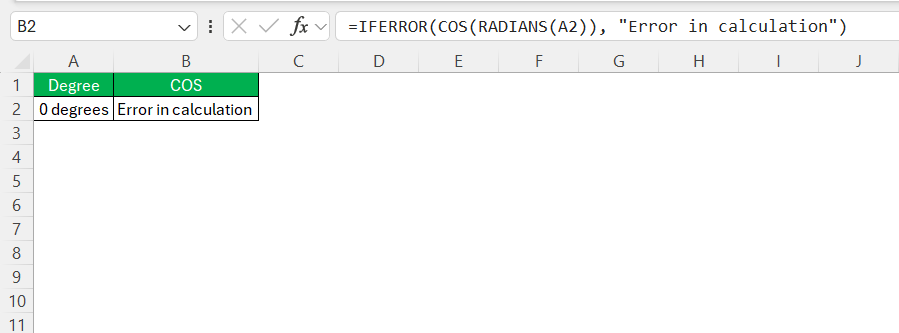
- Typing ‘COZ’ or ‘COT’ instead of ‘COS’ is a common error. Double-check the function spelling before pressing Enter.
- Forgetting ‘=’ at the beginning of the formula won’t activate the COS function.
FAQs
How to use the cosine function in Excel?
To use the cosine function in Excel, enter =COS(number) into a cell, where ‘number’ is the angle in radians you want to calculate the cosine for. If your angle is in degrees, first convert it to radians using =RADIANS(degree_value) or by multiplying the degree value by PI()/180.
Can Excel Handle Cos 2θ Equations for Any Angle Size?
Yes, Excel can handle cos 2θ equations for any angle size, as long as the angles are input in radians. Use the formula =COS(2*RADIANS(angle)) to calculate cos 2θ in Excel.
What’s the Difference Between COS and ACOS Functions in Excel?
The COS function in Excel returns the cosine of a given angle in radians, whereas the ACOS function returns the angle in radians for a given cosine value. Essentially, ACOS is the inverse function of COS.
How to convert degrees to radians?
You can convert degrees to radians by using either of these methods:
- Use
RADIANS()function - Multiply by
PI()/180
What does the COS function do?
It returns the cosine of an angle in radians.

John Michaloudis is a former accountant and finance analyst at General Electric, a Microsoft MVP since 2020, an Amazon #1 bestselling author of 4 Microsoft Excel books and teacher of Microsoft Excel & Office over at his flagship MyExcelOnline Academy Online Course.

 30 Days - Full Access









