 Free Practice Workbook
Count Excel Row is a fundamental task that can be accomplished using various built-in functions and techniques. Whether you need to count all the rows in a worksheet, rows containing specific data, or rows meeting certain criteria, Excel offers versatile tools like the COUNTA, COUNT, and COUNTIF functions. Understanding how to effectively use these functions can streamline data analysis and improve efficiency in managing large datasets. This introduction will guide you through the basics of counting rows in Excel, highlighting key methods and practical applications.
Key Takeaways:
- Mastering row counts in Excel is vital for accurate data analysis and reporting.
- Use the Home and Formulas tabs, as well as the status bar, for efficient row counting and analysis.
- The ROWS function provides a straightforward way to count rows in a specified range.
- COUNTIF and COUNTIFS functions allow counting rows based on single or multiple criteria.
- COUNTBLANK helps in identifying empty rows.
Table of Contents
Step-by-Step Guide to Quick Row Counts
ROWS Function
In Excel, the ROWS function is a straightforward way to count rows in a range. To use it, I select a cell for the result, enter =ROWS(range), and press “Enter.” For example, =ROWS(A2:A21) returns 20, showing there are 20 rows in that range.
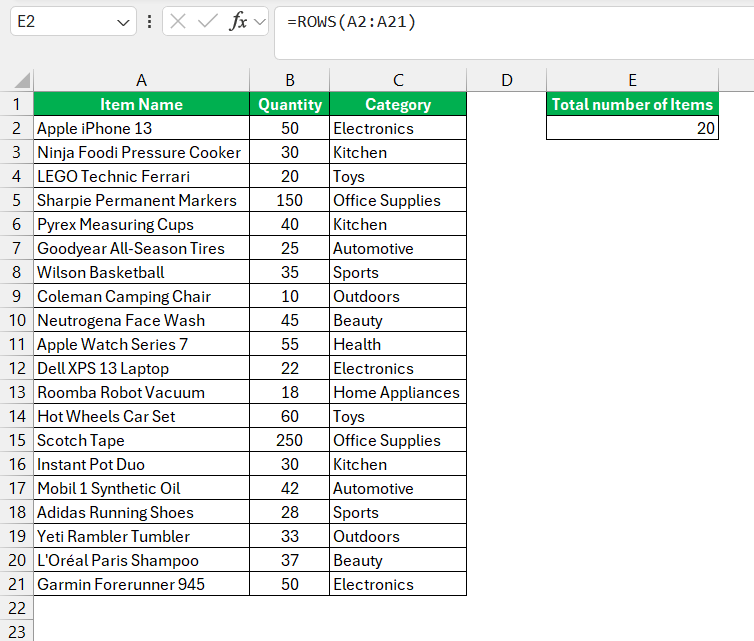
This function is simple yet versatile, handling any range regardless of cell content and serving as a foundation for more complex data tasks.
COUNTIF and COUNTIFS
For more advanced row counting based on specific criteria, I use the COUNTIF and COUNTIFS functions. COUNTIF helps me count rows that meet a single condition. For instance, =COUNTIF(C2:C21, "Electronics") counts rows with “Electronics” in the range C2 to C21.
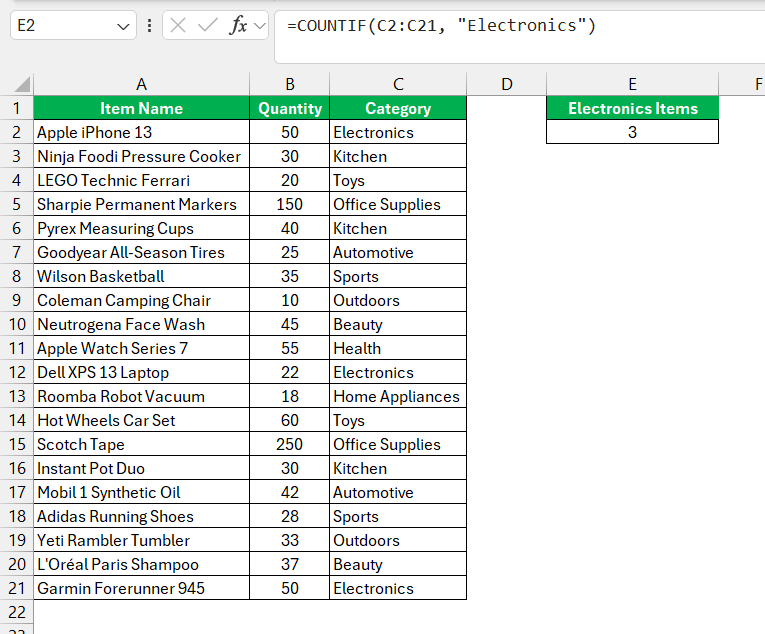
When I need to count rows based on multiple conditions, COUNTIFS is my go-to. For example, =COUNTIFS(C2:C21, "Electronics", B2:B21, ">30") counts rows where one column has “Electronics” and another column has values greater than 30.
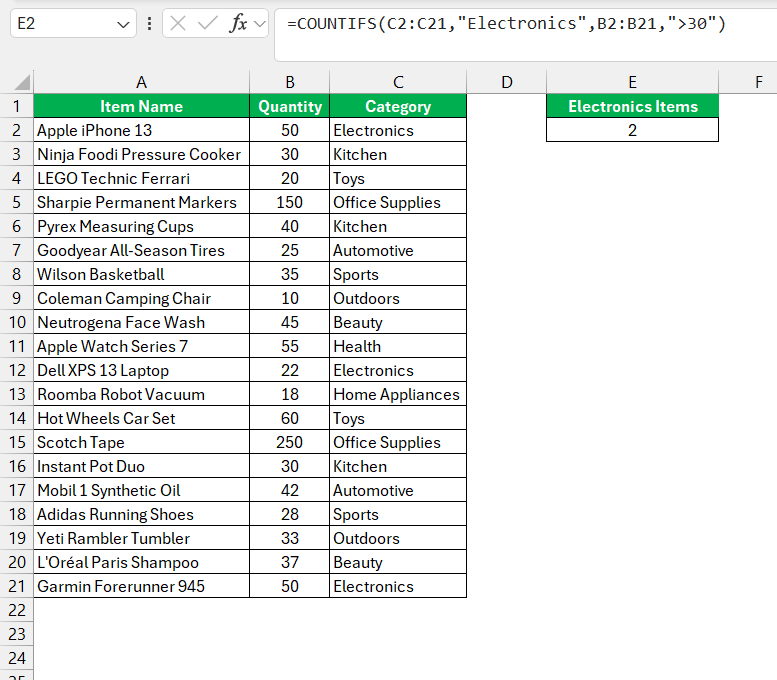
These functions are essential for analyzing trends, segmenting data, and performing quality checks, enhancing my data analysis efficiency.
Special Cases
Count Rows with Text Values Only
To tally rows with text values only in Excel, I utilize the COUNTIF function with the asterisk wildcard character, which is adept at identifying any sequence of characters. This technique is invaluable when I need to differentiate text entries from numbers or blanks within a dataset.
I begin by selecting the data range – let’s say A2:A21. Then, I place my COUNTIF formula, for example, in cell E2. The proper formulation is =COUNTIF(A2:A21,"*"), which instructs Excel to count only the cells in the range A2:A21 that contain text strings. When I press Enter, the function returns the number of cells that meet my criterion.
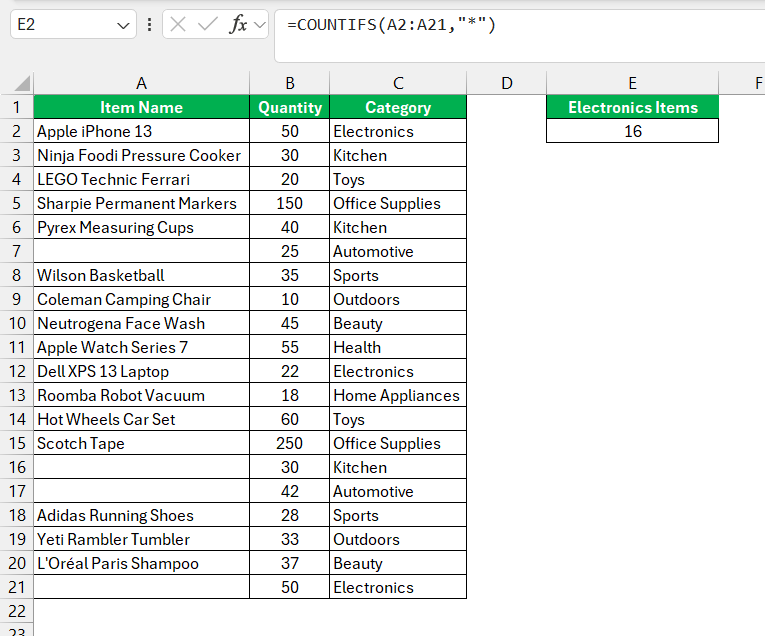
In practical terms, this ability to count text rows is a powerful tool for tasks like summarizing feedback from surveys, categorizing inventory items, or any scenario where textual data dominates. By focusing on text-only rows, I ensure that my analysis correctly interprets the categorical data, which could have significant implications for conclusions and decisions.
Count Empty Rows with COUNTBLANK
In scenarios where I need to assess the completeness of my dataset, COUNTBLANK is an indispensable strategy for counting empty rows in Excel. It provides a simple yet effective method to quantify blanks within a range, offering insights into data quality or integrity.
To count empty rows, all I have to do is specify the range in question. For example, inputting =COUNTBLANK(B2:B21) into a cell returns the count of all blank cells in the selected range, from B2 through B21. It’s an instant audit that reveals the empty spots, showing me where data might be missing or inputs are required.
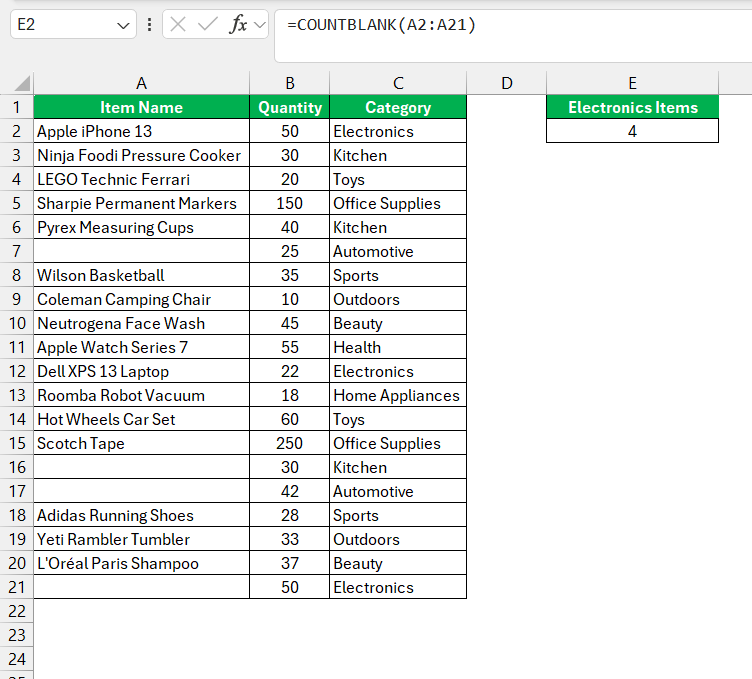
Employing COUNTBLANK also aids in preparing my data for advanced analyses as it can flush out any incomplete records that could distort results. Whether I’m cleaning up a freshly imported dataset or verifying that all entries have been made post-data collection, COUNTBLANK ensures that I’m not overlooking the voids hidden among the values.
Advanced Filter
When unveiling unique values in a dataset—an essential process in data cleansing and analysis—I frequently rely on Excel’s Advanced Filter feature. This powerful tool can either filter unique values in place or extract them to a new location, serving as a dual-purpose instrument for my data management tasks.
To employ the Advanced Filter for extracting unique values, I select the range containing duplicates, navigate to the Data tab, and click ‘Advanced’ in the Sort & Filter group. Then, I opt to copy the unique records to a new location and specify my destination range.
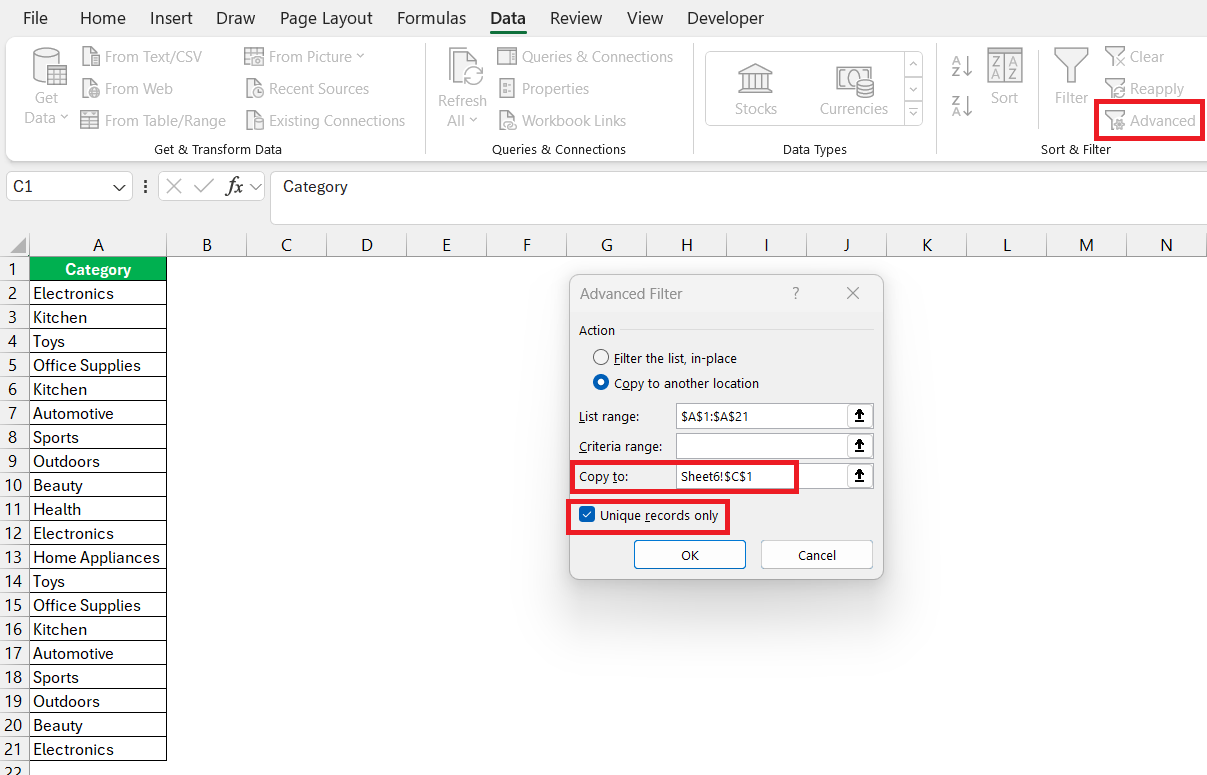
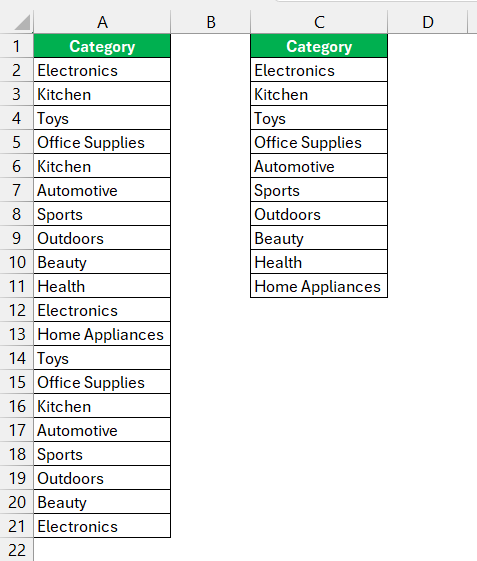
By executing these steps, only the unique entries from my selected range populate my desired location. It’s an incredibly effective way to distill a dataset to its essence.’
FAQs
How to automatically count rows in Excel?
To automatically count rows in Excel, use the COUNT function. Select a cell for the result, type =COUNT( followed by your range, close parentheses, and press Enter. This counts numerical values in the range. For total rows, select the range and check the count on the status bar.
How to Count All Non-Blank Rows in a Given Range?
You can use the COUNTA function to count all non-blank cells. The formula is:
=COUNTA(range)
Can I Count Rows Based on Multiple Criteria at Once?
Yes, to count rows based on multiple criteria, use the COUNTIFS function. Enter =COUNTIFS(range1, criteria1, range2, criteria2,...) where each ‘range’ is a set of cells to check, and each ‘criteria’ is the condition for those cells. It counts rows meeting all criteria.
What is the rows function?
The ROWS function in Excel returns the number of rows in a specified range. You input =ROWS(array) where ‘array’ is the cell range, and it delivers a numerical value reflecting the count of rows within that range, regardless of the data they contain.

John Michaloudis is a former accountant and finance analyst at General Electric, a Microsoft MVP since 2020, an Amazon #1 bestselling author of 4 Microsoft Excel books and teacher of Microsoft Excel & Office over at his flagship MyExcelOnline Academy Online Course.

 30 Days - Full Access









