 Free Practice Workbook
Microsoft Excel is a tool used for data analysis, reporting, and decision-making. The COUNTIF function helps you count the number of cells within a range that meets specific criteria.
This article will explore COUNTIF greater than 0, offering you a comprehensive guide to mastering this essential Excel function.
Download the Excel Workbook below to follow along and understand How to use COUNTIF greater than 0 – download excel workbookCOUNTIF-greater-than-0.xlsx
Table of Contents
What is COUNTIF?
COUNTIF is a statistical function to count the number of cells that meet specific criteria. It can be used to count cells that are equal to a particular value, cells that are greater than or equal to a value, cells that contain certain text, and much more. It can be used to get quantitative information from your data easily.
The syntax of COUNTIF is –
=COUNTIF(range, criteria)
where,
- range – This is the range of cells that you want to apply the condition to.
- criteria – This is the condition or criteria that you want to check.
Let us look at an example to understand better.
COUNTIF greater than 0
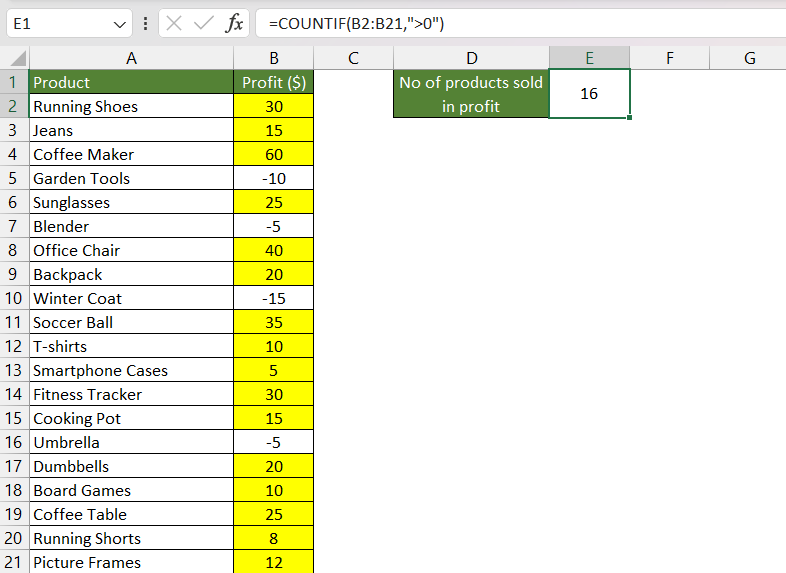
Suppose you are a store manager for a retail business, and you want to analyze your sales data to see how many products have been sold with a profit. Below is the data table containing a list of products and their corresponding profit figures.
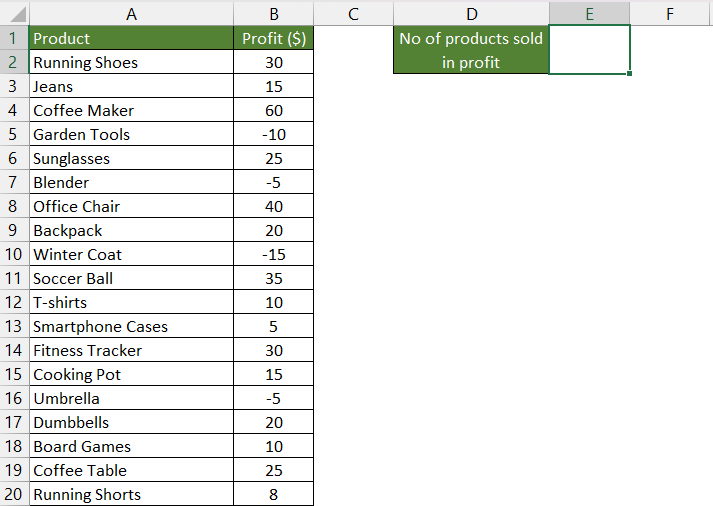
Here’s how you can use the COUNTIF function with the condition “greater than 0” in this scenario:
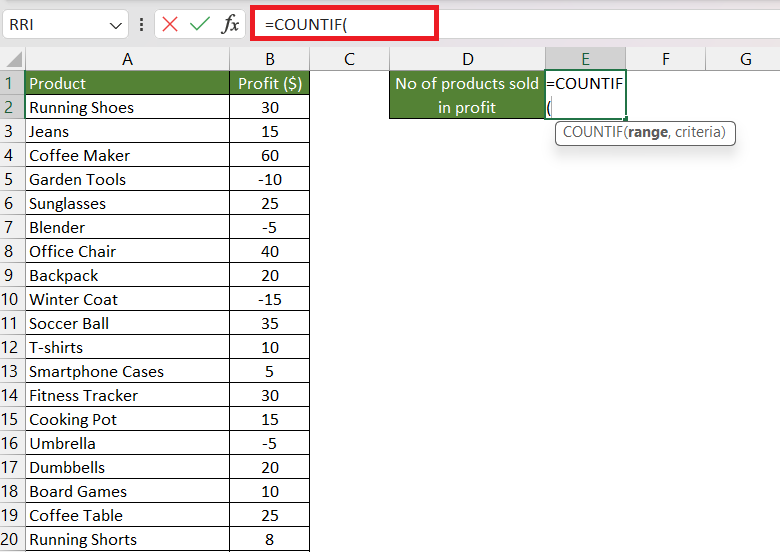
STEP 1: Enter the COUNTIF formula.
=COUNTIF(
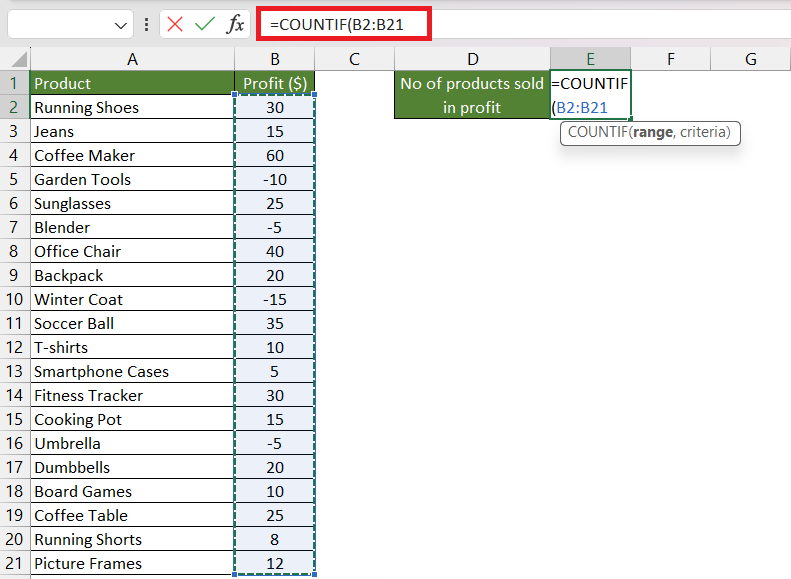
STEP 2: Enter the first argument i.e. range. Here, it is the list containing profit earned in each product in the range B2:B21.
=COUNTIF(B2,B21
STEP 3: Enter the second argument i.e. criteria. Here, it is that the profit amount should be greater than 0 i.e. >0.
=COUNTIF(B2,B21,”>0″)
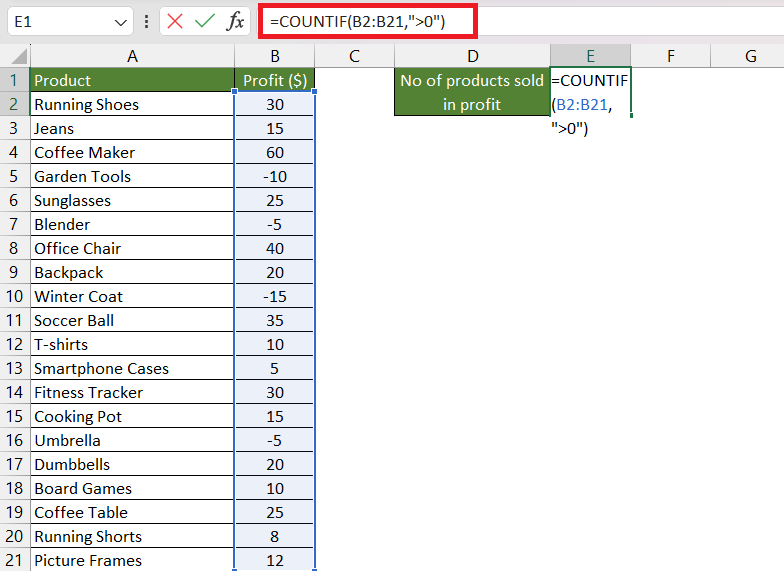
The number of products that have a profit amount greater than 0 is displayed in the cell.
COUNTIFS greater than
Suppose you want to know the count of products with low-profit amount (i.e. <10), then you need to check two things –
- Profit Amount >0
- Profit Amount < 10
The COUNTIFS function applies criteria to cells across multiple ranges and counts the number of times all criteria are met. the syntax of COUNTIFS is –
=COUNTIFS(range1, criteria1,[range2], [criteria2],…)
where,
- range1, range2: The ranges of cells where Excel will look for the data. Multiple ranges can be separated by commas. Each range represents a column or a group of cells in your table.
- criteria1, criteria2: The conditions or criteria that Excel will use to determine which items to count. You provide one criteria for each range. Each criterion can be a value, a cell reference, a text string, or a logical expression.
See the steps below on how to use COUNNTIFS greater than formula in Excel:
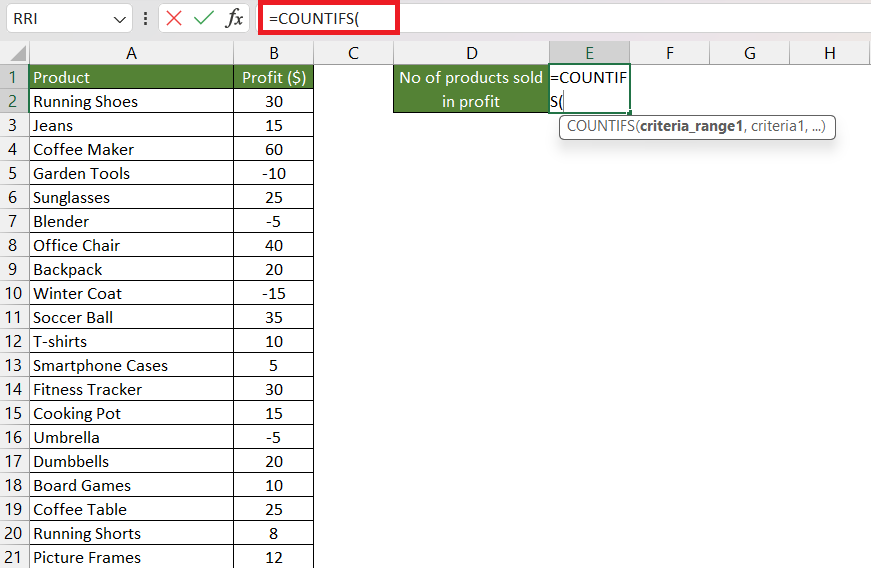
STEP 1: Enter the COUNTIFS formula.
=COUNTIFS(
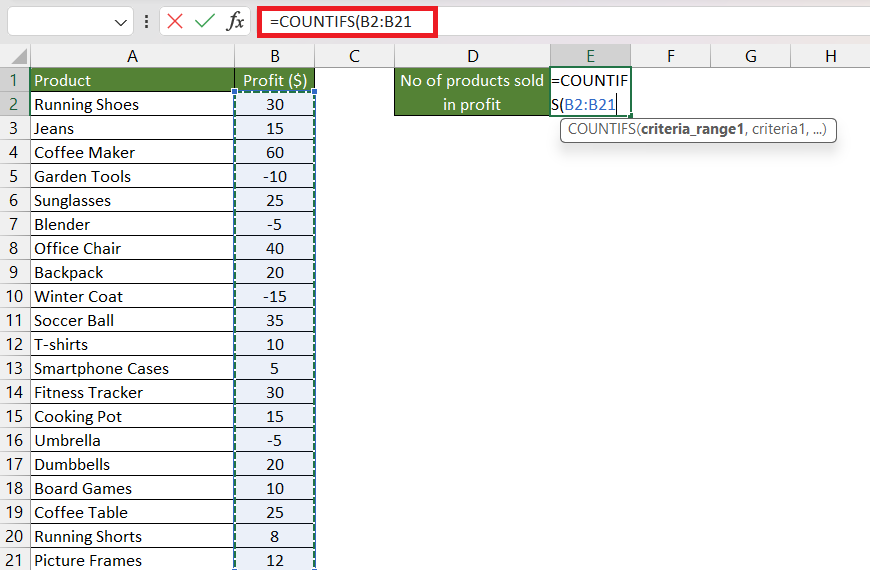
STEP 2: Enter the first argument i.e. range1. Here, it is the list containing profit earned in each product in the range B2:B21.
=COUNTIFS(B2,B21,
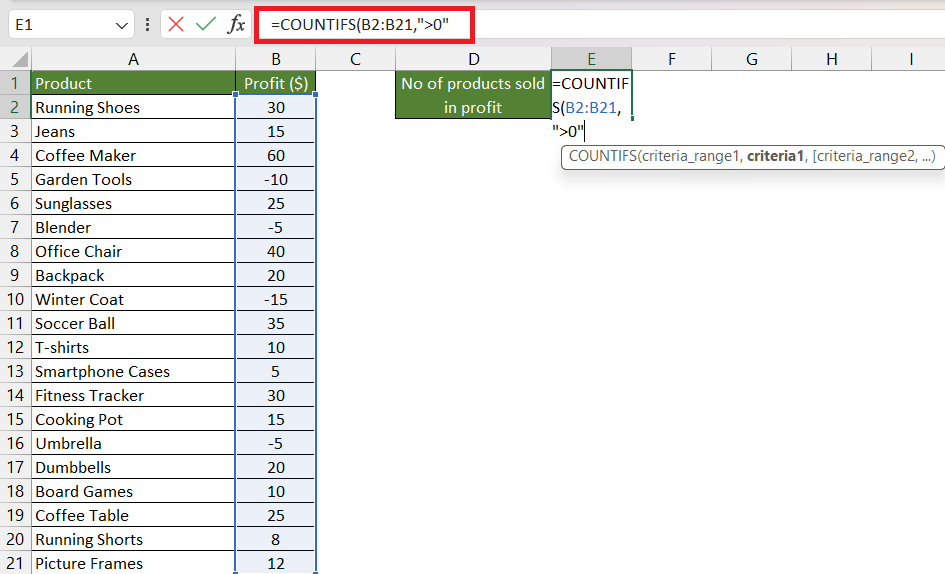
STEP 3: Enter the second argument i.e. criteria1. Here, it is that the profit amount should be greater than 0 i.e. >0.
=COUNTIFS(B2,B21,”>0″
STEP 4: Enter the third argument i.e. range2. Here, it is the list containing profit earned in each product in the range B2:B21.
=COUNTIFS(B2,B21,”>0″,B2:B21
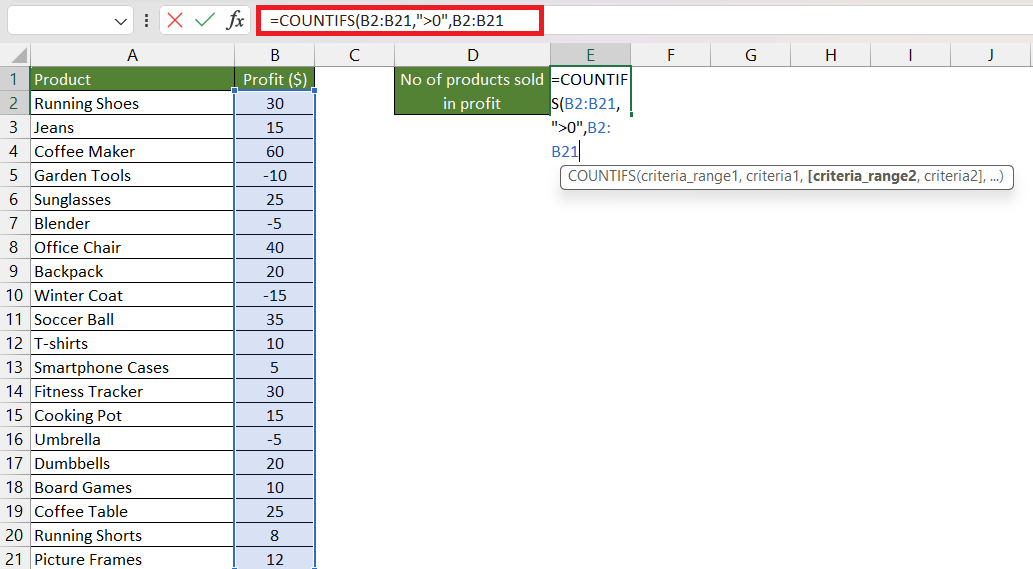
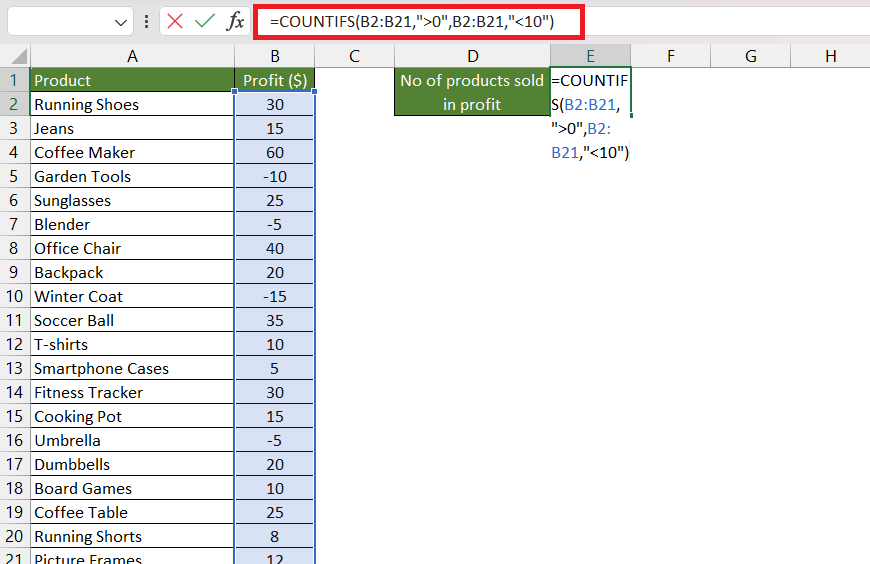
STEP 5: Enter the fourth argument i.e. criteria2. Here, it is that the profit amount should be less than 10 i.e. >0.
=COUNTIFS(B2,B21,”>0″,B2:B21,”<10″)
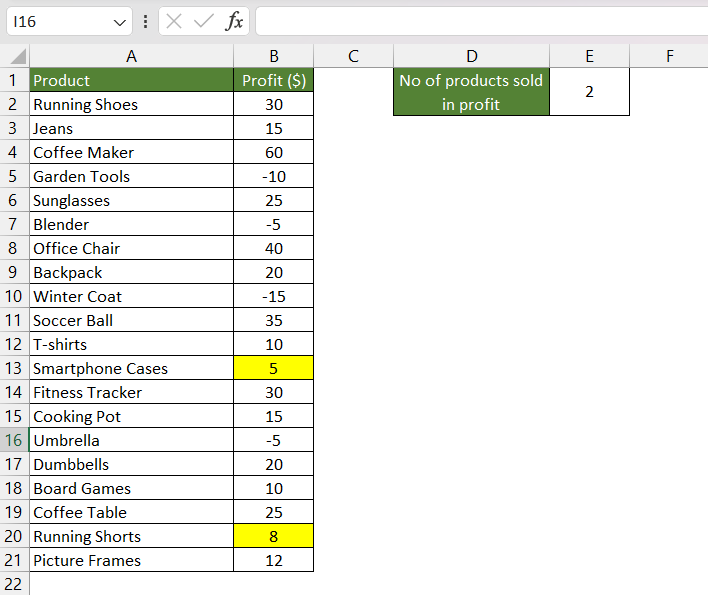
Excel will provide a count of products with profit amounts between 0 and 10.
Further learning:
- 3 Simple Methods to Explore the Power of COUNTIF with OR Logic in Excel
- CountIfs Formula in Excel
- CountIf Formula in Excel
Click here to access Microsoft’s tutorial on the COUNTIF Function!

John Michaloudis is a former accountant and finance analyst at General Electric, a Microsoft MVP since 2020, an Amazon #1 bestselling author of 4 Microsoft Excel books and teacher of Microsoft Excel & Office over at his flagship MyExcelOnline Academy Online Course.

 30 Days - Full Access









