 Free Practice Workbook
Key Takeaways
- Uniform image size makes slides look professional.
- It reduces clutter and distractions.
- Cropping helps focus attention on the most important parts of an image.
- Maintaining the aspect ratio prevents images from looking stretched.
- Proper alignment of the image will improve its readability.
The crop tool allows you to trim the unwanted parts of the image and keep what’s important. You can also crop your image in the shape of circloe, arrows, stars, or any other diverse shape. This technique is used to refine your image and make your presentation more customized.
Table of Contents
Basic Cropping Techniques
How to Crop an Image
Follow the steps below to crop an image in PowerPoint:
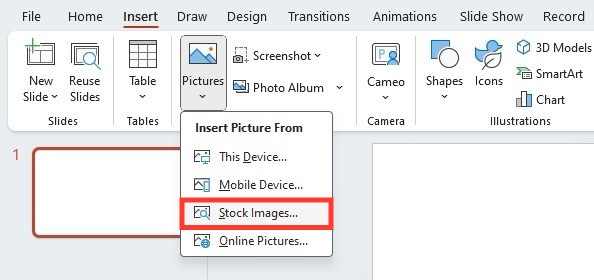
STEP 1: Insert the desired image into your presentation by picking the “Insert” tab and selecting “Pictures.” Choose the image source from the drop-down menu.
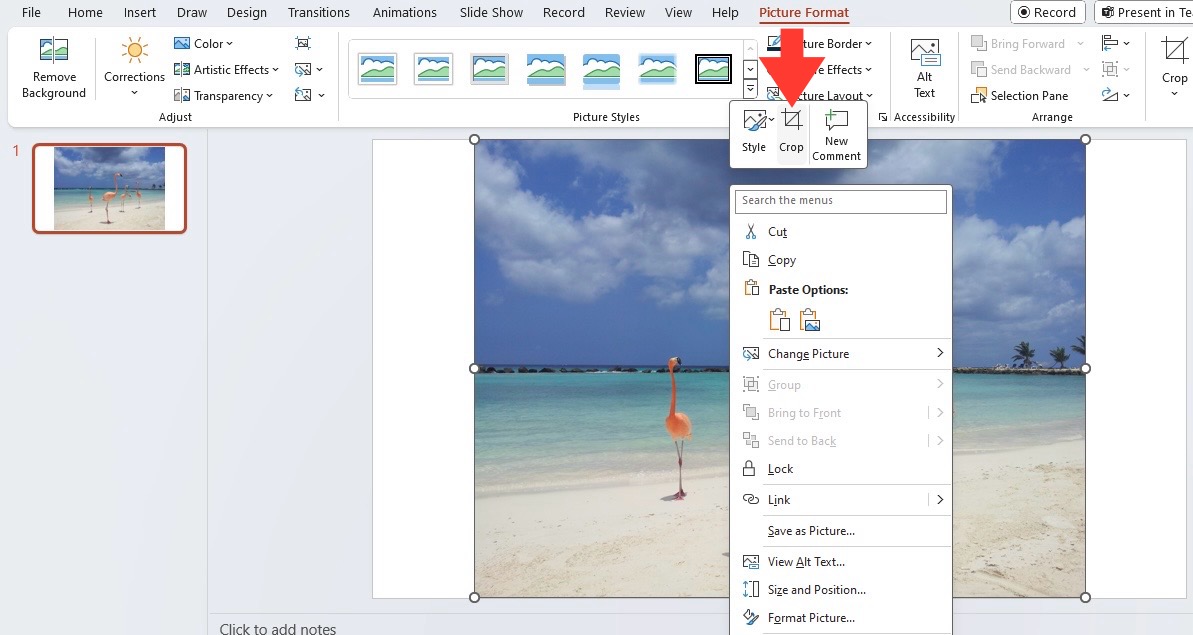
STEP 2: Click on the image and right-click to access a pop-up menu where you will find the “Crop” option, which brings up black crop handles around the edges of the image.
STEP 3: Adjust the crop area by clicking and dragging the handles. You can crop from any side or corner of your image, and to maintain the aspect ratio, press and hold the ‘Shift’ key while dragging a corner handle.
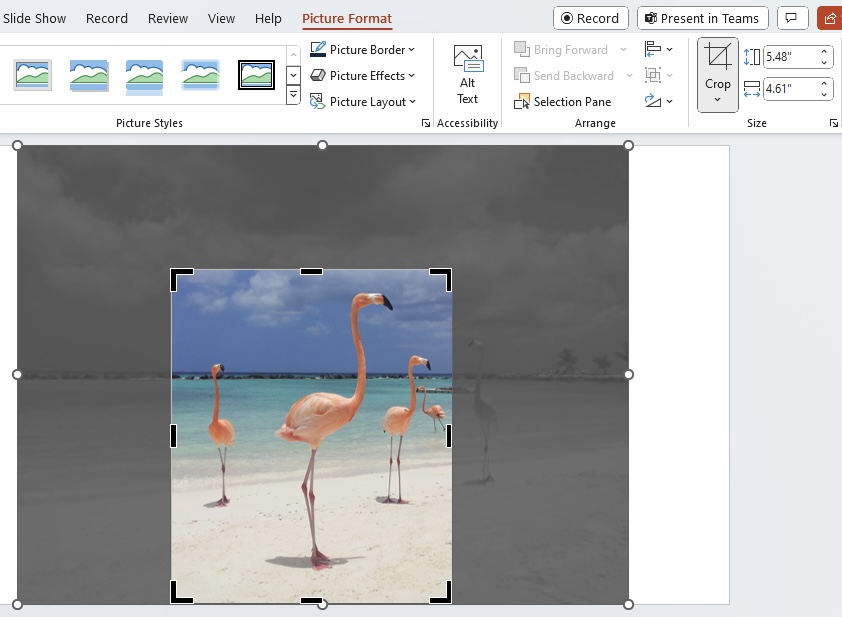
STEP 4: Once you’re satisfied with the new boundaries, click anywhere outside the image or press the “Enter” key to apply the crop.
Adjusting Crop Size to Maintain Aspect Ratio
Follow the steps below to adjust the cropped image in such a way that the aspect ratio is maintained:
STEP 1: Select the image and then go to the Picture Format tab.
STEP 2: Click on the Crop button, then choose Aspect Ratio.
STEP 3: Select your preferred ratio.
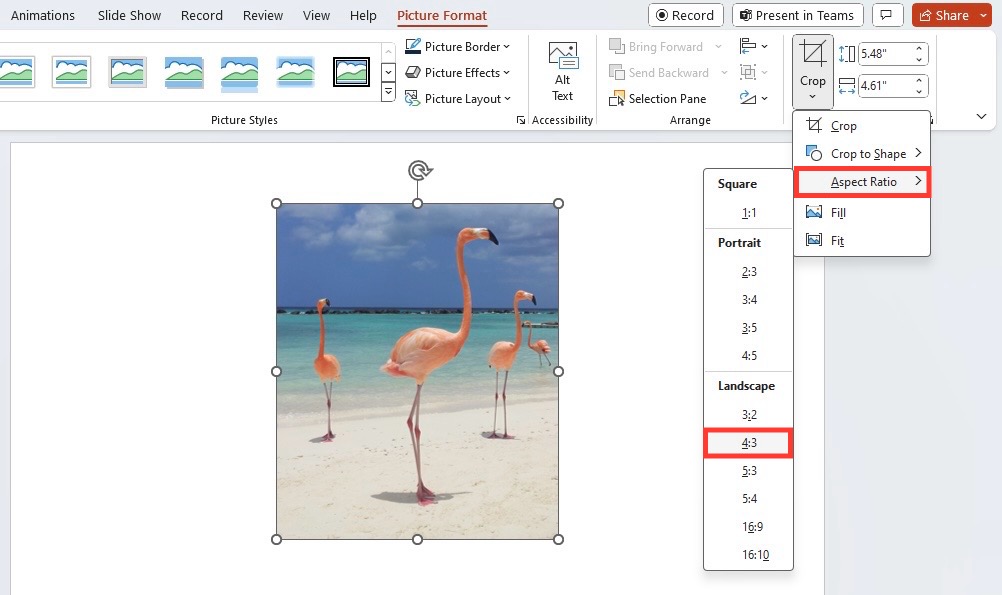
STEP 4: The image will adjust to the chosen aspect ratio.
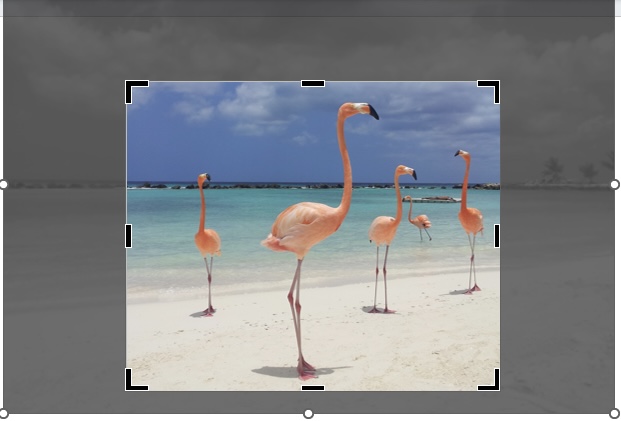
STEP 5: Resize the frame by dragging the corners.
STEP 6: Reposition the image to include the important parts.
STEP 7: Click on the Crop button again or press the Esc key.
Remember, using aspect ratios is ideal when you’re working with images that need to fit certain display dimensions or when consistency across multiple images is required.
Advanced Cropping
Prepare Images for Uniform Cropping
- Select images that have the same resolution and quality.
- Make sure that the cropped images have all the important elements.
- Group the images together for easy access.
Picture Layout for Consistent Sizing
For consistent sizing, follow the steps below:
STEP 1: Hold the Ctrl key and then click on each image that you want to resize.
STEP 2: Go to the Picture Format tab and click on Picture Layout.
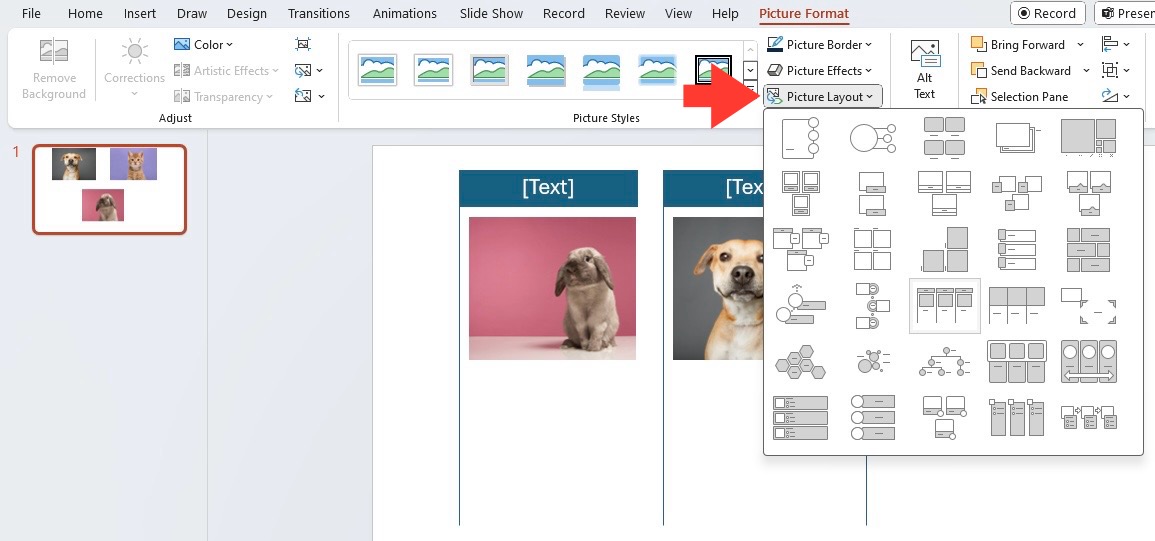
STEP 3: Choose a style that accommodates your text and matches your needs.
STEP 4: PowerPoint will automatically resize and align images to fit the chosen structure.
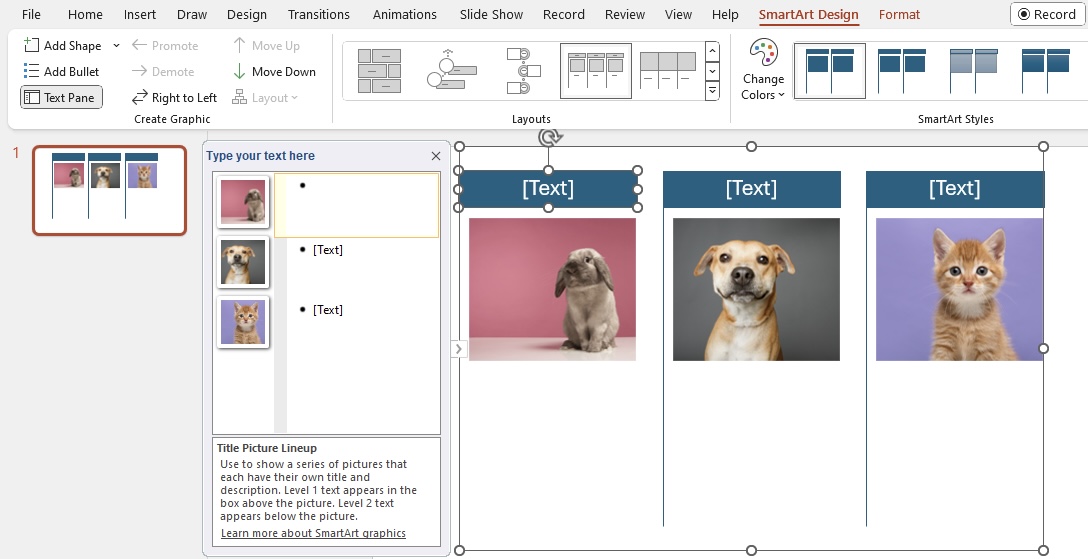
Align and Resize Cropped Images
Align Images After Cropping
Follow the steps below to align the image properly:
STEP 1: Go to the Picture Format tab and under the Align tool, select Align Left, Align Right, or Align Center.
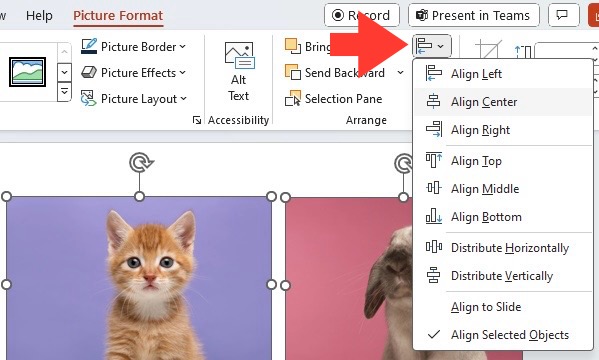
STEP 2: Select the Position option to place images at an exact location on your slide.
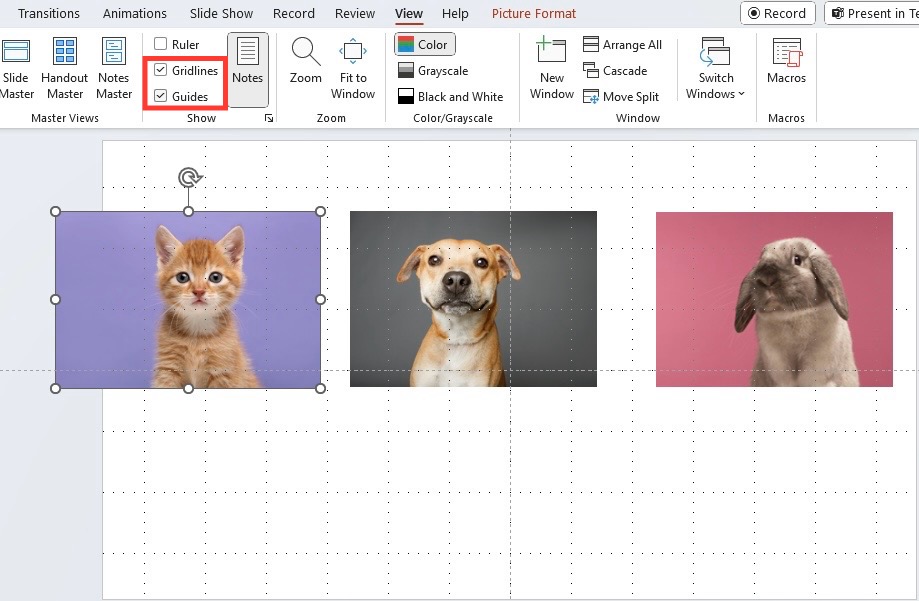
STEP 3: Go to the View tab and check the boxes for Gridlines and Guides. This will assist you in manual alignment of images.
Resize Images
By following these steps, you can easily resize the cropped image:
STEP 1: Select the image and then use the corner handles to proportionately resize the image.
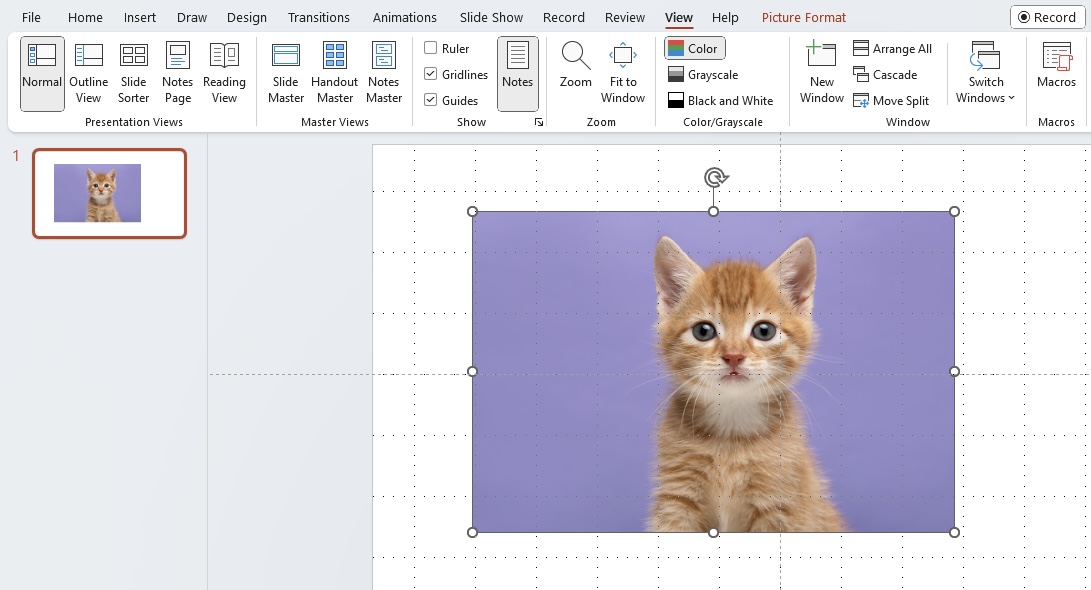
STEP 2: For a smaller increment or decrement, use the Alt key while dragging the image.
STEP 2: Right-click on the image and select Size and Position. Enter the exact dimensions or percentage.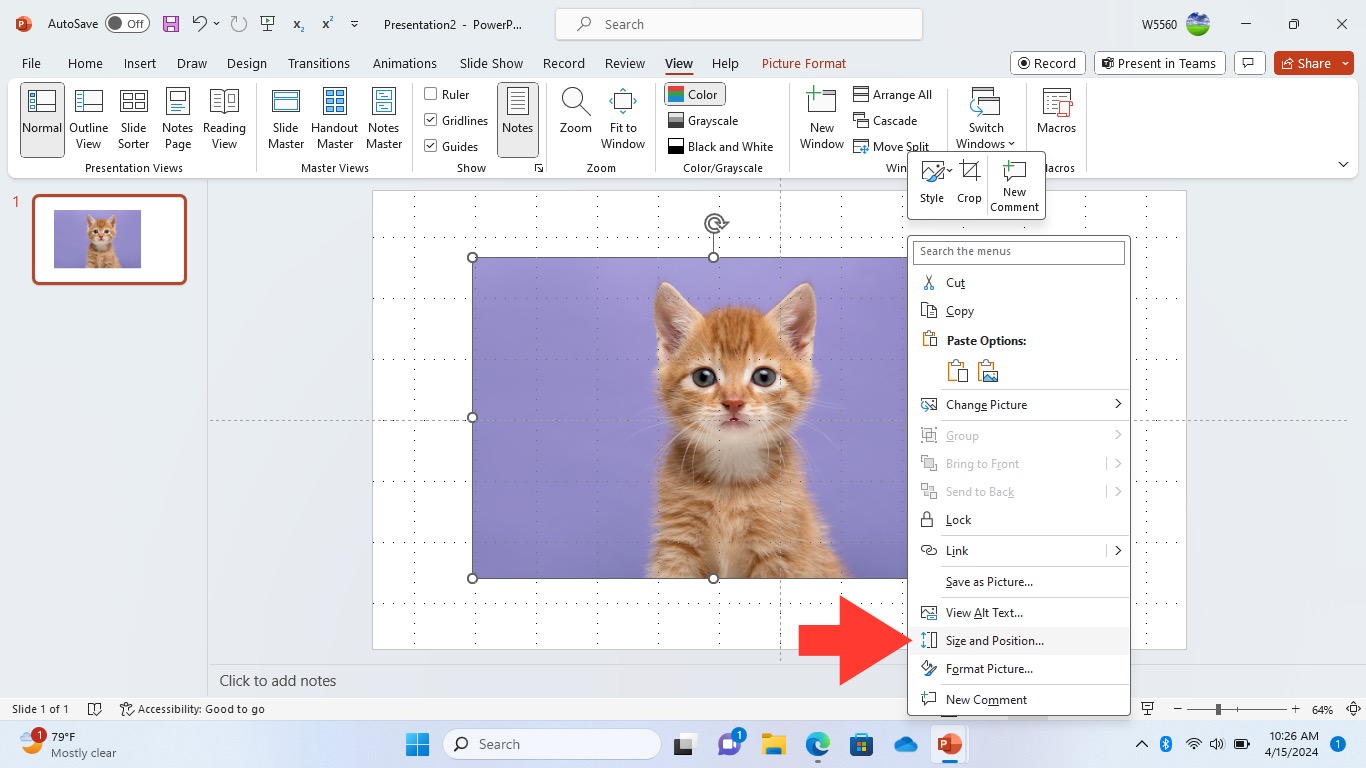
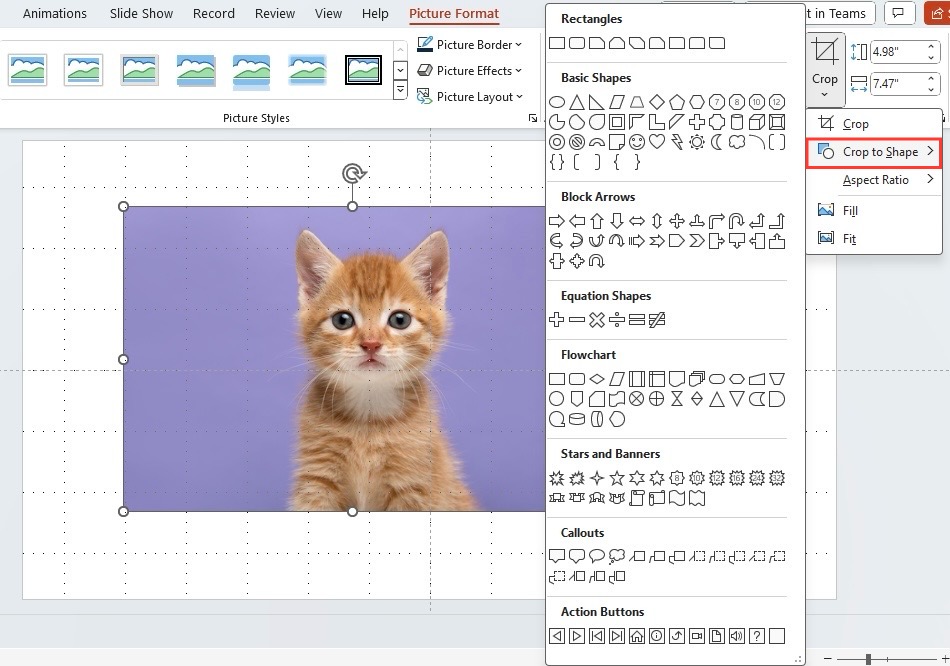
STEP 4: Go to Pthe icture Format tab and select Crop to Shape to change the shape of the cropped image.
FAQs
How to Make Sure Images Stay the Same Size After Cropping?
To make sure that images stay the same size after cropping in PowerPoint, use the ‘Size’ group options in the ‘Picture Format’ tab to manually set the height and width for all selected images, which maintains dimensions exactly as intended. Remember to keep them uniform and proportional for a consistent look.
Can I Crop Multiple Images at Once in PowerPoint?
Yes, you can crop multiple images at once in PowerPoint by selecting all the images you want to crop, then using the ‘Picture Layout’ tool in the ‘Picture Format’ tab to apply a uniform SmartArt style, which automatically resizes them to a consistent shape and size.
How do I Format pictures to the same size in PowerPoint?
To format pictures to the same size in PowerPoint, select all images, right-click, and choose ‘Size and Position.’ Enter the same height or width for each picture for uniformity. Alternatively, use the ‘Picture Format’ tab to specify exact dimensions for a group of images at once.

John Michaloudis is a former accountant and finance analyst at General Electric, a Microsoft MVP since 2020, an Amazon #1 bestselling author of 4 Microsoft Excel books and teacher of Microsoft Excel & Office over at his flagship MyExcelOnline Academy Online Course.

 30 Days - Full Access









