Key Takeaways
- Select a text box and press Delete to remove it.
- Use the Selection Pane to find hidden text boxes.
- Multiple text boxes can be deleted at the same time.
- Check the Slide Master if a text box appears on many slides.
- Keyboard shortcuts can speed up text box editing.
Table of Contents
How to Delete Text Boxes
Select and Delete Unwanted Text Boxes
You can select the edge of the text box to highlight it. But if you can’t find the text box,
- Go to the Home tab
- Click on the Select button
- Click on Selection Pane
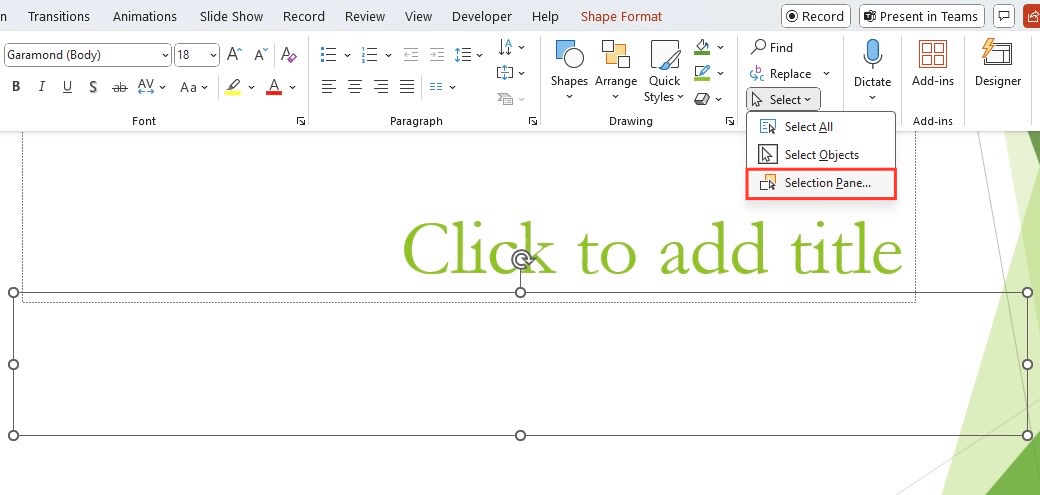
- Use the Selection Pane to view all objects on the slide.
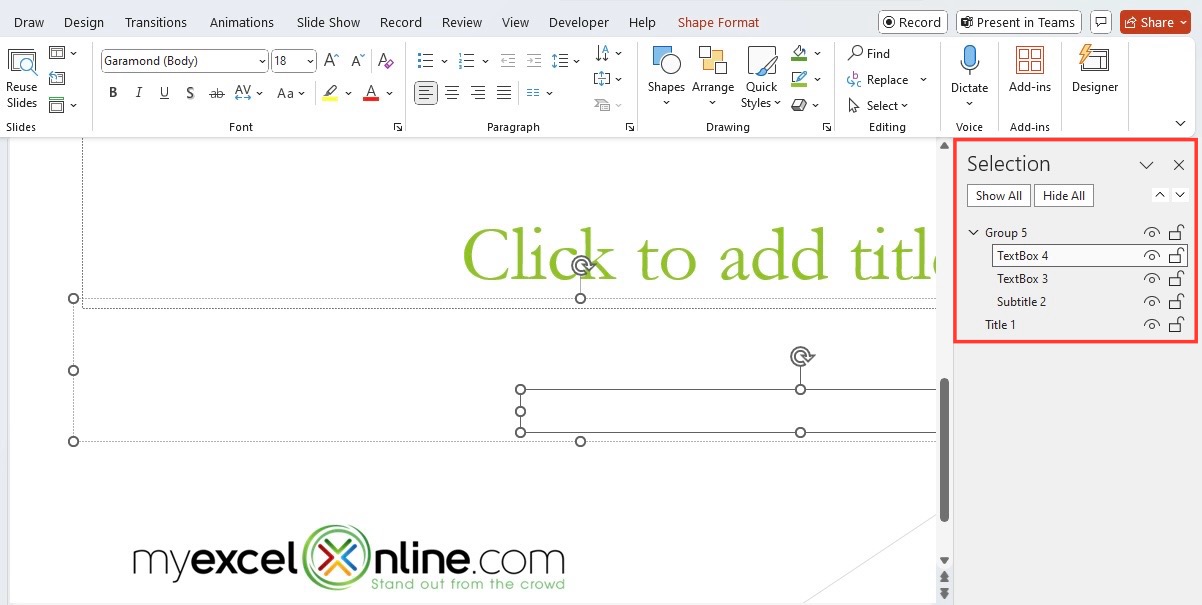
- Select the required text box from the list
- Press the Delete key
The text box and all its contents will be removed.
Benefits of Removing Unwanted Text Box
Removing unused text boxes can make your presentation cleaner and easier to work with. Extra text boxes can clutter a slide, especially when they are empty or hidden behind other objects. A well-organized slide is easier to edit and maintain. It also reduces the chances of accidentally selecting the wrong object while making changes. Taking a few moments to remove unnecessary text boxes can help improve the overall appearance and professionalism of your presentation.
Regularly cleaning up unused objects is a good practice, particularly when working on large presentations with many slides and design elements.
Text Boxes won’t Delete
If the text box does not delete after pressing the Delete key, it can be locked. To unlock it,
- Right-click the text box
- Click Unlock
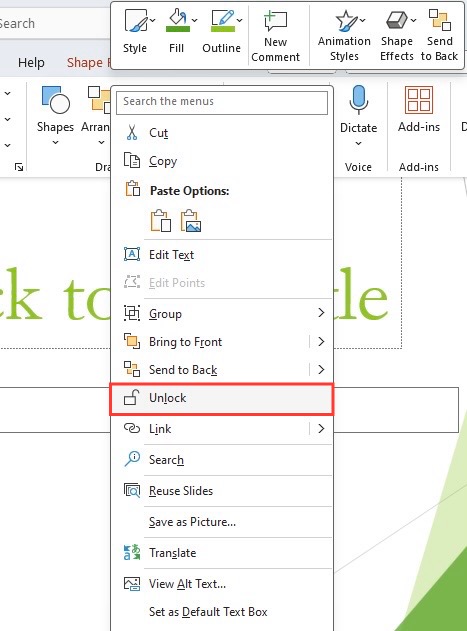
Select the text box again and press the delete key.
If the text box still cannot be removed, it may be part of the Slide Master.
- Open the Slide Master view
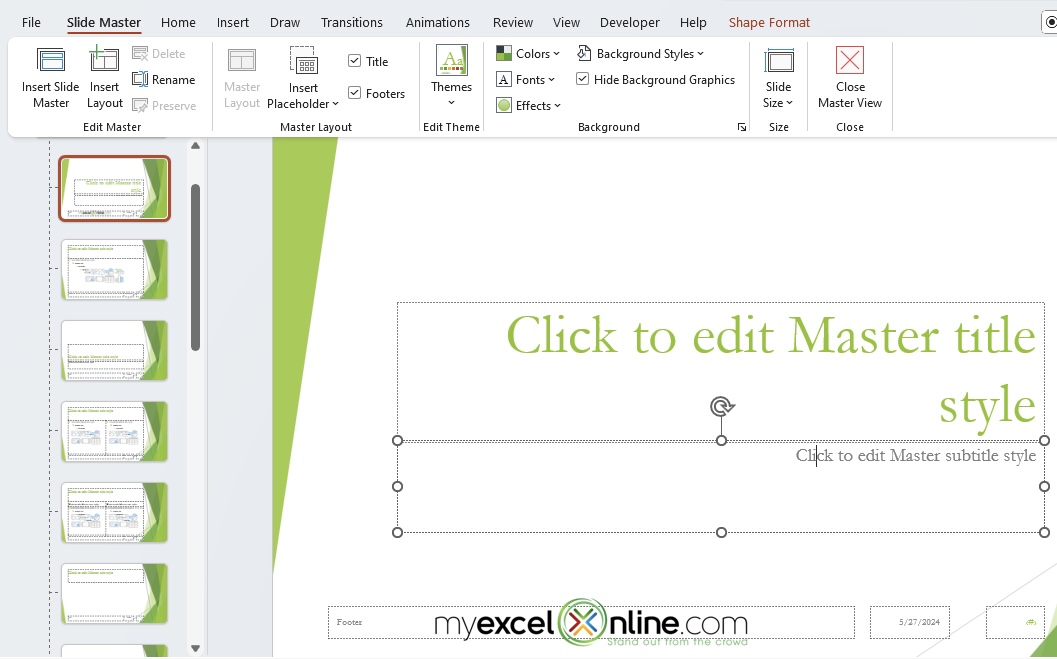
- Click on the text box
- Press Delete
Tips & Tricks
- Give each text box a name using the selection pane.
- Use the Keep Source Formatting option to keep the look consistent.
- Align text boxes to distribute them.
- The Slide Master to keep the text style the same across all slides.
FAQs
How to delete a text box in PowerPoint?
To delete a text box in PowerPoint,
- Select the text box border
- Press the Delete key
Why can’t I delete a text box?
The text box may be part of the Slide Master or be locked.
How to delete multiple text boxes at once?
To delete multiple text boxes at once,
- Hold the Ctrl key
- Select each text box
- Press Delete
What is the Selection Pane used for?
The selection pane can be used to find and manage hidden or overlapping objects. It also provides a convenient way to select objects that are difficult to click directly on the slide.
Can I restore a deleted text box?
Yes, press Ctrl + Z immediately to undo the deletion. Undo works only if the presentation has not been closed after the deletion.

John Michaloudis is a former accountant and finance analyst at General Electric, a Microsoft MVP since 2020, an Amazon #1 bestselling author of 4 Microsoft Excel books and teacher of Microsoft Excel & Office over at his flagship MyExcelOnline Academy Online Course.

 30 Days - Full Access









