If you work with data containing multiple currencies, knowing how to add different currency symbols in Excel can be a real game-changer. Excel makes it easy to customize your data with the exact currency format you need, whether it’s dollars, euros, yen, or any other currency. In this article, we will cover some quick methods to add and format different currency symbols in Excel.
Key Takeaways:
- Adding the correct currency symbol can provide clarity in financial reports.
- It reduces the risk of misinterpretation.
- Currency and Accounting formats are the safest ways to add currency symbols
- ASCII and Unicode can be used to quickly add a currency symbol
- The Insert Symbol option is used when you want to insert uncommon symbols.
Table of Contents
Step-by-Step Guide to Insert Different Currency Symbols
Using the Default Currency Symbol Feature
You can quickly convert a number to the default currency by following the steps below:
- Select the cell where you want to insert currency.
- Go to the Home tab and click on Currency from the Number dropdown.
The default currency, i.e., the dollar in this example, will be inserted.
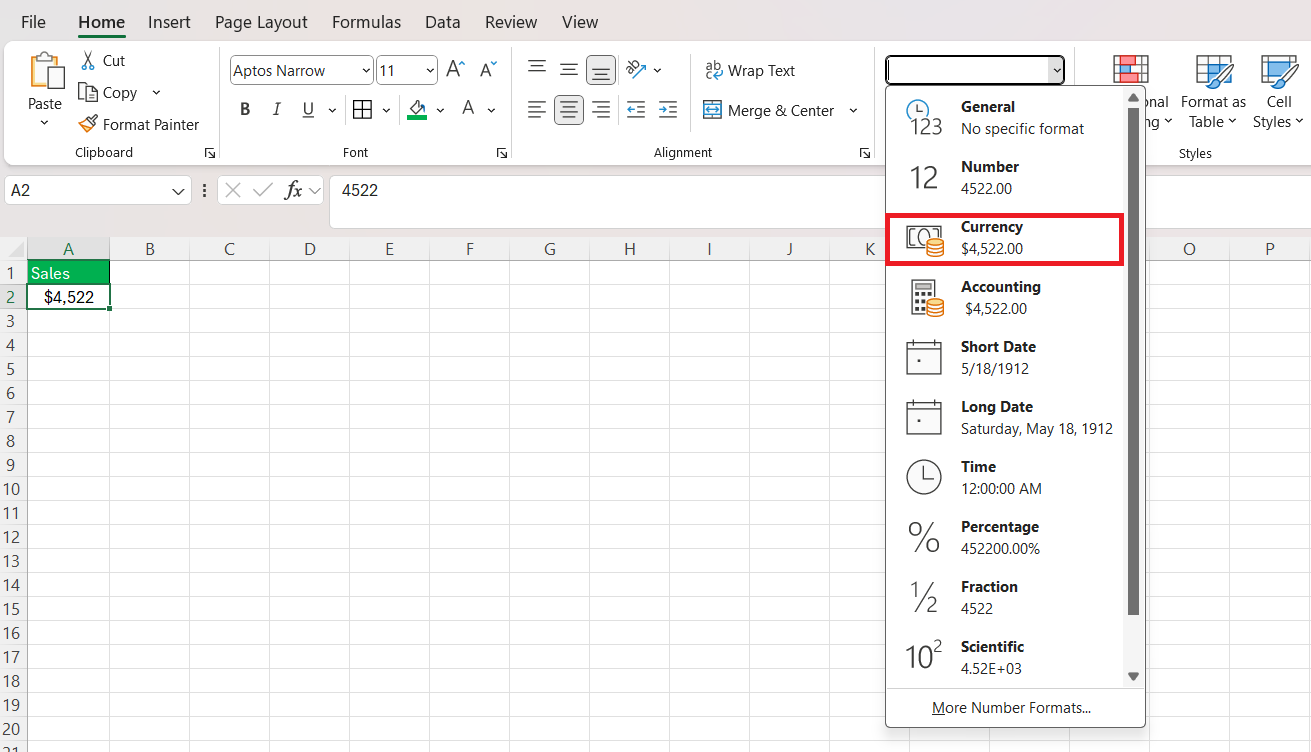
This default symbol will be what you have selected for your operating system. So, if you are working with different currencies, make sure to change the system settings accordingly.
Using ASCII and Unicode
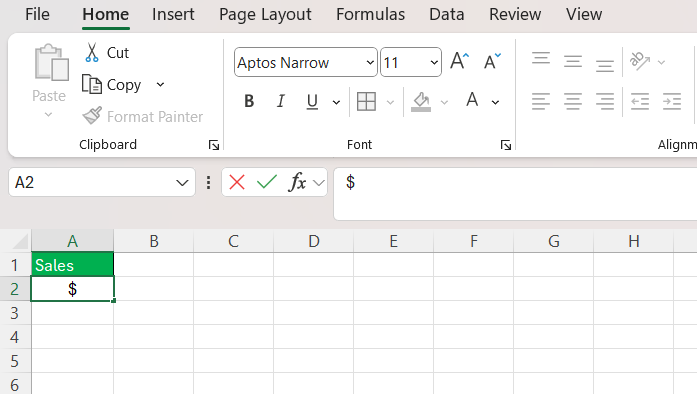
ASCII and Unicode can be used to manually add a currency symbol instead of changing the format of a cell. To add a currency symbol using Unicode, you need to press the Alt key and then type the Unicode for that currency. For example, hold the Alt key and type 36 to insert a dollar sign.
Using Uncommon Currency
If you want to add uncommon currencies like the Indian Rupee or the Thai Baht, you will have to go to the Insert tab and select Symbol.
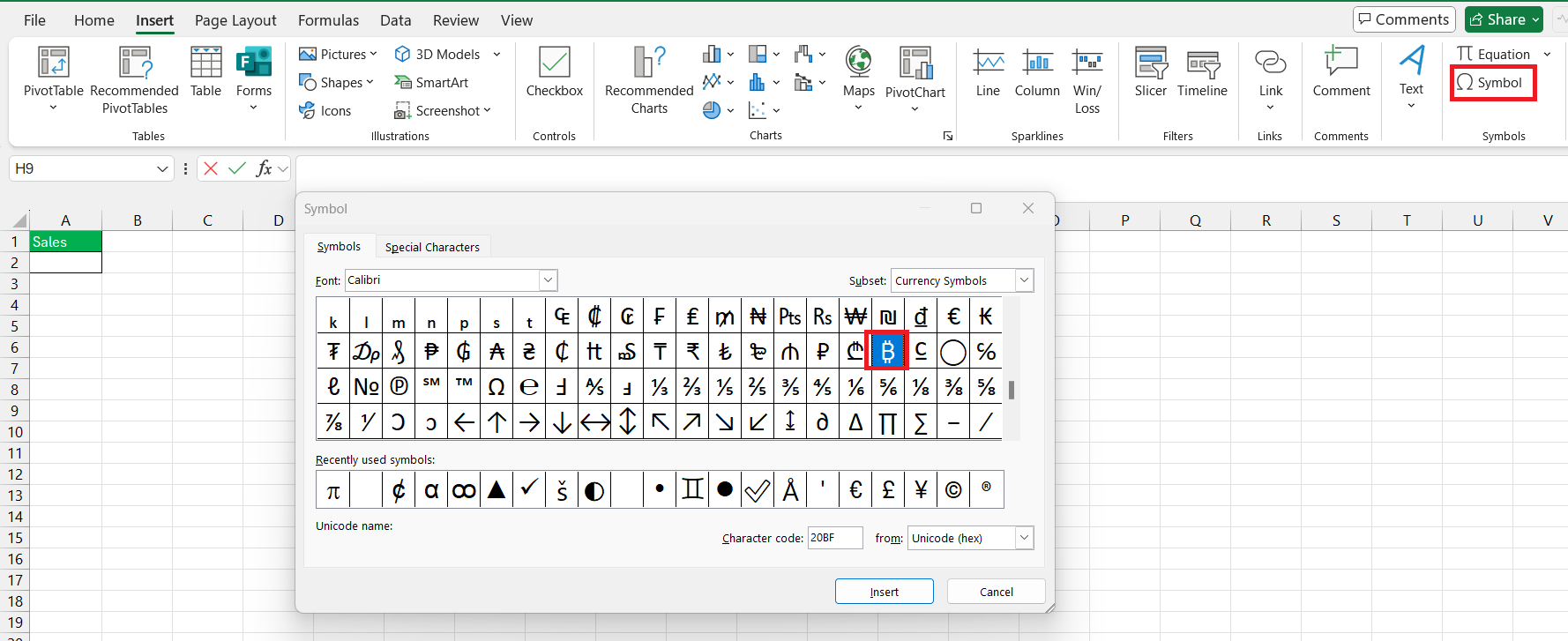
From there, I hunt for the specific currency mark needed. This comes in handy when I’m dealing with transactions involving currencies that aren’t immediately accessible from the keyboard.
Using Custom Number Format
If you want to add a currency symbol without changing the underlying value, you can use the Custom format in Excel. To do so,
- Go to the Home tab.
- From the Number dropdown, select More Number Format.
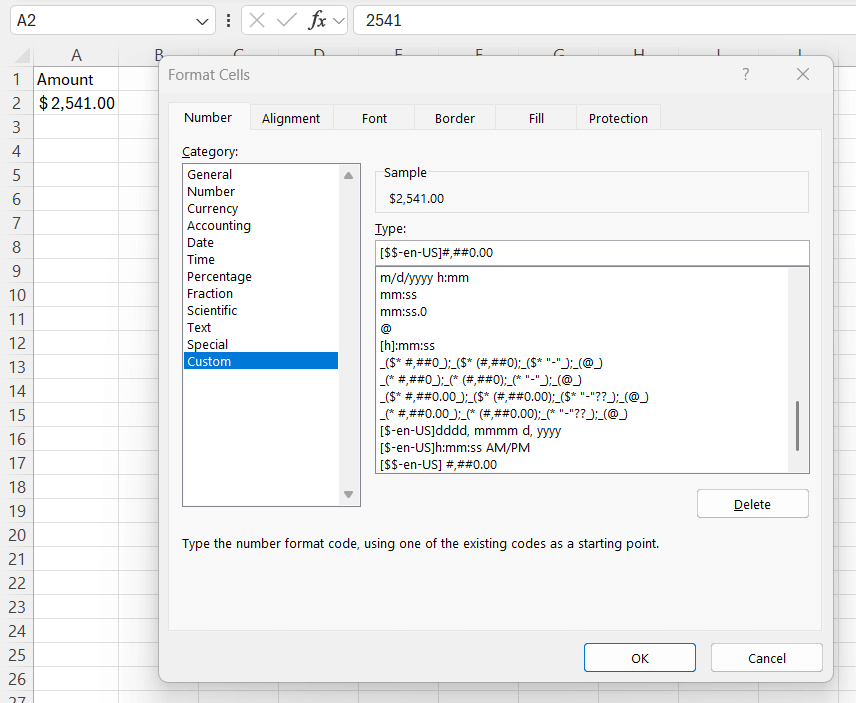
- In the dialog box, select Custom
- Now, type the appropriate format, and the symbol will be inserted.
For example, to add a dollar symbol, type [$$-en-US] #,##0.00.
Tips & Tricks for Currency in Excel
Setting a Default Currency Symbol in Excel
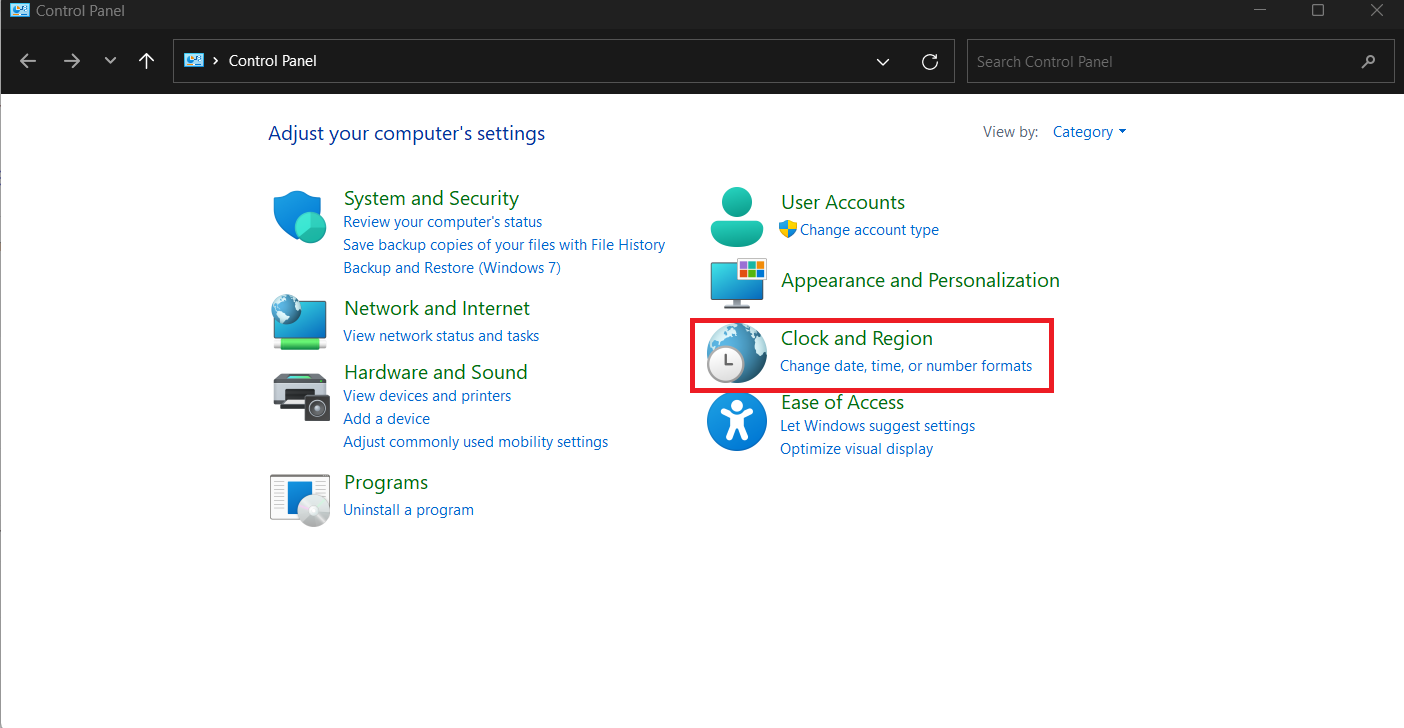
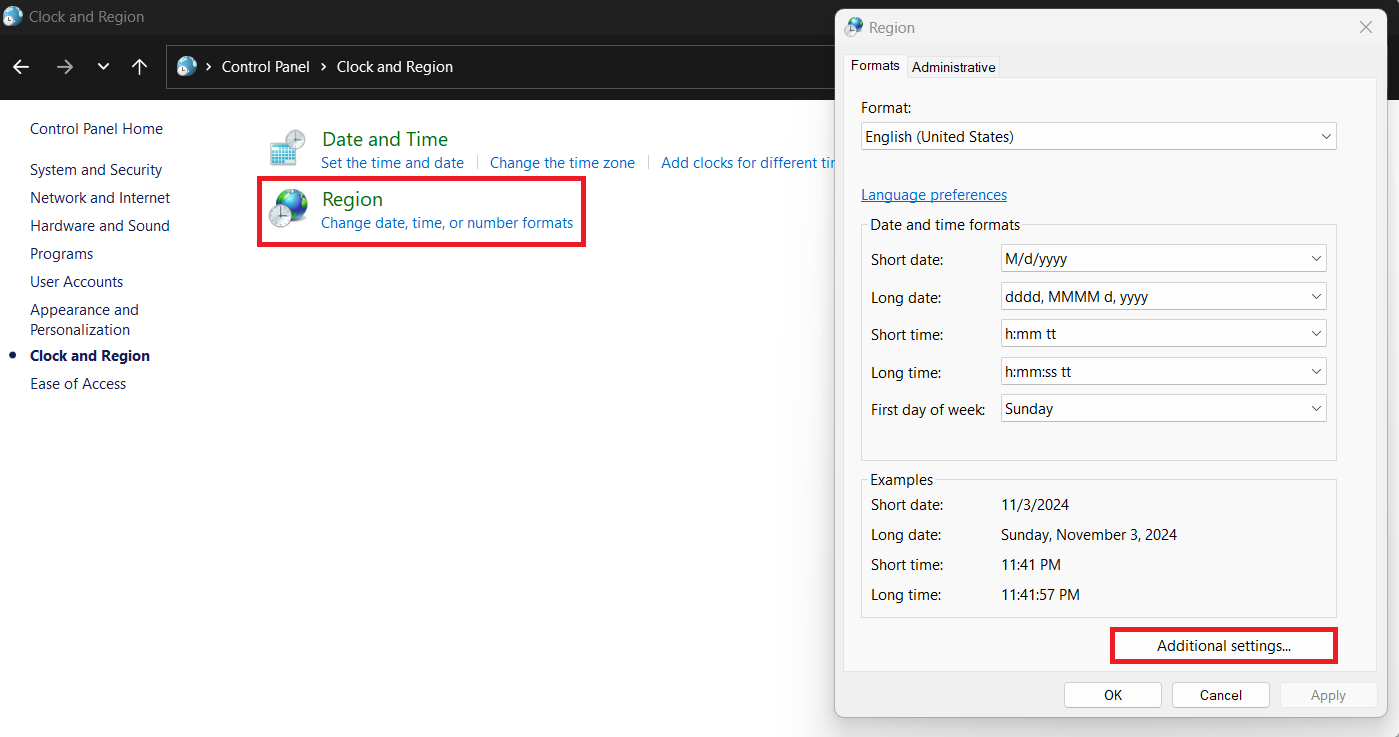
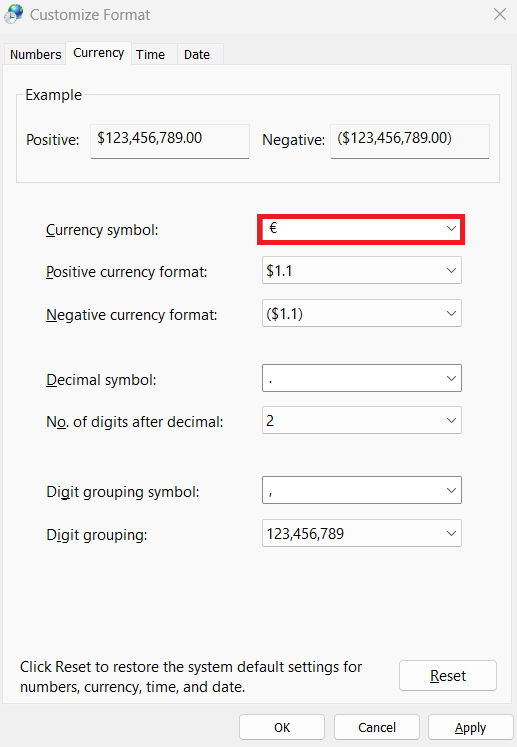
Excel usually applies the default currency based on your system settings, but you can change this if you primarily work with a different currency. Changing the default currency symbol requires a change in your system’s regional settings. Here’s how to adjust it:
STEP 1: Open the Control Panel and go to Clock and Region.
STEP 2: Select Region, then click on Additional Settings….
STEP 3: In the Currency tab, choose your desired currency symbol.
FAQs
What is the simplest way to add a currency symbol in Excel?
The simplest way to add a currency symbol is to use currency formatting. Follow the steps below:
- Select the cells where you want to add a currency symbol
- Go to Home tab
- Click on the Currency button.
How to change the default currency symbol?
Yes, you can change the default currency as per your requirement. But this change will be applied to Window system and not only Excel. You will have to change the currency in your computer’s regional currency setting, and all the new worksheets will adopt the new default currency.
Are there shortcuts to insert currency symbols without navigating menus?
To insert a currency symbol in Excel, you can use the ASCII code or the Unicode shortcuts. Here are some examples:
- Type 20AC and then press Alt + X to insert the euro symbol.
- Hold Alt and type 36 to insert a dollar sign.
How to insert a different currency symbol in Excel?
To add a different currency symbol, go to insert tab and select Symbol. In the dialog box, you can select an appropriate symbol from the list of different symbols displayed. You can also press Alt and then type the Unicode of the symbol.

John Michaloudis is a former accountant and finance analyst at General Electric, a Microsoft MVP since 2020, an Amazon #1 bestselling author of 4 Microsoft Excel books and teacher of Microsoft Excel & Office over at his flagship MyExcelOnline Academy Online Course.

 30 Days - Full Access









