 Free Practice Workbook
Excel delimiters help separate text into different parts. A delimiter can be a comma, space, tab, semicolon, or pipe symbol. You can use delimiters to split names, addresses, lists, and imported data into separate columns. In this guide, I’ll walk you through everything you need to know about using Excel delimiters.
Key Takeaways:
- A delimiter is a symbol that separates text values.
- Common delimiters include commas, spaces, tabs, and semicolons.
- Text to Columns is the easiest way to split text in Excel.
- TEXTSPLIT can split text using formulas.
- Flash Fill can split text quickly by following a pattern.
Table of Contents
Introduction to Excel Delimiters
A delimiter is a character or symbol that separates values in a text string. It commonly includes commas (,), semicolons (;), tabs, spaces, and pipes (|). Excel allows me to use these characters when importing, exporting, or splitting data. This is helpful when data comes from websites, forms, reports, or CSV files. Instead of copying each value manually, I can use a delimiter to separate the text in a few clicks.
For example, if I have a CSV (Comma-Separated Values) file with this data:
Name,Age,Location
John,25,New York
Sarah,30,Los Angeles
The comma (,) acts as the delimiter and distinguishes each value within the dataset. When Excel reads this comma, it understands where one value ends and the next value begins.
Methods to Use Excel Delimiter to Split Text
1. Text to Columns
The Text to Columns feature allows you to split text based on a specified delimiter. It is one of the simplest methods because it does not require any formula.
STEP 1: Select the column containing the text.
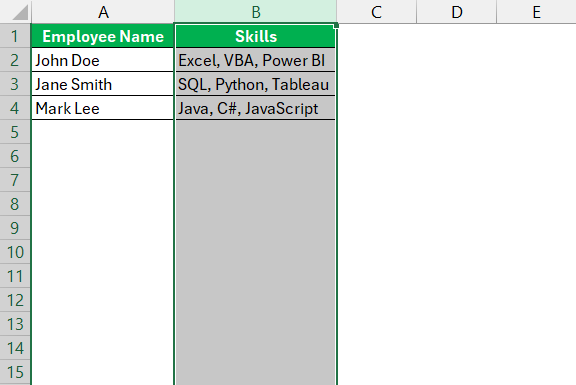
STEP 2: Go to Data > Text to Columns.

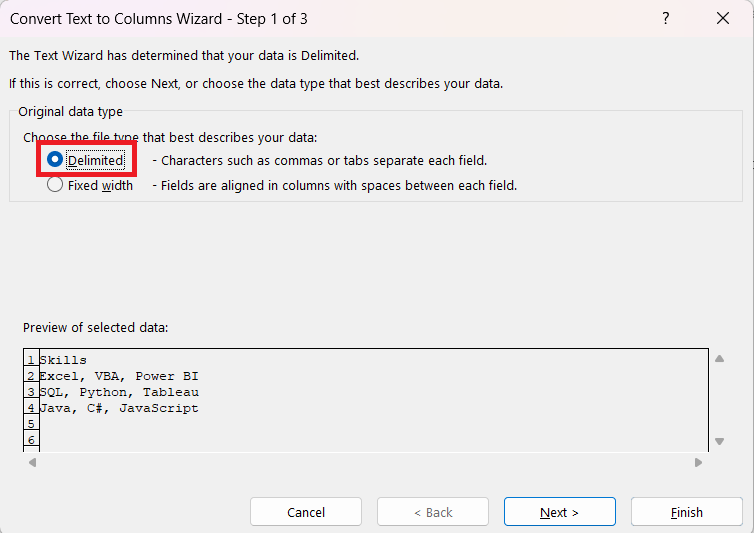
STEP 3: Choose Delimited and click Next.
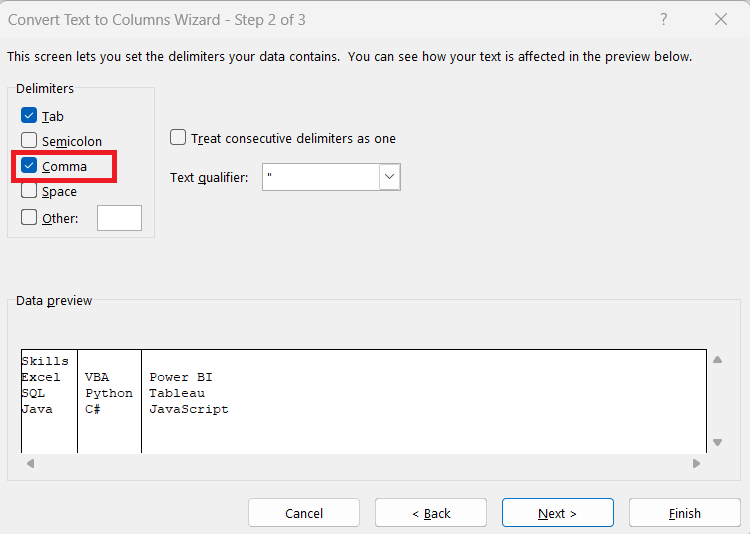
STEP 4: Select the delimiter.
STEP 5: Choose the destination cell. Click Finish.
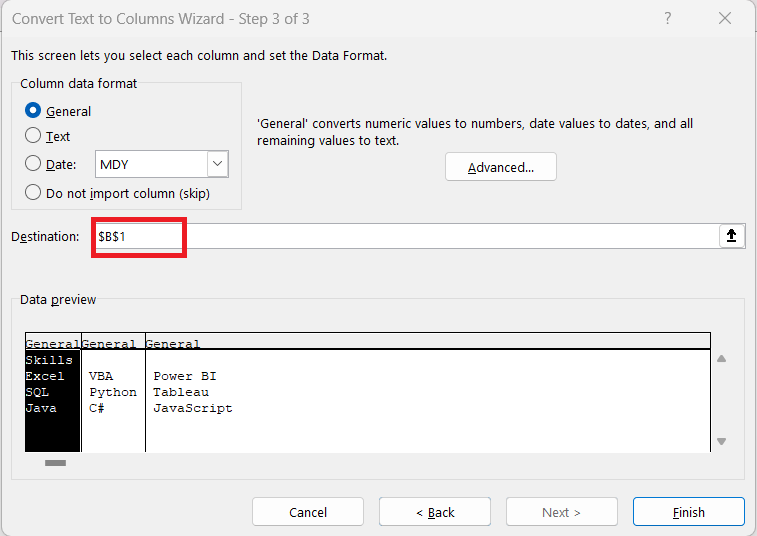
The data will be split into different columns based on the Excel delimiter.
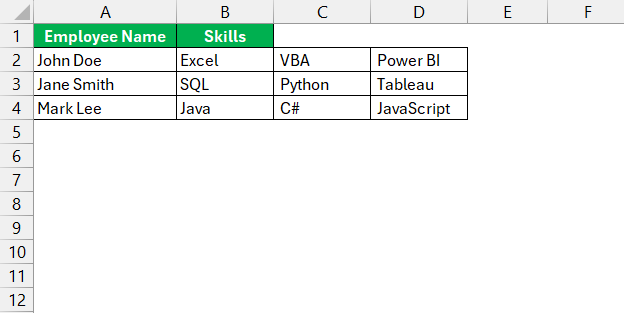
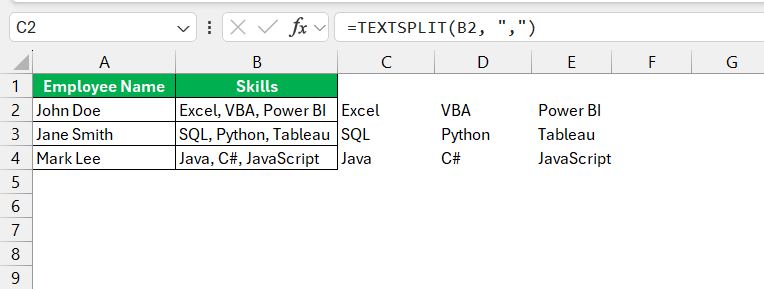
2. TEXTSPLIT Function
The TEXTSPLIT function can split text into multiple columns or rows dynamically.
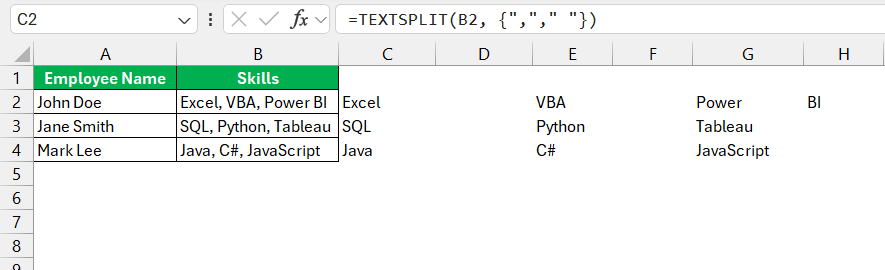
To split using multiple delimiters :
3. LEFT, MID, RIGHT with FIND
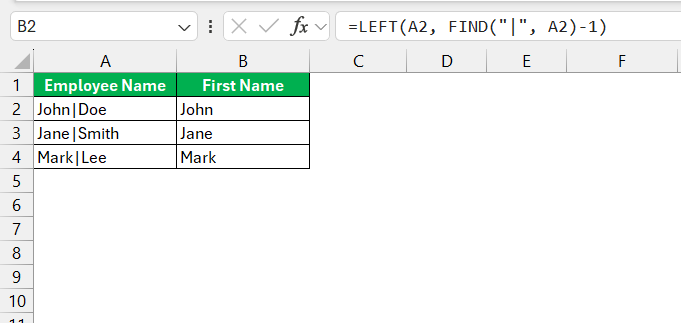
If your delimiter is inconsistent, you can use text functions to extract parts of a string.
You can use this formula to extract the first name:
You can use this formula to extract the last name:
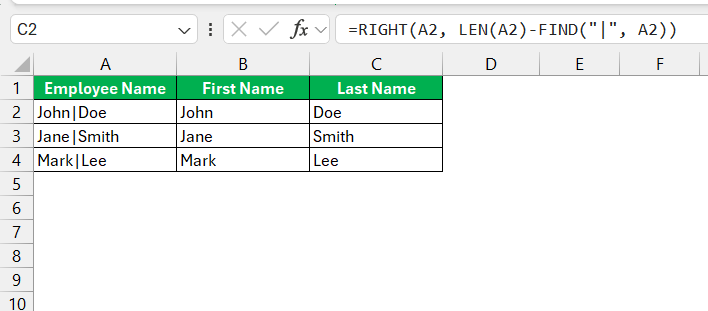
4. Power Query
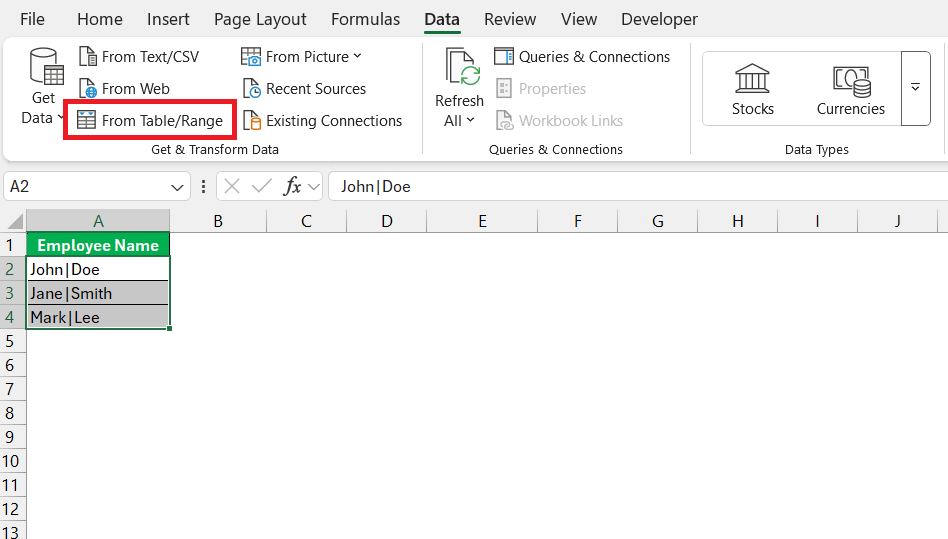
STEP 1: Select the data and go to Data > Get & Transform > From Table/Range.
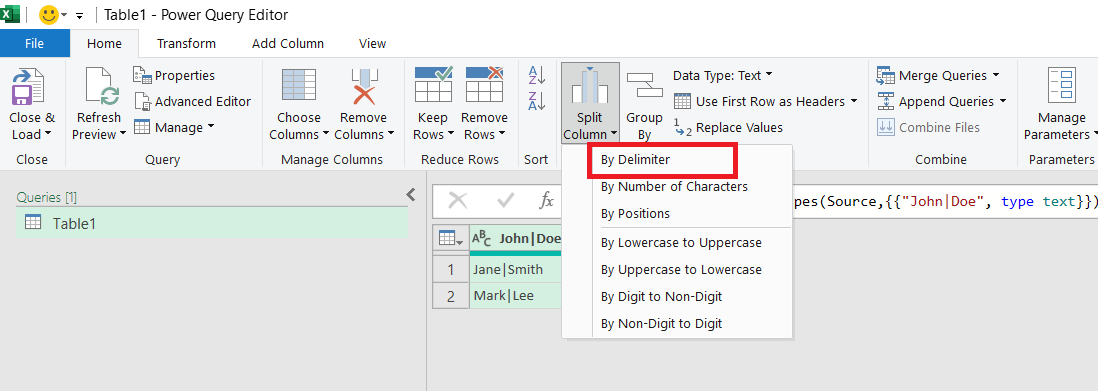
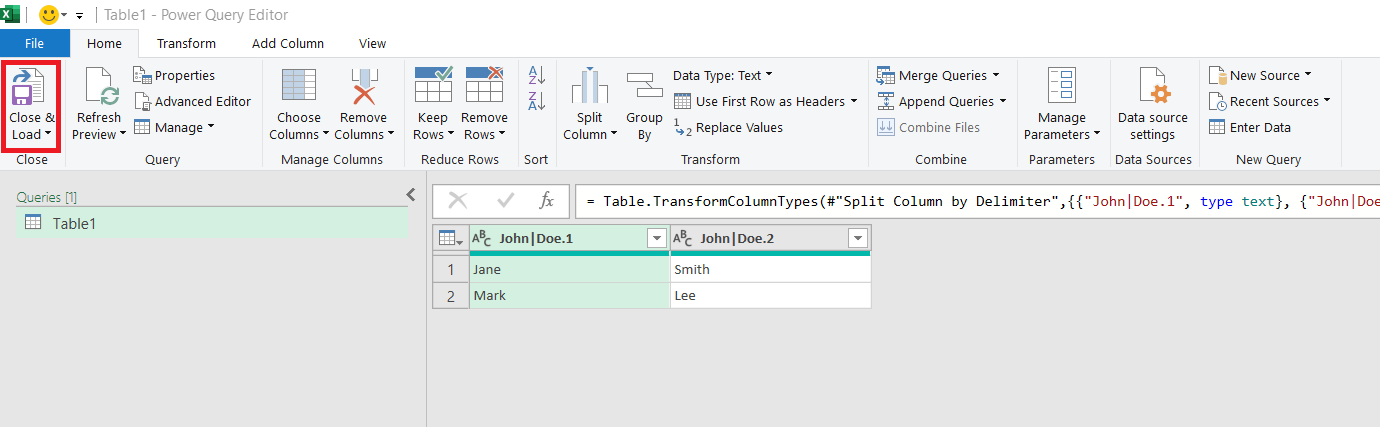
STEP 2: In Power Query, select the column and choose Split Column > By Delimiter.
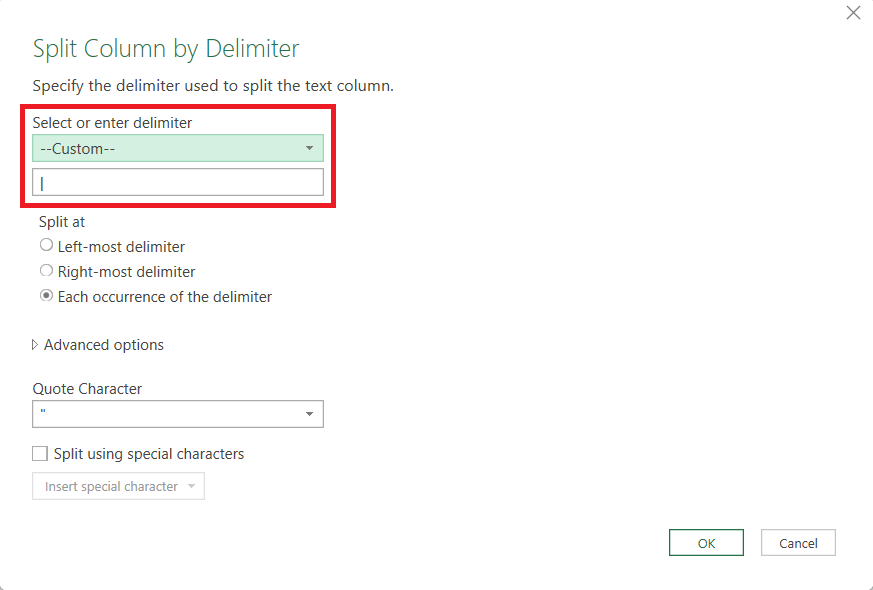
STEP 3: Choose the delimiter and press OK.
STEP 4: Click Close & Load to return the cleaned data to Excel.
5. Flash Fill
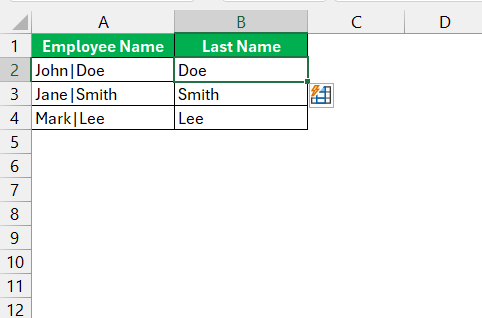
Flash Fill recognizes patterns and automatically fills the remaining data.
STEP 1: In a new column, manually type the first expected value.
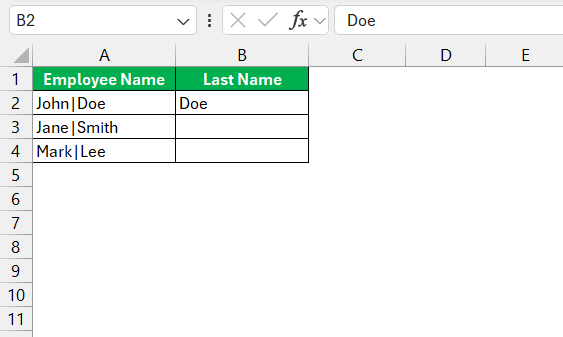
STEP 2: Press Enter, then go to Data > Flash Fill (or press Ctrl + E).
FAQs
What is a delimiter in Excel?
A delimiter is a symbol that can be used to separate text in Excel.
What are the most common delimiters?
Some common delimiters in Excel include commas, spaces, tabs, and semicolons.
How to split text in Excel?
- Select the column.
- Go to Data > Text to Columns.
- Choose Delimited and click Next.
- Select the delimiter.
- Choose the destination cell.
- Click Finish.
Can I use formulas to split text in Excel?
Yes, you can use formulas like TEXTSPLIT, LEFT, RIGHT, MID, and FIND.
What is the shortcut for Flash Fill in Excel?
The shortcut for Flash Fill is Ctrl + E.

John Michaloudis is a former accountant and finance analyst at General Electric, a Microsoft MVP since 2020, an Amazon #1 bestselling author of 4 Microsoft Excel books and teacher of Microsoft Excel & Office over at his flagship MyExcelOnline Academy Online Course.

 30 Days - Full Access









