 Free Practice Workbook
It is a common challenge to handle blank cells in Excel. There are various techniques available in Excel that can be used to effectively manage blank cells. It can be useful to clean data, perform calculations, or set up logical tests. In this article, you will learn how to find blank cells using Excel If Blank.
Key Takeaways:
- Combine the IF and ISBLANK functions to check for blank cells.
- Use the Conditional formatting feature to spot blank cells.
- Use the COUNTBLANK function to count the number of blank cells.
- Differentiate between true blank cells and zero-length strings using the LEN function.
- Create custom formulas combining IF, ISBLANK, and other functions to automate responses to blank cells.
Table of Contents
Introduction to Blank Cell
Blank cells in data can create complex problems during data analysis. They can provide incorrect results or disturb the clean and professional look of the report.
One of the most effective ways to handle this challenge is to use IF BLANK. This feature will check the presence of blank cells and provide flexibility to perform a specific action based on the result. It instructs Excel to perform one action if the cell is blank and a different action if the cell contains data.
Understand Excel Function
IF Function
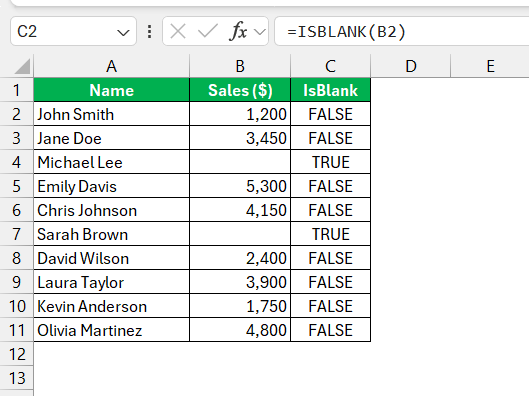
Understanding how to use the IF function for handling blanks is an invaluable skill. The syntax of an IF function is:
=IF(logical_test, value_if_true, value_if_false)
This function allows you to check a logical condition and return a value based on the result of the logical test.
COUNTBLANK Function
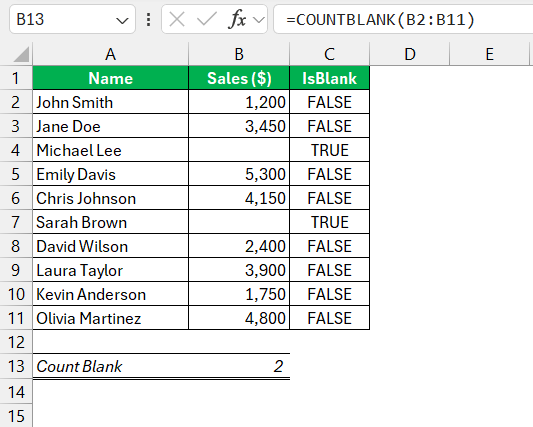
The COUNTBLANK function is used to count the number of cells that are blank. The syntax is:
=COUNTBLANK(range)
Custom Function with IF and ISBLANK
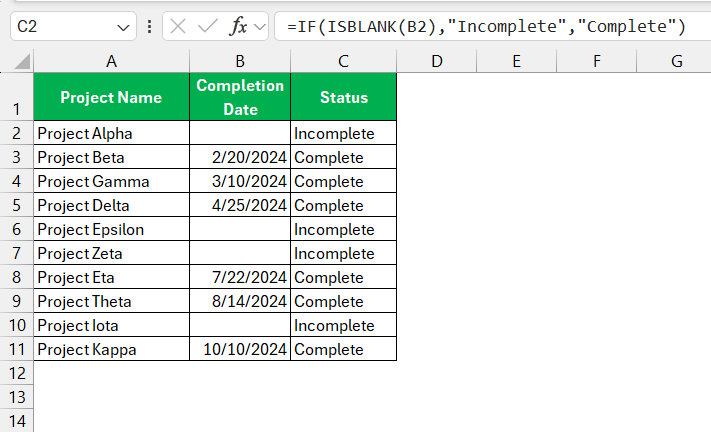
In Excel, you can combine the IF and ISBLANK functions to meet specific requirements around blank cells. You can create a formula that says, “If this cell is blank, then leave the next cell empty; otherwise, perform a calculation or display a message.”
Tips & Tricks
Deal with Zero-Length Strings as Blanks
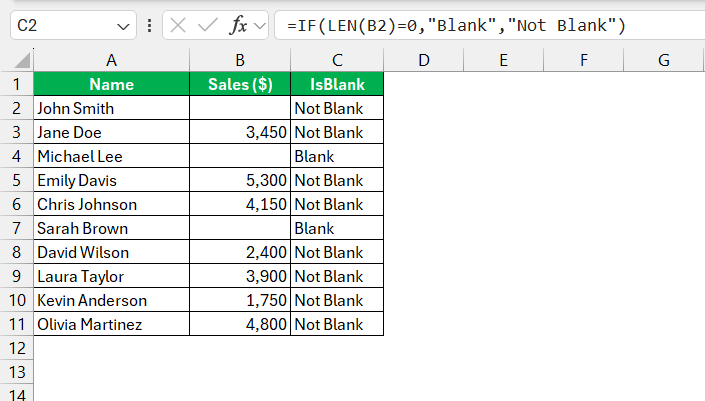
Zero-length strings look like blank cells, but they are not. These strings can result from formulas that return an empty string as opposed to a true empty cell. The ISBLANK function will not be useful in finding these zero-length strings, as it can spot only the true empty cells.
You can use the LEN function to check if the length of the text is 0 or not.
To avoid confusion, you should use the TRIM function to remove any extra spaces. This will make sure that you are checking only a zero-length string or a cell with a space.
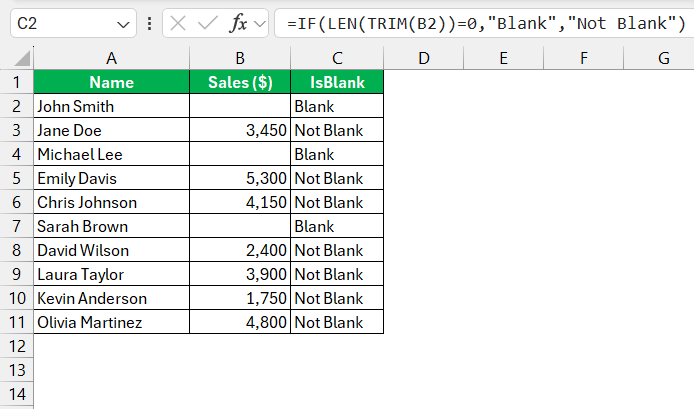
Use Conditional Formatting
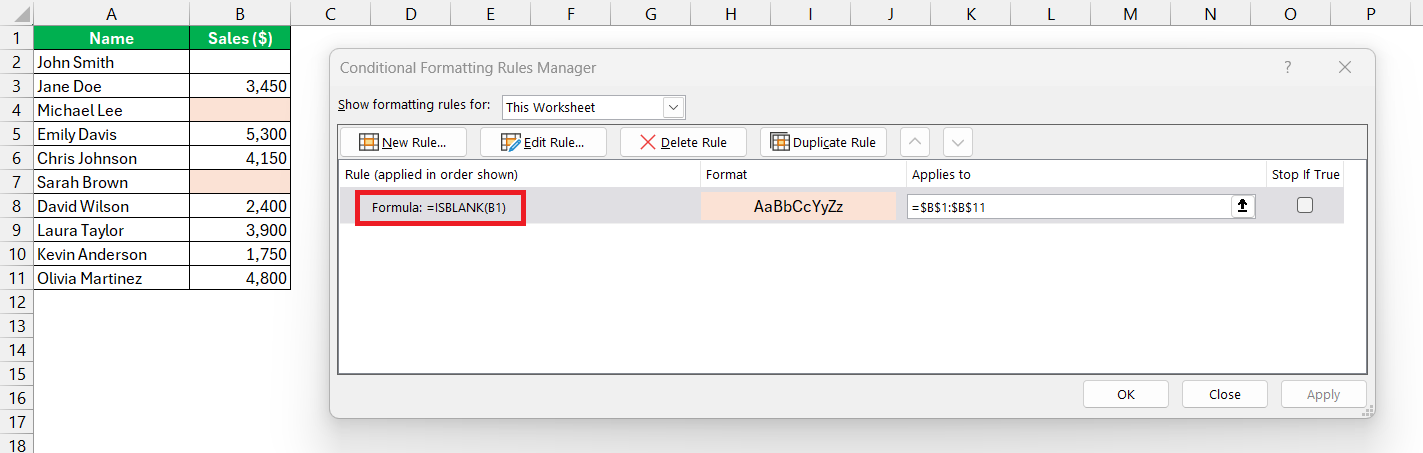
We can use conditional formatting to spot blank cells in Excel. This will help you add a visual cue to spotting blank cells automatically.
In the example below, we can set a rule to change the background color of a cell if it is blank. The formula that can be used for this purpose will be ISBLANK.
Alternatively, we can use the LEN function to check both empty cells and zero-length strings.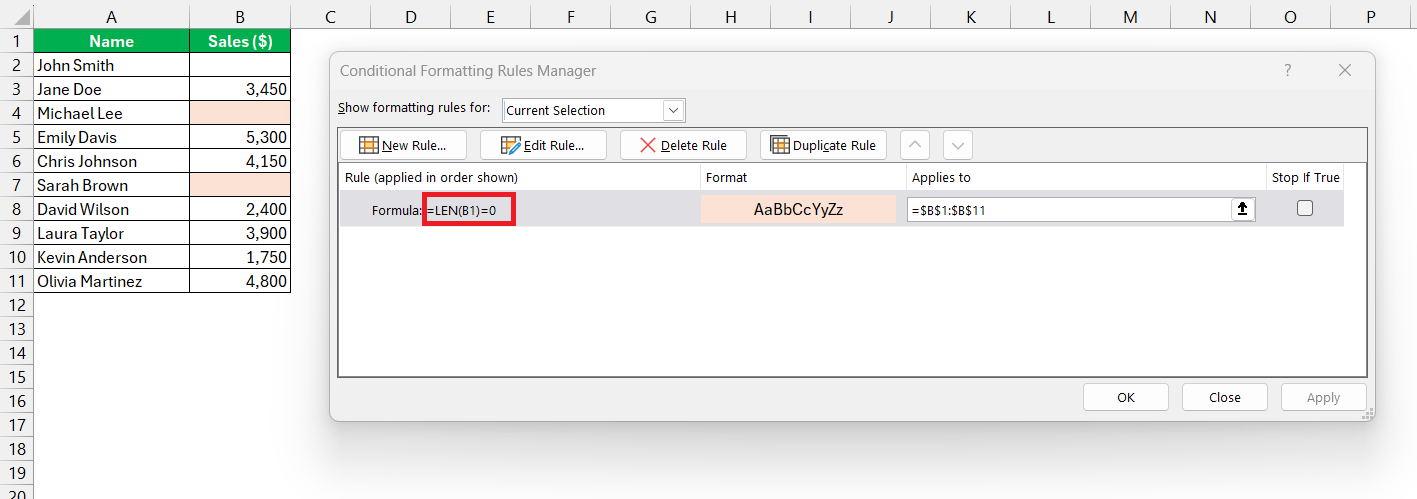
FAQs
What is isblank function?
The ISBLANK function in Excel checks whether a cell is empty.
- If the cell is empty, it will return TRUE.
- If the cell contains a space, formula, or zero-length string, it will return FALSE.
What is IF BLANK function in Excel?
There is no IFBLANK function in Excel. But we combine the IF and ISBLANK functions to create a similar formula. This combination will allow you to check if the cell is blank or not and take actions accordingly.
Are Empty Strings and Blanks the same?
Empty strings and blanks are not the same in Excel. An empty string cell may look blank, but it contains a zero-length string. If you use ISBLANK function on this cell, it will return the result as FALSE.
Whereas, a true blank is empty and will return the result as TRUE.
How to count blank cells in Excel?
You can use the COUNTBLANK function to count the number of blank cells in Excel.

John Michaloudis is a former accountant and finance analyst at General Electric, a Microsoft MVP since 2020, an Amazon #1 bestselling author of 4 Microsoft Excel books and teacher of Microsoft Excel & Office over at his flagship MyExcelOnline Academy Online Course.

 30 Days - Full Access









