 Free Practice Workbook
Sometimes, when you are working with formulas in Excel, you may see the formula instead of the result in the cell. This is one of the most common issues that can be easily resolved by adjusting the settings. In this article, you will know why Excel showing formula instead of result and how to fix it.
Key Takeaways:
- Press Ctrl + ` to show formula in Excel.
- Make sure that the cell is formatted as General and not text.
- Remove any apostrophe before the formula.
- Remove space before the equal sign.
- Make sure that the calculation mode is Automatic.
Table of Contents
Why Excel Showing Formula instead of Result
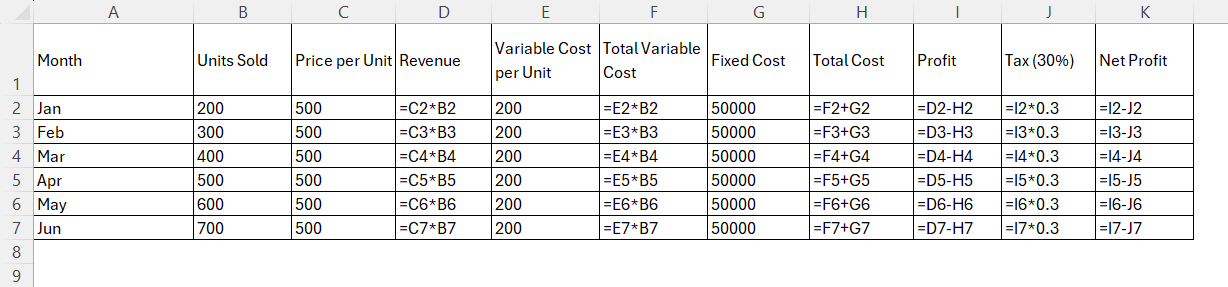
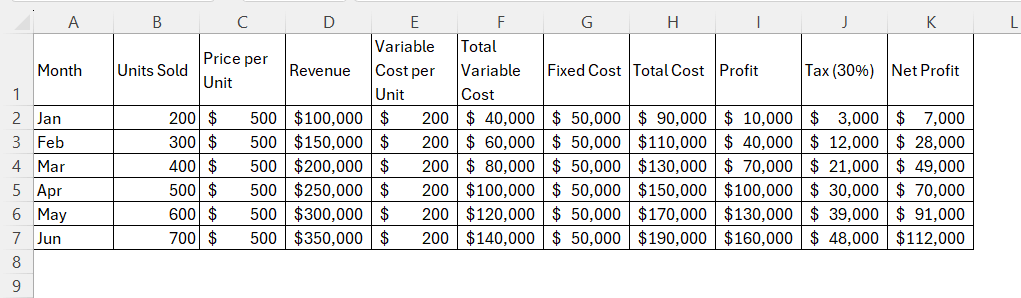
In the Excel worksheet, if you type the formula =C2*B2, Excel displays the formula instead of the result, i.e., 100000. This can be confusing when you are working on an important document. This can usually happen because of a setting, formatting issue, or typing mistake. You need to find the reason for this issue and how to correct the problem.
Let us look at each of the reasons and how to fix those issues.
Show Formulas Mode Is Turned On
The Show Formula mode is sometimes turned on to audit the spreadsheet. It can cause issues if it has been turned on accidentally.
How to Fix it:
- Go to the Formulas tab and click on Show Formula.

- You can also press Ctrl +` to show the results back.
Cell is Formatted as Text
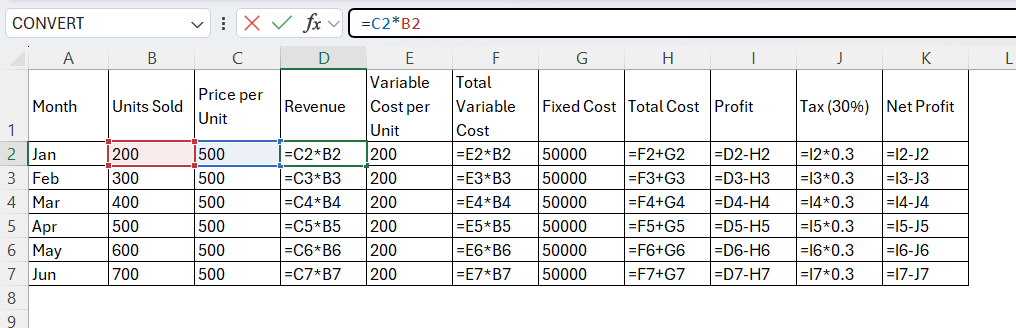
If a cell is formatted as text, Excel will not calculate a formula for that cell. It will display the formula as it is.
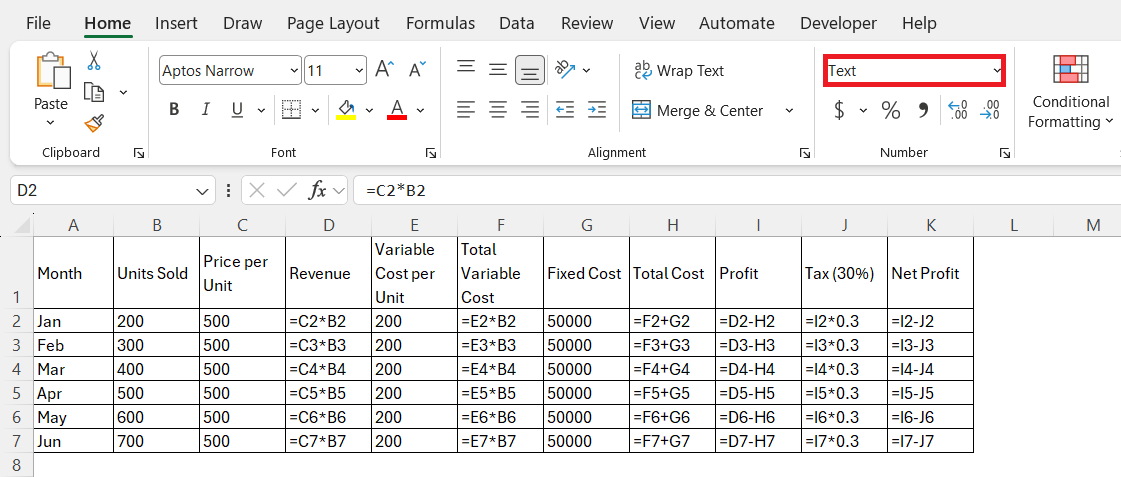
How to Fix it:
- Go to the Home tab.
- Select General from the dropdown.
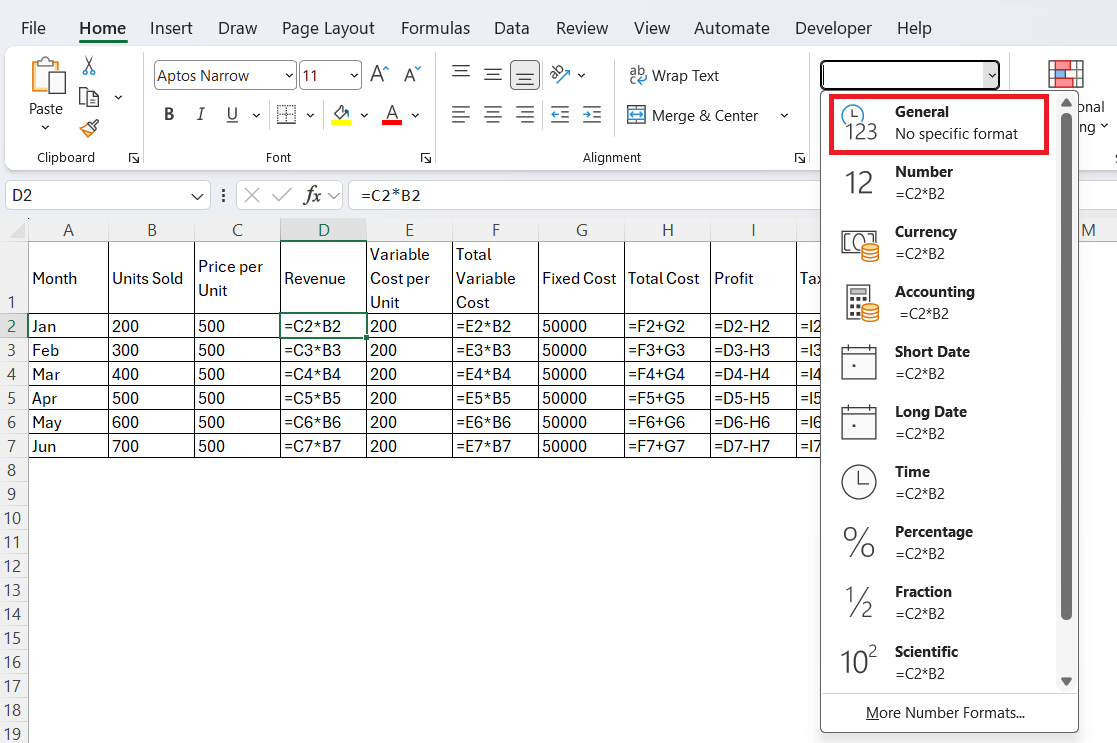
- Click on the cell containing the formula.
- Press Enter.
The results will be displayed as Excel is now treating the cell as a general format and not text.
Apostrophe Before Formula
When you paste data from websites, PDFs, or other software, Excel may add an apostrophe before the formula.
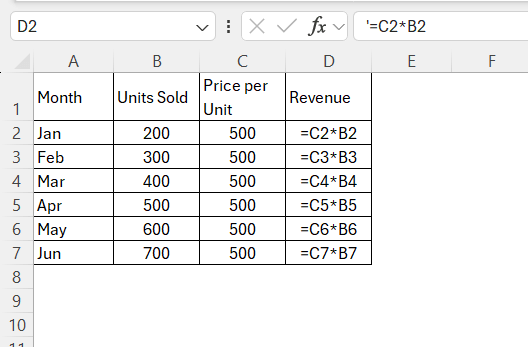
This will tell Excel to format the cell as text and prevent it from doing any calculations.
How to Fix it:
- Click the cell.
- Remove the apostrophe from the formula bar.
- Press Enter.
Space Before the Equals Sign
If a space is added before the equal sign in the cell, it will prevent Excel from performing calculations.
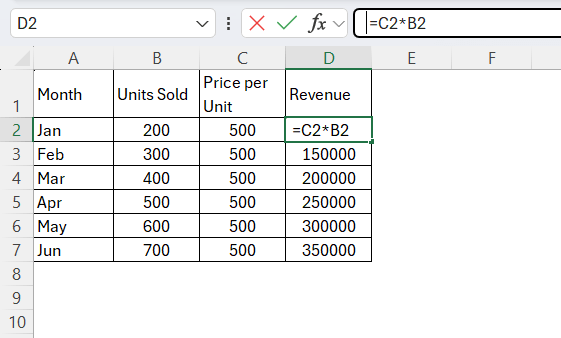
Excel won’t treat it as a formula.
How to Fix it:
Remove the space and enter the formula.
Manual Calculation Mode
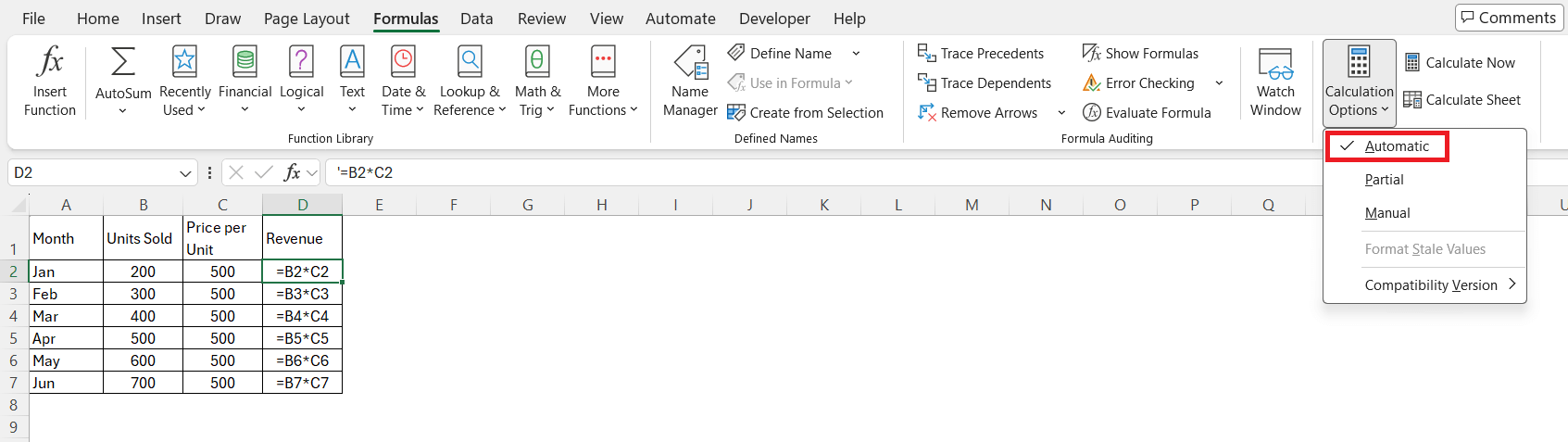
Excel will not recalculate the formula in Manual Calculation mode. This mode will let Excel update the value.
How to Fix it:
- Go to the Formulas tab.
- Click Calculation Options.
- Select Automatic.
FAQs
Why is my formula not calculating after pasting?
If you copy-paste a formula in a cell, it may set the format to Text. This format may prevent Excel from doing any calculations.
Why are formulas not updating automatically?
The formulas may not get updated if the calculation mode is set to Manual. You have to change it to Automatic.
Why Excel Showing Formula instead of Result?
Press Ctrl + ~ to enable the Show Formula mode. If this mode is activated, all the cells containing a formula will display the formula instead of the result.
How to turn on Show Formula mode?
- Go to the Formulas tab and click on Show Formula.
- You can also press Ctrl +` to show the results back.
What is Automatic Calculation Mode in Excel?
The Automatic Calculation mode is a setting in Excel that updates formulas instantly when you make any change in the worksheet. Follow the steps below to enable Automatic mode:
- Go to the Formulas tab.
- Click Calculation Options.
- Select Automatic.

John Michaloudis is a former accountant and finance analyst at General Electric, a Microsoft MVP since 2020, an Amazon #1 bestselling author of 4 Microsoft Excel books and teacher of Microsoft Excel & Office over at his flagship MyExcelOnline Academy Online Course.

 30 Days - Full Access









