 Free Practice Workbook
The status bar in Microsoft Excel is a helpful tool located at the bottom of the worksheet that displays important information about selected cells, such as count, sum, and average values. Let us go over the common issues when you status bar is not showing.
Key Takeaways
- The missing sum or count-only display are common issues. It is often fixed by checking cell content.
- Quick solutions include activating total calculations in the status bar options, converting text to numbers, and using paste special with multiply.
Download the spreadsheet and follow along with the tutorial on How to Fix the Excel Status Bar not showing sum in Excel – Download excel workbookExcel-Status-bar-not-showing-sum.xlsx
Table of Contents
Common Status Bar Problems
Sum Missing from View
This happens when the function is turned off or is caused by data format issues.
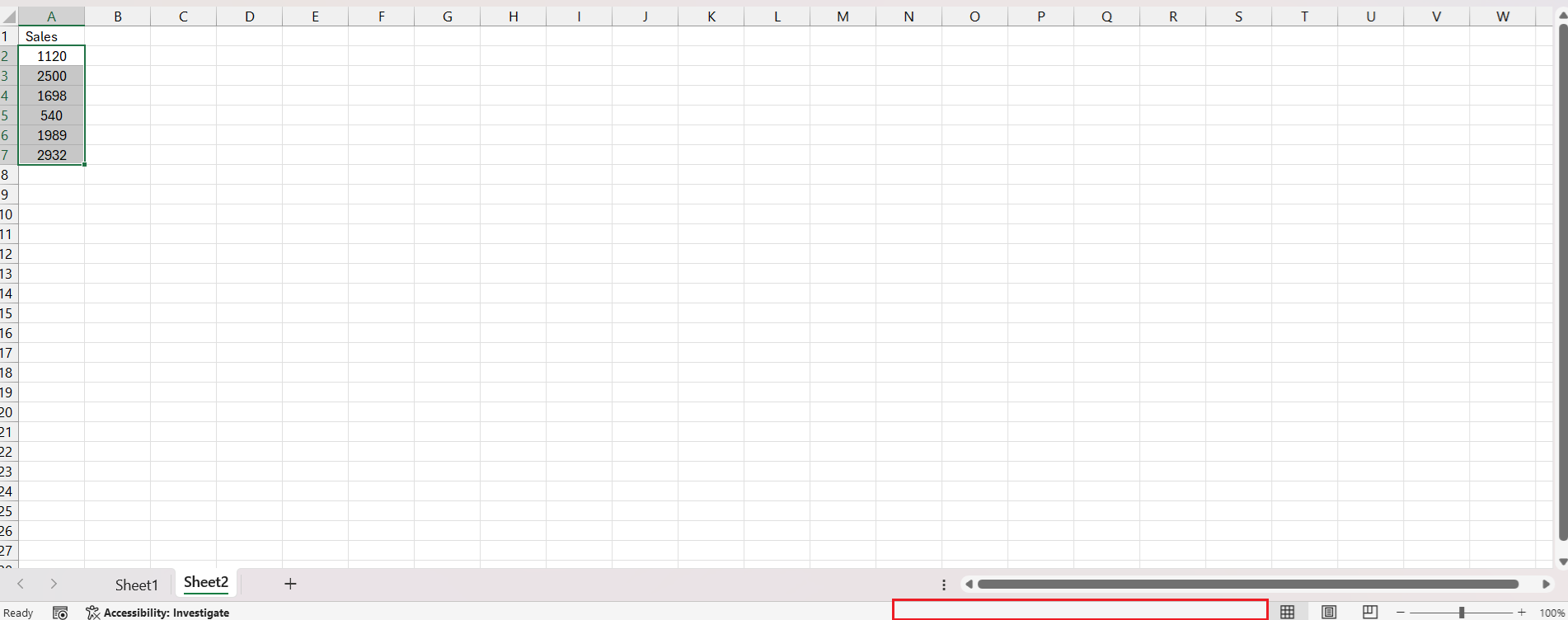
Count Only Shown on Status Bar
If you notice only the count is displayed on the status bar, it means that only cell selection is recognized. Sometimes this happens when cells contain text or blanks instead of numerical values.
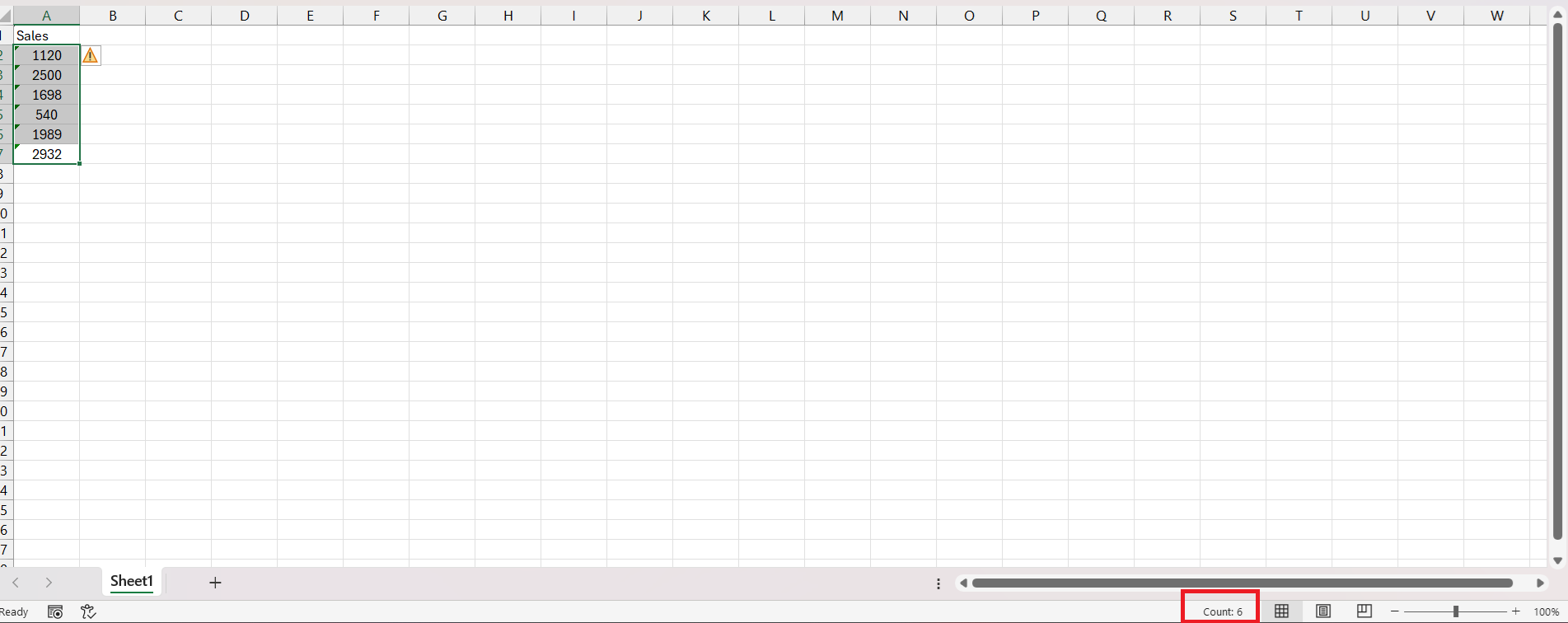
Troubleshooting the Excel Status Bar
Solution 1 – Activating Total Calculation in Status Bar Options
Follow these steps to activate:
STEP 1: Put your mouse pointer to the worksheet’s status bar and right-click to show the ‘Customize Status Bar’ menu.
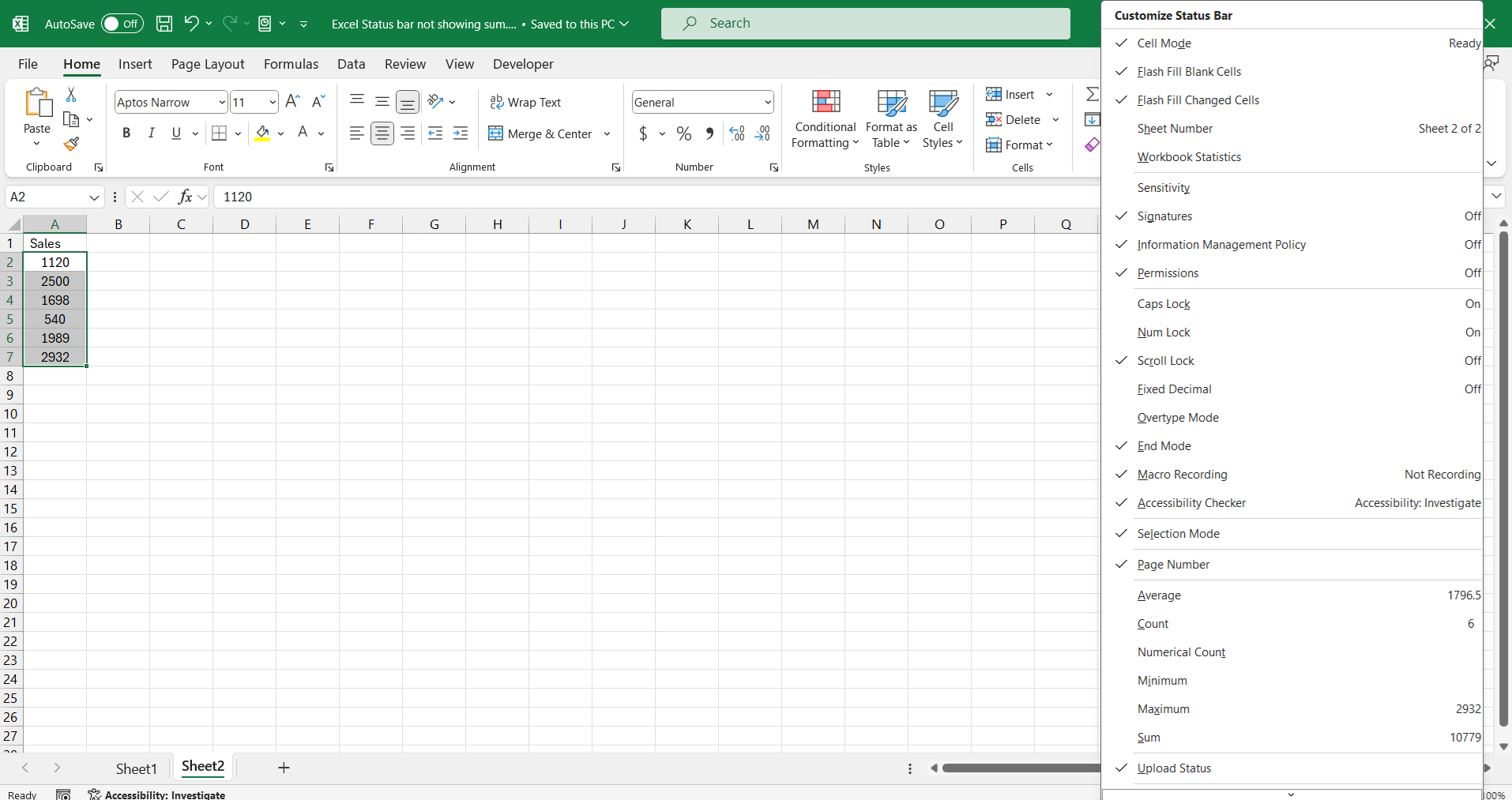
STEP 2: Look for the ‘Sum’, ‘Average’, and ‘Count’ options. Click to make sure these are checked.
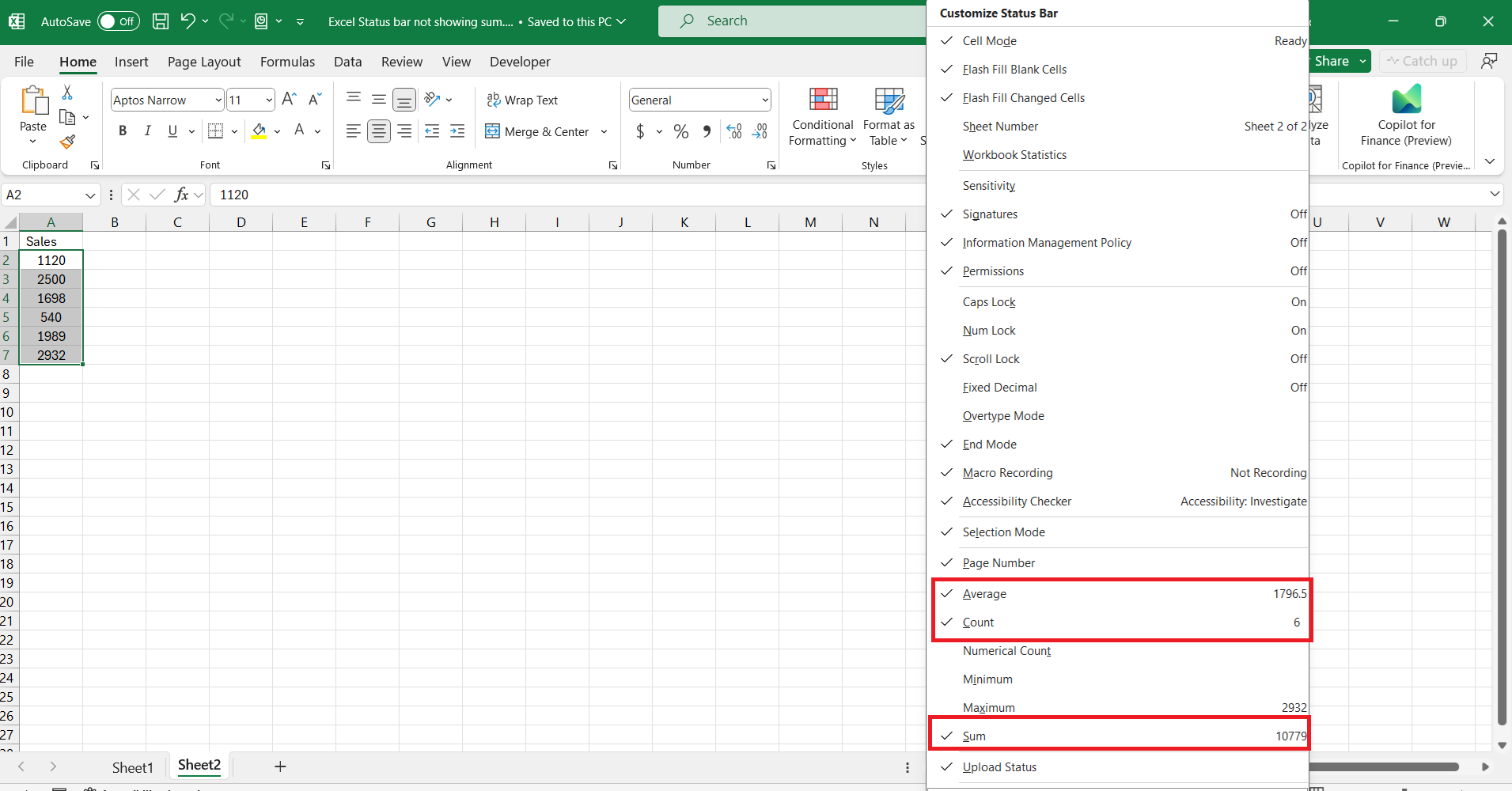
Voilà! Now select a range of cells with numerical values and you should see your status bar working.
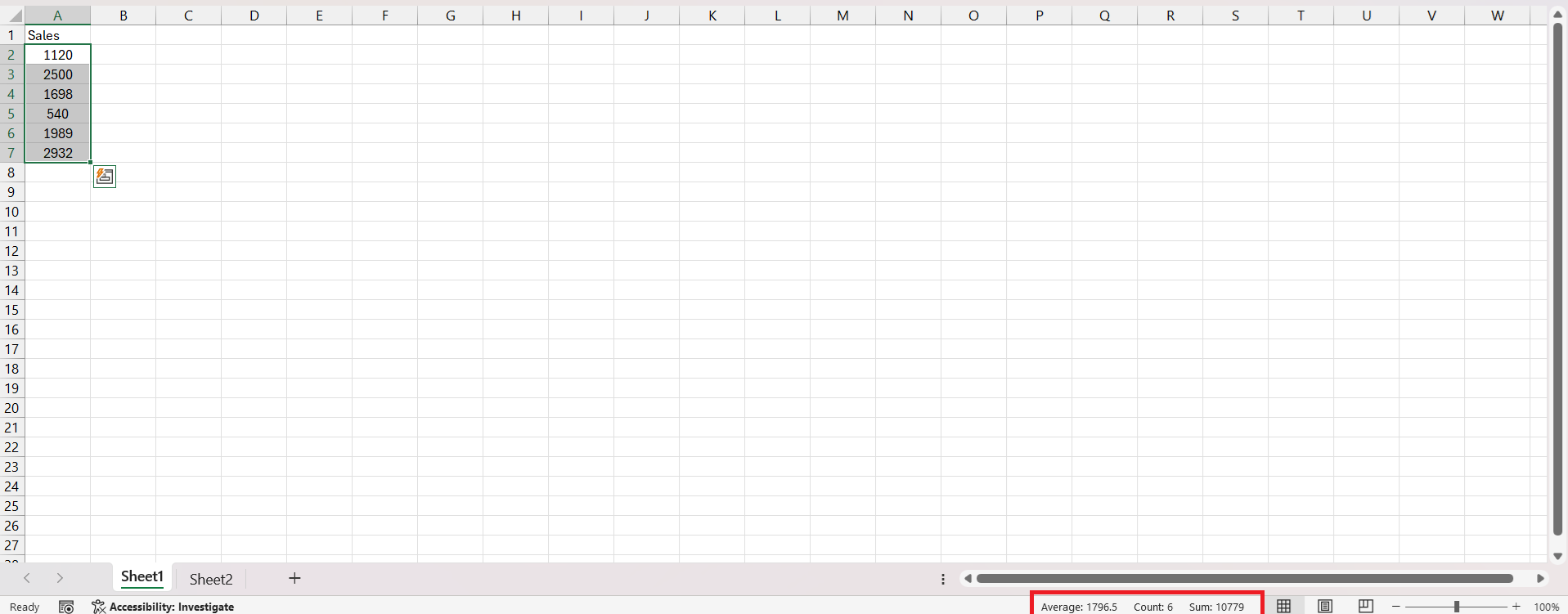
Solution 2 – Using Warning Sign Options
STEP 1: Select your data range by clicking and dragging your mouse over the desired cells.
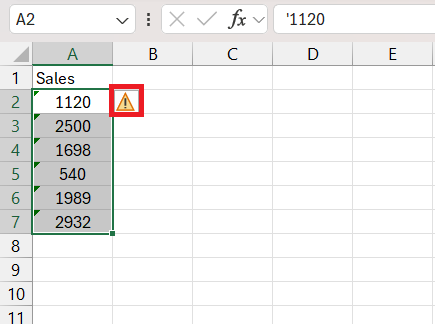
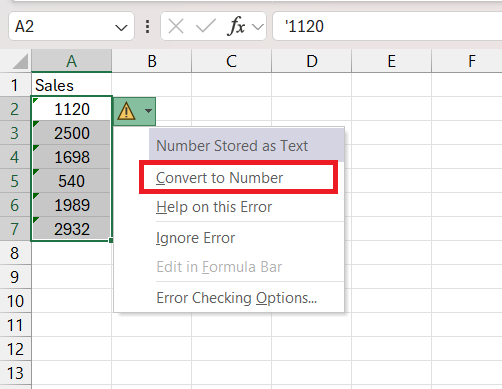
STEP 2: Click on the Yellow warning sign and select ‘Convert to Number’.
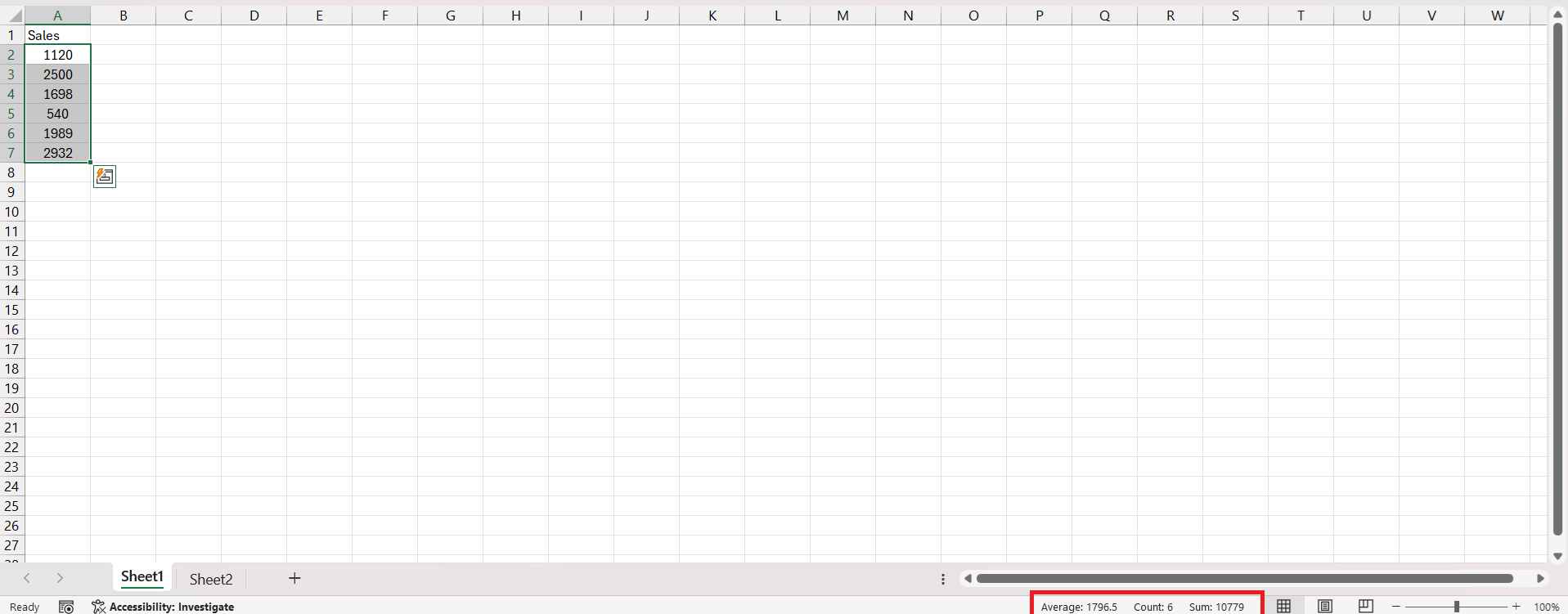
The sum should now be displayed in the status bar.
Solution 3: Using Paste Special
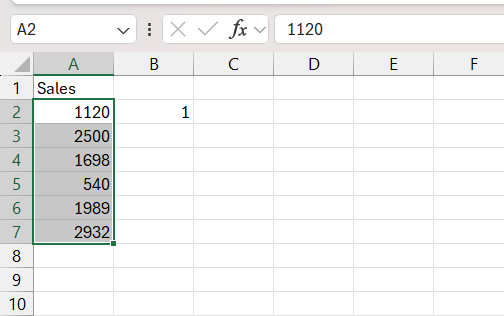
STEP 1: Enter the number 1 in any blank cell.
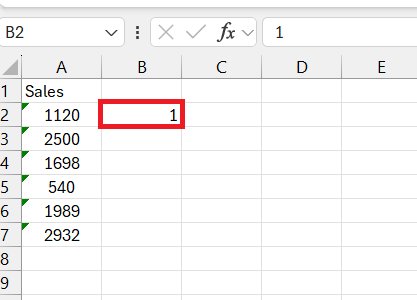
STEP 2: Press Ctrl + C to copy.
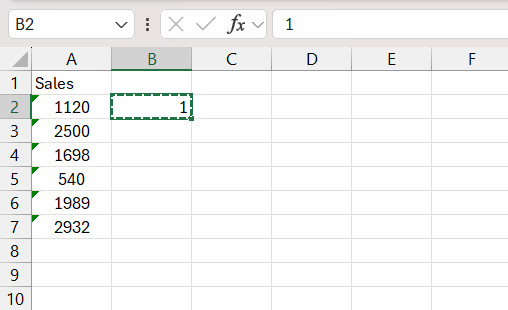
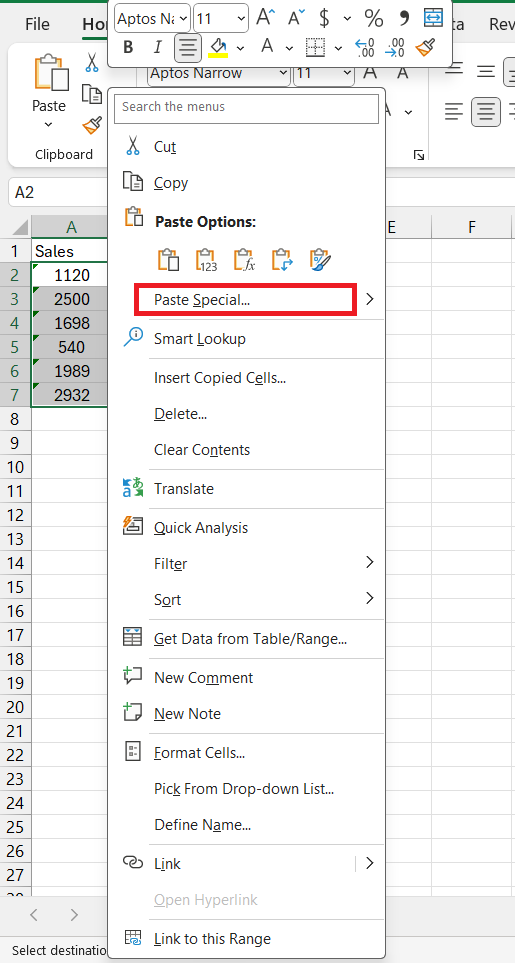
STEP 3: Select the cells with the text you want to convert to numbers. Right-click on the selected cells and choose Paste Special.
STEP 4: In the Paste Special dialog box, under Operation, select Multiply. Click OK.
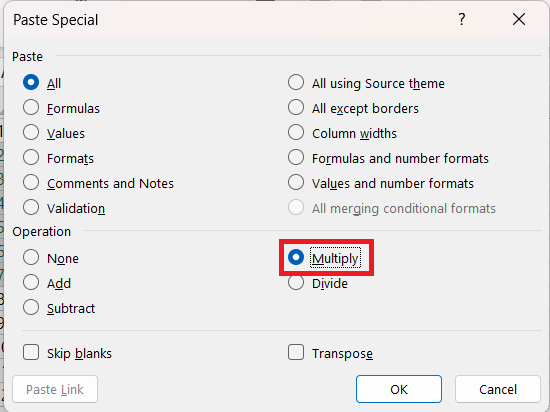
Excel will convert the text to numbers by multiplying each text value by 1, which effectively changes the format without altering the value.
Tips to Prevent Future Status Bar Glitches
Check Proper Cell Formatting
Begin with the right foot forward: Ensure your cells are formatted correctly before starting. Here’s how to avoid future hiccups:
STEP 1: Select your data cells.
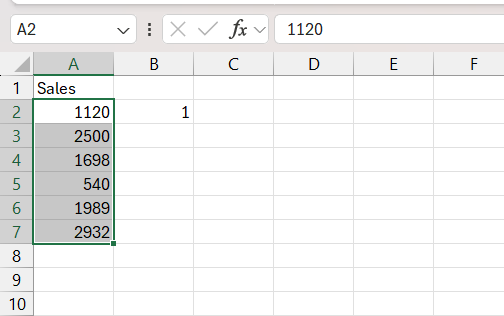
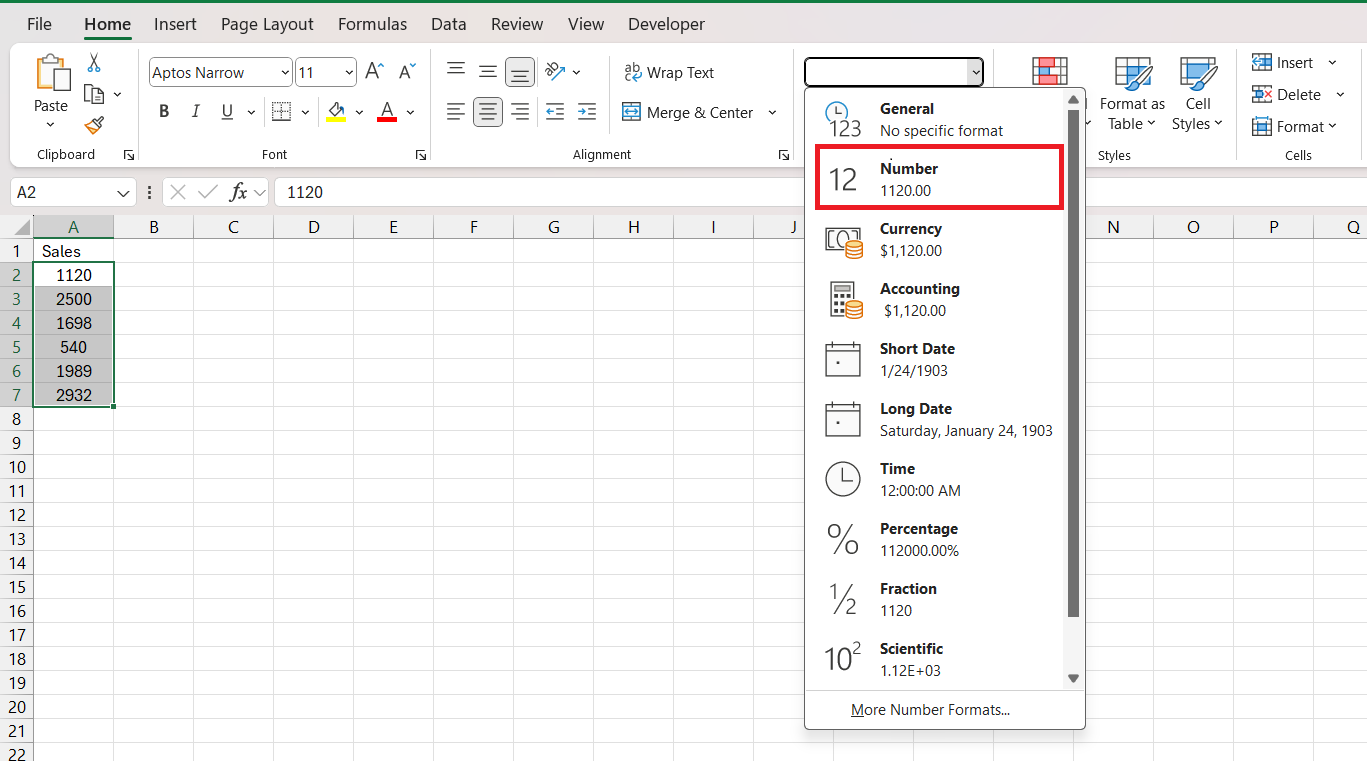
STEP 2: Go to Home and select the correct format as shown below.
Frequently Asked Questions
Why is my status bar not showing in Excel?
The status bar in Excel may not show if it’s been disabled in the options, or if the Excel window is in full screen or windowed mode where the status bar is obscured. Check status bar customization settings, and ensure the Excel window is maximized.
Does the sum value in the status bar work with non-contiguous cell selections?
Yes, the sum value in the Excel status bar works with contiguous cell selections. You can select multiple ranges holding the ‘Ctrl’ key, and Excel will display the sum for all those cells in the status bar.
Which adblocker could be interfering with Excel’s status bar?
Adblockers don’t typically interfere with Excel’s status bar as it’s a desktop application feature and not web-based. If experiencing issues, it’s likely due to Excel settings or system configurations rather than an adblocker.

John Michaloudis is a former accountant and finance analyst at General Electric, a Microsoft MVP since 2020, an Amazon #1 bestselling author of 4 Microsoft Excel books and teacher of Microsoft Excel & Office over at his flagship MyExcelOnline Academy Online Course.

 30 Days - Full Access









