 Free Practice Workbook
When working with large datasets in Excel, one of the biggest challenges is narrowing down the data to exactly what you need. That’s where the FILTER function comes into play. It allows us to pull specific data that meets certain criteria, making it a powerful tool for sorting through complex datasets. But what happens when we have multiple criteria to filter by? Excel’s FILTER function can handle that too.
Key Takeaways:
- The FILTER function in Excel extracts data based on specified criteria.
- You can combine multiple criteria using logical operators like AND and OR.
- Nesting FILTER functions allow you to filter non-adjacent columns.
Table of Contents
The Excel Filter Function
What Is the FILTER Function?
At its core, the FILTER function in Excel extracts data based on a given condition. For example, if I wanted to filter out a list of sales to only show those above a certain value, I could use the FILTER function to do that quickly.
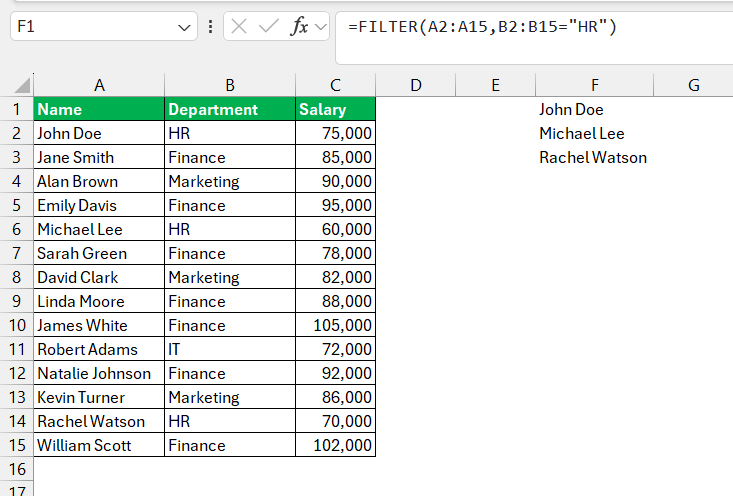
The syntax is: =FILTER(array, include, [if_empty])
- Array: The range of data you want to filter.
- Include: The condition(s) or criteria to apply.
- [if_empty]: Optional. What to return if no values meet the criteria (e.g., “No Data”).
Why Use Multiple Criteria?
In the real world, we rarely work with simple datasets that have only one criterion. For example, when working on a customer analysis report, I might need to pull data for sales that happened during a specific time period and for specific product categories.
Logical Operators for Multiple Criteria
When I’m dealing with multiple conditions, I can use logical operators such as AND and OR to specify exactly how I want the criteria to work.
- AND logic: All conditions must be met. For example, if I want to filter for sales greater than $500 and occurring in 2023.
- OR logic: At least one of the conditions must be met. For example, sales greater than $500 or occurring in 2023.
Example of Filter Function with Multiple Criteria
Filters with Multiple AND Criteria
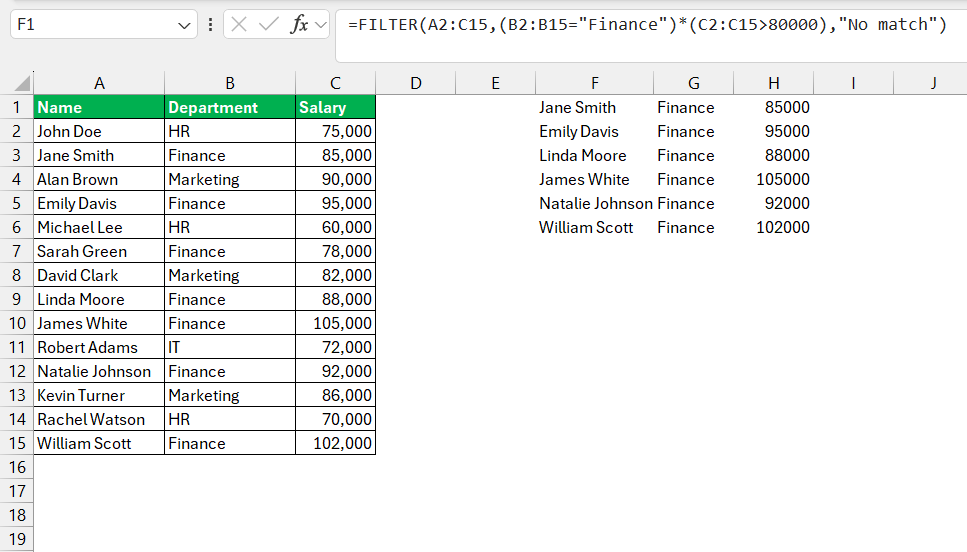
To search for employees in the Finance department with salaries above $80,000 use this formula:
=FILTER(A2:C15,(B2:B15="Finance")*(C2:DC15>80000),"No match")
Using Multiple OR Criteria
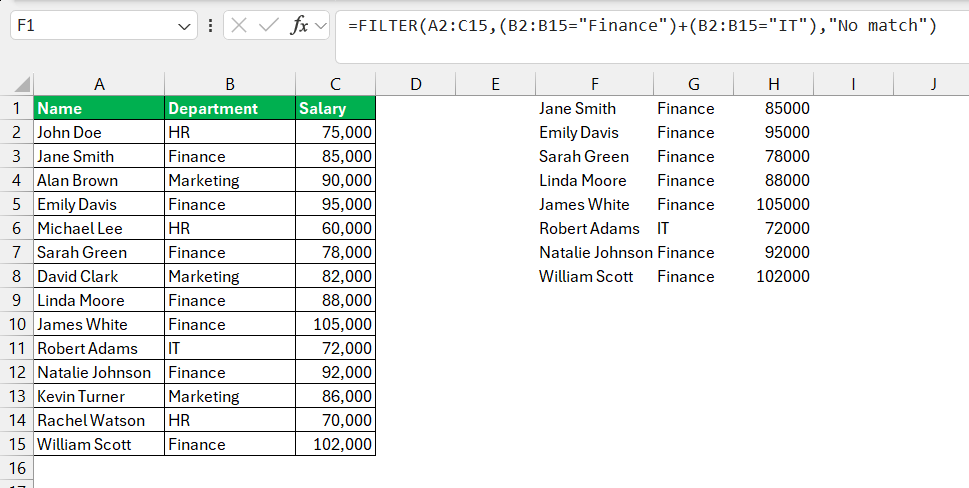
To extract records where the department is equal to either HR or Finance, use this formula:
=FILTER(A2:C15, (B2:B15="Finance") + (B2:B15="IT"), "No match")
FAQs
How Can I Use Multiple Criteria in One Column with the Filter Function?
To use multiple criteria within a single column using the FILTER function, we can combine conditions using the “+” symbol for OR logic, or the “*” symbol for AND logic. For example, =FILTER(A2:A10, (B2:B10="Criteria1") + (B2:B10="Criteria2")) returns rows where the value in column B is either “Criteria1” or “Criteria2”. Remember that our criteria should be constructed carefully to ensure they’re returning the correct rows from our dataset.
What is the filter function?
The FILTER function is a dynamic feature in Excel that allows us to extract data based on specific criteria from a given range. It sifts through the data, returning an array that meets our set conditions. What sets it apart is its dynamic nature—as the input data changes, the FILTER function automatically adjusts the output, ensuring up-to-date results without needing to manually reapply the filter. It’s an essential function for managing large datasets and conducting targeted data analysis.
What is the dynamic filter function in Excel?
The dynamic filter function in Excel refers to the FILTER function, an elegant addition to the Excel formula roster that dynamically updates its output. When changes occur in the underlying data or within the criteria specified, the results reshuffle automatically to reflect the latest information.

John Michaloudis is a former accountant and finance analyst at General Electric, a Microsoft MVP since 2020, an Amazon #1 bestselling author of 4 Microsoft Excel books and teacher of Microsoft Excel & Office over at his flagship MyExcelOnline Academy Online Course.

 30 Days - Full Access









