 Free Practice Workbook
When working with numbers in Excel, you may need to round down values to a specific multiple. That is where the FLOOR function comes in handy. In this article, you will learn how to use the FLOOR function in Excel.
Key Takeaways:
- The FLOOR function rounds a number down to a fixed multiple.
- It will always round down the value, never increase it.
- It is a useful function to round down prices.
- It also helps manage time in fixed blocks.
Table of Contents
Introduction to Floor Function
The FLOOR function rounds a number down to a chosen multiple. It will always round down, not round up. It is useful for calculating things like packaging sizes or manufacturing standards.
The syntax of the FLOOR function is:
=FLOOR(number, significance)
- number: The value you want to round down.
- significance: The multiple to which you want to round down.
How to use the FLOOR Function
For Rounding Down
If the prices are mentioned in decimals, you can use the FLOOR function to round them down to the nearest dollar amount. This keeps pricing standardized and simple for customers.
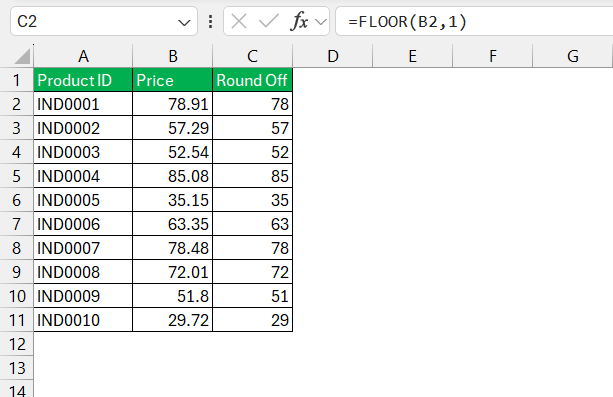
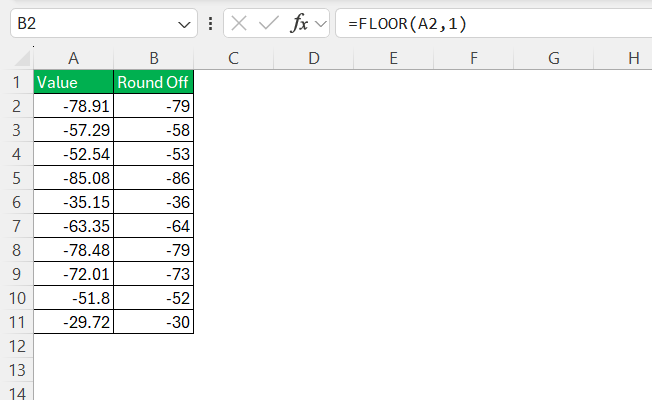
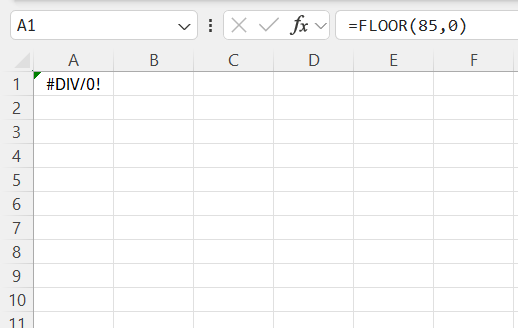
While positive numbers are straightforward, negative values will still round down, away from zero. Zeros are considered a special case because if ‘significance’ is zero, it causes a division error.
Compare FLOOR with Other Rounding Functions
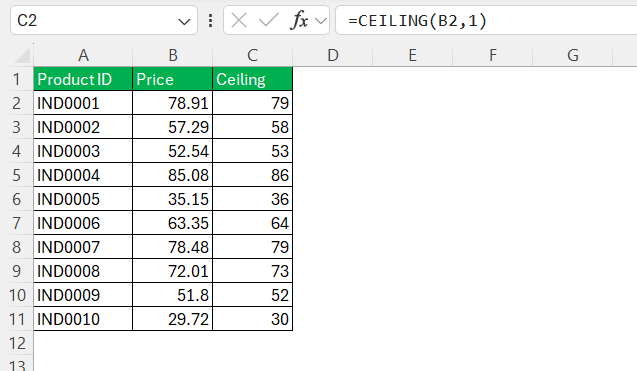
When it comes to rounding numbers in Excel, FLOOR isn’t the only function available. You can use the CEILING function to round up to the nearest specified multiple.
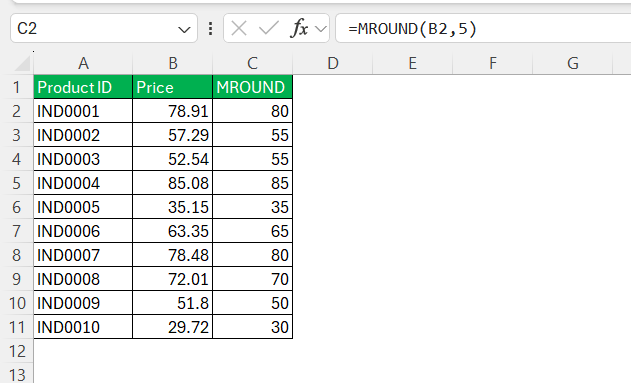
Comparatively, the MROUND function rounds a number to a specified multiple, either up or down, depending on what is nearer.
The FLOOR.MATH function is an advanced iteration of the FLOOR function. It offers additional flexibility with its ability to round negative numbers towards zero and its intelligent handling of significance, rounding down by default with a significance of 1 if not specified.
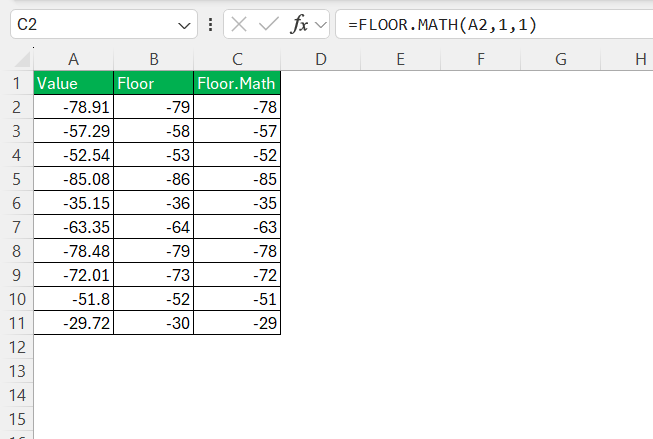
Understanding the nuances of these functions enables us to choose the most suitable tool for our rounding needs. For example, when consistency with minimum thresholds is essential, FLOOR proves invaluable, while MROUND might be preferred when approximately rounded figures are required.
Troubleshooting Common Issues
If the number and the significance have different signs, Excel returns a #NUM! error. To avoid this, make sure that both inputs share the same sign.
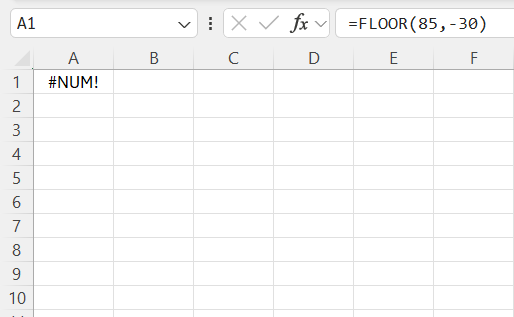
If either the number or the significance is zero or non-numeric, Excel returns an error. You must double-check inputs to avoid this issue.
FAQs
What is floor function?
The FLOOR function is an Excel feature that rounds down a given number to the nearest specified multiple.
What are some common mistakes when using the FLOOR function?
Common mistakes when using the FLOOR function include:
- Not specifying the significance value
- Using incorrect syntax
- Not matching the number of arguments
- Adding unnecessary complexity to formulas
Can the FLOOR function handle negative numbers?
Yes, the FLOOR function can handle negative numbers. But it is important to remember that it always rounds down towards negative infinity.
How does the FLOOR function work?
The FLOOR function works by rounding a number down to the nearest multiple of a specified significance.
What is the value of (FLOOR 14, 4)?
The value of FLOOR(14, 4) in Excel is 12. This is because FLOOR rounds the number 14 down to the nearest multiple of 4, and the largest multiple of 4 that is less than or equal to 14 is 12.

John Michaloudis is a former accountant and finance analyst at General Electric, a Microsoft MVP since 2020, an Amazon #1 bestselling author of 4 Microsoft Excel books and teacher of Microsoft Excel & Office over at his flagship MyExcelOnline Academy Online Course.

 30 Days - Full Access









