Pinterest Pixel

Learn How to Forward Meeting Invites in Outlook

John Michaloudis
In today's fast-paced, interconnected world, efficient email management is key to productivity.
With endless streams of messages and meeting invites flooding inboxes, it’s essential to smooth your process.

For professionals using Outlook, mastering how to forward meeting invites can be a game-changer, so that no one is left out and that your team remains synchronized, wherever they may be.

In today’s fast-paced, interconnected world, efficient email management is key to productivity. With endless streams of messages and meeting invites flooding inboxes, it’s essential to smooth your process. For professionals using Outlook, mastering how to forward meeting invites can be a game-changer, so that no one is left out and that your team remains synchronized, wherever they may be.

Learn our Top 7 Excel Interview Questions to Land Your Dream Job!

Key Takeaways

  • Forwarding meeting invites in Outlook is quick and easy.
  • You can forward invites from the calendar or inbox.
  • Multiple methods exist, including Forward and drag-and-drop.
  • Adding a short note helps explain why the invite is shared.
  • Always check permissions and recipients before sending.

Within the Outlook environment, forwarding a meeting invite is an intuitive process, designed to extend collaboration beyond the initial recipients. It functions seamlessly, allowing you to easily bring additional colleagues into the loop on scheduled discussions or important events. When you forward an invite, you do so from within the familiar interface of your calendar or inbox, where Outlook generates a new message with the original meeting details, ready for you to share with others.


Getting Started with Forwarding Invites

Locating the Meeting Request in Your Calendar

Finding the meeting you need to forward in Outlook is straightforward. Simply switch to the “Calendar” section and skim through your schedule to find the correct meeting. Don’t forget, the meeting might be filed under different calendar folders, so double-check if it’s not immediately visible. Once located, the meeting invite is just a few clicks away from being forwarded to the intended recipient.

Different Methods to Forward a Meeting in Outlook

Outlook offers several methods to forward a meeting, catering to different preferences and situations. You can opt for the direct approach using the Forward button or use the drag-and-drop method for a quicker alternative. Additionally, for those who prefer a more customizable option, you can leverage the Meeting Request feature to do the task.

  1. Forward Button Method: Simply open the meeting and click the Forward button. (Ideal for quick forwarding actions.)
  2. Drag-and-Drop Method: Select the meeting, drag it to the mail icon, and drop it to create a new email with the meeting details embedded. (Useful for those who manage emails and meetings simultaneously.)
  3. Meeting Request Tool: Choose the meeting request tool to allow modifications before forwarding.

Method 1: Simple Forward from the Meeting Request

Step-by-Step Instructions on Using the Forward Button

To use the Forward button in Outlook to share a meeting invite, follow these simple steps:

STEP 1: Open Outlook: Begin by launching the Outlook application.

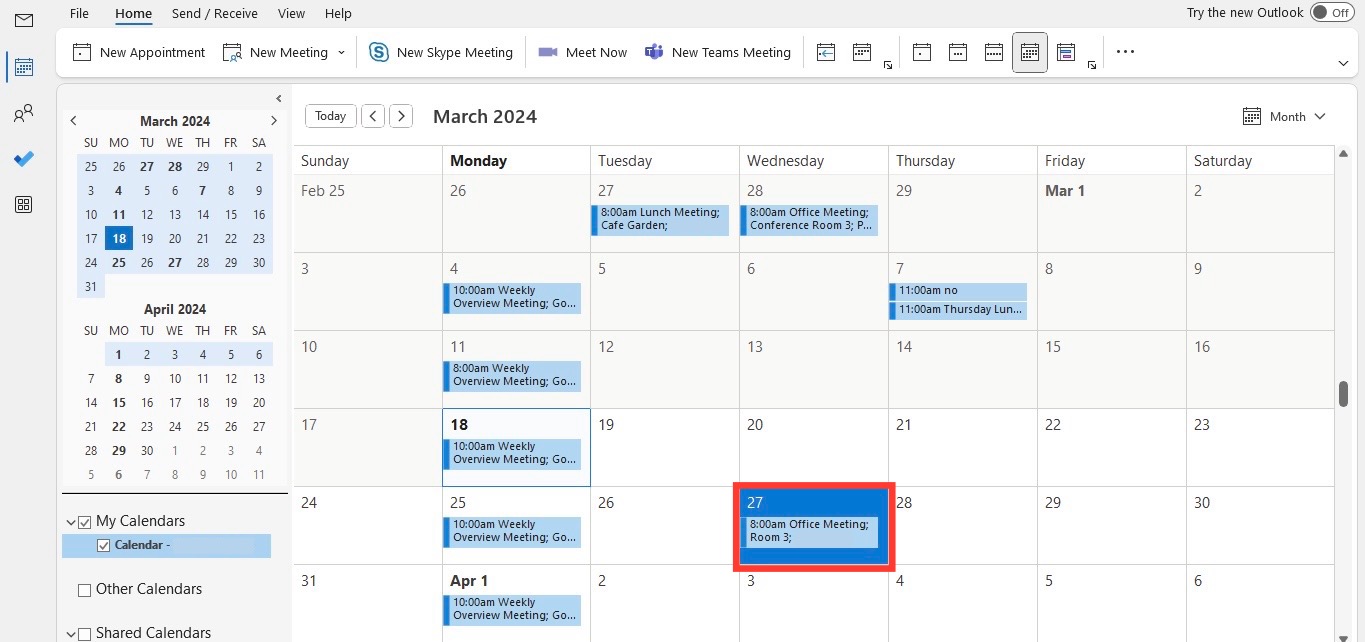
STEP 2: Access Your Calendar: Navigate to the “Calendar” in the navigation pane or use the shortcut “Ctrl-2” to view your scheduled meetings.

STEP 3: Find the Meeting: Locate the meeting you wish to forward. Double-click to open it.
Forward meeting invites
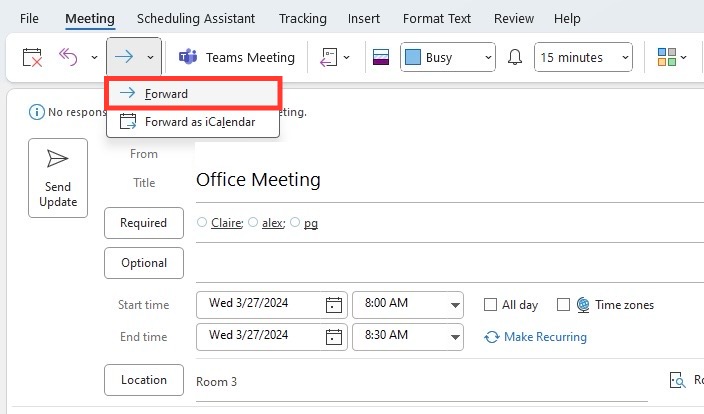
STEP 4: Forward the Invite: Look for the “Forward” button, often found in the ribbon or “Actions” tab at the top.
Forward meeting invites
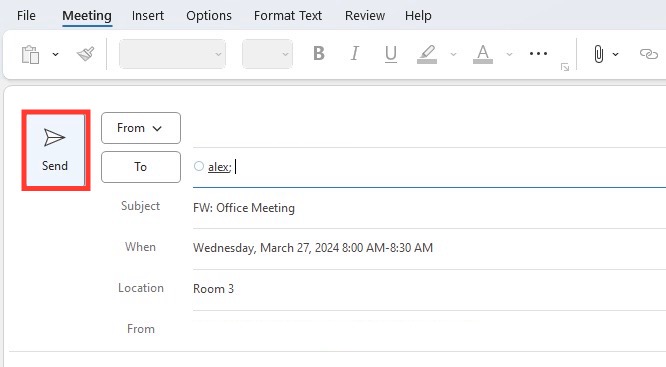
STEP 5: Choose Recipients: In the new window that opens, add the email addresses of those you want to include.

STEP 6: Optional Personal Note: Here, you can include a message or additional information.

STEP 7: Send: Review your details and hit “Send” to forward the invite.
Forward meeting invites
While these steps make forwarding invites a breeze, remember that some meetings may have specific permissions set by the organizer.

Tips for Adding Personal Notes while Forwarding

When adding a personal note while forwarding a meeting invite, keep it short and to the point. Here are tips you should follow:

  • Keep it Short: Your note should be a quick pointer or comment, not a detailed message.
  • Be Clear: State the reason for forwarding to avoid confusion for the recipient.
  • Maintain Privacy: If the original invite includes sensitive information, avoid discussing it in your note.
  • Professional Tone: Even if forwarding informally, maintain a professional demeanor.
  • Double-Check Recipients: Make sure you’re sending the note to the correct people to avoid information leaks.

By weaving in a concise and purposeful note, you can help recipients understand why they’re being included and what’s expected.

Method 2: Advanced Forwarding Options

Using The ‘Forward as iCalendar’ Feature

The ‘Forward as iCalendar’ feature in Outlook presents a versatile way to share meeting information. It packages the invite as an .ics file, which can be opened in various calendar applications. Here’s how to use it:

STEP 1: Open the Relevant Meeting: Start by launching Outlook, switch to your calendar, and double-click the meeting you want to forward.

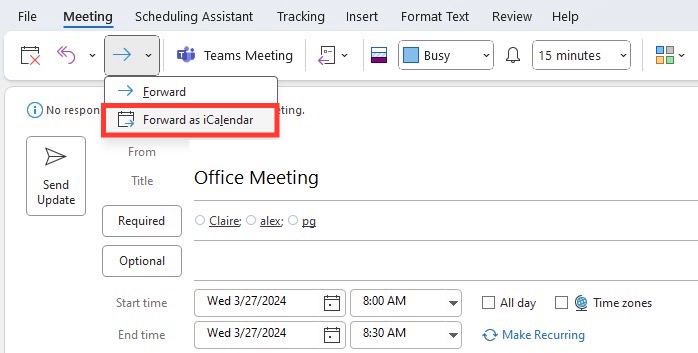
STEP 2: Choose Forward Option: Within the meeting window, navigate to the “Actions” group and click on “Forward.” From the drop-down menu, select “Forward as iCalendar.”
Forward meeting invites
STEP 3: Prepare the Email: Outlook will create a new email message with the meeting attached as an .ics file. You can add recipients, a personal note, or additional information as needed.

STEP 4: Send Your Email: Once you’re ready, hit “Send” to share the meeting details.

This method makes sure there is compatibility across different calendar systems, making it ideal when recipients are using different email services.

Customizing the Meeting Details Before Sending

Personalizing the details before you forward a meeting can provide clarity and context. Outlook allows customization of the invite in a few simple steps:

  1. Edit Before Forwarding: Open the invite and click the “Edit” button to add or change details.
  2. Make Revisions: Adjust the time, location, or description. Keep original agenda items intact unless you’re the organizer.
  3. Note the Changes: Clearly note any alterations you’ve made for the new recipients to avoid confusion.
  4. Save Your Edits: Once you’re finished editing, select “Save”.
  5. Send the Invite: Click “Send” to share the revised meeting invite.

Remember that editing the invite content should be done thoughtfully to respect the intentions of the original organizer.


Special Considerations When Forwarding Invites

What Happens When You Forward a Meeting?

When you forward a meeting in Outlook, a couple of things happen:

  • Notification Sent: The original organizer receives a notification that the meeting has been forwarded. This allows transparency and lets the organizer to keep track of attendees.
  • Invite Extension: The person you forward the meeting to receives an invitation that they can accept, tentatively accept, or decline, just as they would from a direct invite.
  • Calendar Update: The meeting will be added to the calendar when you accept an invitation.

Best Practices

Here are the following guidelines that should be followed when forwarding meeting invites:

  • Ask for prior permission from the organizer before adding new people.
  • Only forward to those who will add value to or benefit from the meeting.
  • Give context as to why they’re receiving the invite, so they understand their role or contribution.
  • Avoid forwarding invites close to the meeting time, as it can disrupt planning.
  • Be careful when forwarding sensitive meetings. Some information is meant for selective people only.

Following these best practices can facilitate smooth communication and maintain professional courtesy.


Troubleshooting Common Issues

Errors in Forwarding Requests

Errors while forwarding meeting requests in Outlook can crop up from time to time. Here’s what you can do to troubleshoot:

  1. Check Permissions: Make sure you have the necessary permissions to forward the meeting or that the meeting isn’t locked to additional invitees.
  2. Update Outlook: Running an outdated version can cause issues, so make sure your application is up to date.
  3. Review Delegate Settings: If you have delegates assigned to manage your calendar, verify their settings so that they didn’t inadvertently alter your forwarding capabilities.
  4. Inspect Recipient Addresses: A typo in an email address can result in errors. Double-check the accuracy of all recipients’ details.

If problems persist, consider seeking help from your IT department or consulting Outlook’s support resources.

Check RSVP Responses

After you forward a meeting invite, you need to make sure that the RSVP responses go to the organizer and not you.

  • Make sure that you do not change any detail in the Organizer field.
  • USe forward button ot Forward as iCalendar as your standard forwarding methods.
  • Mention it in your forwarding note that any responses should be sent to the organiser.


Mobile Devices and Web Access

On Mobile

Forwarding a meeting invite from your mobile device is just as simple as from your desktop. Whether you’re away from your desk or on the move, follow these steps:

  • Go to the Outlook app and open it.
  • Select the meeting that you want to forward.
  • Click on the Forward option.
  • Enter the email addresses of people you want to forward the meeting invite to.
  • Hit Send.

The mobile app makes sure that you can act swiftly and keep your team in sync no matter where you are.

On Outlook Web App (OWA)

Forwarding a meeting invite through the Outlook Web App (OWA) offers flexibility for those who prefer to work within a browser. Here’s how it’s done:

  • Go to the Outlook Web App and sign in with your credentials.
  • Select the calendar icon from the sidebar.
  • Click on the meeting you want to forward.
  • Look for the forward icon or the “Forward” option within the meeting details.
  • Insert the email addresses of the new invitees and add a personal note if necessary.
  • Click Send, and your forwarded invite will be on its way.

OWA’s intuitive interface makes forwarding invites an effortless part of managing your online calendar.


FAQs

Can I Edit the Invite before Forwarding It?

You need to first open the invitation and then press the edit button. You can make the necessary changes and then click Save. Lastly, press send, and the invite will be forwarded with the changes. 6-

How to Forward a Meeting Invite to Multiple People?

You can forward a meeting invite to more than one person by simply adding their email address in the To field. The email addresses should be separated by semicolons.

How to cancel a forwarded meeting?

You have to cancel the meeting in Outlook, which will automatically send a cancellation email to everyone invited to that meeting. You can then send a follow-up email explaining the reason for cancellation.

How to Forward a Meeting Invite Without Informing the Organizer?

You can drag the meeting onto the mail icon and then add the recipient’s email address. Once you click send, the invite will be sent to the recipient, and the organizer will not be informed.

If you like this Excel tip, please share it


Founder & Chief Inspirational Officer

at

John Michaloudis is a former accountant and finance analyst at General Electric, a Microsoft MVP since 2020, an Amazon #1 bestselling author of 4 Microsoft Excel books and teacher of Microsoft Excel & Office over at his flagship MyExcelOnline Academy Online Course.

See also  The Ultimate Guide to Create Timelines in PowerPoint

Star 30 Days - Full Access Star

One Dollar Trial

$1 Trial for 30 days!

Access for $1

Cancel Anytime

One Dollar Trial
  • Get FULL ACCESS to all our Excel & Office courses, bonuses, and support for just USD $1 today! Enjoy 30 days of learning and expert help.
  • You can CANCEL ANYTIME — no strings attached! Even if it’s on day 29, you won’t be charged again.
  • You'll get to keep all our downloadable Excel E-Books, Workbooks, Templates, and Cheat Sheets - yours to enjoy FOREVER!
  • Practice Workbooks
  • Certificates of Completion
  • 5 Amazing Bonuses
Satisfaction Guaranteed
Accepted paymend methods
Secure checkout

Get Video Training

Advance your Microsoft Excel & Office Skills with the MyExcelOnline Academy!

Dramatically Reduce Repetition, Stress, and Overtime!
Exponentially Increase Your Chances of a Promotion, Pay Raise or New Job!

Learn in as little as 5 minutes a day or on your schedule.

Learn More!

Share to...