 Free Practice Workbook
Table of Contents
The Frequency Formula
The FREQUENCY function is used to calculate how often values occur within each range. It groups data into defined bins and then provides a count for each bin. It helps in analyzing large data and drawing meaningful conclusions. For example, if you have a list of students’ scores and you want to know how many students scored:
- Below 40
- Between 40–80
- Above 80
Frequency function will be able to do that quickly.
How to Use Frequency Function
Syntax and Purpose
The FREQUENCY function in Excel is an array formula that calculates the number of values within specified ranges. It returns a vertical array showing how many data points fall within each bin. The syntax is:
=FREQUENCY(data_array, bins_array).
- data_array: The range of numerical values
- bins_array: The intervals or bins.
Step-by-Step Guide
Below are the steps I follow:
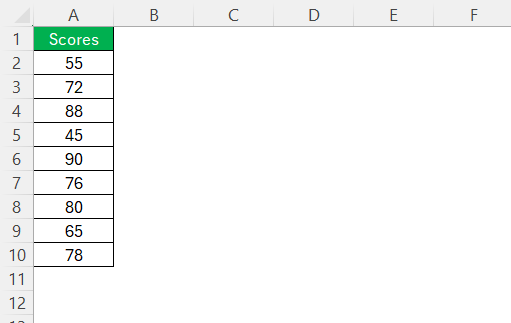
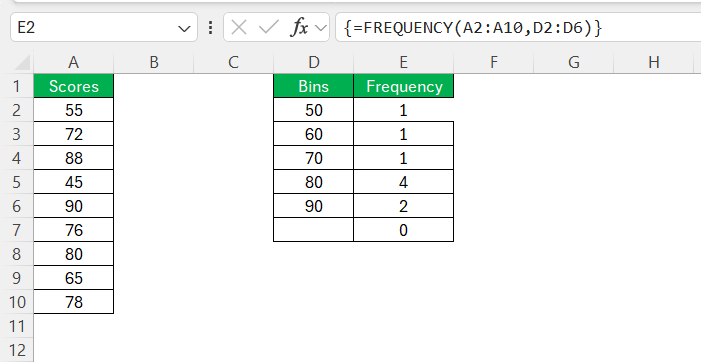
STEP 1: Prepare the data array.
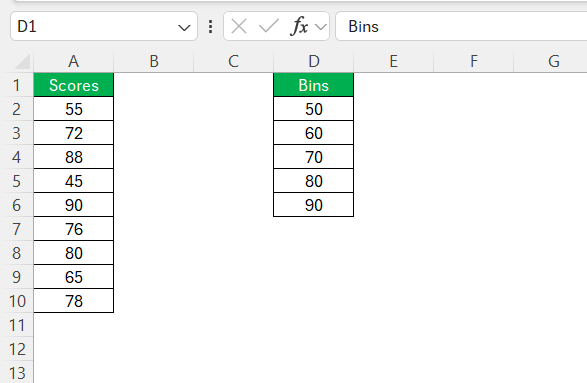
STEP 2: Define the bins array.
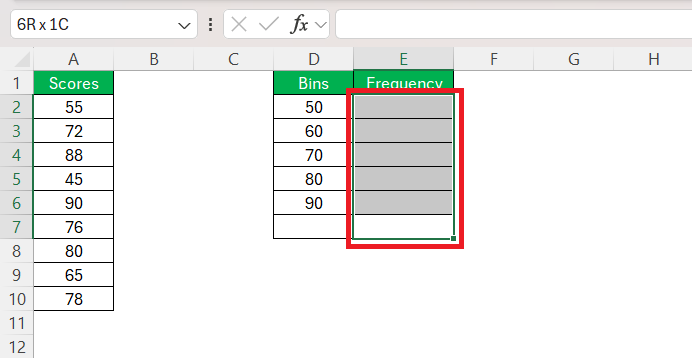
STEP 3: Select the range of cells where I want the frequency results to display. Make sure that there’s one cell for each bin, plus an additional cell to capture any values above the highest bin.
STEP 4: Enter the FREQUENCY function formula:
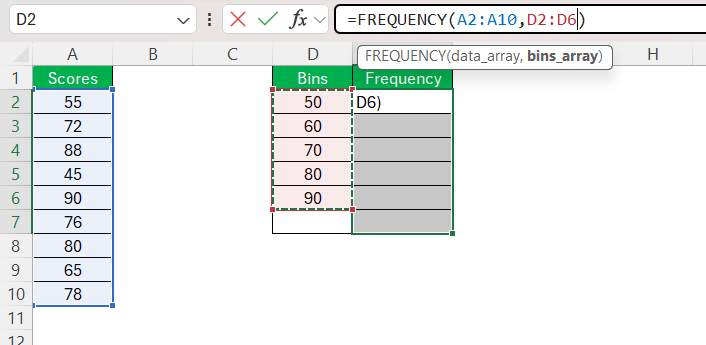
STEP 5: Press Enter.
Advanced Frequency Techniques
Method 1: Data Analysis ToolPak
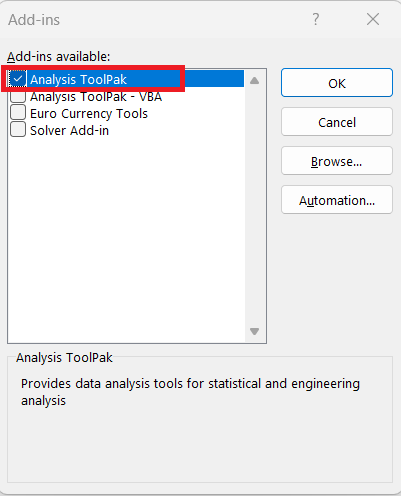
STEP 1: If the ToolPak is not enabled, go to File > Options > Add-ins > Excel-Addins.
STEP 2: Tick the Analysis ToolPak option.
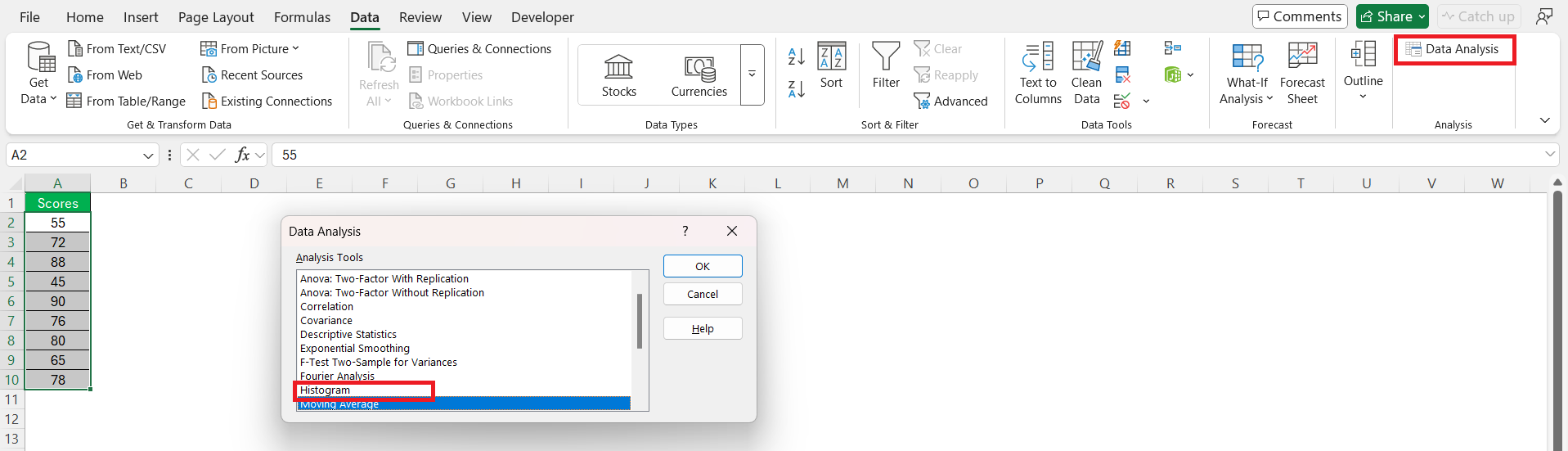
STEP 3: Go to Data > Data Analysis.
STEP 4: In the dialog box, select Histogram.
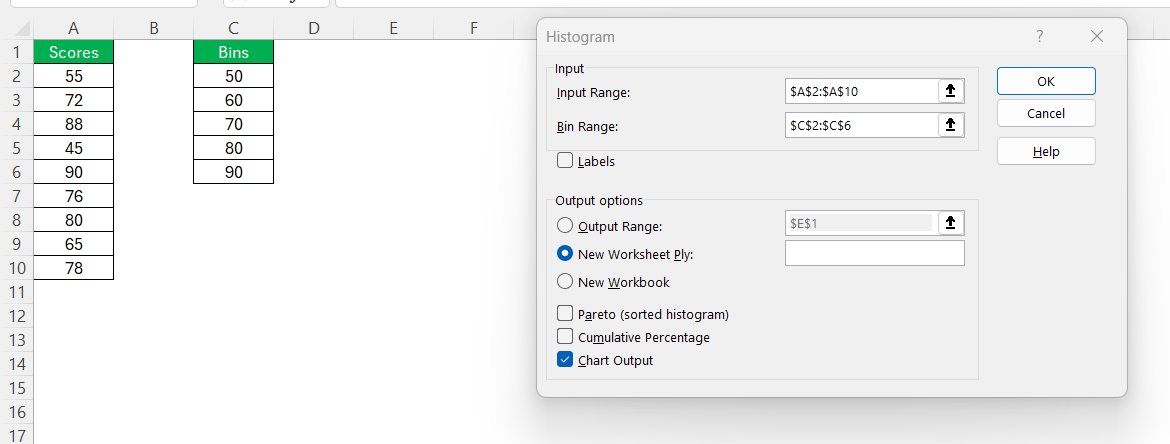
STEP 5: Select the data ranges, choose New Worksheet Ply and check the option for Chart Output.
Excel generates the frequency distribution, complete with a histogram, providing me not just numbers but a visual feast of data insight.
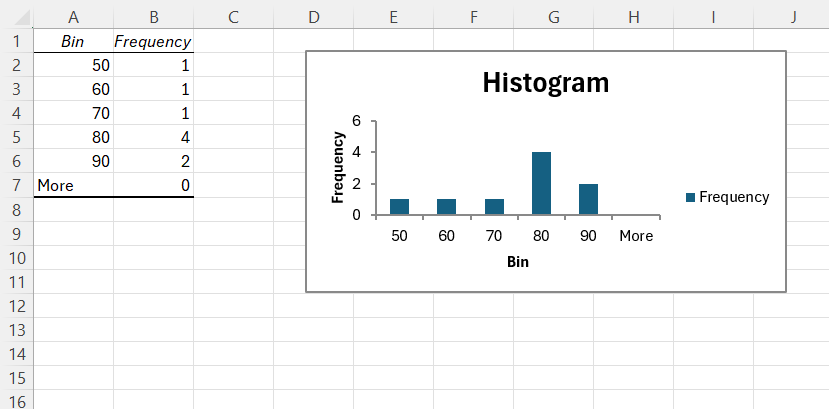
Method 2: Pivot Tables
STEP 1: Select my data range. Go to Insert > PivotTable.
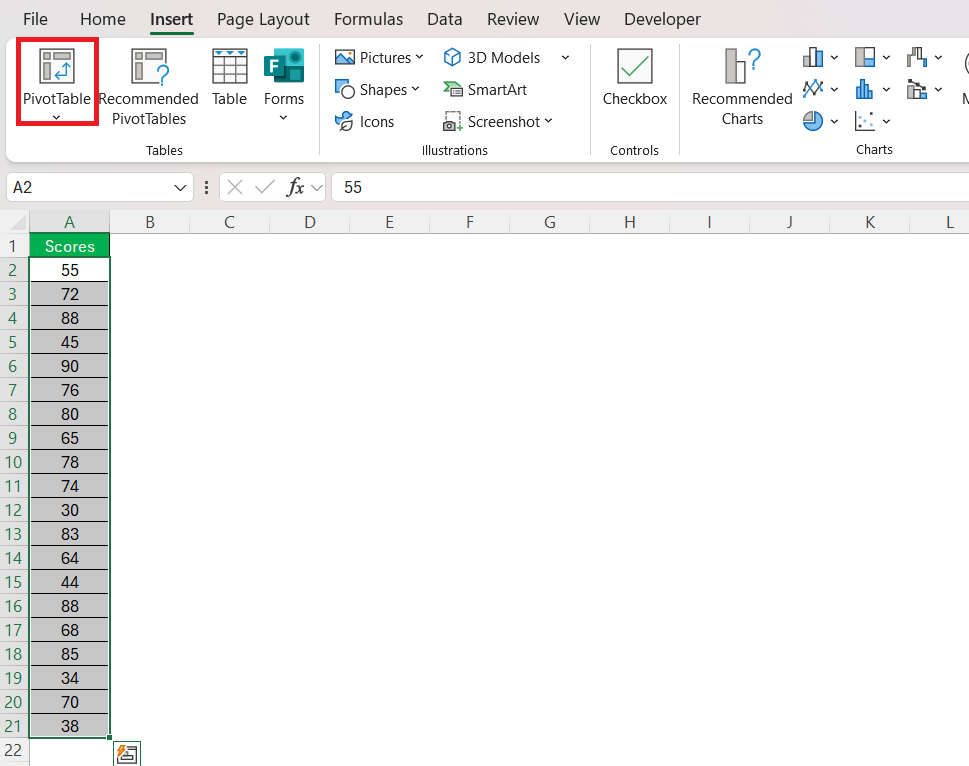
STEP 2: In the dialog box,
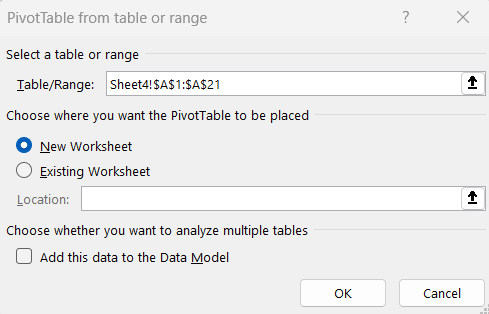
- Specify the data range.
- Choose where PivotTable report is to be placed.
STEP 3: Drag my desired data field to both the Rows and Values areas.
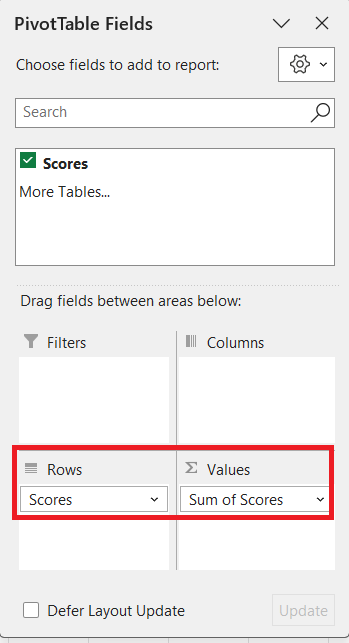
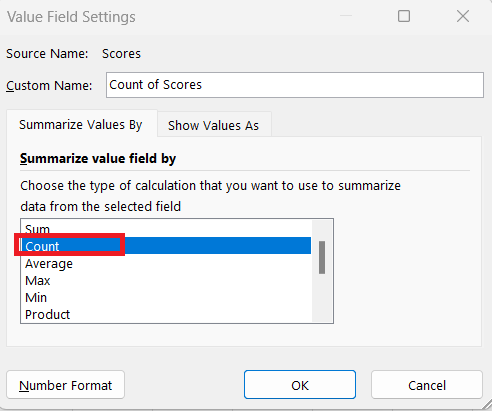
STEP 4: Adjust the default setting by switching from Sum to Count.
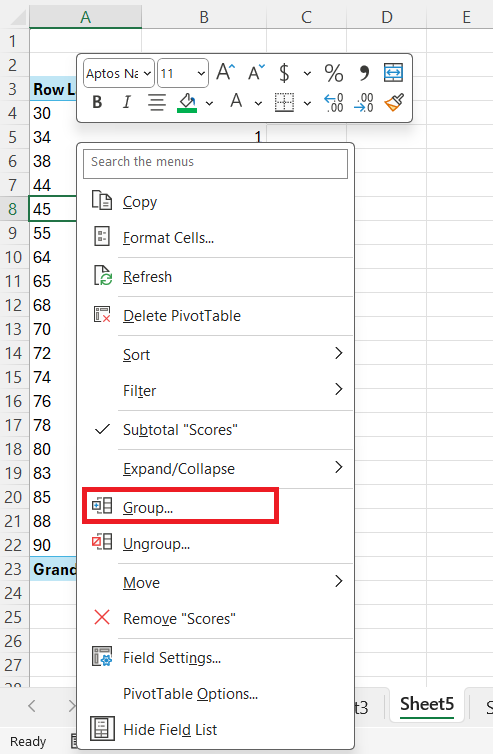
STEP 5: Right-click on a row label and select Group.
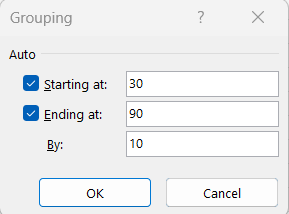
STEP 6: Specify the start and end points and the interval of the bins.
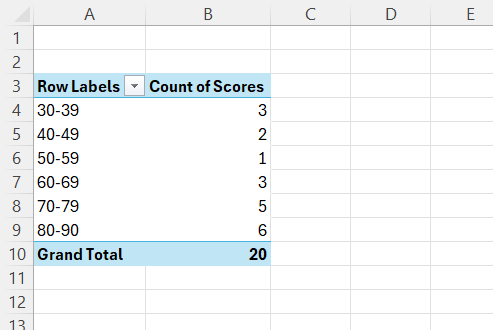
The frequency table will be created.
FAQs
What is the FREQUENCY function?
The FREQUENCY function is used to count how many values fall into specified ranges.
What are bins?
Bins are the range limits used to group data.
Does the FREQUENCY function work with text?
No, the frequency function can only work with numbers. They ignore text and blank spaces.
Why do we need to add one extra space for the frequency function?
The frequency function returns a count for values that are above the last bin.
What Are Some Creative Ways to Display Frequency Distribution?
When displaying frequency distribution, the following methods can be used:
- Classic histogram
- Cumulative frequency graph.
- Sparklines.
- Pareto Chart.
Why use frequency?
Frequency is calculated to understand the distribution of the data. It allows you to know the variability, trend, and pattern within the dataset. It is used to analyze large datasets and simplify complex information into understandable frequencies.
How to calculate frequency ?
To calculate the frequency of occurrence, use the FREQUENCY function in Excel.
- Set up the data array
- Create bins.
- Use the function
=FREQUENCY(data_array, bins_array).

John Michaloudis is a former accountant and finance analyst at General Electric, a Microsoft MVP since 2020, an Amazon #1 bestselling author of 4 Microsoft Excel books and teacher of Microsoft Excel & Office over at his flagship MyExcelOnline Academy Online Course.

 30 Days - Full Access









