 Free Practice Workbook
Generating random letters in Microsoft Excel is a straightforward process that leverages the powerful CHAR and RANDBETWEEN functions. By combining these functions, you can create random single letters or even strings of letters for various applications, such as testing data or creating placeholders. This guide will walk you through the steps to harness Excel’s capabilities for random letter generation, providing practical examples and tips along the way.
Key Takeaways:
- Excel can generate random letters using the CHAR and RANDBETWEEN functions.
- A simple formula can return a new random letter every time the sheet recalculates.
- You can create both uppercase and lowercase random letters by changing the number ranges.
- Random letter strings are useful for testing data, training, and placeholders.
- Copy and paste as values to make them static.
Table of Contents
Random Letter Generation
CHAR Function
The CHAR function can be used to convert a number to a letter. For example, you can input the number 65 to return A.
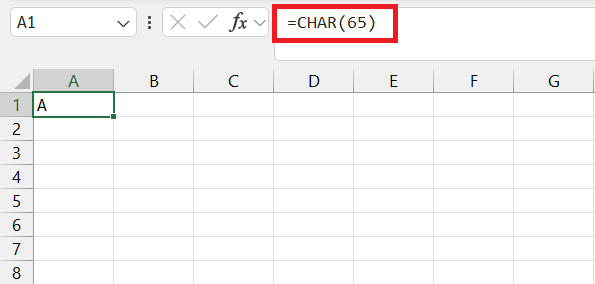
This function is simple and useful when you want to insert characters that are not part of the keyboard.
RANDBETWEEN
The RANDBETWEEN function is used to generate a random value every time the sheet recalculates. You can set a top and bottom limit, and RANDBETWEEN will return a value within that range.
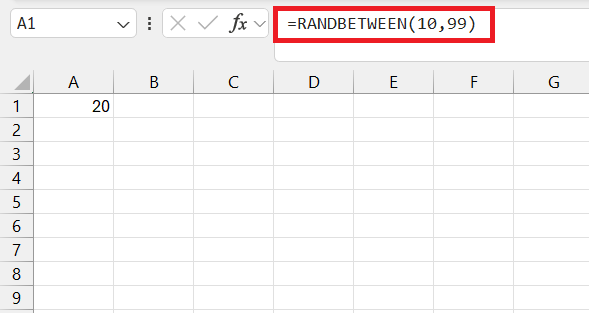
This formula is perfect when you want to stimulate a roll of dice.
How to Generate Random Letters
Formula 1: Individual Random Character
Getting a random letter in Excel doesn’t require a magic spell; just a simple formula. By combining the power of CHAR and RANDBETWEEN, you create a formula like =CHAR(RANDBETWEEN(65,90)), which will return an unexpected uppercase letter every time.
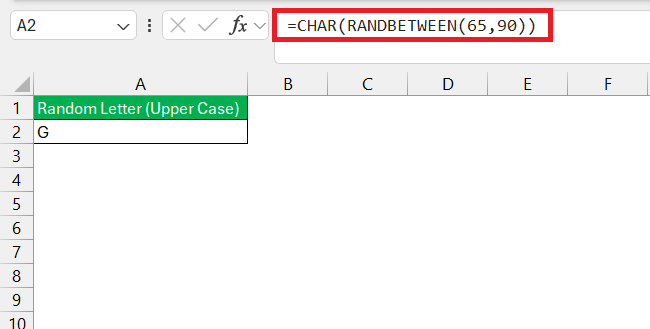
Want something more low-key? Adjust the numbers to the lowercase range (97-122), and voilà, a surprise in small caps awaits!
Formula 2: Strings of Random Letters
When you need more than a solo act and want a whole ensemble of letters, crafting strings of randomness comes into play. By using a concoction like =TEXTJOIN(“”, TRUE, CHAR(RANDBETWEEN(65, 90)), CHAR(RANDBETWEEN(97, 122))) repeatedly, you build strings of alternating uppercase and lowercase letters.
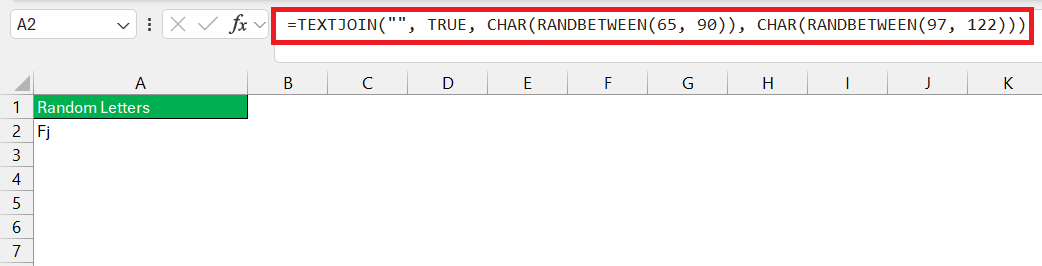
With each copy, new and unique strands of 6-letter text strings unfurl down your Excel canvas, showcasing randomness at its finest.
FAQs
Does Excel have a built-in random letter generator?
No, Excel doesn’t have a built-in random letter generator function. However, you can craft your own using the CHAR and RANDBETWEEN functions to simulate this effect and generate random letters as needed.
Can I Generate a Specific Length of Random String?
You can use a combination of the CHAR function, the RANDBETWEEN function, and & operator. To create a random letter between A to Z, use the formula:
=CHAR(RANDBETWEEN(65,90))
To make a longer text, you can combine multiple formulas withthe & operator.
=CHAR(RANDBETWEEN(65,90))&CHAR(RANDBETWEEN(65,90))&CHAR(RANDBETWEEN(65,90)) generates a 3-character random string.
How to Create a Random List Without Duplicates?
- Use the RANDBETWEEN function to generate a list of random numbers.
- After that, use the remove duplicate features to highlight any duplicates.
- Then, simply remove those duplicates from the list.

John Michaloudis is a former accountant and finance analyst at General Electric, a Microsoft MVP since 2020, an Amazon #1 bestselling author of 4 Microsoft Excel books and teacher of Microsoft Excel & Office over at his flagship MyExcelOnline Academy Online Course.

 30 Days - Full Access









