 Free Practice Workbook
Slide Master is a key tool for creating uniformity in your presentation. But once I’ve customized my layout, I want to get back to editing my individual slides. This can be done by exiting the Master Slide View. In this article, I will show you how to get out of the Slide Master in PowerPoint.
Key Takeaways:
- Slide Master controls the overall design of all slides at once.
- Use Slide Master to edit fonts, layouts, and styles globally.
- Click Close Master View to return to normal slide editing.
- Make sure to save changes before exiting the Slide Master.
Table of Contents
Understand Slide Master in PowerPoint
What is Slide Master?
Slide Master is a special editing mode in PowerPoint that allows you to control the overall design of your presentation. Instead of editing slides one by one, you can change fonts, colors, layouts, placeholders, and styles across all slides at once.
It is the blueprint for all slide layouts and the gatekeeper of presentation consistency.
How to Customize Slide Master View
To start customizing the slides to my needs, I follow the steps below:
Click on the View tab > Slider Master.

The current layout of Slide Master will be shown.
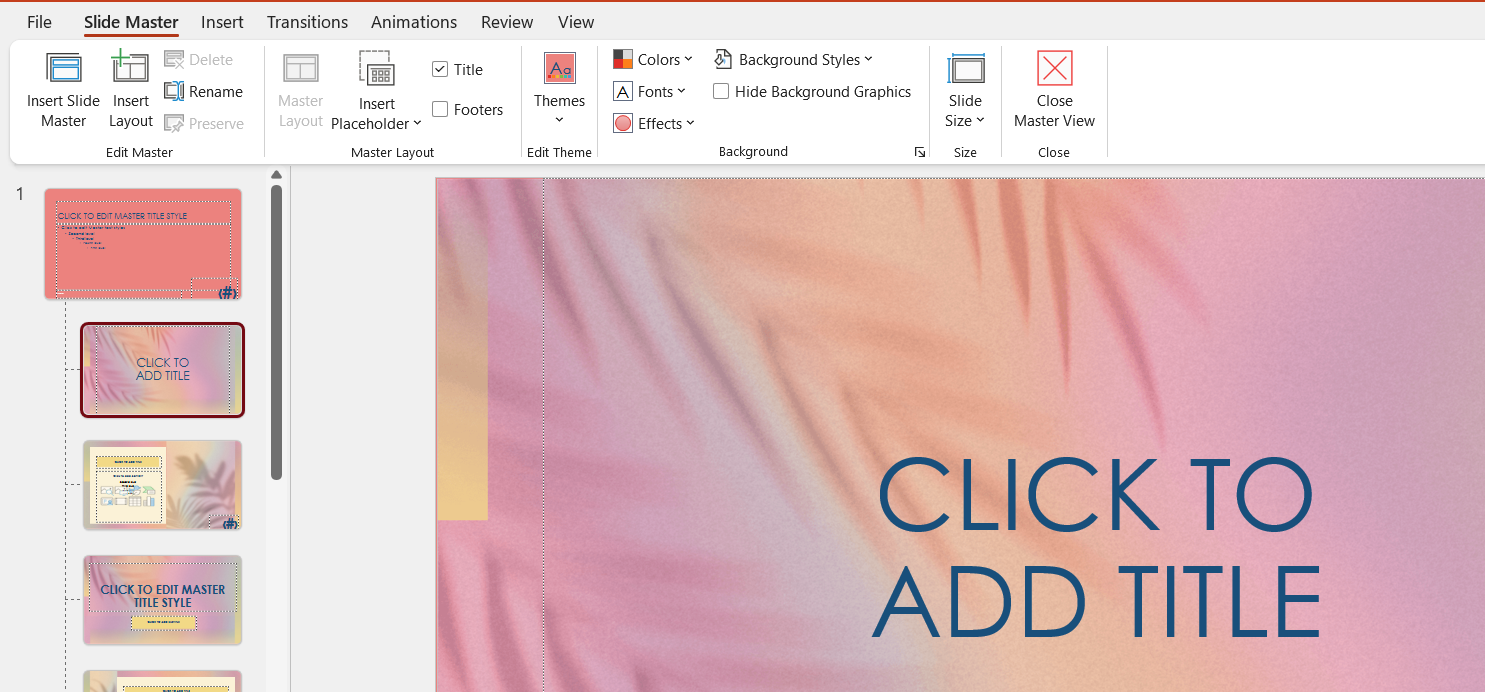
Here, I can add a new slide, change the layout, or apply different themes. But you need to remember that these changes will be applied to the entire presentation.
Why Exit Slide Master
When I’m in Slide Master, I edit templates that apply to every slide with that layout. This is great for making global changes, but if I try to edit specific slide content in this view, those edits might not work the way I want. For example, adding text in the Slide Master can affect all slides, not just the one I’m working on. Exiting the Slide Master is important to avoid accidentally applying changes everywhere.
The Essentials of Managing Slide Masters
Preserve Important Slide Masters During Edits
When I’m working within the Slide Master, preserving certain slide masters becomes vital to avoid their accidental deletion. Should PowerPoint attempt to “clean house” and remove unused masters, I can prevent this by marking them as preserved.
By selecting a slide master and clicking the Preserve button on the Slide Master tab, I place a virtual pin next to the master, signaling PowerPoint to keep it intact.

It’s a simple but important step to make sure that the created slide master isn’t lost.
Deleting Unwanted Slide Masters and Layouts
When it’s time to declutter the presentation, deleting unwanted slide masters and layouts is straightforward but should be done cautiously. I simply right-click on the slide master or layout thumbnail and select “Delete Master” or “Delete Layout,” respectively.
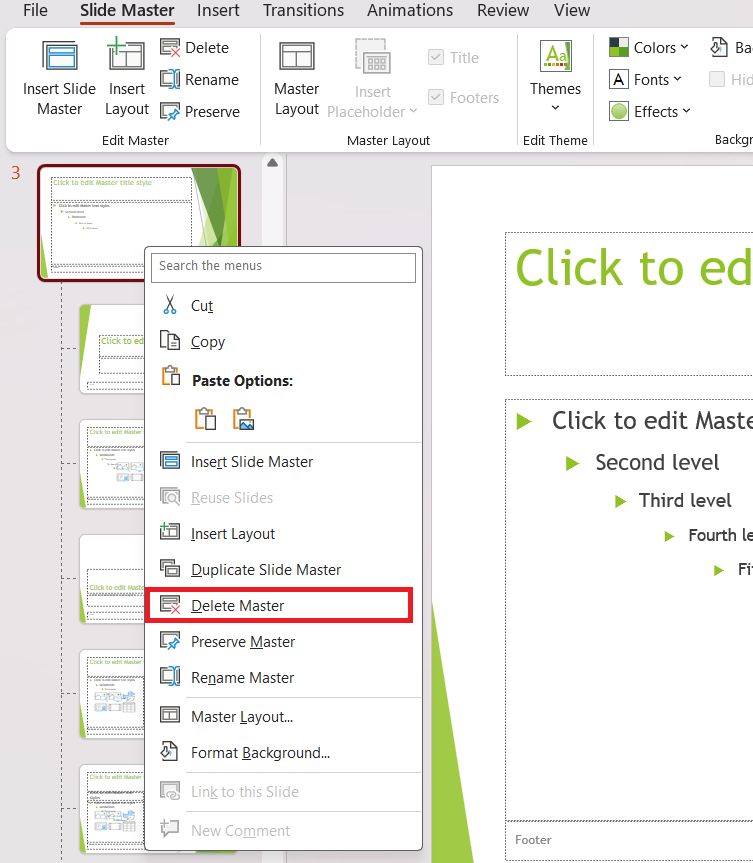
This cuts out any unnecessary designs. However, it’s paramount to first ensure none of my slides are using the layout I aim to remove. If they are, I replace the layout on those slides before attempting deletion. Otherwise, I could inadvertently strip part of the presentation of its formatting.
How to Get out of Slide Master
Simple Steps
Exiting Slide Master view is as smooth as making a PowerPoint transition. Once I’ve made all the necessary tweaks and am satisfied with the design, I find and click “Close Master View” on the Slide Master tab.

Follow the points below before exiting:
- Make sure you double-check which layouts are applied to which slides.
- Always save the changes before exiting.
- Preserve necessary master slides
Applying Your Edits Across Presentations
Ensuring Changes Reflect in Your Presentation
After investing effort into perfecting Slide Master layouts, making sure that every change is reflected in the presentation is key. I immediately check my work by flipping through the slides in Normal view. If a placeholder isn’t where it should be, or a font hasn’t updated, I retrace my steps.
Sometimes, I need to reapply the layout to individual slides to kickstart the changes. It’s just a matter of selecting the slides and then applying the layout anew from the Layout button under the Home tab.
Using Customized Layouts in New Presentations
My tailored slide master and layouts don’t have to be confined to a single presentation — I can use them as a template for future work. To do this, I save the presentation as a PowerPoint Template (.potx file).
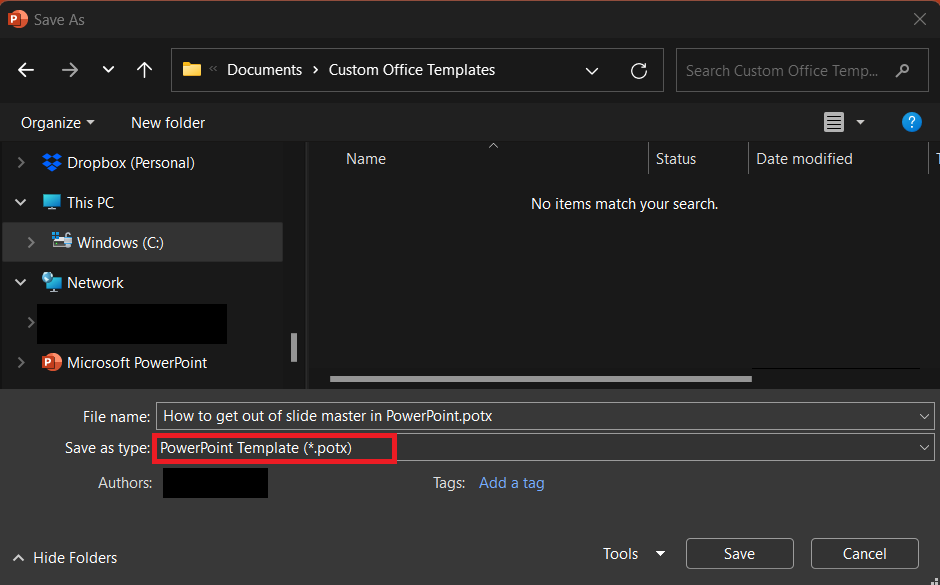
When I start a new project, I simply choose my custom template and all the bespoke designs are there, ready to impart consistency and branding from the first slide onward. This practice is a time-saver for anyone creating series of presentations with a uniform look.
Troubleshooting Issues
Multiple slide masters will complicate the presentation and increase the file size. To fix this, follow these points:
- Find which slide master is being used.
- Transfer any slide master being used to another presentation to its source.
- Delete the surplus slide masters.
FAQs
How to Exit Slide Master View?
To exit the slider master view: You can go to the Slide Master tab and click on Close Master View.
How to Delete Unused Slide Masters?
You can right-click on the Slide Master that you want to delete and select Delete Master. It will be deleted provided it is not applied to any slides.
How to Apply My Slide Master Layout to Another Presentation?
To apply my Slide Master changes to another presentation, I save the current presentation as a theme or template. Then, in the new presentation, I apply this saved theme from the Design tab or open a new file from the saved template to inherit all the changes.
How to Undo an Action in Slide Master View?
You can undo an action in Slide Master view by pressing ‘Ctrl’ + ‘Z’ on my keyboard or clicking the undo button in the Quick Access Toolbar. This reverts my last action, letting me correct mistakes effortlessly.
Why can’t I delete slide master in PowerPoint?
I can’t delete a slide master in PowerPoint if it’s currently in use by one or more slides. First, I’ll need to assign a different master or layout to those slides. Only then will PowerPoint permit me to delete the unwanted slide master.

John Michaloudis is a former accountant and finance analyst at General Electric, a Microsoft MVP since 2020, an Amazon #1 bestselling author of 4 Microsoft Excel books and teacher of Microsoft Excel & Office over at his flagship MyExcelOnline Academy Online Course.

 30 Days - Full Access









