The Ultimate Guide to Grouped Frequency Distribution in Excel

John Michaloudis
 Free Practice Workbook
Microsoft Excel is a great tool for data organization and analysis.
It is used to create grouped frequency and categorize data into intervals.It is useful to spot patterns and trends when working with a large dataset.
In this article, you will learn how to transform raw data into a grouped frequency distribution. Key Takeaways:
Table of Contents
Grouped Frequency Distribution
Excel is not just about plugging numbers and basic calculations; it’s a robust tool that can help you organize and understand your data with greater depth. Through its various functions and features, Excel enables you to group data into frequency distributions, which is a key technique in statistical analysis and business intelligence. With Excel, you’ve got a clear path to tidy and categorize information that’s prime for insights.
A grouped frequency distribution is used to categorize raw data into different groups. It helps sort data into intervals or groups so that you can spot patterns and trends. Each group contains a range of values, and the distribution shows you how many data points fall into that bin. It is useful when dealing with a large dataset where keeping track of each score is not practical.
How to Create Grouped Frequency Distributions
Method 1: Pivot Tables
Pivot Tables in Excel are like your data’s best friend, allowing for swift and flexible summary reports. They make setting up grouped frequency distributions a breeze. To get started, you’ll insert a pivot table by clicking on the Insert > Pivot Table. In the PivotTable dialog box, select OK.
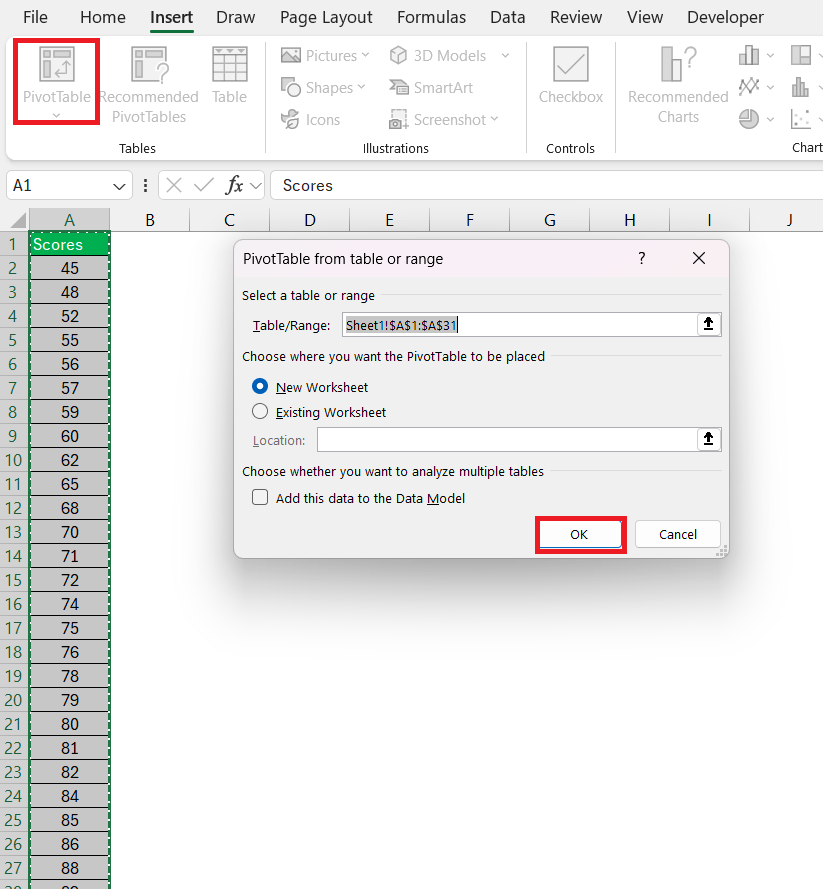
You can drag desired fields to specific areas and adjust value settings to count occurrences. For instance, let’s say you’re dealing with student’s scores. After creating your pivot table, you’ll drag the ‘Sales’ field into the Rows area and again into the Values area. Click on the arrow next to the value field and select ‘Value Field Settings.
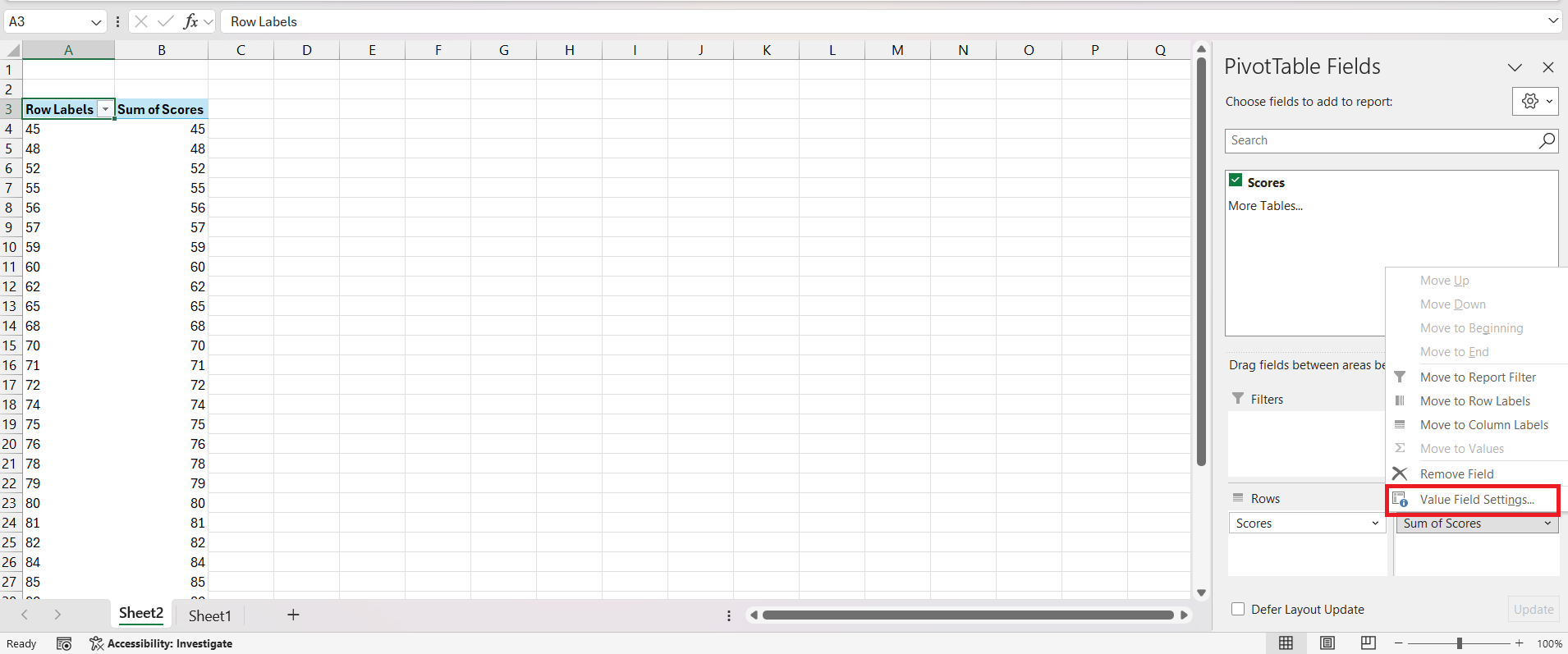
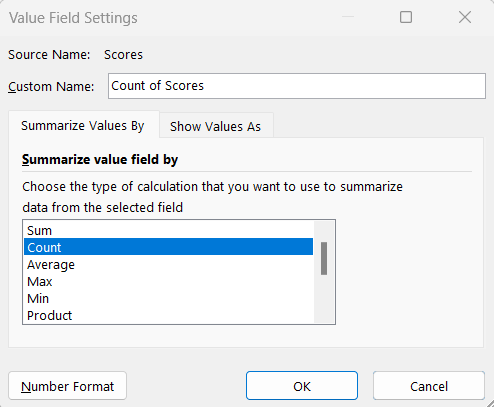
You can change the calculation from ‘Sum’ to ‘Count’.
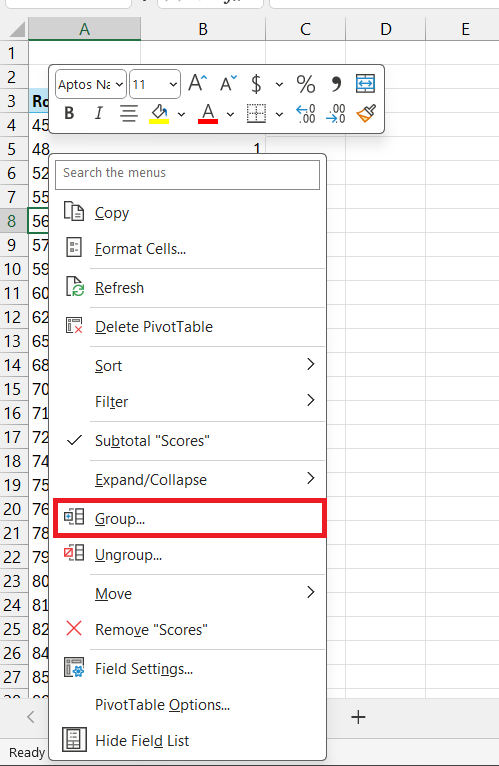
Next, you’ll group your data into bins by right-clicking on the Row Labels, and selecting ‘Group’.
You can define your desired range and bin width.
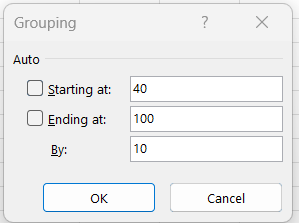
Excel does the rest, neatly counting the frequency of data points per bin, giving you an instant grouped frequency distribution. Voilà!
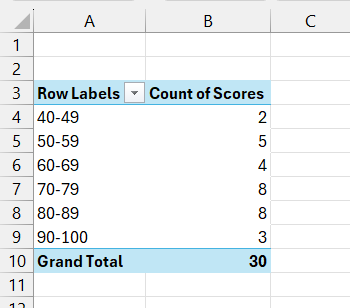
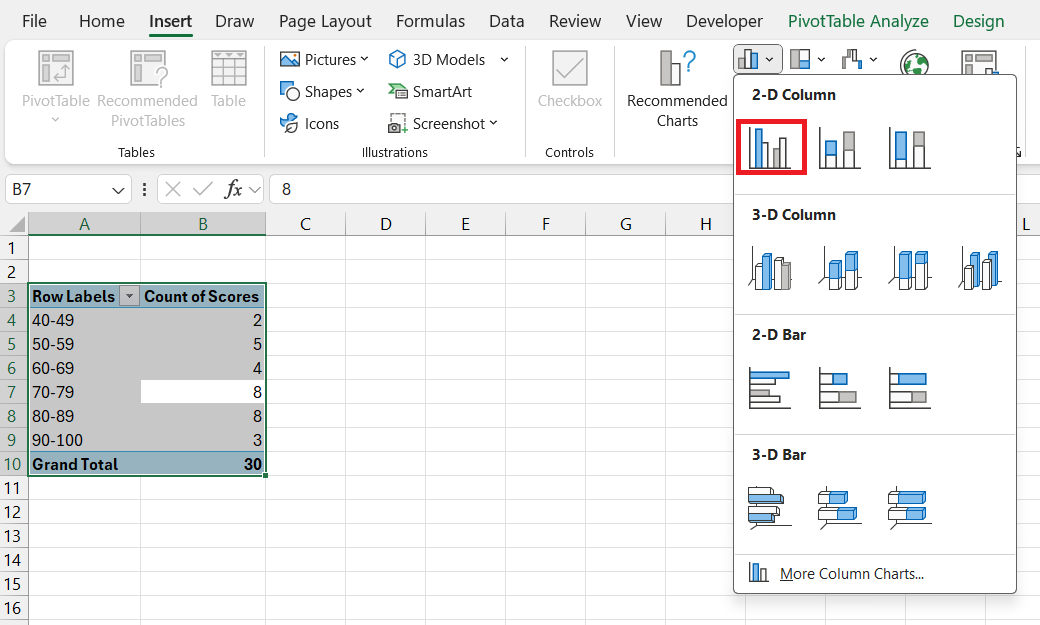
Now, go to Insert > Insert Column or Bar Chart > Clustered Column.
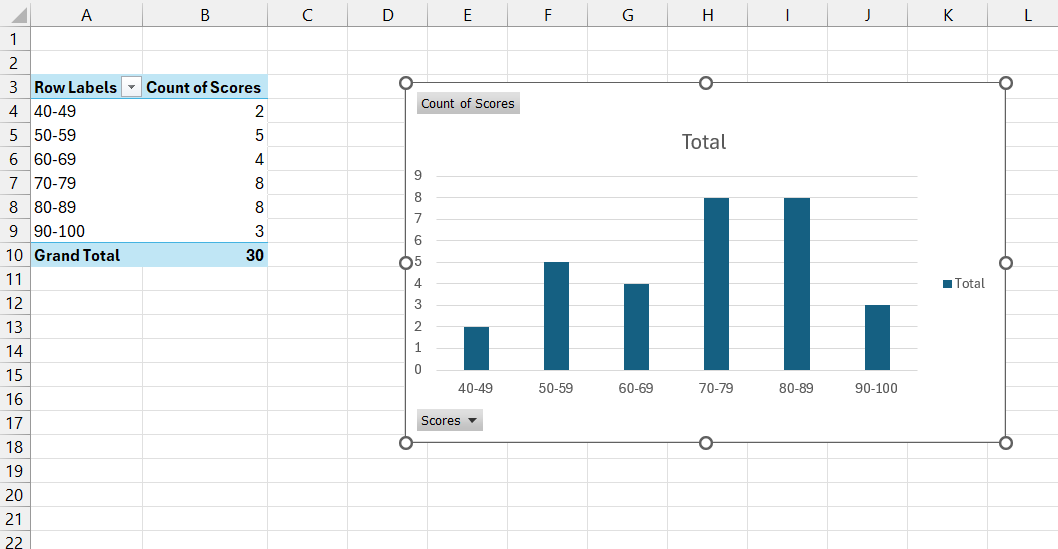
The chart for grouped frequency distribution will be inserted into the worksheet.
Method 2: Data Analysis ToolPak – For the Detail-Oriented
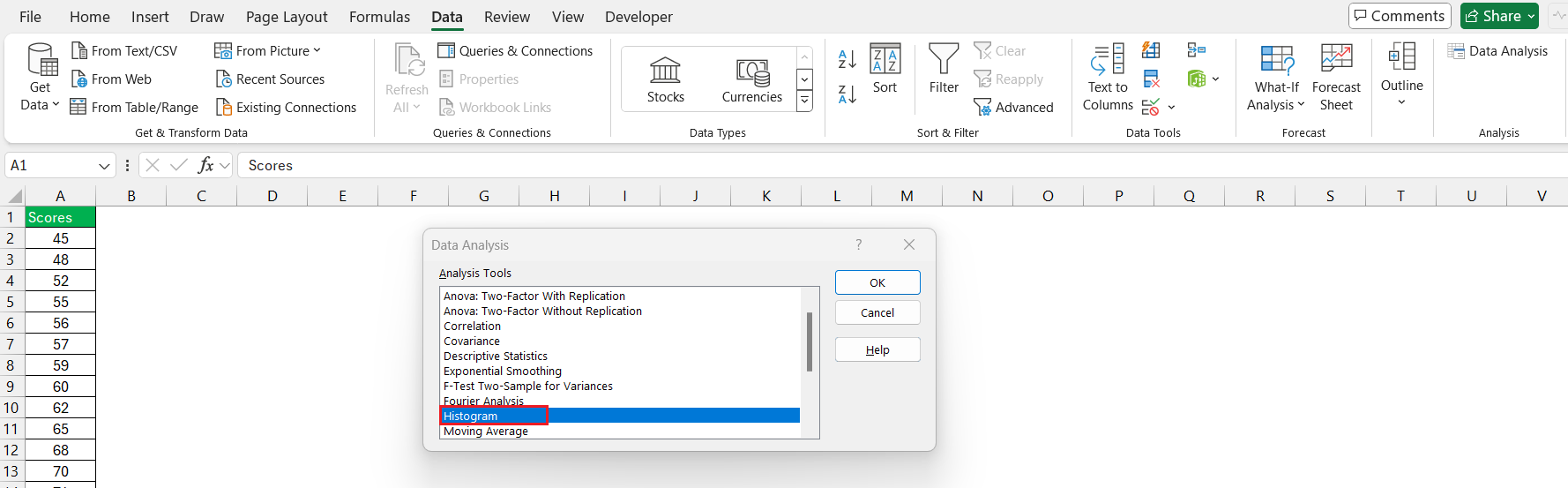
The Data Analysis ToolPak is your secret weapon for more detailed statistical analysis, including crafting grouped frequency distributions. If you’re the type who loves details and customization, this will be your preferred method. It’s not on by default, so your first step is enabling this feature. Once you’ve set your sights on that shiny Data Analysis icon under the Excel Data tab, you’re ready to plunge into a world of options.

To create your distribution, select the appropriate data range, including the column header, hit the Data Analysis icon, and pick ‘Histogram‘ from the menu.
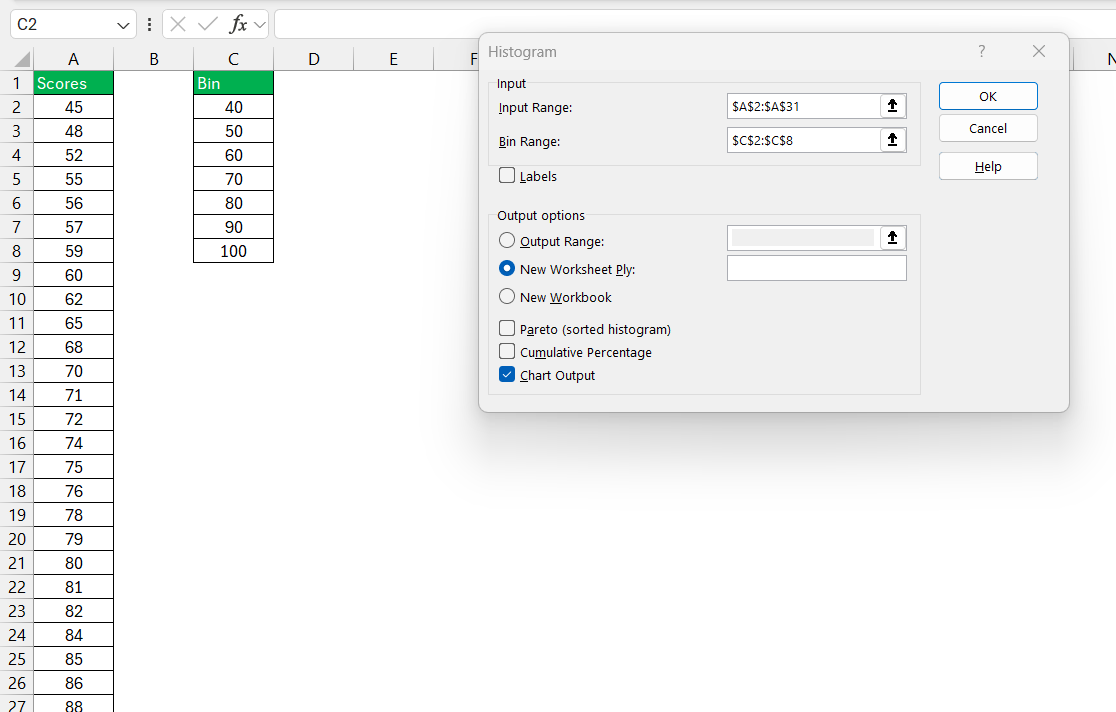
Enter the input range and bin range, and then select New Worksheet. Click OK.
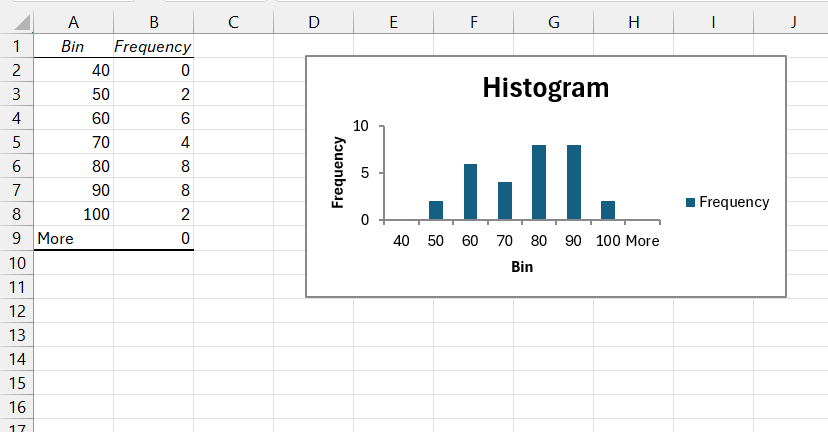
Excel will create a grouped frequency distribution in a new worksheet.
Tools and Tricks
COUNTIF and COUNTIFS
When working with a large dataset, counting numbers is not enough. You may need to count values based on certain criteria by using the COUNTIF and COUNTIFS functions. The COUNTIF function is designed to count values that meet 1 criteria, and COUNTIFS allows you to check multiple criteria.
For example, if you have survey data and want to count how many respondents were 20 years old, use the COUNTIF function:
=COUNTIF(A2:A100,”<=20″)
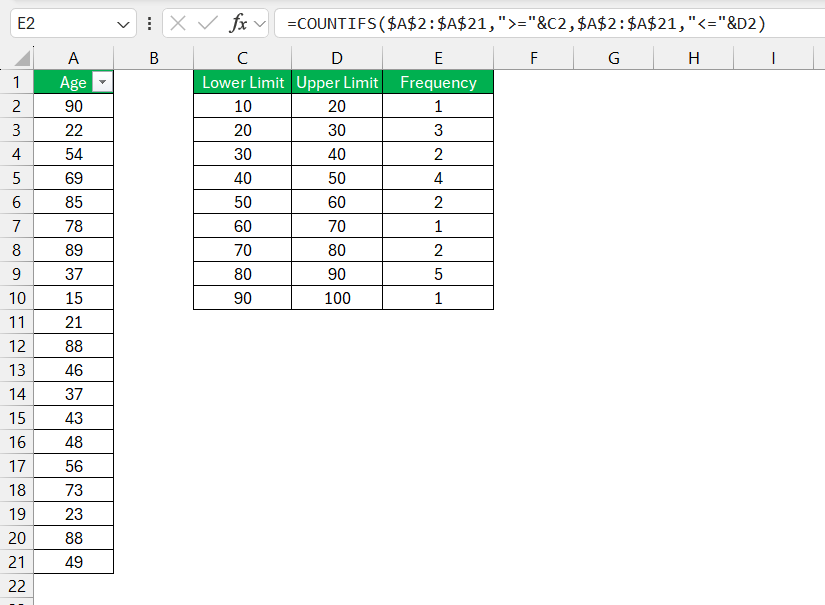
The COUNTIFS() can count the number of people within each age bracket, like 21-30, 31-40, and so on.
Custom Bins
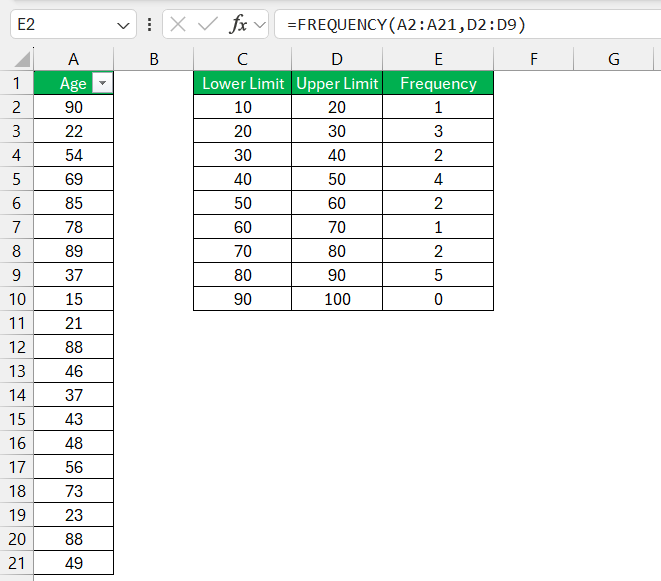
If the default bins are not meeting your requirements, you can use a custom bin size. This can be done by using the FREQUENCY function:
FAQs
How to group frequency distributions in Excel?
To group frequency distributions in Excel, you can use the group feature in the Pivot Table.
- Select your dataset.
- Insert a Pivot Table.
- Drag your desired values to both the Rows and Values sections.
- Change to count.
- Right-click one of the Row Labels.
- Select Group.
How to create a grouped frequency distribution using Data Analysis ToolPak?
To create a grouped frequency distribution in Excel, you can follow the steps below:
- Enter input range and bin range in separate columns.
- Go to Data > Data Analysis.
- Select Histogram.
- Input your data range and bin range.
- Select New Worksheet as output.
Excel will create a frequency distribution table.
How to create unequal bins for frequency distribution?
To create unequal bins, follow the steps below:
- Enter your custom bin ranges.
- Use the COUNTIFS() function to count values that fall in each range.
- Apply one condition for the lower limit and one for the upper limit in the formula.
- Copy the formula down for all bin sizes.
What are some limitations of using the COUNTIF function for frequency distributions?
The COUNTIF function is used for counting values that meet one criteria. But if you want to check multiple criteria, COUNTIF cannot be used.
How do frequency distributions work?
Frequency distributions can convert raw data into different bins. It counts the number of values that fall into each bin.
John Michaloudis is a former accountant and finance analyst at General Electric, a Microsoft MVP since 2020, an Amazon #1 bestselling author of 4 Microsoft Excel books and teacher of Microsoft Excel & Office over at his flagship MyExcelOnline Academy Online Course.

 30 Days - Full Access









