 Free Practice Workbook
It is a common task to calculate the number of months between two dates when you are working with financial and project management data. Excel offers various formulas like DATEDIF, YEARFRAC, YEAR and MONTH that can be used to help you in this process. In this article, you will learn different methods to calculate the number of months between two dates.
Key Takeaways:
- The DATEDIF function is used to calculate the number of months between two dates.
- The YEAR and MONTH functions can be used to get a precise result.
- The YEARFRAC function is used to calculate the fractional year between two dates.
- These date functions are important for various time tracking tasks.
- Make sure to format the dates correctly to get accurate results.
Table of Contents
Calculate How Many Months between Two Dates
DATEDIF Function
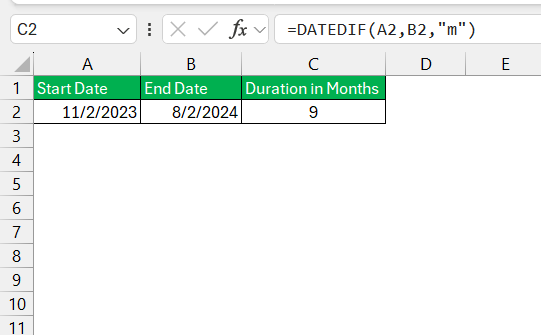
The DATEDIF function is a great tool used to calculate the time span between dates in the form of days, months, or years. The simple syntax for this function is :
=DATEDIF(start_date, end_date, "M")
The third argument is “M”, because you want the result to be in months.
The DATEDIF function is used to check time-sensitive projects, ageing reports, or any situation that needs you to track time.
YEAR and MONTH Functions
We can call upon the dynamic duo, the YEAR and MONTH functions, when precision is non-negotiable in our date-related conquests. These functions slice through dates, distilling the year and month components respectively. Their simplicity belies their strength; by extracting these individual parts, we can reconstruct the time span between two dates with mathematical finesse.
Imagine the elegance of combining these functions: calculating the difference in years, multiplying by 12 to convert to months, and then adding the month components to account for partial years. This method shines for its sheer clarity and consistency, especially when employed alongside more complex formulas.
=(YEAR(B1) – YEAR(A1)) * 12 + MONTH(B1) – MONTH(A1)
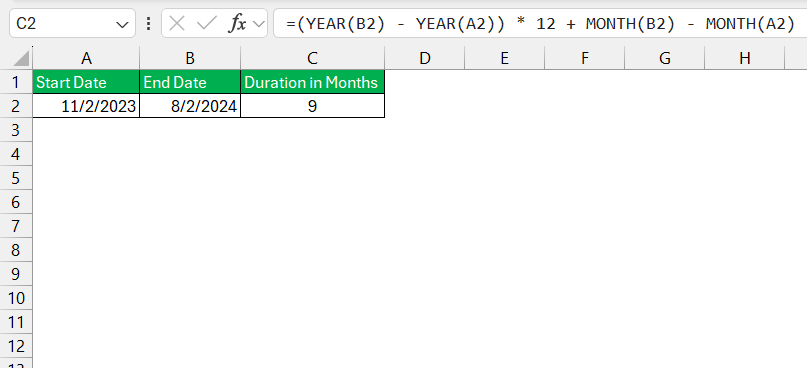
This formula first calculates the difference in years and multiplies it by 12 to get the total number of months, and then adds the difference in months.
YEARFRAC Function
Sometimes, the DATEDIF function may not meet our expectations, and you may need to explore other alternatives. One such approach is the YEARFRAC function. It offers a more precise measurement of the time when dealing with non-integer years. It calculates the fraction of a year between two date,s and then you can multiply the result by 12 to get the number of months.
=YEARFRAC(A1, B1) * 12
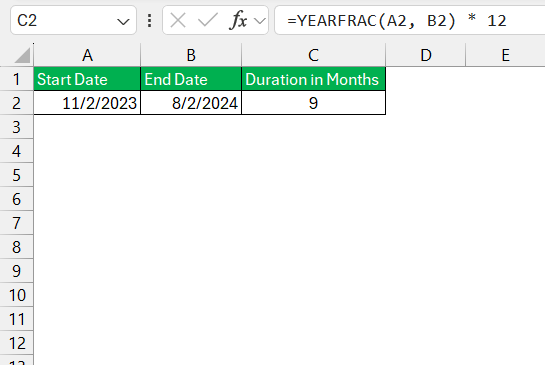
This formula calculates the fractional year between the two dates and then multiplies it by 12 to convert it to months.
Tips and Tricks
You need to verify that the start date and end dates are formatted correctly in Excel. Otherwise, it can lead to incorrect results or data representation. Also, make sure that the duration is formatted as number and not date.
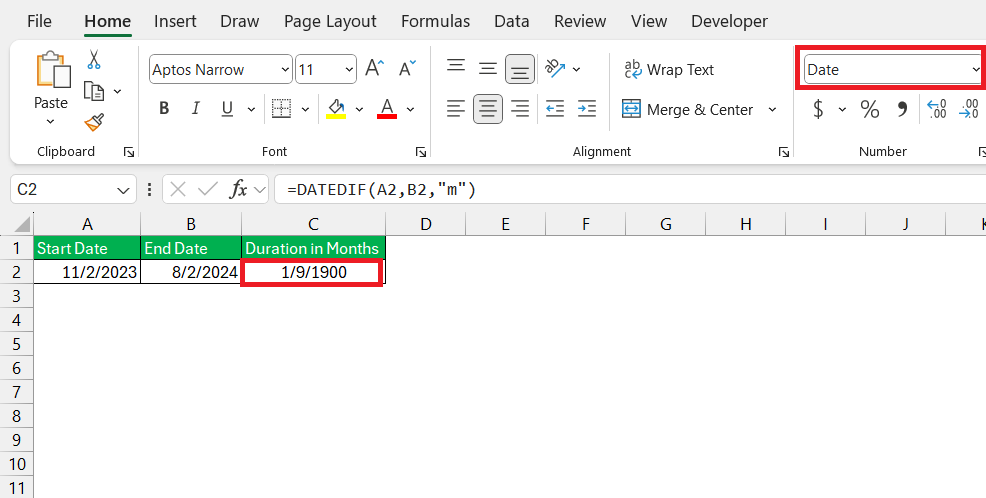
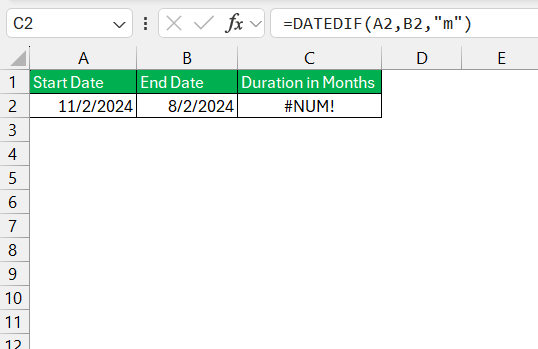
If the start date is greater than the end date, it will return a #NUM! error. You can use IF function to check if start date is greater than end date or not.
FAQs
Why Isn’t DATEDIF Working?
If your DATEDIF function isn’t operating as expected, I’d check for the usual suspects: check that the cell formula is formatted correctly and not set to a date format; confirm the start date is not after the end date; and verify the correctness of the formula’s arguments. These issues are often the culprits behind a malfunctioning DATEDIF.
How to calculate months between two dates in Excel?
To calculate the number of months between two dates in Excel, you use the DATEDIF function with “M” as the third argument, like so: =DATEDIF(start_date, end_date, "M"). This will return the whole months between the two dates.
How to calculate 2 months from a date in Excel?
You can use the EDATE function to add 2 months to a date. The formula will be:
=EDATE(start_date, 2)
Excel will return the exact date, i.e. 2 months ahead of the start date.

John Michaloudis is a former accountant and finance analyst at General Electric, a Microsoft MVP since 2020, an Amazon #1 bestselling author of 4 Microsoft Excel books and teacher of Microsoft Excel & Office over at his flagship MyExcelOnline Academy Online Course.

 30 Days - Full Access









