 Free Practice Workbook
Axis labels are essential tools in data visualization, serving as guides in Microsoft Excel that make the data plotted along the X and Y axes comprehensible. Like a guide in a museum, axis labels provide necessary context, without which the data, however compelling, might be difficult to understand. This guide on how to add axis labels in Excel offers a simple approach to adding informative axis labels to your charts, enhancing both their readability and effectiveness.
Key Takeaways
- Axis Labels help you understand what data is plotted along the X and Y axes.
- You can add primary horizontal and vertical axis titles.
- Click on the default axis title box to change the text.
- Use the Format option to change font style, size, or color.
- Link the axis title to a cell to make it dynamic.
Table of Contents
Axis Labels in Excel Charts
Axis labels serve as critical signposts in the landscape of data visualization. They offer clarity, allowing anyone viewing your chart to quickly understand the data plotted along the X and Y axes. Think of them as the helpful guide at a museum, without whom the artwork—though compelling—might leave you lost in interpretation.
Creating a Chart in Excel without axis labels is like a book without a title; it lacks the necessary context. But fret not, adding these descriptive elements is a breeze. Just follow a straightforward series of actions to insert labels for both the horizontal and vertical axes.
Trust this process, and you’ll elevate your Microsoft Excel chart with informative labels that make your data come alive.
How to Add Axis Labels
Using Chart Elements
Follow the steps below to add axis labels to a chart in Microsoft Excel:
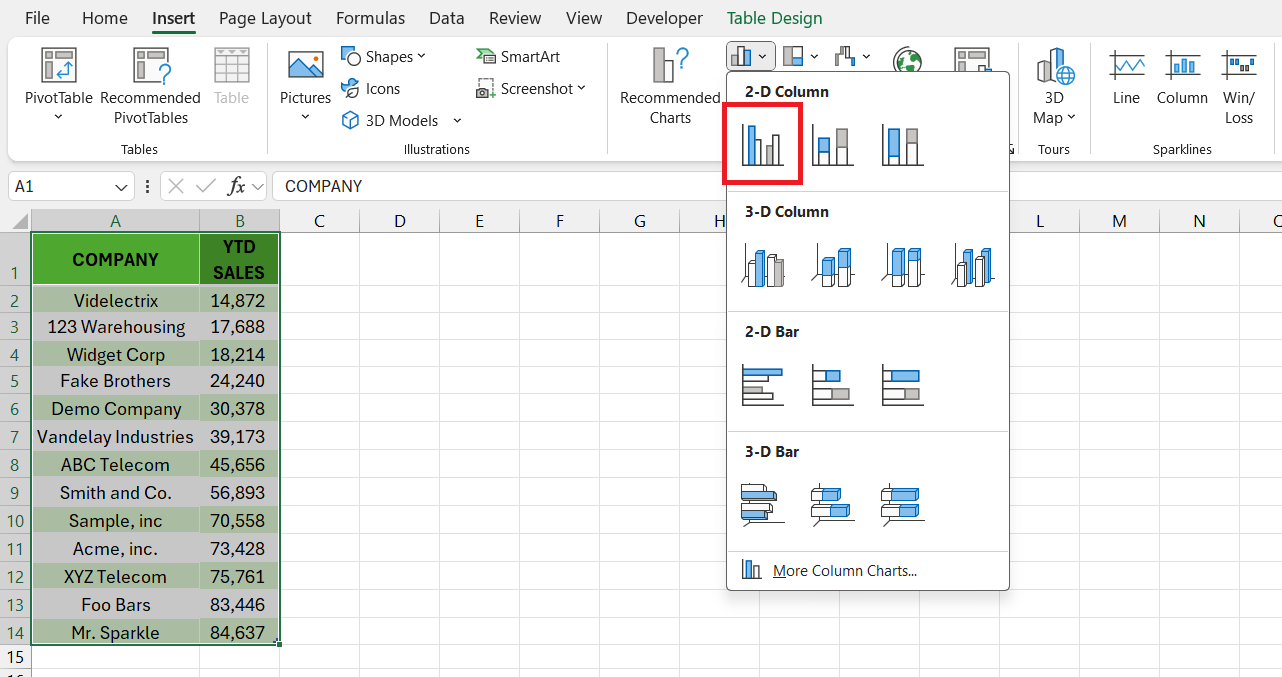
STEP 1: Select your data and go to the Insert tab. Select a line or bar chart.
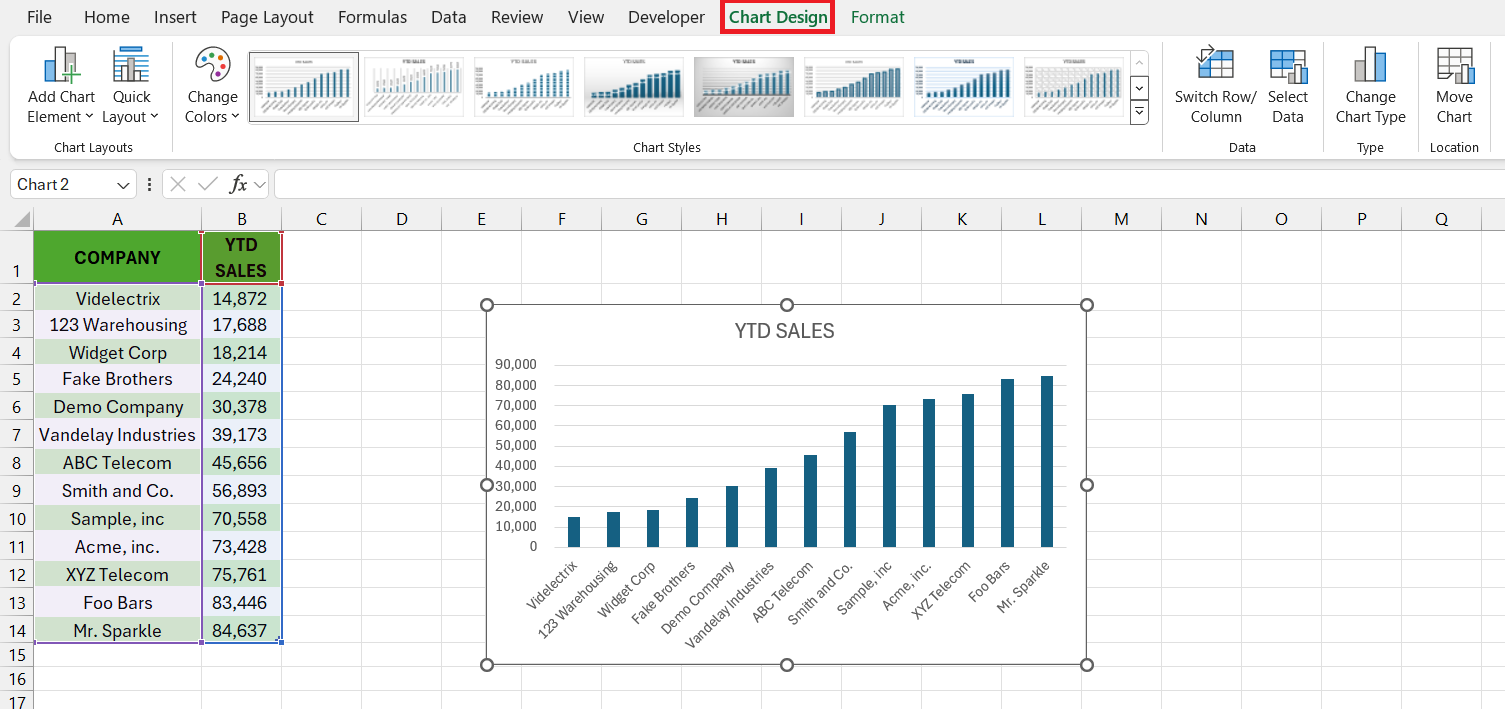
STEP 2: Click on the Chart Design tab.
STEP 3: Click the Add Chart Element > Axis Titles > Choose Primary Horizontal or Primary Vertical.
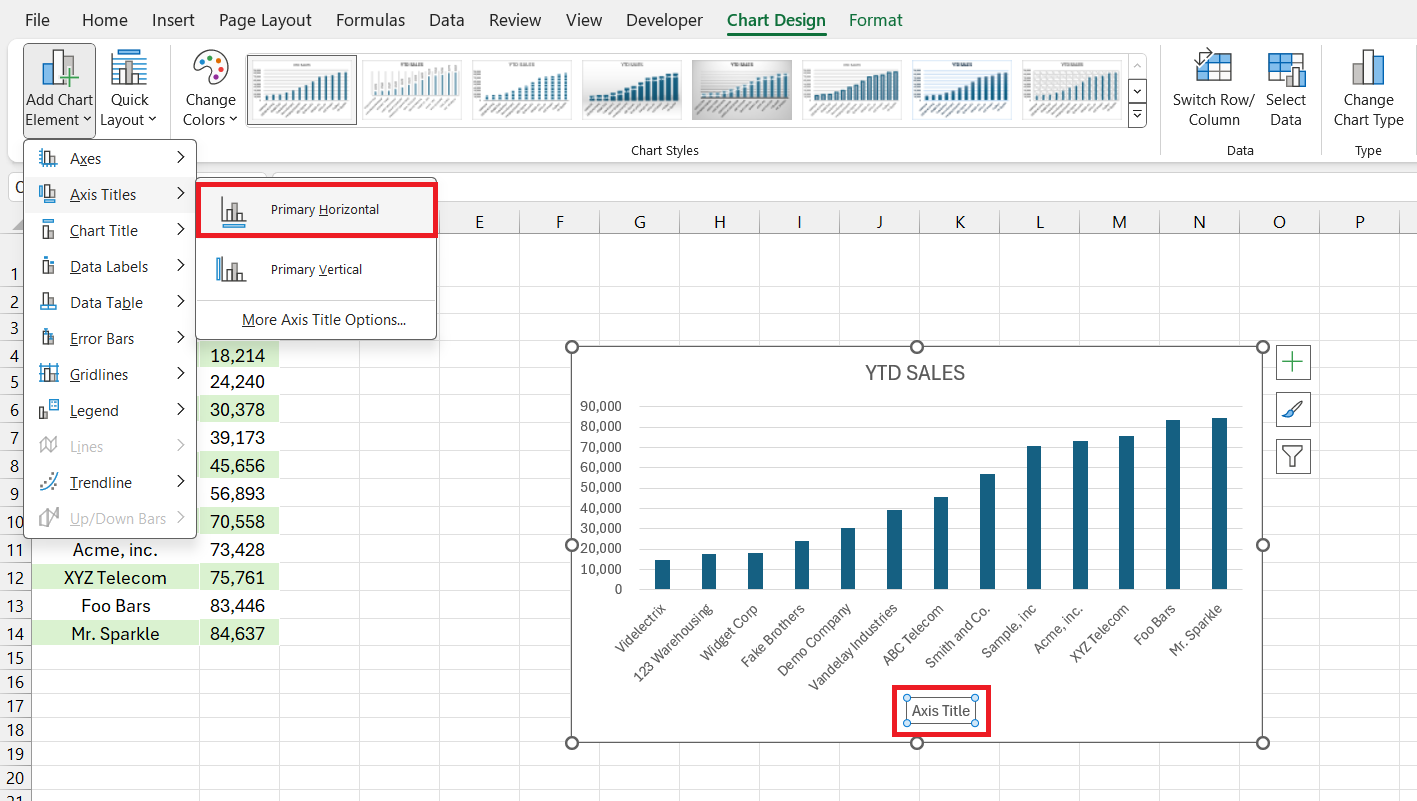
STEP 4: Click on the Axis Title box to edit the text.
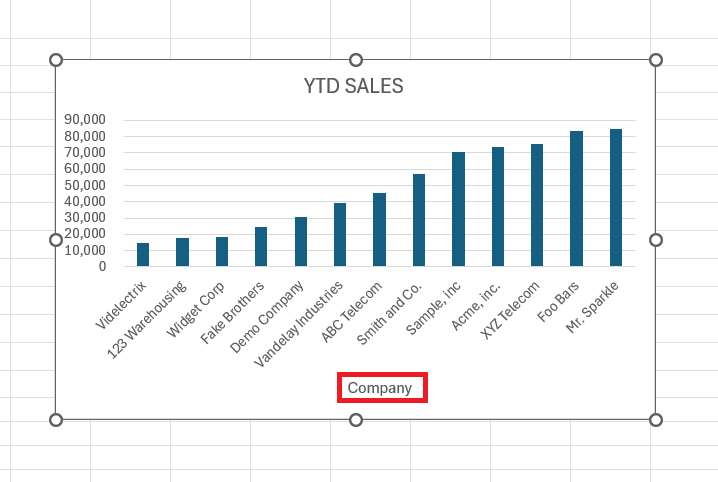
STEP 5: To change font style and color, click on the axis title and insert the Format tab.

The Axis title will now be displayed.
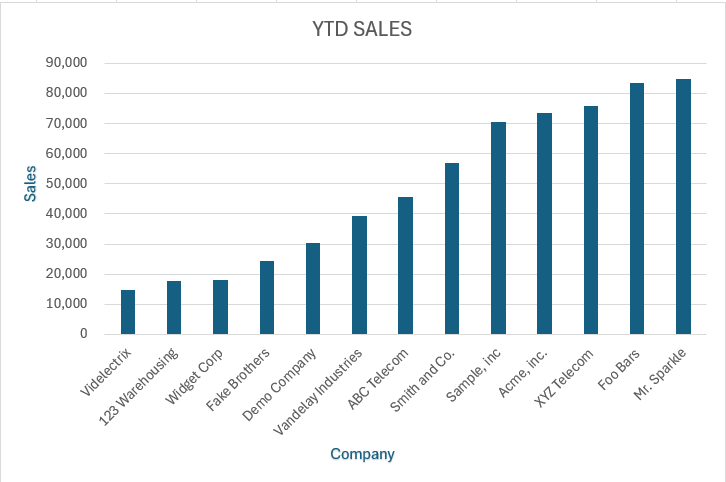
You can also access the Chart elements options by clicking on the + sign on the top right of the chart.
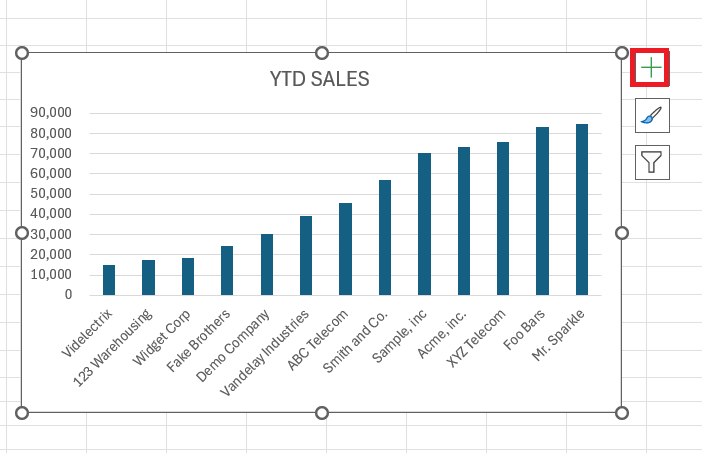
Whether you prefer a stroll through menu options or the straightforwardness of quick access icons, Excel has the method to suit your style.
Advanced Tips
Dynamic Axis Titles
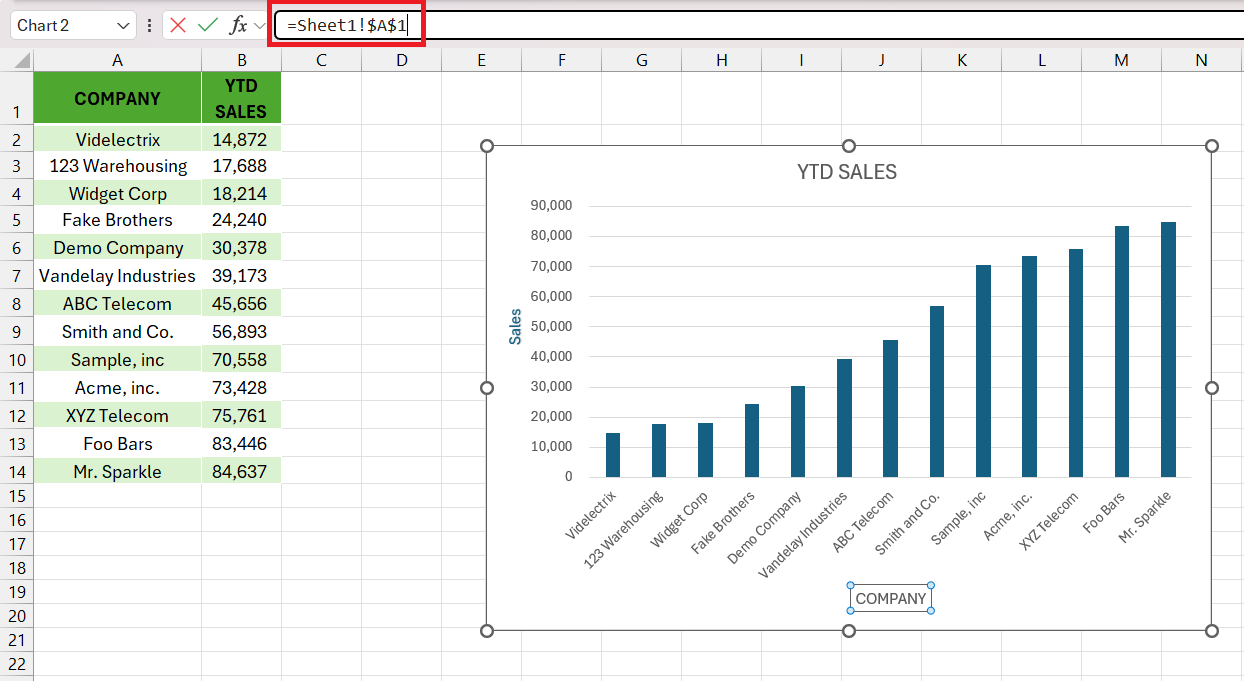
Instead of keeping the axis title static, you can link it to a cell in the worksheet. Whenever you change the value in the cell, the axis title will be updated automatically. Follow the steps below to add dynamic axis titles:
- Select the Axis Title.
- Type an equal sign in the formula bar.
- Click on the cell that contains the value.
- Press Enter.
Troubleshoot Common Issues
Misplaced or Missing Axis Titles
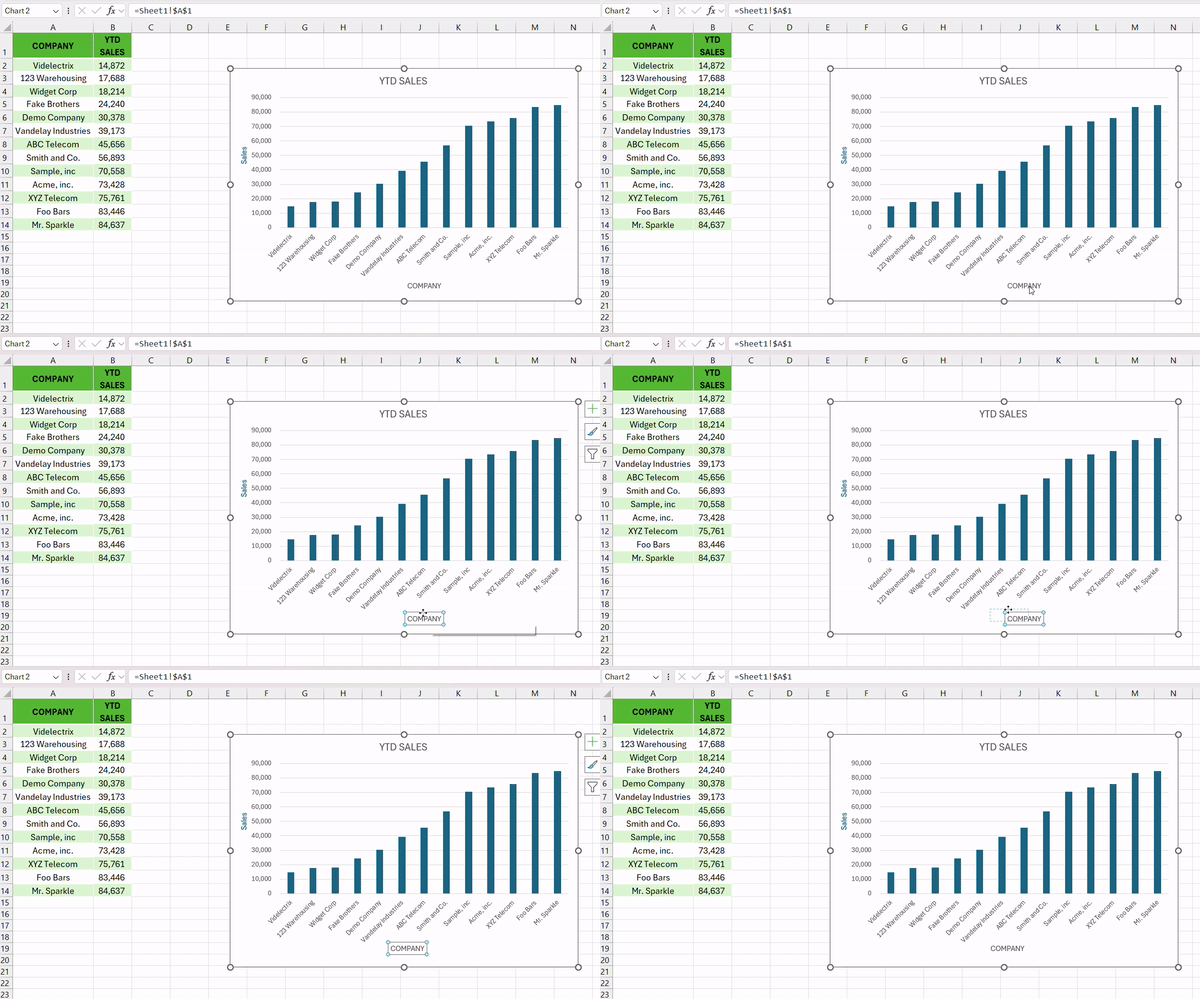
When the axis titles are not visible, you can go to the Chart Element button or Chart Design tab to recheck the Axis Title option.
You can also drag and drop to make them visible again.
Reset Axis Label Formats
If your Excel chart does not look like you wanted it to, you can change it to the default style.
- Click on the axis title.
- Go to the Home tab.
- Press the Clear button.
This will clean all formatting.
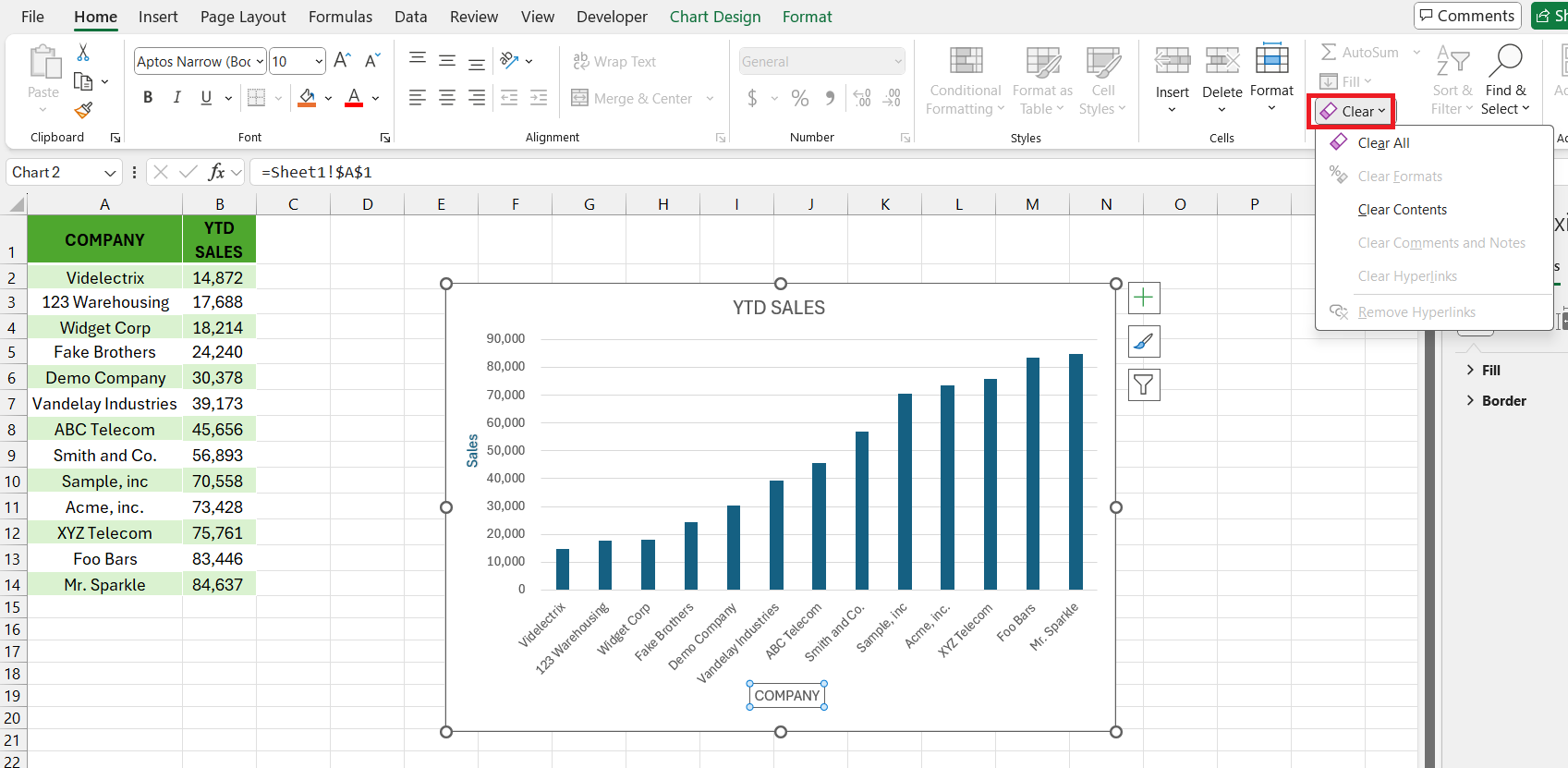
Click on the Reset to Match Style option to return to the original chart design.

FAQs
Define Axis Label
An axis label is used to display what is plotted on each axis. It can be found along the horizontal and vertical axes. These labels help you understand what the values or categories represent in your data set.
How to Add Axis Labels in Excel?
To add axis labels in Excel, follow the steps below:
- Click on your chart to activate the Chart Elements button.
- Choose Axis Titles.
- Select the desired axis – Horizontal or Vertical.
- Enter your text.
- Press Enter.
How to Link Axis Titles to Cell Content in Excel?
Yes, you can link an axis tile to a cell.
- Select the Axis Title.
- Type an equal sign in the formula bar.
- Click on the cell that contains the value.
- Press Enter.
What Are Some Common Problems When Adding Axis Labels?
The common issues that you may face when adding axis labels are:
- Label not appearing.
- Incorrect position.
- Formatting issues.
You can use the Chart elements option to correct these issues. If the problem persists, you can click on Reset to Match Style for a quick fix.
How to format axis labels in Excel?
To format the axis label in Excel, follow the steps below:
- Right-click on the axis title.
- Select Format Axis.
- Select a font style, color or alignment as per your requirement.

John Michaloudis is a former accountant and finance analyst at General Electric, a Microsoft MVP since 2020, an Amazon #1 bestselling author of 4 Microsoft Excel books and teacher of Microsoft Excel & Office over at his flagship MyExcelOnline Academy Online Course.

 30 Days - Full Access









